
- The correct wireless setup guarantees convenient, cable-free HP printing from any device.
- Most common connection problems are easily fixed by following recommended troubleshooting steps.
- HP Smart App, WPS, and USB setup give flexibility for printers without a touchscreen display.
If you’re finding yourself frustrated by wires or the headache of connecting your HP printer to WiFi, you’re not alone. It can be confusing when it seems like your HP printer refuses to connect, even after following all those instructions in the manual. But don’t worry — whether you’re setting things up for the first time or trying again after a hiccup, this guide will help turn what seems daunting into a smooth and stress-free experience.
This article is designed for everyone, from tech newcomers to seasoned users, aiming to make the wireless printer setup as simple and clear as possible. Drawing from what works best across the top HP and tech blogs, every detail has been covered — with natural, easy-to-understand explanations and plenty of troubleshooting tips. You’ll find solutions for every possible snag, along with flexible methods to match your exact printer model and home setup.
Why Connecting Your HP Printer to WiFi Is a Game Changer
There’s no denying the convenience of printing wirelessly from anywhere in your home or office. Instead of being limited by the length of a cable or proximity to your device, a properly connected HP printer lets you send documents from laptops, tablets, or even phones no matter where you’re relaxing or working.
You also gain the freedom to put your printer anywhere within WiFi range — whether tucked away for tidiness or placed where everyone can easily reach it. Gone are the days of huddling around a shared desktop!
However, getting your HP printer online isn’t always instant — factors like complicated WiFi passwords, routers with separate 2.4GHz and 5GHz networks, outdated software, or simple typos can lead to connection failures. Understanding the most common setup issues will keep you a step ahead, making the wireless transition frustration-free.
Preparation: What to Check Before You Start
Before diving into the WiFi setup steps, make sure you’re starting off on the right foot with some simple checks:
- Router Online and Stable: Double-check that your WiFi is up and running — open a webpage or stream a video on your phone to make sure the connection is solid.
- WiFi Details Ready: Have your network’s SSID (name) and the current password at hand. A mistyped password is often the culprit when your printer won’t connect.
- Printer Placement: For setup, position the printer close to your router. This minimizes interference and ensures the strongest signal during the configuration process.
With everything in place, you’re already halfway to success.
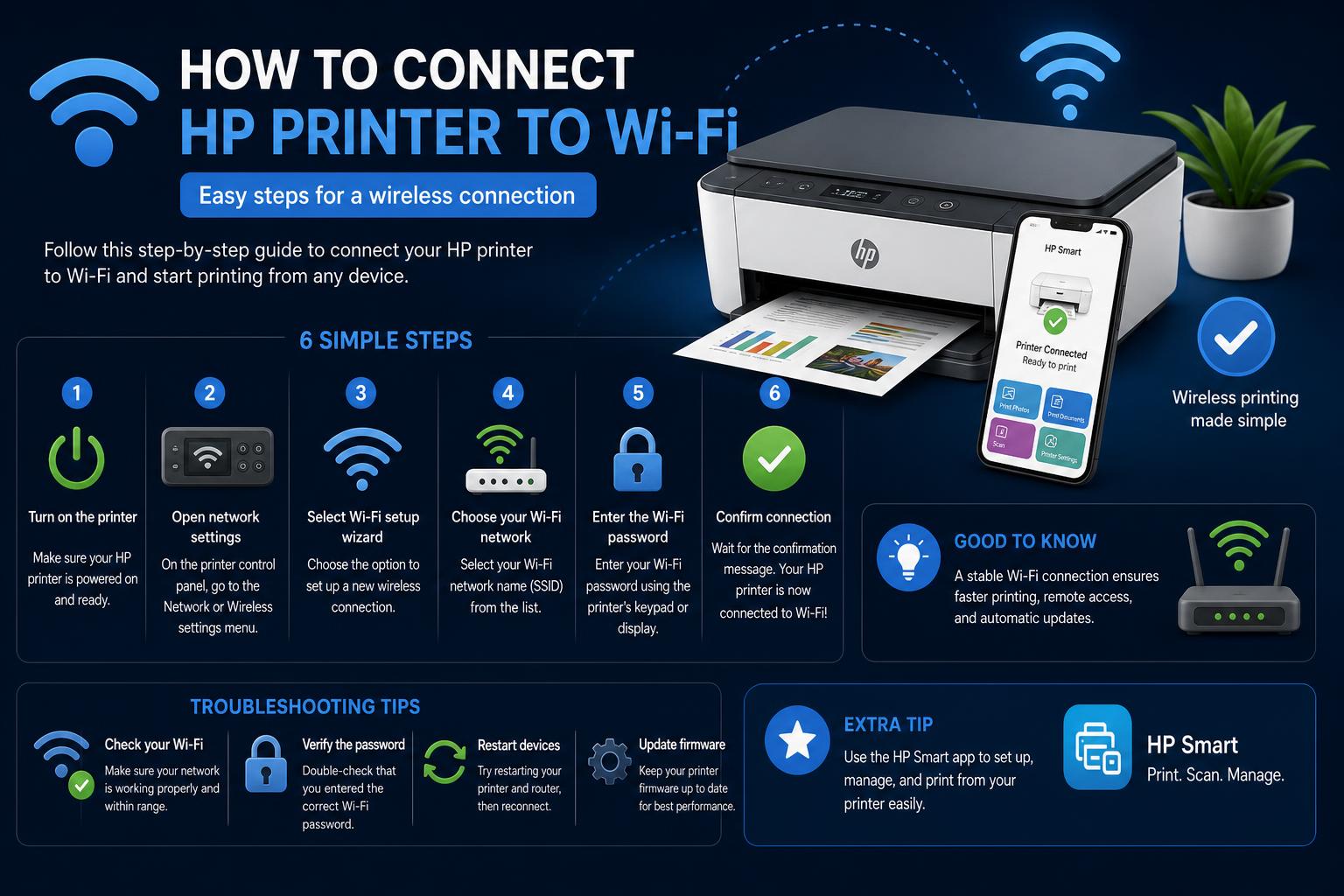
Step-By-Step: Connecting an HP Printer to WiFi Using the Printer Panel
Most HP models have an onboard screen or button panel that makes the wireless setup almost intuitive. Here’s how to use the built-in options on your HP device:
- Locate the Wireless/Network Menu: On the printer’s control panel, press the button with a wireless or network icon, or select it from the touchscreen menu.
- Find the Wireless Setup Wizard: This is your gateway — it will scan for all available WiFi networks within range.
- Select Your Network: From the detected list, choose your home or office WiFi SSID.
- Enter Your Password: Carefully enter the exact password, making sure to use the correct capitalization, symbols, or numbers (this step is vital!).
- Wait for Confirmation: Your printer should confirm successful connection, often by turning the WiFi icon solid or displaying a notification.
If your model lacks a screen or you run into trouble, don’t worry — other methods can help you finish the job smoothly.
Alternative Methods for Models Without a Touch Screen
Not all HP printers make life this simple. If your printer is screenless or setup through the buttons seems too tricky, try one of these easy solutions:
1. WPS (Wi-Fi Protected Setup) Pairing
- Press and hold the WiFi or Wireless button on your printer (look for a radio, signal, or antenna symbol) until the light starts blinking.
- Within 2 minutes, press the WPS button on your router.
- Wait for a solid wireless light on the printer; this means the devices have securely exchanged network details automatically.
Tip: If your printer’s blue WiFi light is flashing, it’s actively searching for a network or waiting to connect.
2. HP Smart App (for PC, Mac, iOS, or Android)
- Download the HP Smart App from HP’s official website or your device’s app store.
- Add your printer: Start the app, tap ‘Add Printer’, and follow the on-screen prompts. The app walks you through wireless setup, detects printers automatically, and often resolves issues along the way.
- Complete final steps: After setup, the app lets you print tests, scan documents, and manage all major settings wirelessly—from your phone or computer.
3. USB Setup (Initial Configuration Only)
- Connect the printer temporarily to your computer using a USB cable.
- Use the HP Easy Start software or the setup wizard in your printer driver to enter your WiFi credentials, then disconnect the USB once setup is finished.
Software and Driver Installation: Don’t Skip This Step!
Once the printer connects to WiFi, proper drivers and supporting software are essential for flawless printing, scanning, and ongoing management. Here’s how:
- Go to HP’s official site or your app store to find the latest drivers, HP Smart App, or printer utilities suitable for your model and operating system.
- During installation, always select the wireless connection option.
- If prompted, allow the setup program to find your printer automatically on the network.
Installing current drivers and apps ensures full access to features like mobile printing, scanning, and advanced maintenance tools.
Troubleshooting When Your HP Printer Won’t Connect to WiFi
Even when you’re methodical, your HP printer might stubbornly refuse to join your wireless network. Don’t panic! Here’s how to quickly address — and usually fix — the most common issues:
1. Restart the Printer and Router
Powering both devices off and on can resolve connection glitches by clearing out temporary errors or conflicts. Simply shut down the printer and unplug the router for about 30 seconds, then power both back up and try setup again.
2. Double-Check the WiFi Password
Typos are the top reason for failed wireless setups. Check your password on another device to ensure it’s accurate. Remember, passwords are usually case-sensitive and special symbols matter.
3. Temporarily Disable Firewall or Antivirus
Some security software may block the printer’s access to your WiFi during setup. Temporarily turn off your firewall or antivirus, reconnect the printer, then re-enable security once it’s online. This is a common step if you notice the printer is found but won’t complete connection.
4. Check Network Band Compatibility
Most HP printers support only 2.4GHz WiFi networks, not 5GHz. Many modern routers broadcast both. Make sure you’re trying to connect the printer to the correct 2.4GHz SSID — check your router’s settings or documentation if you’re unsure.
5. Update Printer Firmware
Outdated firmware can cause stubborn connectivity problems. Visit HP’s website or use the HP Smart App to check for and install any available firmware updates. These updates patch bugs, boost stability, and enhance networking compatibility.
Keeping Your HP Printer Online and Stable
Is your HP printer connected, but keeps dropping off the WiFi? Connection instability is a common problem — here’s how to keep your device online and ready at all times:
- Reposition the Printer: Place your printer closer to the router, away from thick walls, microwaves, or electronics that could interfere with WiFi signals.
- Switch Router Channels: If your home is crowded with devices or you’re surrounded by neighbors’ routers (like in an apartment), changing your router’s wireless channel can minimize interference.
- Regularly Update Firmware: Install updates for both your router and printer to address bugs, improve compatibility, and reduce connection drops.
- Schedule Routine Device Restarts: Restart routers and printers occasionally to refresh network assignments and avoid minor glitches accumulating over time.
When Your Computer or Smartphone Can’t Find the Printer
If your HP device says it’s connected but your laptop or phone won’t “see” the printer, here’s what to check:
- Same Network Check: Both devices must be linked to the same WiFi network. If you have multiple routers, extenders, or guest networks, make sure both devices line up.
- Reconnect WiFi or Toggle Airplane Mode: Quickly toggling WiFi off and on (or airplane mode) on your computer or phone often refreshes device discovery.
- Reinstall Printer Drivers or App: Uninstall then reinstall the printer software (or re-add the printer via Windows’ “Add Printer” tool) to correct corrupted installs or miscommunications.
Extra Tips for a Headache-Free HP WiFi Printer Experience
Some HP models may have unique quirks or extra features to explore. Here are bonus tips drawn from the broadest online resources and expert experience:
- Use the HP Smart App for Everything: From wireless setup to print job monitoring and troubleshooting, the app can often resolve issues faster than manual methods.
- Check for Hidden Networks: If your SSID isn’t showing on the printer, make sure it’s not hidden in your router settings. You may need to manually enter the SSID on devices without displays.
- Guest Mode Limitations: Some printers can’t connect or be detected if your device or printer is on a guest WiFi network. Always use the main network for setup.
- Secure Your Network: After setup, reactivate any security settings you’ve temporarily disabled (firewall, advanced encryption) for ongoing safety.
When All Else Fails: Where to Find Support
If you feel stuck, don’t waste hours in frustration! HP’s official support site offers detailed guides for every model. You can access step-by-step articles, download diagnostic tools, or even reach out for direct, live support. There’s also an active user forum on the HP Community where you can search for advice or post your unique question — often receiving fast, helpful replies.
FAQs About Connecting HP Printers to WiFi
Why won’t my HP printer connect to WiFi?
If your HP printer refuses to connect, double-check your WiFi password, make sure you’re using the 2.4GHz network, and confirm your device is updated. Restarting all hardware and using official HP software can usually resolve persistent errors — and remember, a quick firmware update often makes all the difference.
Can I use my HP printer wirelessly without a control panel screen?
For models without a touchscreen or full menu, use WPS button pairing, the HP Smart App, or initial USB setup to add WiFi credentials. Each method is straightforward and doesn’t require advanced technical skill.
How many devices can connect to one HP wireless printer?
Multiple PCs, phones, and tablets can all print to the same HP wireless printer as long as they share the same network. Just install drivers or the HP Smart App for best compatibility and easiest job management.
Quick Guide: Key Takeaways
- Prepare your network details, have your WiFi password handy, and make sure the router is in range for the easiest setup.
- Use the printer’s panel, HP Smart App, WPS pairing, or a temporary USB connection for flexible choices tailored to your HP model.
- Most connection issues — from failed WiFi joins to missing printers on your device list — are fixed with reboots, fresh password checks, and up-to-date firmware.
- For unusual issues, official support resources and community forums will help get your HP printer online with minimal delay.
With step-by-step guidance, troubleshooting advice, and flexible setup options, connecting an HP printer to WiFi doesn’t have to be a dreaded chore. By preparing your devices, using the right app or manual procedure, and tapping HP’s official resources as needed, you’ll enjoy reliable, cable-free printing from anywhere in your space. Take a little extra time to get things right now, and you’ll enjoy smooth, uninterrupted wireless printing for years to come.