
- Windows 11 automates scanner detection but offers manual installation and troubleshooting guides for any device not found by default.
- Windows Scan and Windows Fax and Scan provide core scanning tools, yet third-party solutions offer crucial advanced features like multi-page PDFs and editing.
- Third-party apps such as UWP Scanner and PaperScan expand capabilities, supporting multiple languages, batch editing, and seamless file management.
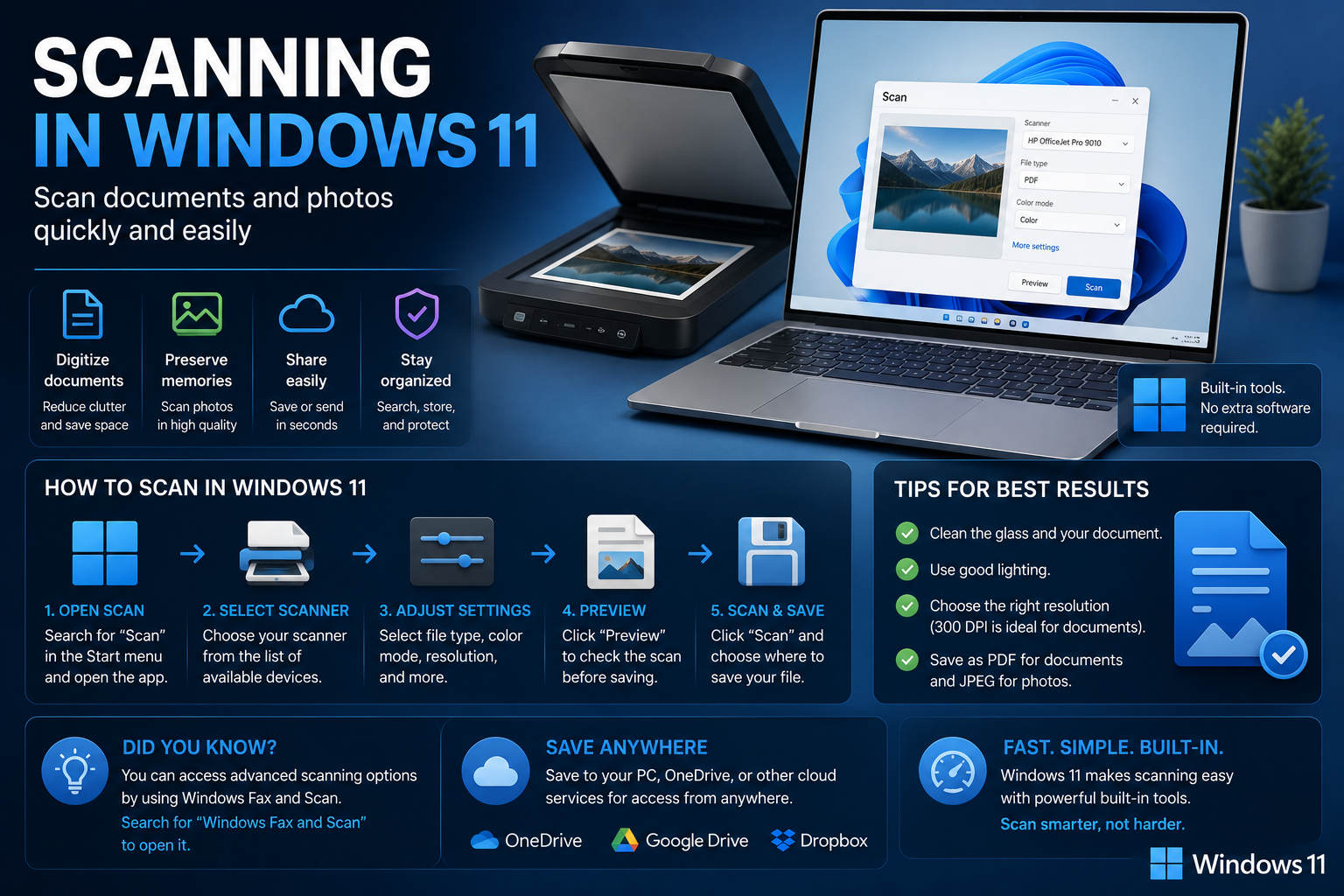
Using a scanner with Windows 11 may seem straightforward, but in practice, there are several nuances, quirks, and options that both beginners and experienced users need to be aware of. With new apps, legacy tools, third-party solutions, and evolving default settings, understanding how to successfully set up and use a scanner on Windows 11 is vital—especially as users encounter obstacles like missing features, changes from previous Windows versions, and the need for efficient document handling at home and work.
This article brings together all key details, tips, and workarounds about Windows 11 scanning, summarizing and reorganizing information from top online sources including Microsoft’s own support, user feedback, and the best supplementary tools available. By the end, you’ll be able to seamlessly connect your scanner, scan all types of documents or photos, and choose the ideal software solution for your daily tasks.
Automatic Scanner Detection in Windows 11
One of the strengths of Windows 11 is its capability to automatically recognize and install most locally connected or networked scanners. When you connect a scanner via USB or join a Wi-Fi/Bluetooth network, Windows typically identifies the device and either installs the correct drivers or prompts you to do so. This process is designed to be seamless, but sometimes automatic detection does not work as expected. In these cases, you might need to install your scanner manually through system settings.
Adding and Installing Scanners: A Step-by-Step Guide
Whether connecting through USB or over a network (wired, wireless, or Bluetooth), you can follow these steps to manually install your scanner if it hasn’t been found automatically:
- From your Windows device, open Start > Settings > Bluetooth & devices > Printers & scanners.
- Click the Add device button next to Add printer or scanner.
- Wait for Windows to search for available scanners. The process might take several minutes.
- When your scanner appears in the list, hit Add device to initiate installation.
- If your device isn’t showing up, select Add a new device manually or The printer that I want isn’t listed, then follow the on-screen instructions to add it.
This sequence works for both local (USB) and networked scanners. Upon completion, verify installation by returning to Bluetooth & devices > Printers & scanners and checking that your scanner is listed among available devices.
Verifying Scanner Installation and Connectivity
Even after installation, it’s important to confirm that your scanner is correctly connected and powered on. You can always go back to the device settings to ensure it appears under Printers & scanners. If the scanner is not detected, double-check your cables, wireless connection, or network configuration. If the device still fails, consult the manufacturer’s documentation or website for specific troubleshooting steps.
How to Scan Documents and Pictures in Windows 11
After ensuring that your scanner is set up, scanning a document or photo uses either the built-in software or additional apps. The recommended tool for most users is Windows Scan, a modern app available through the Microsoft Store. Follow these steps:
- Ensure the scanner is powered on and correctly loaded with your item (flatbed – face down, document feeder – consult your device’s manual).
- Open Start, search for Scan, then select the Windows Scan app in the results. If it’s not present, download it from the Microsoft Store.
- Select your scanner from the drop-down menu in the Scan app.
- Choose the source: Flatbed, Feeder, or Auto-configured.
- Pick the file type for saving scans: JPEG, PNG, TIFF, or Bitmap.
- Optional: Click Show more to change the save location (default is Pictures > Scans).
- Set other preferences like color mode and resolution as needed.
- Click Scan to begin; when finished, use View to open the result with the Photos app, or Close to scan more.
All scanned items are saved in your chosen folder and can be easily accessed later via File Explorer.
Alternative: Windows Fax and Scan
Windows Fax and Scan is a legacy utility familiar to users from previous Windows editions. In Windows 11, however, it’s not installed by default and can be found among the optional features:
- Go to Settings > Apps > Optional features.
- Add Windows Fax and Scan from the available list.
Once installed, you can use it in a similar way as before, but notably, it does not natively save documents as PDFs. To generate PDFs, you’ll need to use Microsoft Print to PDF after scanning—a simple workaround that converts images into portable documents. Some users find its interface outdated, but for certain workflows, especially multi-page scanning, it can be a reliable option.
User Experience and Feedback: Common Issues in Windows 11 Scanning
The upgrade to Windows 11 brought several changes that have frustrated longtime users, especially regarding scanning utilities. For example:
- Windows Fax and Scan is no longer preinstalled. Users searching for ‘scan’ in the Start menu are sometimes directed to this tool, which isn’t yet available on their system unless manually enabled.
- The newer Windows Scan app must be downloaded from the store. If you’re setting up a new device without internet connectivity, this simple step can become an unexpected obstacle.
- Windows Scan’s interface and capabilities feel outdated to some users, and basic options like easy multi-page PDF creation, advanced editing, or OCR are missing compared to third-party tools.
- Third-party scanner software from manufacturers is frequently omitted by default. Users may need to download official software for full-featured scanning, especially when advanced document processing is required.
Community posts and discussions highlight these gaps, with some expressing frustration over the lack of a seamless, out-of-the-box scanning solution for routine workflows. Thankfully, numerous third-party options and improvements to Windows Scan are available, even if Microsoft’s approach feels a little behind the times.
Using Third-Party Scanner Apps on Windows 11
Beyond Microsoft’s tools, several excellent third-party applications exist for Windows 11, offering expanded features and often better user experiences. The best of these applications support WIA-compatible scanners (most consumer scanners) and provide unique options for document editing, batching, and sharing. One noteworthy example is:
- Universal Windows Platform (UWP) Scanner App: This tool delivers key features such as multi-page PDF creation (save as a single PDF or separate images), real-time previews, automatic page rotation, and a powerful built-in editor. Editing functions cover cropping, rotating, batch processing, drawing, annotating with Windows Ink, renaming, deleting pages, and reordering PDFs. The interface is tailored specifically for Windows 11 aesthetics and supports switching between a wide range of languages.
- PaperScan Scanner Software: Available in both free and Pro editions, PaperScan focuses on professional document acquisition, processing, and storage. Its top-tier version offers comprehensive image and PDF management, batch scanning, and advanced features suitable for high-volume environments.
These alternatives are particularly useful for users who require advanced batch scanning, multilingual support, or integrated document editing before saving, as well as for those who are dissatisfied with the capabilities of Microsoft’s standard offerings.
Common Scanning Tasks and How to Handle Them
Whether you are archiving documents, digitizing receipts, or scanning family photos, understanding a few key workflows can make a major difference in your daily productivity:
- Saving as PDF: The built-in scanning app only allows PDF output when using the flatbed source. For multi-page PDFs, some third-party programs are usually a better option.
- Multi-page documents: While some scanning tools—especially third-party ones—can automatically compile and save multi-page PDFs, others, such as Windows Fax and Scan, require printing to PDF through Microsoft Print to PDF or combining the files externally.
- Editing and reordering: Applications such as UWP Scanner support batch editing (cropping, rotating) and easy rearrangement of scanned pages, making them a suitable option for larger or more complex jobs.
- Multilingual support: For users around the world, choosing an app with solid translation coverage is an advantage. UWP Scanner, for example, supports more than 20 languages, including major European, Asian, and global languages.
Where Scans Are Stored and Managing Your Documents
By default, scans made using Windows Scan are stored in Pictures > Scans within File Explorer. If you prefer a different location, simply adjust the save path in each session. Advanced apps also allow you to specify destination folders or even integrate with cloud services and document management systems. This makes it easier to stay organized, share files, and back up your scanned documents.
Troubleshooting Scanning Issues in Windows 11
Despite the improvements, scanning can still present problems. Some of the most common issues include:
- Device not detected: Make sure your scanner is turned on and connected using the appropriate method (USB, Wi-Fi, Bluetooth).
- Missing drivers: Download them from the manufacturer’s website. Many scanning applications require updated drivers, especially for advanced features.
- App not found: If neither Windows Scan nor Fax and Scan is available, connect to the Microsoft Store through the scanner settings options or visit the app download page.
- File format issues: Not all applications support saving directly to PDF; in these cases, use Microsoft Print to PDF or a third-party tool.
For more advanced troubleshooting, consult Microsoft’s official support pages or your scanner manufacturer’s website. These resources often provide driver updates, compatibility lists, and step-by-step guides for specific models.
Comparing Different Scanning Apps for Windows 11
Below is a quick comparison of the main options available for scanning in Windows 11:
| App | Key Features | PDF Support | Multi-Page Scanning | Editing Tools | Where to Get It |
|---|---|---|---|---|---|
| Windows Scan | Simple interface, easy connection, basic file types | Yes (flatbed only) | Basic | Crop/rotate via Photos | Microsoft Store |
| Windows Fax and Scan | Legacy interface, broad device support | No (use print to PDF as a workaround) | Yes | Minimal | Install as an optional feature |
| UWP Scanner | Modern interface, batch editing, PDF features, multilingual support | Full support, including multi-page PDFs | Yes | Complete editing suite | Microsoft Store, GitHub |
| PaperScan | Professional editing, OCR, advanced file handling | Advanced | Yes | Advanced image editing | Official website |
Best Practices and Pro Tips for Scanning Efficiency
- Keep your scanner drivers updated for optimal performance and compatibility with Windows 11 updates.
- Use third-party applications if you require advanced editing, annotation, or batch PDF creation features—these tools save time and improve results.
- Set your preferred save location to speed up future sessions and avoid losing important documents.
- When scanning large files or several documents in one process, take advantage of document feeders and adjust the source in your chosen scanning app accordingly.
- Check user reviews in the Microsoft Store, as they can highlight hidden features, recent updates, or long-term reliability issues.
Understanding the available options, keeping your devices updated, and choosing the right settings will help you get the most out of your scanner in Windows 11, increasing your productivity and ensuring professional results in every task.