
- Understanding different types of wireless connections for printers and computers
- Checking compatibility and network setup requirements before starting
- Troubleshooting and best practices for stable wireless printing
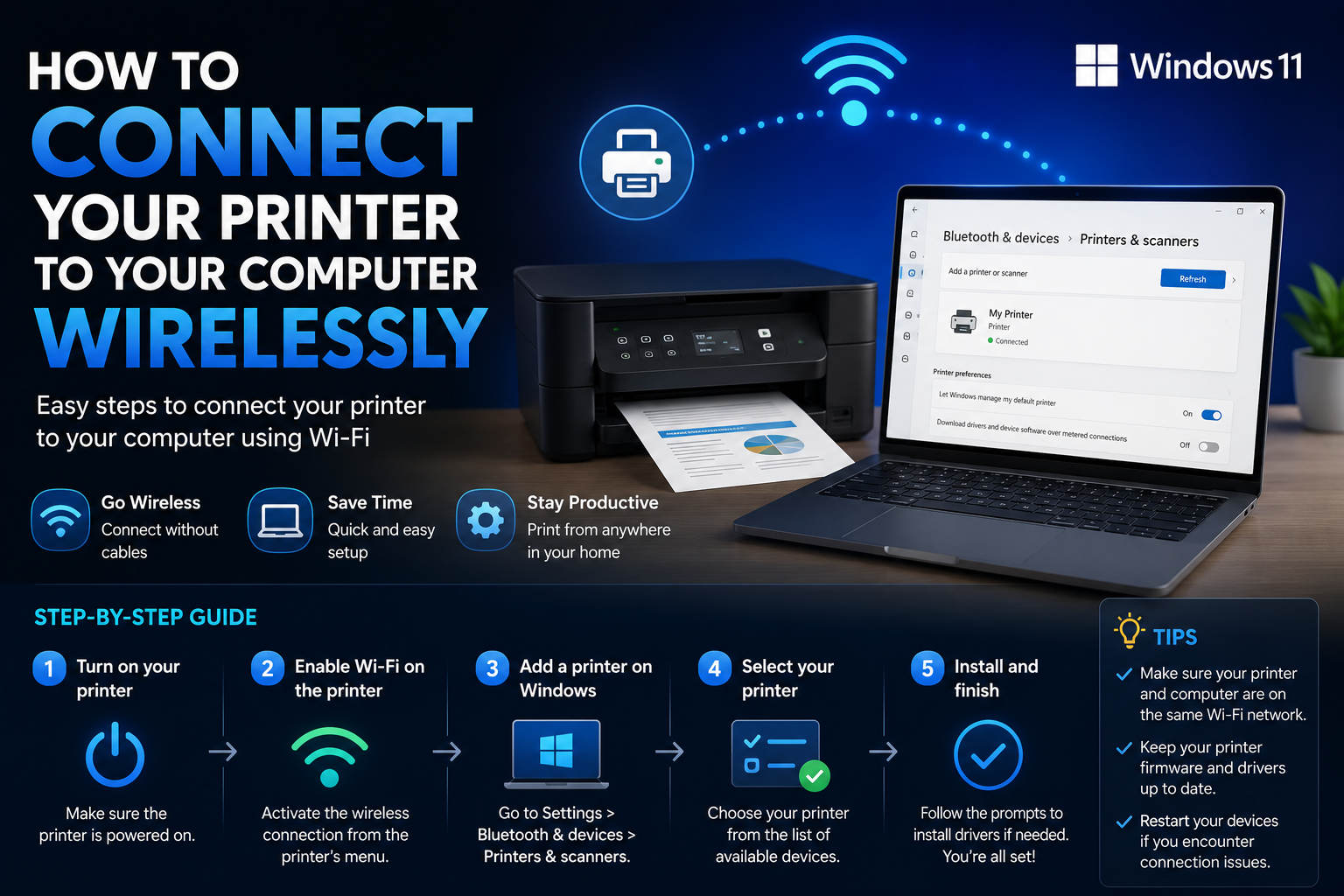
Ready to ditch the cables and print from anywhere in your home or office? Getting your printer to connect to your computer wirelessly is easier than ever, but many users still face confusion when navigating menus and settings. You’ve probably seen official guides scattered across various manufacturer and support websites, often assuming you already know the basics or using language that is more technical than needed. Here, you’ll find a friendly, step-by-step explanation that covers every aspect, whether you use Windows 11, Windows 10, or are simply dealing with different types of wireless printers.
This guide is designed to leave no stone unturned. Whether you’re setting up a brand-new wireless printer, struggling to get your existing device recognized, or just curious about the different connection options, you’ll discover practical solutions, troubleshooting tips, and useful background information. We’ll help you achieve smooth wireless printing in your workspace.
Why Go Wireless? The Big Picture of Printer Connectivity
Wireless printers have revolutionized the way we work, making it possible to print from anywhere within Wi-Fi range. Gone are the days of dragging a USB cord across the room or hunting for the right cable. Wireless connectivity provides flexibility, shared access in homes and offices, and removes the physical clutter that traditional printing used to bring.
But what actually counts as a “wireless” printer setup? There’s more to it than just Wi-Fi. Modern printers can connect via Wi-Fi networks, Bluetooth, or even direct peer-to-peer methods such as Wi-Fi Direct. Understanding the capabilities of your printer and your computer is essential in order to choose the best option.
Types of Wireless Printer Connections
- Wi-Fi Network Printing: The most common method, where both the printer and the computer connect to the same Wi-Fi network, allowing automatic communication.
- Wi-Fi Direct: Instead of using your regular Wi-Fi network, the printer creates its own local network that the computer connects to.
- Bluetooth Printing: For printers and computers that support Bluetooth, this allows cable-free printing when close to the device.
- Cloud Printing & Apps: Some modern printers support cloud printing or proprietary apps, making it easier to print from any device in any location, although they generally require initial setup via Wi-Fi.
Before You Start: Compatibility & Preparations
It is important to check which wireless methods your devices support before you begin. Here is what you should have ready:
- A printer with wireless capabilities indicated by “Wi-Fi”, “Wireless”, or “Bluetooth” on the box or label
- A computer or laptop with an up-to-date operating system such as Windows 10/11, macOS, or Linux, although this tutorial focuses on Windows
- Access to your Wi-Fi network, including the network name and password, unless you are using Wi-Fi Direct or Bluetooth
- The printer manual or manufacturer’s website for specific instructions and updated drivers if needed
Quick tip: It is a good idea to restart both the computer and the printer before starting, and to make sure both are within range of the Wi-Fi router.
Setting Up a Printer on a Windows Computer (Windows 10 and 11)
Windows 10 and Windows 11 make it much easier to add a wireless printer, thanks to plug-and-play drivers and automatic network detection. However, the process can feel confusing the first time. Here’s how to navigate the options and understand some of the technical terms found in official documentation, with extra explanations so you can follow along without any trouble.
Connecting via Wi-Fi Network (Most Popular Method)
- Connect the printer to your Wi-Fi network:
- Most printers have a screen or buttons for setup. Use them to access the network or Wi-Fi settings menus, select your network (SSID), and you will likely be asked to enter the password. Some modern printers support WPS (Wi-Fi Protected Setup), allowing pairing by pressing a button on the router and on the printer.
- Make sure the computer is on the same network:
- The computer must be connected to the same Wi-Fi network as the printer. If you have 2.4 GHz and 5 GHz bands, check that both devices are on the same band if possible.
- Open printer settings in Windows:
- In Windows 11, go to Start > Settings > Bluetooth & devices > Printers & scanners. In Windows 10: Start > Settings > Devices > Printers & scanners.
- Check whether the printer has already been installed automatically:
- If it appears in the list of available printers, you can start printing right away!
- Add a printer manually:
- If it is not listed, select Add device in Windows 11 or Add a printer or scanner in Windows 10. Wait for Windows to search for the printer.
- When it appears, select Add device and wait for the installation to finish. Windows may download drivers automatically.
- If Windows does not detect the printer, use the advanced option “The printer that I want isn’t listed”, where you can add it by IP address or hostname.
- Test it by printing a document from the printer selection menu to make sure everything works correctly.
Adding a Printer Using Wi-Fi Direct
Many modern printers support Wi-Fi Direct as an alternative to a traditional network connection. This is useful if you do not have a router or want to print directly from a phone or laptop.
- Check whether your printer has Wi-Fi Direct in its settings or on its display. Enable it and note the SSID and password shown.
- On the computer, connect to the Wi-Fi Direct network just as you would connect to any other Wi-Fi network.
- Once connected, add the printer using the steps above. Windows usually detects the printer as a local connection.
- To return to your regular network, disconnect from the Wi-Fi Direct network and reconnect to your original network.
Bluetooth Printer Installation
Bluetooth is mainly used in compact printers and mobile devices. For desktop printers, Wi-Fi is usually the better option due to its range and speed.
- Activate Bluetooth pairing mode on the printer, either from its panel or using its button.
- On the computer, go to Start > Settings > Bluetooth & devices and turn on Bluetooth.
- Click Add device and select your printer from the list. Confirm the code if needed.
- Then, add the printer from the device settings, where Windows will detect it via Bluetooth.
Remember that Bluetooth has shorter range and lower speed compared with Wi-Fi, so it may be slower for large or complex print jobs.
Removing or Reinstalling a Printer
To troubleshoot issues or change printers, it is a good idea to remove and reinstall the connection. The process is simple:
- In Windows 11: Start > Settings > Bluetooth & devices > Printers & scanners. In Windows 10: Devices > Printers & scanners.
- Select the printer you want to remove.
- Click Remove device. Confirm if authorization is requested.
- To reinstall it, simply repeat the previous steps to add a new printer.
Troubleshooting Wireless Printer Issues
Even if you follow every step, wireless setup can sometimes cause problems. Here are solutions for the most common issues:
- Printer not detected: Check that both devices are on the same network, restart the computer and printer, and make sure the wireless function is enabled.
- Drivers not installed automatically: Visit the manufacturer’s support page to get the latest drivers. Windows does not always have the most up-to-date versions.
- Print jobs stuck or delayed: Clear the print queue, restart your devices, and set the printer as the default printer.
- Frequent disconnections: Move the printer closer to the router, reduce interference, and keep the router firmware updated. Thick walls or floors can affect the signal.
- Print quality problems: Run a printhead cleaning process from the printer or support software.
Advanced Tips for Wireless Printing Success
To keep wireless printing reliable in the long term, try these strategies:
- Assign a static IP address to the printer on the network. This ensures that the IP address does not change and prevents connection issues.
- Keep drivers and firmware updated: Check the manufacturer’s website regularly. Updates improve performance and fix errors.
- Use manufacturer-specific apps: Many brands offer their own applications for managing printing, scanning, and easy setup, complementing or replacing Windows tools.
- Network security: Protect your Wi-Fi with a strong password and avoid connecting printers to open networks. Update firmware to close potential vulnerabilities.
In business and educational environments, printers are often shared across large networks. Windows offers specific features for this:
- Search for shared printers: Use Windows search or the add-printer assistant to find printers on the network. Some require entering a specific network path (\printserver\printername).
- Add by IP address: If the printer is not detected by name, you can use the option to add it by IP address or hostname, provided by the IT department or found in the printer settings.
Special Note: Manufacturer-Specific Guides and Resources
Official manufacturer documentation, such as Microsoft’s support page, offers step-by-step instructions for adding wired and wireless printers in current versions of Windows. It also covers Bluetooth and network connections. It is important to remember:
- Printers released in the last 5 years work with Windows default drivers in most cases. For advanced functions such as scan to email or quality settings, you need to download the full software package from the manufacturer.
- For specific problems such as paper jams, printhead errors, or poor Wi-Fi signal, manufacturer support portals include troubleshooting guides and utilities.
Tips for Multi-User and Remote Wireless Printing
For families, office colleagues, or environments where many people need to print from laptops, tablets, or phones:
- Set up the printer for universal access on your Wi-Fi network, not just through Wi-Fi Direct.
- Prepare a quick guide with details such as brand, model, static IP address, and useful passwords to make onboarding easier.
- Consider sharing the printer using network sharing features or print servers for guests or temporary users.
If your printer supports mobile printing, share QR codes or quick instructions to make setup easier on phones and tablets.
What to Do When All Else Fails
- Contact technical support: If you have tried everything, check the manufacturer’s official support resources for specific guides and remote help if needed.
- Consult the network administrator: In an office, there may be restrictions such as MAC filtering or guest networks. They can help you configure or check the settings.
- Check for interference: Other electronic devices can affect the Wi-Fi signal. Reposition the printer or try another band.
FAQs: Everything You Wanted to Know About Wireless Printer Setup
- Can I connect multiple computers to the same wireless printer? Yes, as long as they are all on the same network. Just follow the steps to add the printer. You do not need to move it physically or share it from another machine.
- Do I need to install drivers on every computer? Generally, yes, although Windows tries to do this automatically. It is recommended to look for the latest version on the manufacturer’s website.
- Is it safe to share a printer over Wi-Fi? For most homes, yes, as long as your Wi-Fi has a strong password. In offices, restrict access to guest or public networks.
- What should I do if Wi-Fi printing is slow? Try printing from close range and from farther away. If it improves when closer, the issue may be congestion or a weak signal. Consider improving your network with repeaters or a mesh router.
- Can I use a wireless printer without a router? Yes, by using Wi-Fi Direct or Bluetooth. Peer-to-peer printing works well for travel or very small spaces, although it is less convenient for several users at the same time.
Wireless printing offers enormous convenience and flexibility, avoiding cable clutter and the constant search for USB ports. Understanding your options—Wi-Fi, Wi-Fi Direct, and Bluetooth—and following the manufacturer’s instructions or Windows’ built-in tools step by step will allow you to print smoothly from almost anywhere in your space. Although problems may arise, most of them can be solved with the recommendations in this article, keeping your devices synchronized and your workflow running smoothly. From simple home setups to complex office environments, mastering wireless connections will save you time and effort, making you more productive and giving you greater freedom.