
- Windows 11 Bluetooth issues are often due to drivers, updates, or device settings.
- A systematic approach—troubleshooters, driver updates, and device checks—is most effective.
- Firmware updates, community solutions, and waiting for official patches may also be required.
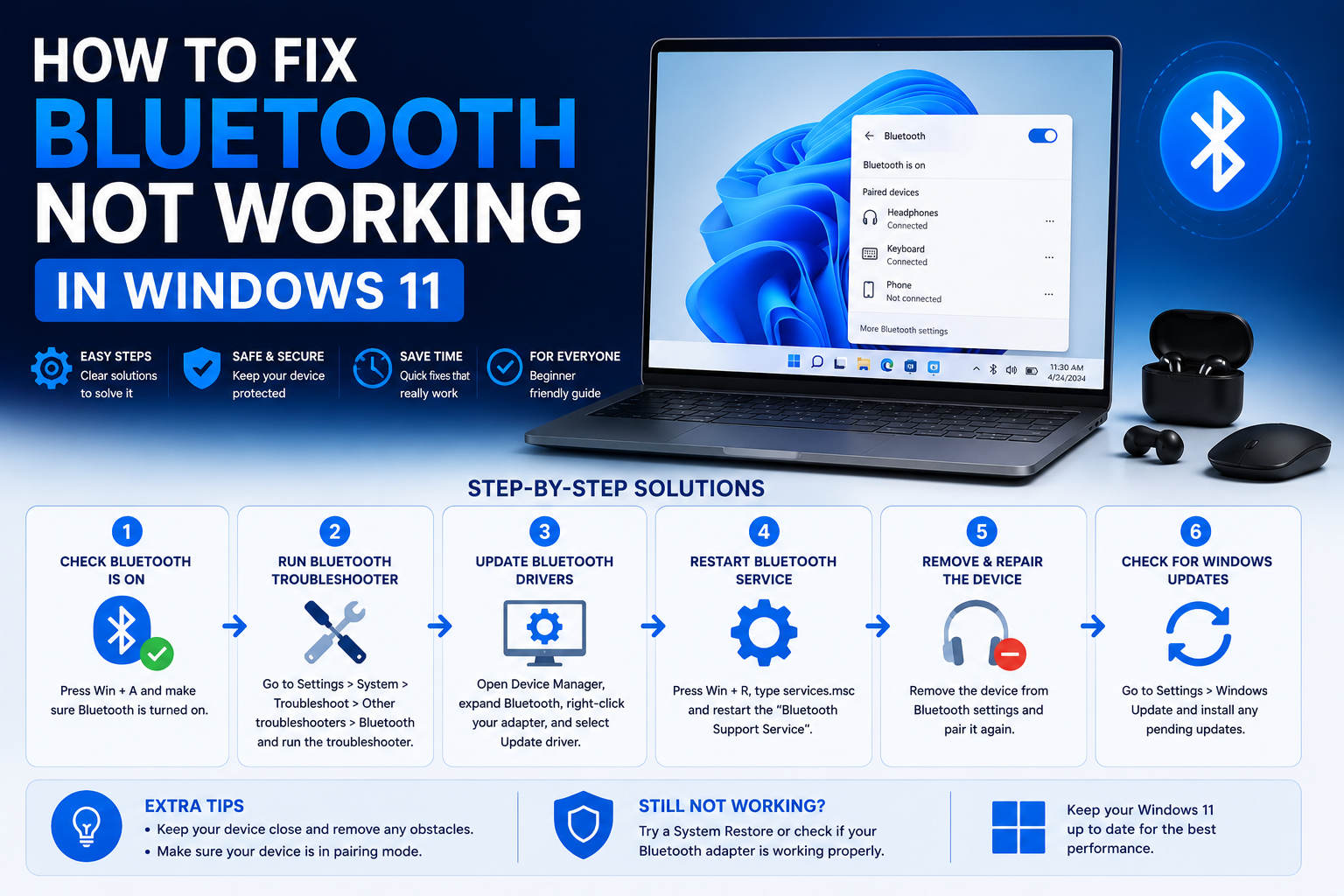
Struggling with Bluetooth issues on a Windows 11 PC? You’re far from alone. Many users run into annoying connection glitches, missing Bluetooth settings, or unpredictable audio behavior after updates. Even with the latest drivers or a pristine installation, Bluetooth in Windows 11 sometimes just won’t work as expected. Unlike those complicated technical bulletins or scattered forum posts, here you’ll find a thorough, easy-to-follow guide to addressing the full range of Bluetooth headaches—all in one place.
If pairing devices is failing, audio isn’t transferring, or the Bluetooth icon has vanished, this article has you covered. Troubleshooting Bluetooth on Windows 11 doesn’t have to be a guessing game: by blending advice from official sources, community discussions, and tried-and-tested tweaks, you’ll soon be able to get your wireless devices behaving again.
Understanding Why Bluetooth Might Not Work in Windows 11
The Bluetooth stack in Windows 11 is a sophisticated piece of software that manages how your devices connect wirelessly. But a number of factors—ranging from incompatible drivers, system updates, hardware limitations, to simple user errors—can all disrupt its performance. Frequent user complaints after feature updates or monthly patches often cite audio issues, missing functionality, or even the complete disappearance of Bluetooth capabilities.
Let’s walk through all the primary reasons Bluetooth might fail and the systematic troubleshooting steps that can resolve them.
Preliminary Checks Before Deep-Diving Into Fixes
- Is Your Device Bluetooth-Ready? Before anything else, confirm your PC or laptop actually has Bluetooth hardware. Not every device includes a Bluetooth chip. Verify this through your device specifications or by checking Device Manager for Bluetooth adapters.
- Is Bluetooth Actually Enabled? Some computers, especially older laptops, come with a physical switch or keyboard function that toggles Bluetooth on or off. Double-check that it is turned on. Additionally, use the Windows 11 Settings menu to ensure Bluetooth is enabled.
Where to Find the Bluetooth Settings in Windows 11
Navigating to the Bluetooth settings is the first vital step. Here’s how:
- Click the Start button and open Settings.
- Navigate to Bluetooth & devices.
- You’ll see a toggle to turn Bluetooth on or off, as well as your paired and available devices.
If Bluetooth is absent from Settings, skip ahead to the section on missing Bluetooth options.
Step-by-Step Troubleshooting for Bluetooth Not Working in Windows 11
Run the Windows 11 Bluetooth Troubleshooter
Microsoft provides an automated troubleshooter specifically for Bluetooth problems:
- Open Settings.
- Navigate to System > Troubleshoot > Other troubleshooters.
- Under the Bluetooth section, click Run and follow the prompts.
The troubleshooter runs diagnostics and attempts to resolve typical connectivity problems automatically. It is often effective for simple issues caused by conflicting settings or temporary glitches.
Restart Your Devices
Sometimes, the classic “turn it off and on again” works wonders. Restart both your computer and the Bluetooth device that won’t connect. For the device:
- Switch it off, wait a few seconds, and then turn it back on.
- Make sure your Bluetooth device is charged or has fresh batteries.
- Keep it within range of your PC—Bluetooth connections are only stable within a certain distance, usually up to 10 meters or 30 feet.
Also, make sure there are not too many other USB 3.0 devices near your Bluetooth adapter. Unshielded USB cables or dongles can sometimes interfere with Bluetooth signals.
Check Bluetooth Device Discovery on Windows 11
If your device is not appearing in the pairing list, you may need to adjust the discovery settings:
- Go to Settings > Bluetooth & devices > Devices.
- Under Device settings, find Bluetooth devices discovery and choose Advanced to display all types of Bluetooth devices, not just the most common ones.
If your device still does not show up after switching discovery to Advanced, proceed with the following deeper troubleshooting steps.
Make Sure the Bluetooth Hardware Is Recognized
Open Device Manager by typing it into the Start menu search bar. Look for a Bluetooth section.
- If Bluetooth is listed: Check for yellow warning signs that could indicate a problem with the hardware or drivers.
- If Bluetooth is missing: Try selecting View > Show hidden devices in Device Manager.
In some cases, a Windows update or system change can cause the Bluetooth adapter to disappear from Device Manager. Here you can find a complete guide to fixing printer problems in Windows 11, which also covers some hardware- and driver-related issues.
Update Bluetooth Drivers
The driver enables Windows 11 to communicate with your Bluetooth hardware. Drivers can become outdated or incompatible after upgrading Windows or installing updates.
- Open Device Manager.
- Expand the Bluetooth section and right-click your Bluetooth adapter, which may be named something like “Intel Wireless Bluetooth” or “Realtek Bluetooth Adapter.”
- Select Update driver > Search automatically for drivers.
If Windows reports that your driver is already up to date but the issues persist, you may need to install the latest version manually:
- Visit your PC manufacturer’s website and download the correct Bluetooth driver for your model.
- If you receive an executable .exe file, double-click it and follow the installation instructions.
- If you obtain a set of files, including .inf and .sys files, use Device Manager: right-click the Bluetooth device, select Update driver > Browse my computer for drivers, select the folder, and proceed.
After updating, restart your PC. This often resolves compatibility problems following a major Windows upgrade or update.
Reinstall the Bluetooth Adapter
If the Bluetooth icon is missing but Device Manager still lists the Bluetooth hardware, try uninstalling and reinstalling the device:
- Open Device Manager and find your Bluetooth adapter.
- Right-click it and choose Uninstall device. Confirm if prompted.
- Shut down your PC, wait a few seconds, and then turn it on again.
- Windows should reinstall the correct driver automatically during the next startup.
- If it does not, return to Device Manager and click Action > Scan for hardware changes.
Advanced Solutions for Persistent Bluetooth Problems
Check for Windows Updates and Roll Back Problematic Ones
It is not uncommon for new Windows 11 updates—especially feature or security patches—to break Bluetooth drivers or compatibility. If you recently installed an update and Bluetooth stopped working:
- Visit Settings > Windows Update > Update history to review recent installations.
- If a specific update is causing trouble, you can uninstall it, at least temporarily, through Settings > Windows Update > Uninstall updates.
- Alternatively, check for new updates, as Microsoft frequently releases hotfixes for known bugs.
Several frustrated users have reported delays in Microsoft providing fixes after each update cycle, sometimes requiring them to wait several weeks for a solution. Keeping everything updated—and occasionally rolling back an update if you suspect a bug—can help restore stability.
Verify That the Device Is Discoverable and Ready to Pair
Certain peripherals, such as headphones or keyboards, may have a dedicated pairing button or mode. Refer to the manufacturer’s guide to ensure your device is in pairing mode and visible to your computer when you try to add it.
Avoid Interference From Other Devices
Bluetooth operates on the 2.4 GHz band, which is also used by Wi-Fi and can be affected by USB 3.0 signals. Move your Bluetooth device and receiver away from other wireless devices, unshielded USB dongles, or heavily populated USB hub ports.
Remove and Re-Pair the Device
- Go to Settings > Bluetooth & devices.
- Click the three dots next to the problematic Bluetooth device and choose Remove device.
- Restart your PC and then try pairing the device again.
What to Do if Bluetooth Is Completely Missing in Windows 11
Occasionally, Bluetooth may disappear entirely from Settings and Device Manager. Here is what you can try:
- In Device Manager, select View > Show hidden devices and check the Bluetooth section again.
- If it is still missing, check your BIOS/UEFI by entering the setup menu during startup and verifying that onboard Bluetooth is enabled.
- Update the chipset, Wi-Fi, and Bluetooth drivers through the support page of your laptop or motherboard manufacturer.
- If all else fails, consider resetting the BIOS or performing a system restore to a point before Bluetooth disappeared.
- USB Bluetooth adapters are an affordable workaround if the built-in module appears to have failed permanently.
Common Bluetooth Issues and Symptoms in Windows 11
User reports and Microsoft documentation both highlight the following common issues:
- Bluetooth devices will not pair—Persistent connection failures despite the device functioning correctly.
- No sound from Bluetooth audio devices—Headphones or speakers connect, but audio does not play.
- Microphones are not detected—Common with wireless headsets; the microphone is ignored or does not work in applications such as Microsoft Teams.
- Bluetooth icon is missing—Settings and Device Manager lose all traces of Bluetooth functionality.
Each of these issues can usually be addressed by systematically following the troubleshooting checks above.
Forum and Community Discussions: Workarounds That Sometimes Help
Outside official support channels, many users share temporary fixes that have worked for them, especially after major Windows 11 updates. For example:
- Rolling back the latest update and then pausing future updates until the issue is resolved.
- Switching to an older driver version if the latest one is faulty, using the Roll Back Driver button in Device Manager when available.
- Contacting the device manufacturer, such as Lenovo, HP, or ASUS, to obtain device-specific recovery tools or firmware updates.
Some users have found that only time solves the problem, as they have to wait until Microsoft fixes the bug in a later patch. Although inconvenient, this can sometimes be preferable to repeatedly attempting solutions that do not work because the problem exists at the operating-system level.
Tips for Avoiding Future Bluetooth Problems
- Update your drivers and system software regularly, but check forums or official announcements for potential bug warnings before installing major Windows updates. Here is an example of a solution involving Bluetooth accessories in the context of Windows 11.
- If you use third-party USB adapters, keep their drivers and firmware updated, or consider purchasing a high-quality device with guaranteed Windows 11 support.
- Create system restore points before major updates so that you can easily reverse changes if problems occur.
For official information, visit the Microsoft support page for fixing Bluetooth problems.
When to Seek Professional Help or Use a USB Bluetooth Dongle
If you have tried all the solutions and are still unsuccessful, the Bluetooth hardware may be failing, especially if it cannot be detected by other devices or under different operating systems. Using a USB Bluetooth dongle may be faster and more affordable than waiting for a software solution or replacement parts.
For persistent and widespread problems following recent updates, you can consult forums such as Reddit or your device manufacturer’s forums to find the latest support information or firmware.
Remember that a delayed fix can affect not only Bluetooth but also the overall stability of the system. For this reason, performing a clean installation or seeking professional technical support may be the best option in severe cases.
Troubleshooting Bluetooth issues on Windows 11 can require a little patience and persistence. However, by systematically ruling out hardware problems, keeping your drivers up to date, watching for problematic updates, and adjusting your system settings, you have a very good chance of getting everything working again. With these steps, even the most difficult connection errors can usually be resolved without too many complications.