
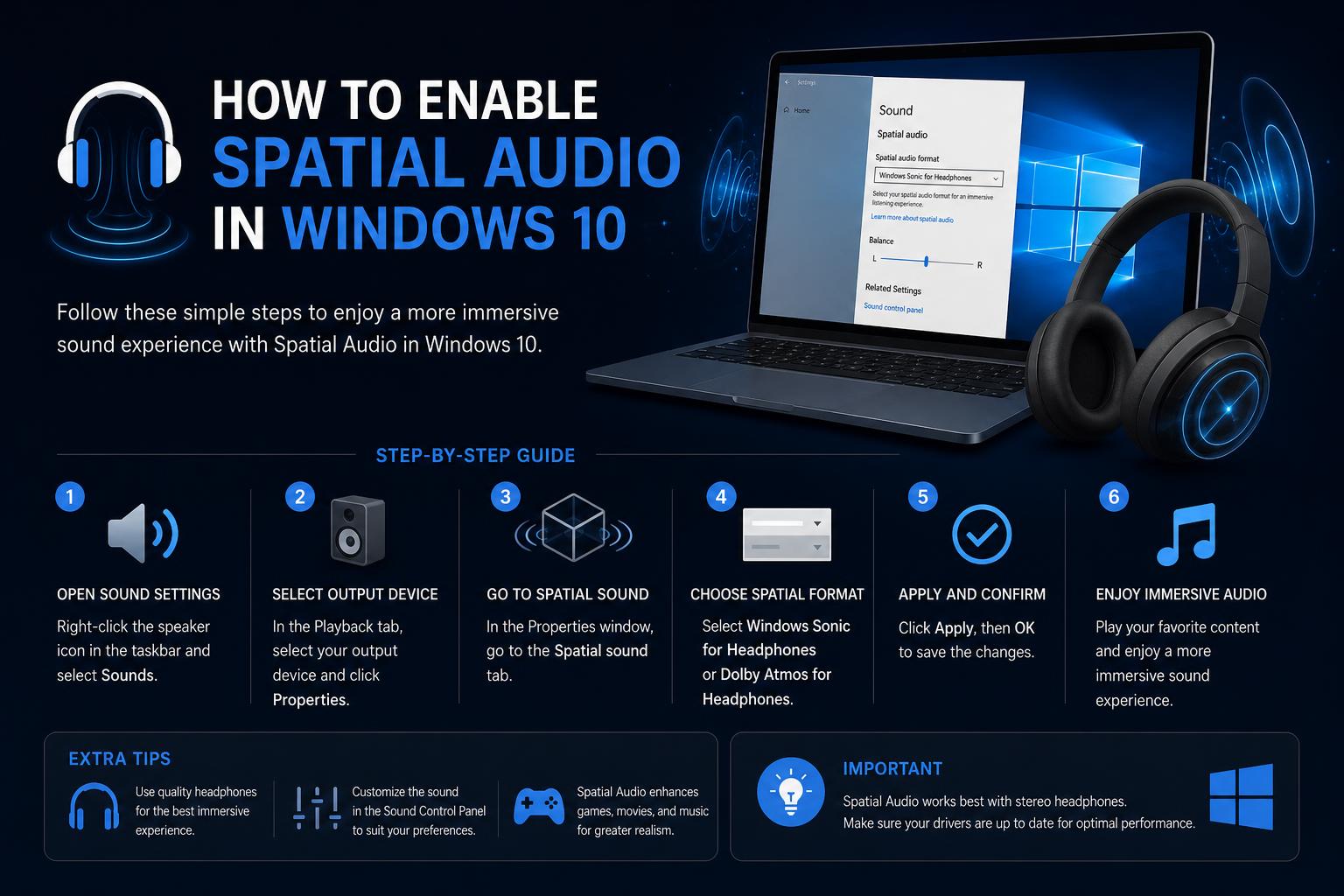
- Spatial audio offers immersive 3D sound on most Windows 10 devices
- Windows Sonic is free and easy to enable, while Dolby Atmos or DTS add premium features
- Proper driver updates and hardware compatibility are vital for smooth activation
Spatial audio has become an increasingly popular way to enrich the listening experience on Windows 10, especially for gaming, watching movies, or using VR. The technique provides a more immersive soundstage by simulating 3D positional audio, making it easier to identify where sounds are coming from. Whether you’re a hardcore gamer trying not to get caught off-guard or a cinephile searching for cinematic sound at home, enabling spatial sound on your PC can make all the difference.
Many users are intrigued by features like Windows Sonic for Headphones, Dolby Atmos, and DTS Headphone:X and want to know how to activate these powerful audio enhancements on their Windows 10 systems. But sometimes, the journey to surround sound isn’t as simple as toggling an option — from settings being greyed out to hardware compatibility mysteries, there’s a lot to unpack.
What is Spatial Audio on Windows 10?
Spatial audio describes technologies that create the illusion of sound coming from any direction around the listener (not just from standard stereo left and right). Microsoft’s solution for this is called Microsoft Spatial Sound. On Windows 10 PCs, this comes in a few flavors — the built-in Windows Sonic for Headphones, and optional upgrades like Dolby Atmos and DTS Headphone:X which can be accessed through third-party apps available on the Microsoft Store.
When enabled, spatial sound formats process audio to create a multidirectional field, allowing audio to feel as if it flows around your head. This is an upgrade over basic surround, which is channel-based; spatial audio uses object-based sound, letting a helicopter fly overhead or footsteps creep up behind you in 3D space.
Benefits of Enabling Spatial Sound
Enabling spatial sound on Windows 10 brings several significant benefits:
- Enhanced Immersion: Game environments and movies become more lifelike as you can perceive sound directionality – knowing exactly where gunfire, footsteps or explosions originate.
- Improved Comfort: Spatial formats are less fatiguing for prolonged listening, distributing sound in a 360° space instead of directly in your ears.
- Universal Compatibility: You can enjoy these benefits with almost any pair of headphones, and some speaker systems – no special hardware is required for Windows Sonic.
How to Turn On Spatial Sound in Windows 10
Turning on spatial sound for your output device on Windows 10 is straightforward, but there are a couple of ways to do it. Here are step-by-step instructions, distilled and expanded from Microsoft’s official documentation:
- Click the Start button, then select Settings > System > Sound.
- Under the Output section, select the audio device you want to use (headphones or speakers).
- Click on Device Properties. If available, look for a Spatial sound tab.
- From the Spatial sound format dropdown menu, pick your desired format such as Windows Sonic for Headphones, Dolby Atmos for Headphones, or DTS Headphone:X.
- Click Apply (if the button appears), and the new effect will be active instantly.
You can also do this directly from the taskbar: Right-click on the speaker/volume icon, hover over Spatial sound, and select your preferred format from the menu.
[relacionado url=”https://www.ikkaro.net/lego-smart-bricks-with-star-wars-sets/”]
Alternative Spatial Sound Formats and Enhancements
Out of the box, Windows Sonic for Headphones is available on every Windows 10 system. However, for more advanced effects and options, you can install third-party apps:
- Dolby Access – enables Dolby Atmos for headphones and home theater setups (requires an app and, sometimes, a license or purchase).
- DTS Sound Unbound – enables DTS Headphone:X and DTS:X Ultra for headphones (also via a Microsoft Store app; licensing fees may apply).
Both formats can be downloaded from the Microsoft Store and offer customizable audio experiences. They are compatible with most modern headphones and some speaker systems.
Compatibility: Is Your Hardware Supported?
Spatial sound formats work with most standard headphones, but there are a few things to consider:
- Headphones/Speakers: Nearly any set of headphones can take advantage of Windows Sonic. For Dolby Atmos and DTS Headphone:X, check the compatibility requirements on the product or on manufacturer’s sites before purchasing add-ons.
- Sound Card/Drivers: If your output device does not support spatial sound, the option might be greyed out in settings. Updating your audio drivers, or switching to a compatible device, can help.
- USB Adapters: Certain headsets connected via USB adapters might face issues enabling spatial audio due to driver limitations.
Troubleshooting: Issues with Enabling Spatial Sound
Some users report that the spatial sound option is greyed out or turns off automatically, particularly when using headphones with a USB adapter or specific sound cards. Here’s an expanded and practical troubleshooting guide:
1. Double-Check Windows Audio Settings
- Open Settings and go to System > Sound > Advanced sound settings.
- Ensure the correct output device is selected. If you don’t see a Spatial sound tab under Device properties, your hardware or drivers may not fully support spatial formats.
- If available, choose from the dropdown menu for formats (like Windows Sonic, Dolby Atmos, or DTS Headphone:X), and ensure it isn’t disabled.
2. Manage Audio Enhancements
- Right-click the speaker icon in the taskbar and choose Sounds.
- Go to the Playback tab, highlight your device, and select Properties.
- Check for an Enhancements tab. Uncheck enhancements like Loudness Equalization or Virtual Surround which can occasionally interfere.
3. Temporarily Disable Third-Party Audio Software
- Software from brands like Razer, Nahimic, or Logitech may conflict with Windows’ spatial sound implementation.
- Try closing or disabling these utilities and see if the spatial sound options become available.
4. Update Windows and Drivers
- Make sure Windows 10 is fully updated by visiting Settings > Update & Security > Windows Update.
- Update your audio drivers – either via Device Manager or by downloading the latest version from the manufacturer’s website.
5. BIOS Firmware (With Caution!)
- In rare cases, a BIOS update can resolve compatibility issues related to spatial sound, especially on newer motherboards.
- Only attempt this if you’re comfortable, as BIOS updates should be performed carefully and strictly following your manufacturer’s instructions.
Note: For devices using Realtek chips, sometimes extra Realtek software is needed. Visit your computer or motherboard manufacturer’s site and look for audio utilities or detailed documentation for spatial audio features.
Why Is the Spatial Sound Option Missing For Some Users?
If the spatial sound format dropdown or tab doesn’t appear for your device, it’s usually due to:
- Outdated or incompatible drivers
- Hardware limitations (some USB DACs or wireless headphones don’t support these features)
- Conflicts with audio enhancements or third-party sound software
- Disabled service or system misconfiguration
Trying the troubleshooting steps above generally solves these issues, but sometimes only certain headsets/speakers work with spatial audio features.
Advanced: How Microsoft Spatial Sound Works
Microsoft’s platform for spatial audio isn’t just a surface-level enhancement – it’s a full object-based system that allows for advanced audio rendering. Here’s a look under the hood:
- Audio objects emit sounds from any point in 3D space around the listener. These dynamic objects can move around you, and spatial audio formats let sound process as if it’s truly in three dimensions.
- Supported APIs: Windows desktop (Win32) apps and Universal Windows Platform (UWP) apps can utilize these features. For advanced settings and sound authoring, developers can use interfaces like ISpatialAudioClient and related tools.
- The implementation abstracts the output device — so whether you use speakers, headphones, or an AV receiver, no special app-side configuration is needed.
- Real-time Dolby Atmos encoding works for HDMI and stereo headphone output, as do DTS:X and Windows Sonic for Headphones.
Choosing the Right Spatial Audio Format
Here’s a practical guide to help you decide which spatial audio format suits your needs:
- Windows Sonic for Headphones – Free, no special hardware required. Recommended for most users who want a considerable upgrade from standard stereo, especially with all-purpose headphones or budget setups.
- Dolby Atmos for Headphones – Premium, with a trial period. Unlocks advanced features with compatible apps and content (e.g., games or Blu-ray). Ideal if you want to experience Atmos in supported media or are an audiophile.
- DTS Headphone:X – Also premium and great for games with DTS:X content. Like Dolby Atmos, it works via a dedicated app.
Frequently Asked Questions About Spatial Audio on Windows 10
- Do I need special headphones? – Not for Windows Sonic. For Dolby or DTS, most regular headphones work, but check for full compatibility and consider app licensing fees.
- Does it work with speakers? – Yes, spatial audio can be used with compatible surround speaker setups, AVRs, and home theaters, but some features are headphone-specific.
- What if nothing happens after enabling it? – Make sure your app/game actually sends 5.1, 7.1, or object-based audio to Windows. Also, check for issues with enhancements or drivers.
Developer and Power User Information
Microsoft has provided deep APIs (such as ISpatialAudioClient, ISpatialAudioObject, and ISpatialAudioObjectRenderStream) for app developers to create or manipulate 3D audio. Content creators can author audio objects, set their 3D coordinates, and mix static/dynamic sound beds up to formats like 8.1.4.4. More on this can be found directly in Microsoft’s official developer documentation.
Games using middleware engines can tie into spatial sound using these APIs, or leverage partner SDKs from Dolby, DTS, and others. Microsoft partners with game audio tool vendors to ensure seamless integration with popular engines.
Common Implementation Challenges and Advanced Tips
- Multiple Outputs: If your PC is connected to multiple outputs (speakers + headphones), be sure to select the right device before enabling spatial sound.
- Buffer Sizes and Performance: Developers should note that dynamic objects require additional processing; be mindful of resource allocation, especially in large-scale games or apps.
- Limitations by Format: Dolby Atmos, DTS, and Windows Sonic all support high object counts, but exact limits depend on system resources and updates. For power users, detailed resource charts are available in Microsoft’s documentation for maximum object counts per format and platform (e.g., Xbox Series X, Windows 10/11, HoloLens 2).
For more information on format support, licensing, and integration guidelines, the Microsoft Spatial Sound page and respective Dolby or DTS documentation are essential resources for advanced users and developers.
Real-World Use Cases and Feedback
Practical experience from gamers and VR users highlights the transformative effect of spatial sound, especially in competitive environments. One user on Reddit recounted struggling to locate in-game sounds until realizing spatial sound was off; after enabling it, positional awareness improved dramatically.
However, issues can occur. The same user faced a greyed-out spatial sound option due to the use of a Logitech Pro headset through a USB adapter, illustrating the importance of hardware compatibility and driver updates.
For these reasons, always ensure your device and drivers are up-to-date and compatible with your chosen spatial audio format.