
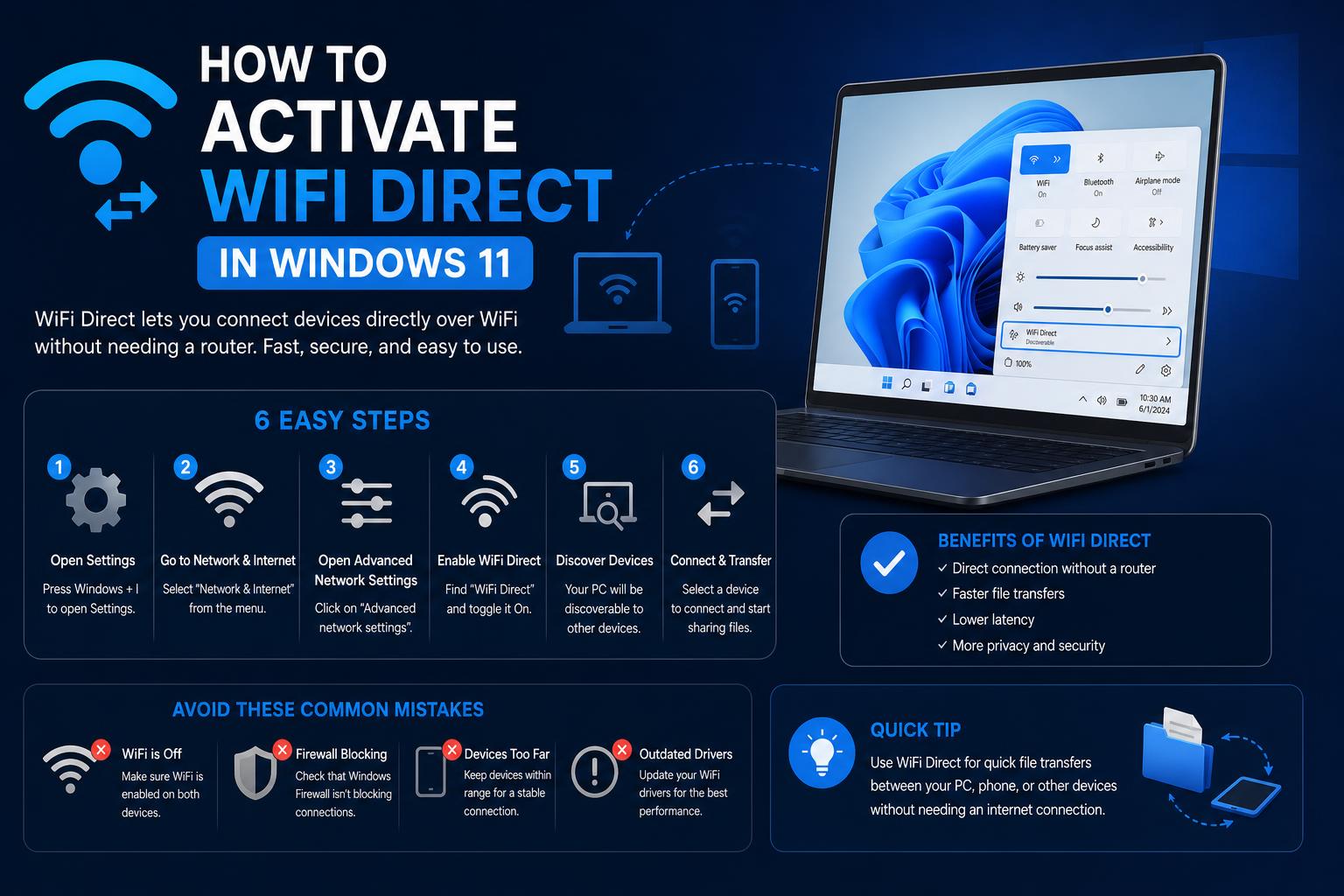
- WiFi Direct enables device-to-device connections without a router, supporting fast file sharing and more.
- Compatibility relies on both hardware and driver support; simple checks reveal if your system is ready.
- Native setup is available via Windows settings, but third-party apps are often needed for seamless transfers, especially with mobile devices.
WiFi Direct is one of those underrated tools that can transform the way you transfer files, connect devices, and even create short-range peer-to-peer wireless networks without a router. On Windows 11, it’s both powerful and a bit tricky to use: documentation is scattered, and setup can feel confusing. Whether you want to beam files to your phone, connect to a printer, or get your laptop talking to another PC, this guide demystifies how to activate and use WiFi Direct on Windows 11, troubleshoot compatibility, and maximize this feature for everyday needs.
Many users wonder: Does WiFi Direct even work on Windows 11? The answer is yes—but with a few caveats. Not all devices support it, some steps have changed compared to Windows 10, and alternative solutions exist for those with hardware limitations. In this detailed guide, you’ll learn not just the basics, but expert tips, compatibility checks, and practical workflows to get WiFi Direct working, even if your PC is giving you trouble.
What Is WiFi Direct and Why Use It?
WiFi Direct allows devices to connect wirelessly without an internet connection or router. Think of it as Bluetooth, but using your WiFi radio—faster, with broader range and able to handle larger files. You can:
- Send files between PCs, phones, and tablets directly without going online.
- Print from your device to WiFi Direct-ready printers.
- Mirror screens or extend displays wirelessly.
- Connect specialized hardware like Raspberry Pi, cameras, or VR gear without extra cables.
Compared to a typical WiFi setup—which depends on an access point or router—WiFi Direct builds its own mini network between your devices, cutting out the middleman. It’s a standard built into Windows 11, but it requires support from both hardware and software. To make sure your device can support this feature, check our compatibility section or run the appropriate commands to verify it.
Is My Windows 11 Device Compatible with WiFi Direct?
- Open the search bar (Windows key + S), type cmd, then right-click ‘Command Prompt’ and choose ‘Run as Administrator’.
- At the prompt, type: netsh wlan show drivers and press Enter.
- Look for the lines mentioning Wi-Fi Direct Supported. If it says ‘Yes’, you’re in luck!
Alternatively, some guides suggest using PowerShell. Search for ‘PowerShell’, right-click it and select ‘Run as administrator’, then use ipconfig /all to look for the Microsoft Wi-Fi Direct Virtual Adapter. If it doesn’t show up, your hardware might not support it.
If WiFi Direct doesn’t show up or isn’t supported, you may need to:
- Install or update your Wi-Fi drivers (sometimes via Windows Update, the manufacturer’s site, or tools like the WiFi Driver Assistant for Windows 11) if you have an Intel wireless chip).
- Consider a compatible USB WiFi adapter with WiFi Direct support, especially on older hardware.
- On HP computers, the setup guide for connecting your HP printer to WiFi can make it easier to connect with compatible devices.
How to Activate WiFi Direct on Windows 11
WiFi Direct isn’t turned on with one big switch—it works in the background when you use certain features or start specific types of connections. Here’s the process:
Step 1: Access WiFi and Bluetooth Device Settings
- Click the Start Menu and go to Settings.
- Choose Bluetooth & Devices in the sidebar.
- Click ‘Add Device’ and select ‘Everything else’.
- Wait while Windows 11 searches for nearby WiFi Direct devices (like phones, printers, or another PC).
Step 2: Pair Devices
On your phone or other device: go to its WiFi settings, select Wi-Fi Direct (Android often hides it inside the Wi-Fi menu or under ‘More’ in ‘Connections’), and let it scan for devices. Your PC should show up. Select it.
Both devices may require a PIN for secure pairing. Android phones will show a code that you need to approve on Windows 11. If the connection doesn’t hold (it drops after a few seconds), it could be a driver or hardware issue, a problem commonly reported by users.
Step 3: Transfer Files or Use Direct Services
Once paired, you can start transferring files, printing, or accessing the device, depending on what you’ve linked. Keep in mind:
- File transfers may require compatible apps. Some devices show up directly in File Explorer, while others need apps like Feem or dedicated transfer tools.
- For quickly sharing between Windows PCs, using standard WiFi is usually easier, unless you specifically need WiFi Direct features.
How to Connect Your HP Printer to WiFi: The Ultimate Step-by-Step Guide
File Transfer via WiFi Direct: Step-by-Step Method
There are several ways to move files between Windows 11 or Windows devices and smartphones using WiFi Direct. Here are the main ones:
A. Built-In File Sharing
- Set up both devices on the same WiFi network (or connect them directly via WiFi Direct if available).
- On the sharing PC: Open This PC in File Explorer, find the file/folder you want to share, right-click it, select Properties > Sharing > Advanced Sharing.
- Check ‘Share this folder’, apply the changes, and close the dialogs.
- On the receiving PC: Open This PC, select Network, and enter credentials if prompted.
Note: This standard Windows file-sharing method doesn’t technically use WiFi Direct, but it can work alongside it when both devices are connected without an external network, thanks to WiFi Direct enabling nearby network discovery.
What is Piso WiFi? The Ultimate Guide to Affordable Internet Access and Business in the Philippines
B. Using Dedicated Apps: Greater Simplicity
For a smoother experience, try third-party software:
- EaseUS Todo PCTrans: Makes it easy to migrate files, applications, and settings directly over your local WiFi network. Install it on both devices, select “Transfer Directly,” and follow the instructions.
- : Works across multiple platforms (iOS, Android, Windows, macOS, Linux), enabling instant transfers using WiFi Direct or your local network. Select “DIRECT…” mode, detect the devices, and send files from your phone or PC.
C. Mobile Devices: Connecting to Windows 11 via WiFi Direct
- On your Android device, go to Settings > Connections > Wi-Fi, tap Wi-Fi Direct.
- Wait for your Windows 11 computer to show up. Tap it.
- Accept the connection (you may need to enter or confirm a PIN shown on both devices).
- Use built-in or third-party apps like Feem for actual file transfers.
Note: iPhones generally don’t support WiFi Direct with Windows, but use AirDrop or services like ShareIt to make transfers easier.
ESP32 Marauder: The Ultimate Portable WiFi and Bluetooth Analysis Toolkit
Troubleshooting: WiFi Direct Issues on Windows 11
Many users run into issues like disconnections after a few seconds, PINs that never show up, or adapters that are missing entirely. Here are some steps to fix the most common ones:
- Device or driver compatibility: Some adapters—including specific Realtek, Intel, or Broadcom versions—may not fully support WiFi Direct. Always check compatibility and update drivers from the manufacturer’s page or the WiFi chip vendor.
- Virtual adapter not showing up: The ‘Microsoft Wi-Fi Direct Virtual Adapter’ may be hidden by default. Open Device Manager, go to ‘View > Show hidden devices’ and check under ‘Network adapters’.
- Reinstalling: If the virtual adapter is disabled, uninstall it and restart. Windows will usually reinstall the device automatically on boot.
- Mobile hotspot as an alternative: If you can’t get WiFi Direct working due to hardware limitations, you can use the ‘Mobile hotspot’ feature—Settings > Network & Internet > Mobile hotspot. Set a name and password, connect your devices. While not exactly WiFi Direct (it works as an access point), it serves similar purposes over a short range.
- PIN/authentication loop: Sometimes both PCs ask for a PIN, but neither provides one, which blocks the connection. This glitch, known across different Windows versions and drivers, is often fixed by updated drivers.
- For advanced users: Users wanting to use WiFi Direct in projects (robotics, Raspberry Pi, VR, immersive tech) should adjust ‘Network Properties’, select the preferred band (5GHz), and disable power saving for smoother connections.
Additional Tips to Get the Most Out of WiFi Direct
Here are a few more recommendations for advanced users:
- Use the Camera app for quick connections via QR code. Windows 11 lets you scan QR codes for network credentials. Open the ‘Camera’ app, switch to ‘Barcode’ mode, point it at the QR code (often found in public places). Click the link to join the network—useful for both regular WiFi and WiFi Direct thanks to its convenience.
- Manage random MAC addresses. For privacy, you can set Windows 11 to use random MAC addresses when searching for WiFi networks—useful in crowded spaces. Go to Settings > Network & Internet > Wi-Fi > turn on ‘Random MAC addresses’.
- View device capabilities with ‘netsh wlan show wirelesscapabilities’. For a deeper look at your hardware, run this command in cmd to identify WiFi Direct roles (Device/Client/GO).
- Network adapters and multiple roles. If you can’t get WiFi Direct working, try a dedicated USB adapter, especially on older laptops or PCs with incomplete drivers.
Common Errors and Real-World Experiences
Many users report that, even after following every step and checking compatibility, the actual connection experience can vary a lot. It’s not unusual for connections between Android devices and Windows 11 PCs to drop after a few seconds, or for PINs to never resolve. In some cases, both PCs ask for a code but neither provides one, blocking the connection.
On forums and in discussions, these problems are usually blamed on firmware bugs, outdated adapters, or incomplete driver support. Microsoft’s documentation isn’t always up to date, and different PC brands may have their own quirks—HP, in particular, always recommends getting the latest drivers from its support page instead of relying solely on Windows Update.
If all else fails, experienced users suggest using alternative apps that create pseudo-WiFi Direct environments, or falling back on traditional sharing over WiFi networks or USB transfer. Understanding the difference between ad hoc mode, hosted network, and WiFi Direct (and knowing that ad hoc/SoftAP mode features are deprecated) helps avoid confusion.
Alternatives When WiFi Direct Isn’t Available
If, after all this troubleshooting, your device simply doesn’t support WiFi Direct, you still have options. Here are some good alternatives:
- Mobile hotspot feature: On Windows 11, you can create a hotspot to quickly share a local network between devices. While not strictly WiFi Direct, it serves similar purposes over a short range.
- Network file sharing through an existing router: If you’re in a setting with a router—home, office, café—use Windows’ standard network sharing for reliable performance.
- Third-party tools: As mentioned, apps like offer local cross-platform transfers without internet. Explore these options if native features fall short.
- Physical connections: Sometimes the simplest option is a USB cable or external storage for large files or ultra-stable transfers.
Relying on WiFi Direct in Windows 11 has a lot of potential, but the real-world experience is still being refined to deliver the convenience it promises. By following the steps outlined here, checking compatibility, enabling and using WiFi Direct where available, and falling back on alternative solutions when hardware is missing, you can achieve fast, easy device-to-device connections without needing a router.