
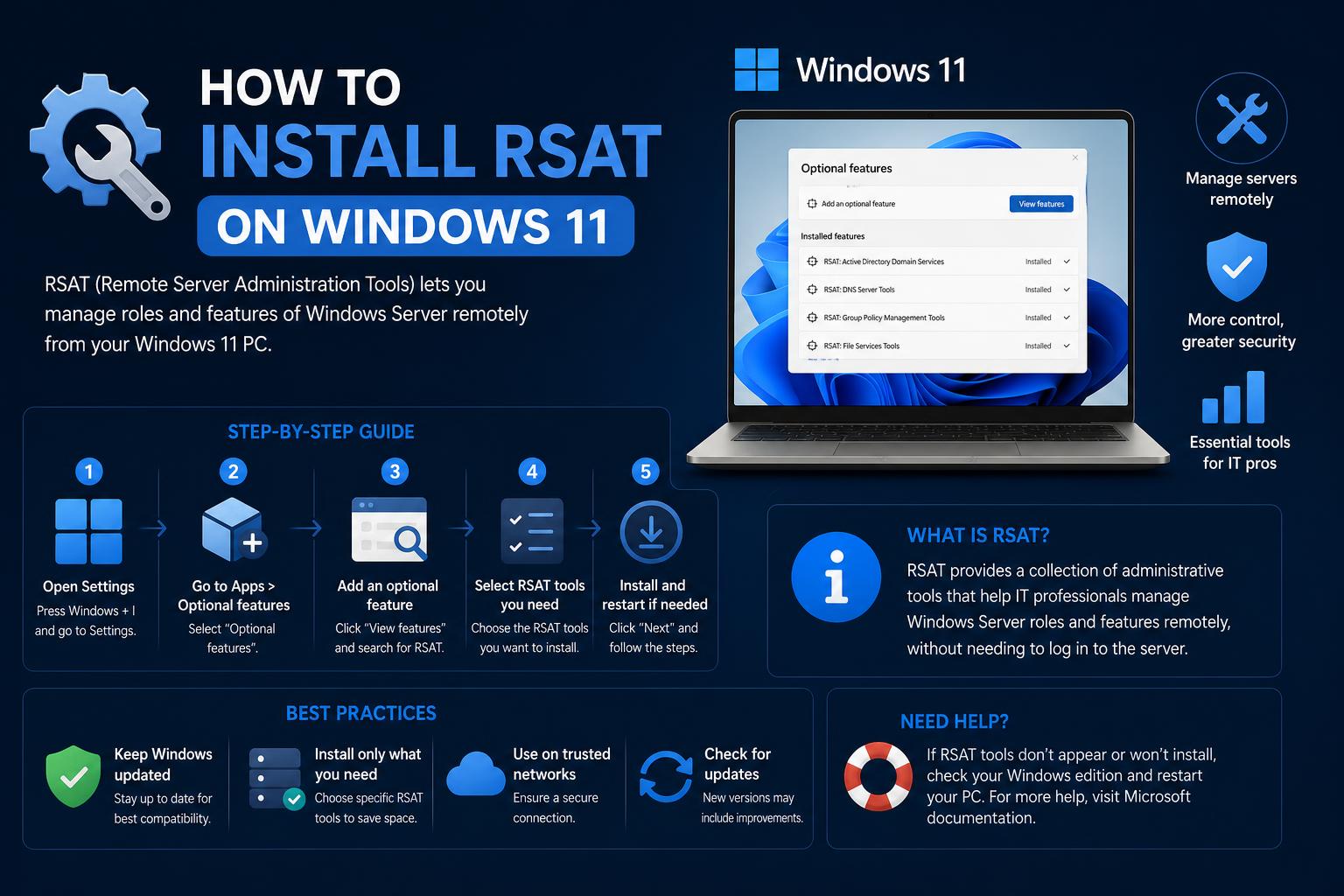
- RSAT tools are only available as Windows optional features on Pro, Enterprise, and Education editions.
- Both Settings app and PowerShell methods enable flexible installation and troubleshooting of RSAT modules.
- Powerful alternatives like Windows Admin Center cover remote management in modern hybrid setups.
Remote Server Administration Tools (RSAT) are invaluable for system administrators managing Windows environments either locally or remotely. With the steadily increasing adoption of Windows 11, understanding exactly how to get RSAT up and running—while sidestepping common issues—has become a hot topic. Yet confusion remains due to changing methods, compatibility constraints, and often incomplete or outdated explanations across the web.
This comprehensive guide walks you through everything you need to know about installing RSAT on Windows 11, exploring what the tools do, technical requirements, command-line alternatives, troubleshooting stubborn scenarios, and even alternative management solutions. By the end, you’ll have every piece of the puzzle needed for smooth RSAT installation and management on current versions of Windows 11 Pro, Enterprise, or Education.
What Is RSAT and Why Should You Care?
Remote Server Administration Tools (RSAT) is a robust collection of utilities developed by Microsoft that allows IT professionals to manage roles, features, and services on Windows Server instances right from their Windows client workstation. In non-technical speak, this means no more jumping from server to server: with RSAT, you can manage Active Directory, DHCP, DNS, Group Policy and much more, all from your daily-use PC.
The suite covers graphical tools (like MMC snap-ins), PowerShell modules, and direct command-line utilities—enabling everything from routine user management to advanced server feature configuration. This makes RSAT a massive time-saver and workflow enabler for any Windows-centric sysadmin.
Supported Editions and Key Requirements
Before downloading—or even looking for—the tools, it’s critical to know that RSAT is officially supported only on certain editions of Windows 11:
- Windows 11 Pro
- Windows 11 Enterprise
- Windows 11 Education
If you’re running Windows 11 Home, RSAT is not available through supported channels (and attempting to hack around these restrictions could violate licensing terms). You’ll also need administrator privileges on the PC in question, and suitable network connectivity if you’re managing remote servers.
What Does RSAT Include?
RSAT isn’t just one tool—it’s a toolbox bursting with server administration power. Here are key categories:
- Server Manager: Central dashboard for viewing, installing, and configuring roles & features, both locally and remotely.
- MMC Snap-ins: Dedicated consoles for specialized services such as DNS, DHCP, Active Directory, etc.
- PowerShell Modules: Commandlets to script and automate all sorts of server tasks.
- Command-line utilities: Old-school server management at the prompt, from DCDiag to NetDom.
Within these categories, specific RSAT modules cover virtually every area of Windows Server administration—from BitLocker to Failover Clustering, IP Address Management, Network Load Balancing, Print/Document Services, Storage Migration, Volume Activation, and more.
For detailed descriptions of each tool, visit the official Microsoft RSAT documentation or review the summary tables included below in this guide.
How to Install RSAT Tools on Windows 11: Settings App Method
The classic route for RSAT installation on Windows 11 is via the Settings app—no manual downloads or external setup files involved.
- Open Windows Settings.
Shortcut: Press Windows + I. - Go to Apps > Optional Features.
- Click ‘View features’ next to the ‘Add an optional feature’ option.
- Type “RSAT” in the search box: The system lists all available RSAT components.
- Select the RSAT tools you need:
- Common picks include Active Directory Domain Services, DHCP Server Tools, DNS Server Tools, and Group Policy Management.
- Hit Next, then Install.
This can queue up multiple tool modules for background installation. - Monitor installation status: Progress appears under ‘Installed features’ at the bottom.
Note: On some versions and configurations, the Optional Features list may not display any RSAT tools or search may return nothing. This is commonly reported (especially on 23H2 or with certain domain policies applied) and has effective workarounds using PowerShell, as detailed below.
Installing RSAT via PowerShell: Quick and Reliable
If the GUI method hits a wall, PowerShell always comes to the rescue. Here’s how you can install any (or all) RSAT tools via the command line:
- Open PowerShell as Administrator.
- List available RSAT tool modules:
Get-WindowsCapability -Online | Where-Object { $_.Name -like 'RSAT*' } - Identify the correct module name for what you want:
Use:Get-WindowsCapability -Name RSAT* -Online | Select-Object -Property Name, StateThis displays all RSAT modules and their installation state. - Install the needed RSAT component(s):
Use the following for a single module, replacing ‘XXXX’ with the exact capability name:Add-WindowsCapability -Name RSAT.XXXX.Tools~~~~0.0.1.0 -OnlineOr, to install ALL RSAT tools at once:Get-WindowsCapability -Name RSAT* -Online | Add-WindowsCapability -Online - Confirm installation:
Run the list command again to ensure desired modules now show as ‘Installed.’
This approach is especially lifesaving when corporate policies, malformed Windows updates, or glitches prevent RSAT from appearing in the Settings UI. Many IT pros report this method as a reliable fallback.
What If the Optional Features List is Empty?
Plenty of users on forums and discussion boards run into this headache: The Apps > Optional Features panel doesn’t show RSAT options even on Pro/Enterprise editions. Here’s a quick checklist:
- Confirm you are signed in with Administrator privileges.
- Your device must have sufficient internet access for Windows to fetch modules from Windows Update.
- Check for Group Policy restrictions: Some organizations deliberately block optional feature installs in managed environments.
- Try the PowerShell method above.
- If you’re on a corporate or network domain, removing from the domain has solved the issue in some cases (though this is not always advisable or practical).
Still stuck? Make sure your Windows updates are current, and if needed, consult official Microsoft forums for recent OS-specific bugs or patches. As a final backup, switching to an alternative like Windows Admin Center is a modern option (detailed below).
What About Standalone RSAT Installers?
Unlike previous versions of Windows, Windows 11 does NOT provide a direct RSAT installer package. All supported RSAT tools are built into the OS as optional features. Attempting to install Windows 10 RSAT .MSI files on Windows 11 is either unsupported or may deliver unpredictable results, as confirmed on various forums and by Microsoft itself.
Old workarounds, like extracting .MSU packages or manually copying files, are both risky (can break the OS) and now mostly obsolete due to feature integration.
Breakdown of RSAT Tools: What’s Included?
Here’s an overview of the main RSAT tool categories available on Windows 11:
- Active Directory Tools: Manage AD Users & Computers, Sites & Services, Domains & Trusts, and Lightweight Directory Services. Includes PowerShell modules and legacy utilities.
- Group Policy Management: Includes GPMC, Group Policy Editor, and Starter GPO Editor for centralized policy control.
- DNS Server Tools: Complete DNS Manager, command-line (dnscmd), and PowerShell management.
- DHCP Server Tools: Console, PowerShell, and netsh-based management for DHCP roles and scopes.
- BitLocker Administration Utilities: BitLocker management and recovery password viewer.
- Failover Clustering, Hyper-V, File Services, WINS, IPAM, Network Load Balancing, Storage Migration, Volume Activation: Each with specialized managers and command-line support.
- Remote Desktop Services, Print Services, Certificate Services, Network Policy, Remote Access Management, WSUS, and more.
Some features are only available on certain editions or when using DISM, and some roles (like Hyper-V tools) may already be part of the core Windows installation.
[relacionado url=”https://www.ikkaro.net/windows-11-print-server-not-working/”]
Centralized Management with Server Manager
The Server Manager module, included in RSAT, acts as your one-stop cockpit for both local and remote server administration.
With Server Manager, you can:
- Connect to multiple servers simultaneously.
- Install, configure, and manage server roles and features.
- Monitor event logs and performance.
- Launch additional RSAT tools from a unified dashboard.
On Windows 11 clients, this tool provides the same look and feel as the native console on an actual Windows Server, boosting productivity by reducing clicks and context switches.
Alternative: Windows Admin Center
If RSAT doesn’t fit your needs—or if you want a more modern touch— check out Windows Admin Center.
This web-based administration solution gives you remote server (and even cluster) management from any browser, regardless of client OS. It’s ideal for mixed environments, supports most roles previously covered by RSAT, and doesn’t require fat-client installation on every admin’s machine. Many pros report that Admin Center is their preferred solution for Windows Server management tasks, especially in complex or cross-platform environments. For a full rundown, check out this comprehensive community guide.
Troubleshooting Common RSAT Installation Issues
- RSAT modules missing from list: Confirm OS edition, administrator rights, and update status. Restart, then try PowerShell install method.
- RSAT tools appear but won’t install: Network policies, update issues, or connectivity problems are likely culprits. Try running:
sfc /scannowandDISM /Online /Cleanup-Image /RestoreHealth. - Error 0x800f0954: Usually a policy or connectivity block. Remove from domain if possible, or configure Group Policy to enable online installs.
- Standalone RSAT download fails: This is by design for Windows 11. Only use ‘Optional Features’ or PowerShell.
Complete (Shortened) RSAT Tools List for Windows 11
| Tool Name | Purpose |
|---|---|
| BitLocker Drive Encryption | Manage BitLocker remotely. |
| Active Directory DS & LDS | AD users, computers, and directory services. |
| DHCP Server Tools | Configure DHCP roles and scopes. |
| DNS Server Tools | Manage DNS servers/zones. |
| Group Policy Management | Edit, apply, troubleshoot policies. |
| Failover Clustering | Cluster configuration/management. |
| Hyper-V Management | Manage virtual hosts, VMs. |
| Remote Desktop Services | Session host, gateway, licensing. |
| Storage Tools | Storage migration/replication oversight. |
| Print and Document Services | Server-side printer management. |
| Volume Activation Tools | Configure volume license activation. |
| Windows Server Update Services | Oversee WSUS operations. |
There are many more minor components, often overlapping in purpose. See the .
Best Practices and Recommendations
- Always keep Windows fully updated before attempting RSAT installation. Some RSAT tools are updated with cumulative OS updates.
- Install only the tools you need: This keeps your admin interface uncluttered and reduces attack surface.
- Use PowerShell for powerful automation, or Windows Admin Center for modern browser-based management.
- For domain-joined workstations with custom update policies, coordinate with IT to allow optional feature installation from Windows Update.
Mastering RSAT on Windows 11 unlocks the full power of remote administration for your server infrastructure, consolidating everything from DNS and Group Policy to Storage and Virtualization under one hood. While the process is generally straightforward, roadblocks are common: understanding both graphical and script-driven installation methods—as well as having troubleshooting steps on hand—ensures you’re never stuck for long. For advanced or hybrid environments, keep an eye on Windows Admin Center as a flexible companion or alternative to classic RSAT, and always refer to the for the latest official updates and complete tool listings.