
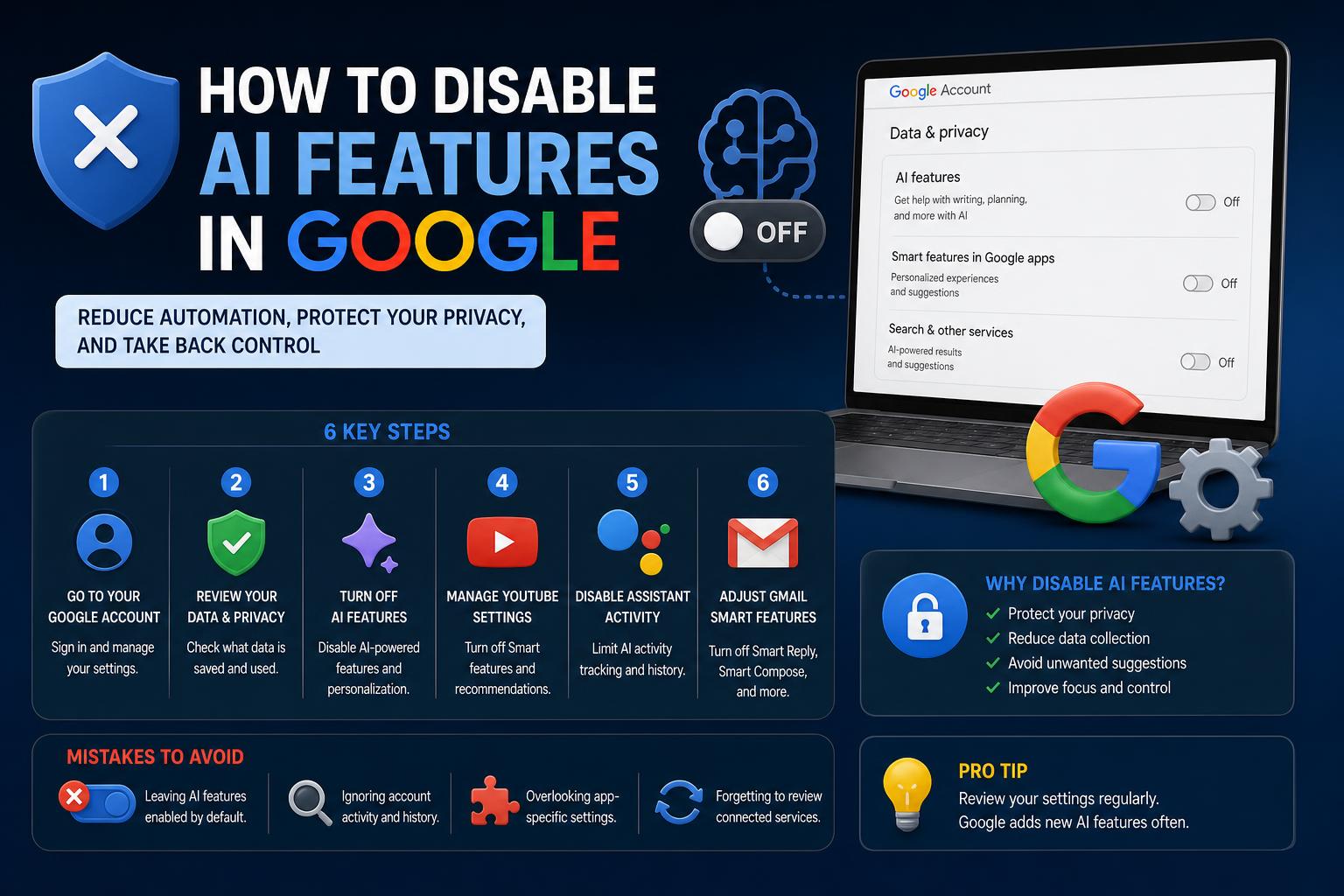
- Disabling Google AI features spans search, Assistant, Workspace, and Chrome personalization, requiring multiple settings changes for best results.
- There is no universal off-switch; users must combine filter tricks, account controls, and individual app settings.
- Turning off AI may reduce privacy risks but also disables some convenient features, so understand the trade-offs before making changes.
With the rise of artificial intelligence (AI), Google has embedded its AI systems into almost every major product, from Search to Gmail and Docs. For some users, the omnipresence of these AI features can feel more intrusive than helpful, fueling concerns about accuracy, privacy, and overall user control. If you’ve found yourself wondering how to take back control and turn off or limit AI-driven functionalities in Google, you’re not alone. Understanding and disabling these features can be tricky, as the process varies across platforms and devices.
This comprehensive guide demystifies the steps necessary to limit or disable AI features in Google services, including Search, Assistant, Chrome, and popular Google Workspace tools. We’ll cover everything from straightforward solutions to hidden trickery you can apply for a cleaner, more private Google experience. Let’s dig in and put the power back into your hands.
Why You Might Want to Disable Google AI Features
Artificial intelligence is designed to make our lives easier, but not everyone is comfortable with Google’s methods of collecting data and customizing content based on personal behavior, search history, or even uploaded files. Common concerns include:
- Privacy risks: AI requires vast quantities of user data, raising questions about how this data might be used for targeted ads, model training, or even surveillance.
- Lack of reliability and accuracy: Some users find AI-generated results, like Search Overviews, can be misleading, incomplete, or simply unhelpful.
- Preference for manual control: Many people prefer browsing or working without machine suggestions, smart replies, or automated content generation.
How Google AI Is Integrated Across Services
AI is deeply woven into Google’s product ecosystem. From the moment you type a query in the search box to when you compose an email or fill a form in Chrome, AI is working behind the scenes. Key touchpoints include:
- Google Search: AI Overviews—machine-generated summaries presented above standard search results.
- Google Assistant: Always-on virtual help, powering voice commands and device control.
- Google Workspace (Gmail, Docs, Drive, etc.): Smart Compose, smart responses, predictive suggestions, and sorting.
- Chrome browser: Autocomplete, autofill, tailored suggestions, and personalization.
Understanding Google’s AI Overviews and Search Personalization
Launched broadly in 2024, the AI Overviews feature places an AI-generated answer, often sourced from multiple websites, at the top of Google Search results. This change has drawn criticism for:
- Reducing visibility of traditional search results and driving less traffic to original sources
- Presenting potentially misleading or inaccurate information
- Further personalizing responses based on user data
On top of AI Overviews, Google personalizes search results using your web and app activity, location, saved media, and other account activity. If you find this approach invasive or simply want more predictable, neutral results, several workarounds exist.
How to Limit or Disable AI Overviews in Google Search
Currently, there’s no official ‘off switch’ to completely remove AI Overviews or all personalization from Google Search. However, the following techniques can help most users see more traditional results, reduce reliance on AI answers, and protect their data.
Apply the ‘Web’ Tab Filter
The fastest method to temporarily remove AI Overviews for a single search is by selecting the ‘Web’ tab right after searching.
- After you search, look for tabs under the search bar labeled All, Images, News, etc.
- Click on Web to restrict results to traditional web pages and strip out AI Overviews.
- If you don’t initially see ‘Web,’ click ‘More’ to reveal it.
You’ll need to repeat this for each search, as the setting is not permanent.
Use the ‘-ai’ Search Operator
Adding ‘-ai’ (minus AI) to the end of your search query can sometimes filter out AI Overviews.
- Type your query like this: best home routers -ai
- This method is simple, works on desktop and mobile, and may limit AI-generated boxes in your results.
- It’s not foolproof, but it’s a helpful trick when you want a more organic search experience.
Modify the Search URL with &udm=14
For power users, adding ‘&udm=14’ at the end of your search URL forces Google to display classic web results without AI Overviews.
- After searching, navigate to your browser’s address bar.
- Add &udm=14 to the end of the URL and press Enter.
- You can bookmark this modified URL for quick access in the future.
To automate this process, Chrome allows you to create a custom search engine that applies this URL modification every time:
- Go to Settings in Chrome, then Search engine.
- Click Manage search engines and site search.
- Under Site search, choose Add and fill in:
- Name: Google Web
- Shortcut: @web
- URL: https://www.google.com/search?q=%s&udm=14
- Set ‘Google Web’ as default, and every search from your Chrome address bar will avoid AI Overviews.
This method only works on desktop versions of Chrome.
Disable ‘Save Media’ in Google Account Settings
Since 2026, Google can use your uploaded images, files, audio, and videos from Search, Lens, Translate, and Maps to train its AI models unless you opt out. To stop this:
- Visit your Google Account and sign in.
- Naviguate to Data & privacy → Search Services History.
- Uncheck Save Media to prevent further use of your media for AI training.
Turning Off Google Assistant and Voice AI Features
Google Assistant integrates deeply with Android smartphones, smart speakers, and more, listening for trigger phrases and collecting behavioral data for personalization. Some users find its always-on nature intrusive. Here’s how to disable it:
Disable Google Assistant on Android Devices
- Open the Google app on your Android device.
- Tap your profile picture and select “Settings.”
- Find the section for Google Assistant and then “All Settings” or “General.”
- Turn off Google Assistant by toggling off the switch.
Deactivate Assistant on Smart Speakers or Displays
- Open the Google Home app and choose the relevant device.
- Access Settings and then “More settings.”
- Find the Assistant controls here and toggle off as needed.
Turn Off Voice Activation (‘Hey Google’)
- Within the Google app, navigate to Settings → Voice → Voice Match.
- Toggle off “Hey Google” to prevent activation by voice trigger.
Disabling AI Personalization in Search and Chrome
Google personalizes search results and Chrome suggestions through activity tracking and autofill. If you prefer a neutral experience, limit this as follows:
Adjust Account Activity Controls
- Head to Google Activity Controls in your account.
- Toggle off Web & App Activity, Location History, and Ad Personalization.
- This helps reduce personalization and AI-driven features across Search, Maps, Chrome, and Ads.
Limit Chrome Autofill and Suggestions
- In Chrome, open Settings and go to Autofill.
- Turn off desired options for addresses, payment methods, or passwords.
- Under Sync and Google services, disable autocomplete for searches and URLs to stop AI-powered suggestions in the search bar.
How to Reduce or Disable AI in Google Workspace
Many Google Workspace applications (Gmail, Docs, Drive, etc.) include Smart Compose, smart replies, and other AI-powered features designed to predict what you might write or want to do. If these features feel intrusive, here’s how to minimize them.
Turning Off Smart Features in Gmail and Google Workspace
- Log into Gmail and click the settings (gear) icon.
- Click See all settings.
- Under the General tab, scroll to “Google Workspace smart features.”
- Click Manage Workspace smart feature settings and disable both:
- Smart features in Google Workspace
- Smart features in other Google products
This action disables many AI tools, but it will also deactivate conveniences like automatic event parsing in Calendar and priority email sorting.
Turn Off Smart Compose and Smart Reply in Gmail
- Go to Gmail Settings → General.
- Disable Smart Compose and Smart Reply options.
- Don’t forget to save your changes.
These steps return manual control over your emails at the expense of some time-saving automation.
Things to Consider Before Disabling AI Features
While it is possible to substantially reduce or remove AI features from your Google experience, be aware that some classic conveniences may cease to function. For instance:
- Disabling AI in Gmail may turn off automatic sorting and event creation.
- Turning off personalization can make your search results and Chrome suggestions more generic and less precise.
- Some toggles, like the Labs AI Overview experiment, do not currently eliminate all AI-generated content but may reduce frequency.
In some cases, users have reported that even after disabling all possible switches, AI elements such as Gemini icons or AI Overviews may still persist. This reflects Google’s ongoing push toward an AI-first design philosophy.
Are There Alternative Search Engines or Browsers?
If Google’s AI integration feels overwhelming, you might not be alone in considering an alternative. Some users from forums and communities share their experiences switching to privacy-focused or AI-free search engines. Popular options include:
- DuckDuckGo: Known for not tracking users or using AI for personalization by default.
- Startpage: Delivers Google results through an anonymization layer, stripping away personalization and tracking.
- Qwant: A European search engine emphasizing privacy with opt-in AI features.
- European options and encrypted ecosystem projects referenced by Proton prioritize privacy by design and offer AI as optional rather than default.
Switching browsers can also help reduce exposure to certain AI integrations. Alternatives to Chrome, like Firefox or Brave, often provide more granular privacy options and fewer built-in AI tools.
As AI continues to evolve, maintaining control over your digital environment has never been more important. Whether you want to eliminate distractions, guard your privacy, or just enjoy a more ‘classic’ internet, most users can limit or disable the majority of Google’s AI-driven features with the strategies above. Keep in mind that the balance between automation and manual control will continue shifting as Google updates its policies and products. Stay informed, revisit your privacy settings regularly, and don’t hesitate to experiment with different tools or platforms until you find what works for you best.