
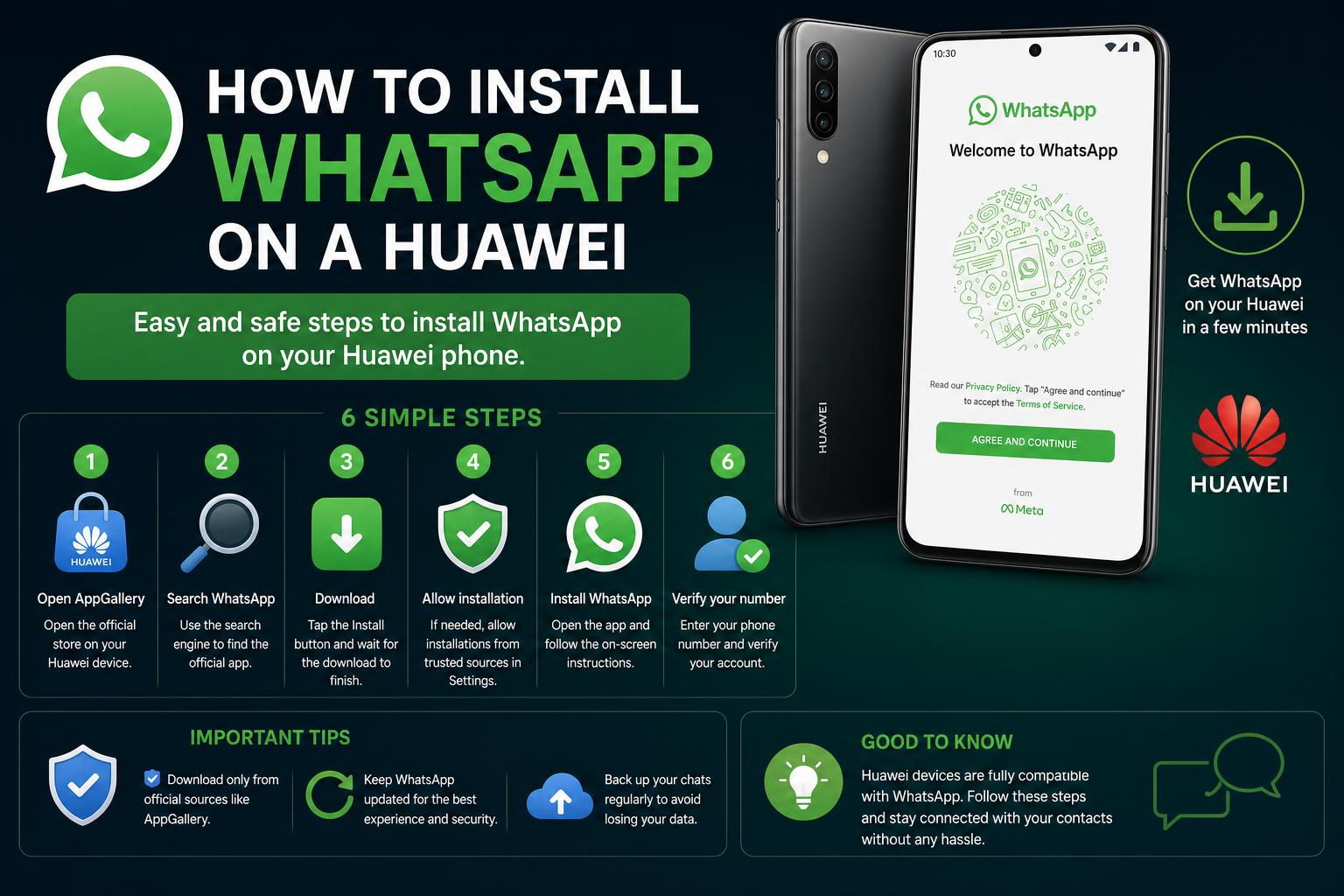
- Multiple official and alternative methods allow WhatsApp installation on Huawei devices without Google Play.
- Data backup solutions include Huawei Cloud and local storage, not Google Drive.
- Security and legitimacy of APK sources are crucial to keep your phone and chats safe.
Getting WhatsApp set up on a Huawei device isn’t as simple as just jumping onto the Google Play Store, but the good news is that it’s absolutely possible—and you don’t even need to stress. Since Huawei phones lost access to Google services, a lot of people have been scratching their heads about how to keep in touch with friends and family on this essential messaging platform. Whether your Huawei runs on EMUI or the newer HarmonyOS, you’ll find several safe ways to put WhatsApp on your device even if the Play Store isn’t available. This guide is going to walk you through all the legitimate options, alternate stores, and even some handy tools that make the process much smoother.
With WhatsApp being crucial for communications around the globe, it’s super important you install it the right way so your messages stay secure and reliable. You’ll also want to avoid any shady sources or unofficial apps along the way. Let’s break down every reliable method, address common concerns, and help you tackle backups, updates, and safe installations.
Why Installing WhatsApp on Huawei Phones Can Be Tricky
Huawei users have faced unique challenges ever since the company was cut off from Google’s ecosystem. The two main reasons why installing WhatsApp can be problematic on some Huawei phones are:
- Lack of Google Services (like Play Store): Newer Huawei phones don’t come pre-loaded with Google apps (Google Play, Google Mobile Services, etc). This means you can’t just search for WhatsApp in the usual app store.
- Software Version Limitations: WhatsApp stops working on very old versions of Android, and this affects older Huawei devices, too.
For many users, the Play Store is simply not available, but this doesn’t mean Huawei devices are totally unsupported. It just means you’ll need to install WhatsApp using an alternative method.
[relacionado url=”https://www.ikkaro.net/setting-up-your-new-phone-from-an-old-device/”]
Which Huawei Phones Have the Most Trouble With WhatsApp?
Outdated software is a deal-breaker for WhatsApp support. Huawei models like the Ascend Mate, Ascend G740, and Ascend D2, for example, use versions of Android so old that WhatsApp no longer works on them safely.
- If your device is running something like Android 4.0.3 (or close), you won’t be able to run WhatsApp. The app requires a more recent Android version to maintain both security and feature compatibility.
- iOS is not a factor here, but if you’re curious, the same goes for old iPhones stuck on ancient software.
The only real fix for these legacy models is to upgrade to a newer device that supports up-to-date app versions. For everyone else, as long as your phone runs a semi-recent version of Android or HarmonyOS, you’re in luck.
General Requirements Before Installation
Before you jump into any installation method, a few basics apply to every process:
- Stable Internet Connection: Either WiFi or mobile data is non-negotiable for downloads and activation SMS.
- Free Space: Make sure you have enough internal storage for WhatsApp and your backups.
- Permission for External Apps: On devices without Play Store, you may need to specifically allow installation of apps from outside AppGallery.
Heads up: If you haven’t before, your device may alert you to enable ‘Install apps from unknown sources.’ Here’s a quick way to allow that safely:
- Go to Settings on your Huawei.
- Head to Security or Privacy (depending on your software version).
- Find the ‘Install apps from external sources’ or ‘Unknown sources’ option.
- Only grant these permissions to trusted apps like your browser or file manager—never random downloads!
Top Methods to Install WhatsApp on Huawei
No matter what phone you have, picking the right method means you’ll stick to official routes and keep your phone secure. Here’s every reliable option, ranked from easiest to a bit more technical:
1. Using Huawei AppGallery and Petal Search
Many Huawei phones feature the official AppGallery as their main app store. If WhatsApp isn’t directly available there, Huawei’s Petal Search tool steps in to help you find verified app sources.
- Open AppGallery on your device.
- Type “WhatsApp” into the search bar.
- If WhatsApp pops up, just tap Download or Install and follow the prompts.
- If not, AppGallery may suggest you use Petal Search—that’ll guide you to the official WhatsApp website or a reputable alternative.
Quick note on Petal Search: Petal Search is developed by Huawei to help users find safe APKs and apps outside typical app stores. It cross-checks sources to protect against malware.
Backing Up and Restoring WhatsApp Data on Huawei Cloud
Once you have WhatsApp, it’s smart to keep your chats safe. Unlike Google Drive or iCloud, Huawei uses its own Cloud backup system. Here’s how to make sure your WhatsApp data is backed up and restorable:
- Go to Settings -> Huawei ID -> Cloud.
- Tap Cloud backup and pick Application Data.
- Select WhatsApp to back up your messages and settings.
- For restoring, repeat above, then click See and Restore and choose the WhatsApp backup.
This keeps your chat history safe even during device switches or reinstallations.
2. Downloading WhatsApp from the Official Website (APK File)
The safest way to get WhatsApp when the Play Store isn’t an option is by downloading the APK from WhatsApp’s official website.
- Open your phone browser and visit https://www.whatsapp.com/android.
- Click the DOWNLOAD NOW button.
- Once downloaded, open your file manager and find the APK (usually in Downloads).
- Tap the file, grant installation permission if prompted, and hit Install.
- After the installation, enter your phone number and follow the SMS instructions to finish setup.
Remember, updating WhatsApp won’t happen automatically through the Play Store—you’ll need to check the official site for updates and download new APKs as needed.
3. Installing WhatsApp via Phone Clone App
Moving to a new Huawei from an older Android? Huawei’s Phone Clone tool helps you transfer not just your apps, but chats and contacts too.
- Install Phone Clone on both your old and new phones.
- Choose the old device as the source and the Huawei as the receiving phone.
- Clone data according to on-screen instructions.
Heads-up: Phone Clone is magic for Android->Huawei transfers but doesn’t currently support moving WhatsApp directly from iPhone to Huawei. And, if your previous backup was on Google Drive, restoration might be limited, since WhatsApp on Huawei won’t always connect to those cloud backups automatically.
4. Using Gspace to Simulate Google Play Services
If you really miss Google Play, the free Gspace app from the AppGallery lets you create a mock environment so you can download WhatsApp (and others) as if you had Google services.
- Install Gspace from AppGallery.
- Open Gspace and let it load its virtual workspace.
- Select WhatsApp (or search for it) in the app list; Gspace pings Google Play in the background.
- Sign in with your Google account, download WhatsApp, and complete install as normal.
- You must use Gspace each time you want to open or update WhatsApp—it’s a sandbox/virtual machine and doesn’t install the app system-wide.
This method is perfect for folks who like the Google Play Store experience and want updates and installations to feel familiar.
5. WhatsApp Web and Desktop: Alternative Access
Can’t or don’t want to install a WhatsApp app? There are still workarounds. Directly from WhatsApp’s homepage, you can use:
- WhatsApp Web: Login at web.whatsapp.com by scanning a QR code from another device that’s already running WhatsApp (your primary phone).
- WhatsApp Desktop: Download the computer app and link it the same way by QR code.
Important limitations: This requires a primary phone with an active WhatsApp session and usually doesn’t support cloud-based chat restores from Google Drive. Your data stays on your device or Huawei Cloud.
6. Sideloading WhatsApp from Trustworthy APK Repositories
Some users prefer downloading apps from alternative APK sources. If you go this route, always use high-reputation sites such as APK Mirror.
- Check that the author/developer is tagged as WhatsApp LLC and avoid anything that looks modified or sketchy.
- Download the APK, enable install permissions as before, and complete installation from your device file manager.
This method is good for advanced users who may want old, beta, or specific WhatsApp versions for compatibility. Beware of fake or amped-up APKs!
Data Backup and Recovery on Huawei Devices
Keeping your conversations safe is crucial. Because Huawei phones usually can’t use Google Drive backups, you’ll want to make local or Huawei Cloud backups often.
- For local backup: WhatsApp saves your chat histories on your phone’s internal storage. To recover, reinstall WhatsApp and follow the prompts to restore your data from those local files.
- For cloud backup: As discussed, use Huawei Cloud for automatic app data and WhatsApp specifically.
If you use third-party tools for migration, double-check compatibility and never use apps that promise WhatsApp hacking or data extraction not authorized by WhatsApp.
Common Problems and Solutions
Let’s tackle some of the headaches users have reported:
- Notifications Not Arriving: This can happen when using third-party environments like Gspace or if your phone’s battery saver is too aggressive. Try whitelisting WhatsApp in your device’s notification and battery settings.
- Updates Aren’t Automatic: If you’ve installed WhatsApp via APK, you won’t get push updates—the onus is on you to fetch new versions from the official site.
- App Installation Fails: Check that unknown source install permissions are enabled for the relevant app (browser or file manager).
- Cloning from iPhone: As of now, there’s no official way to migrate WhatsApp chats from iPhone to Huawei. If this is a big concern, temporarily use WhatsApp Web or keep the old device active until you’re set up.
- Data Loss Concerns: To keep chats—even media—secure, always use the most up-to-date method for backup and pay attention to backup location (local, Google Drive, or Huawei Cloud).
Real-World User Experiences and Community Advice
The reality is, experiences vary depending on your phone model and region, but hundreds of users have reported success using the above techniques. Some point out inconveniences when using unofficial methods: notification glitches or the need for manual updates. Others say it “just works” when following the official instructions and sticking to trusted sources.
One key tip: if you’re migrating from another phone, set up your backup and restore strategy before switching devices. Save your data to local storage or Huawei Cloud and check which method fits your current phone’s software.
Security Best Practices for Installing WhatsApp on Huawei
Stay safe! Always stick to official or widely recognized sources when downloading APKs or using third-party tools. Avoid sites littered with ads, fake download buttons, or requests for permissions unrelated to installation. If something feels off, head back to official resources or Huawei’s own tools.
- Never download WhatsApp (or any app) from random file-sharing sites.
- Regularly check for updates directly via the WhatsApp website if not using a store with automatic updates (AppGallery or Gspace).
- Consider community feedback from user groups (Reddit or official Huawei forums), but always cross-reference with the latest info from WhatsApp or Huawei support.
What About Notifications and Reliability?
One of the biggest concerns in user forums is about WhatsApp notifications either not showing up or being delayed when using alternatives to Google services. The truth is, these problems sometimes happen due to aggressive battery or background task management in Huawei’s operating systems. Make sure WhatsApp is exempt from battery optimization and allowed to run in the background.
If using Gspace or similar, remember your message delivery and notifications depend on how well the virtual environment emulates Google’s push notification services. Community reports from places like Reddit and Huawei forums show that on most current models, WhatsApp runs reliably via the official APK or Petal Search/AppGallery methods.
Extra Tips for Making WhatsApp Work Perfectly on Your Huawei
- Always check compatibility with your specific device and the WhatsApp version you’re planning to install.
- If WhatsApp ever stops working after a system update, re-download the latest APK or check for updates in AppGallery or Gspace.
- Keep your device’s firmware and security patches up to date to ensure maximum app compatibility.
- For business users, WhatsApp Business APKs are available through the same official and secure channels.
- Don’t forget to double-check your device settings to let WhatsApp run in the background and have unrestricted access as needed.
With all the reliable methods available, you are not limited in using WhatsApp on your Huawei device. You can opt for official sources like AppGallery and Petal Search, download it directly from the official website, use Phone Clone, or even utilize tools like Gspace to emulate Google services. As the community and Huawei continue to update their resources, maintaining connectivity and security in your chats will always be supported.