
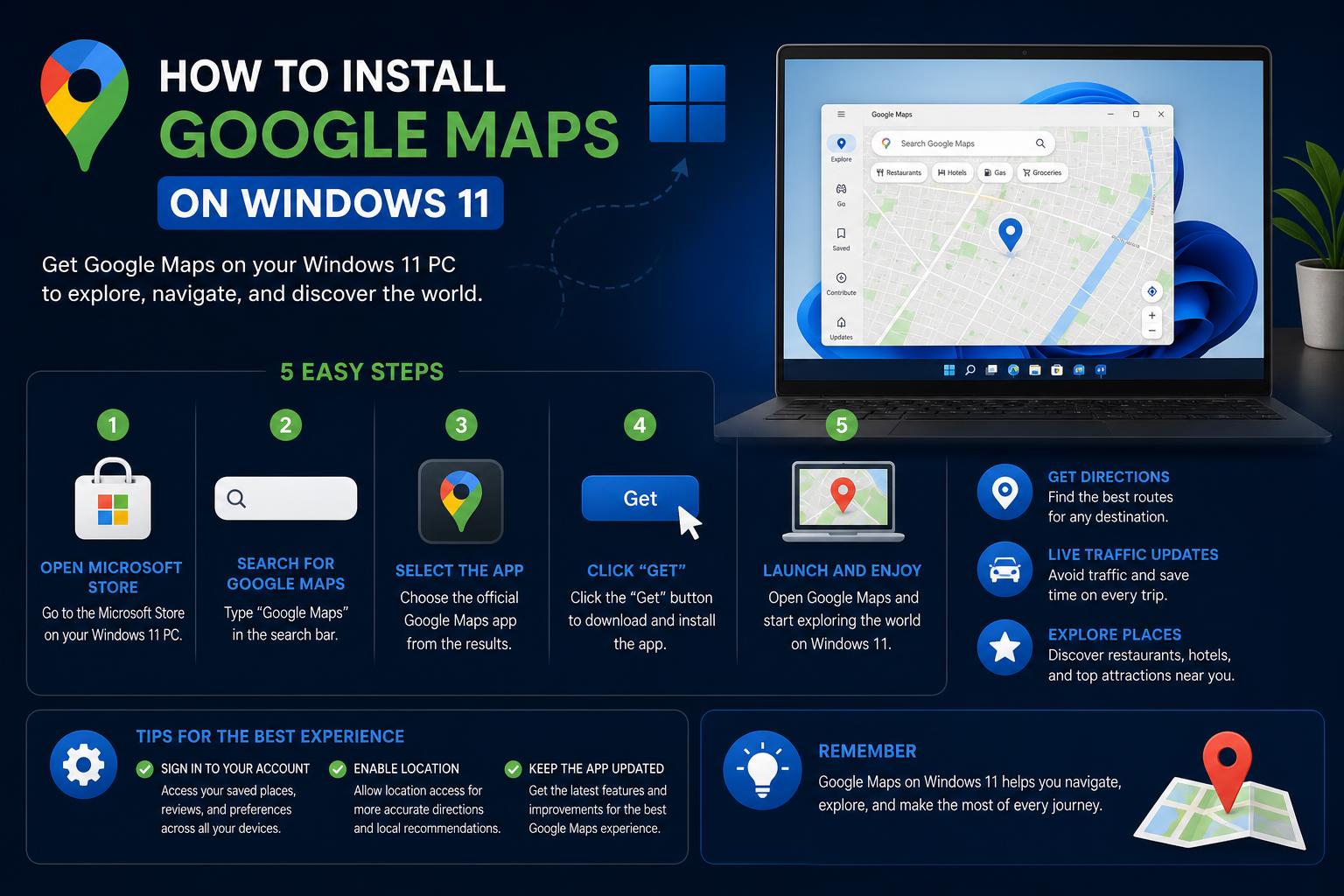
- Google Maps doesn't have an official Windows 11 app, but browser PWAs offer near-native integration
- Microsoft Store alternatives like 'Maps for Gmaps' act as web wrappers for quick access
- Google Earth Pro gives advanced desktop mapping tools, though not replacing Maps' features
Getting Google Maps to work like an app on Windows 11 sounds simple, but if you’ve ever searched for direct installation options, you probably realized there’s no obvious native Google Maps app for Windows. Most users end up pinning a browser tab, or exploring third-party alternatives, but the ideal solution isn’t always clear. With many looking for a smooth desktop map experience—especially for planning routes, saving favorite places, and generating directions without fuss—a comprehensive step-by-step guide is overdue.
This in-depth article gathers all legit methods and alternatives discussed, from converting the Google Maps site into a desktop app using browsers like Chrome or Edge, to leveraging Microsoft Store apps and even considering Google Earth, to offer you every possible way to enjoy a near-native Google Maps experience on your Windows 11 device. We’ll cover official methods, alternatives, and even clarify what’s possible (and what’s not)—so you save time and set up your system the smart way.
Understanding Google Maps Availability on Windows 11
Google has never released a standalone Google Maps app for Windows. That’s why, if you’ve checked both the Microsoft Store and Google’s official download centers, you likely only found apps such as “Open with Maps” or “Maps for Gmaps”—which are not the real deal, but web wrappers or alternatives with limited native integration.
Instead, Google Maps remains a web-first service. But there are a few clever ways to use Maps as if it were a native Windows app—which we’ll break down below. We’ll also explore the few alternative mapping apps and wrappers found in the Microsoft Store.
Exploring Desktop-like Google Maps: Progressive Web Apps (PWA) Approach
The most reliable and authentic way to run Google Maps as an “app” on Windows 11 is through Progressive Web Apps (PWA) technology. Modern browsers like Google Chrome and Microsoft Edge allow you to “install” websites as apps—turning your favorite web service into a desktop shortcut with its own window, icon, and even notifications support.
What Are Progressive Web Apps?
PWAs are enhanced websites that feel more like apps than web pages, providing a richer, native-like experience without needing anything extra beyond your browser. Luckily, Google Maps is one of those services that work smoothly as a PWA.
How to Install Google Maps as an App on Windows 11
If you want Google Maps on your start menu or desktop, follow one of these easy methods using Chrome or Edge. Both browsers make the conversion process straightforward and safe.
Installing Google Maps Using Google Chrome
- Open Google Chrome and go to the Google Maps website.
- Sign in with your Google account if you want access to saved places, directions, and history.
- Click the three-dot menu (top right corner of the browser window).
- Hover over ‘Cast, Save, and Share’ in the menu.
Depending on your version of Chrome, this may appear as just ‘More Tools’ or under ‘Save and share’. - Select ‘Install Google Maps’.
- When prompted, click ‘Install’ in the dialog box.
The app shortcut will appear on your desktop or start menu, working just like a regular app.
Installing Google Maps Using Microsoft Edge
- Open Microsoft Edge and go to Google Maps.
- Again, log in if you need access to personalized features.
- Click the three-dot menu in the top right corner of Edge.
- Hover over ‘More Tools’, then find and click ‘Apps’—look for the ‘Install Google Maps’ option.
- In the installation dialog, confirm by clicking ‘Install’.
- Choose where you want the app’s icon (Desktop, Start Menu, or Taskbar), then click ‘Allow’.
The installed PWA behaves much like a lightweight app: it opens in its own borderless window, supports notifications, and you can pin it, uninstall it, or move it around on your desktop just like any Windows program.
Microsoft Store Alternatives: “Maps for Gmaps” and “Open with Maps”
If you search the Microsoft Store, you’ll see apps like “Maps for Gmaps” and “Open with Maps”.
- These are mainly wrappers or shortcut creators, helping you launch Google Maps (or similar functions) quickly from your desktop.
- They have limited offline or advanced functionality compared to real navigation apps, but if you only need quick access without a browser, they’re safe, free, and easy to try.
- Be sure to check reviews and permissions before installing any third-party app from the store.
While worth exploring, these store apps do not offer any extra powers beyond what the PWA method provides directly through Chrome or Edge.
What About Google Earth?
For those seeking more advanced mapping functions—such as 3D visualizations, globe exploration, or overlaying multiple kinds of data—Google Earth Pro remains Google’s one official, installable program for Windows.
You can grab the latest Google Earth Pro version for Windows straight from the official Google Earth download page at https://maps.google.co.uk/intl/en_uk/earth/download/gep/agree.html.
This option automatically updates and provides far more tools for geographic analysis, but it does not replace the interactive features like instant directions or place-saving found in Google Maps. You can, however, launch directions, measure distances, and get a different mapping perspective using satellite imagery and globes that span the entire earth.
Limitations: What You CANNOT Do
- There is NO official, native Google Maps app for Windows 11 outside of the browser or PWA workaround.
- Microsoft Store apps are not made or supported by Google—use them only for convenience, not extended features.
- Offline maps are not fully supported in most web-based solutions, so plan accordingly if you’ll be traveling without internet access.
Replying to Common Questions and Forum Insights
The official Google support threads provide little clarity, often redirecting to web-only solutions. One common question is simply, “How can I get Google Maps on my computer?”—but official responses generally just recommend using the website via a browser.
Community-driven platforms like Reddit offer more creative solutions, with step-by-step walkthroughs illustrated with screenshots or video guides. These generally recommend using Chrome or Edge’s PWA install functionality, aligning with the step-by-step methods already described above. The main advantages: no extra software and full integration with your existing Google account, offering a fast, convenient, and secure way to access Maps features without keeping a cluttered browser tab open.
Making the Most Out of Google Maps on Windows 11
Once installed as a PWA, you can:
- Pin Google Maps to your Start menu, Desktop, or Taskbar for one-click access.
- Enable notifications for updates like traffic alerts or saved location reminders (as supported by Google Maps Web).
- Take advantage of all browser-based features, including searching for locations, generating customized directions, and saving favorite places directly to your Google account.
Alternative Mapping Solutions for Windows Users
If you need mapping beyond Google Maps, consider:
- Google Earth Pro: For 3D, satellite, and advanced cartographic features.
- Bing Maps Web: Microsoft’s own mapping site, which integrates natively with Windows for additional features.
- Offline maps solutions: Apps like MAPS.ME or Sygic (not Google Maps, but useful if you travel frequently without stable internet).
Troubleshooting and Tips
If you run into issues installing Google Maps as an app, double-check your browser version—only the latest Chrome and Edge support full PWA installation for all users, and menu items might be labeled differently depending on updates. Also, if you accidentally remove the shortcut, simply revisit Google Maps and repeat the install process—it takes under a minute and is risk-free.
Keeping Your Desktop Organized
After installing, you can relocate your Google Maps shortcut anywhere: onto your Start menu, the Taskbar, or within a custom folder for your travel and utility apps. If you want to uninstall, simply right-click and select ‘Uninstall,’ or manage it directly from within your browser’s Apps settings menu. No leftover files, and you can always re-add it later!
Setting up Google Maps as a fully functioning desktop app on Windows 11 is practical, fast, and gives you a genuine “app” feel with all the real Google Maps perks. Using browser-based Progressive Web App features, you get easy access, storage of your personalized locations, and sleek integration with the Windows interface. If you want an extra layer of mapping tools, Google Earth takes you further with its powerful 3D and satellite features—also just a quick download away. After reading this guide, you’ll be fully equipped to get Google Maps running on your desktop or laptop, offering faster access to everything you need, whether at home or on the go.