
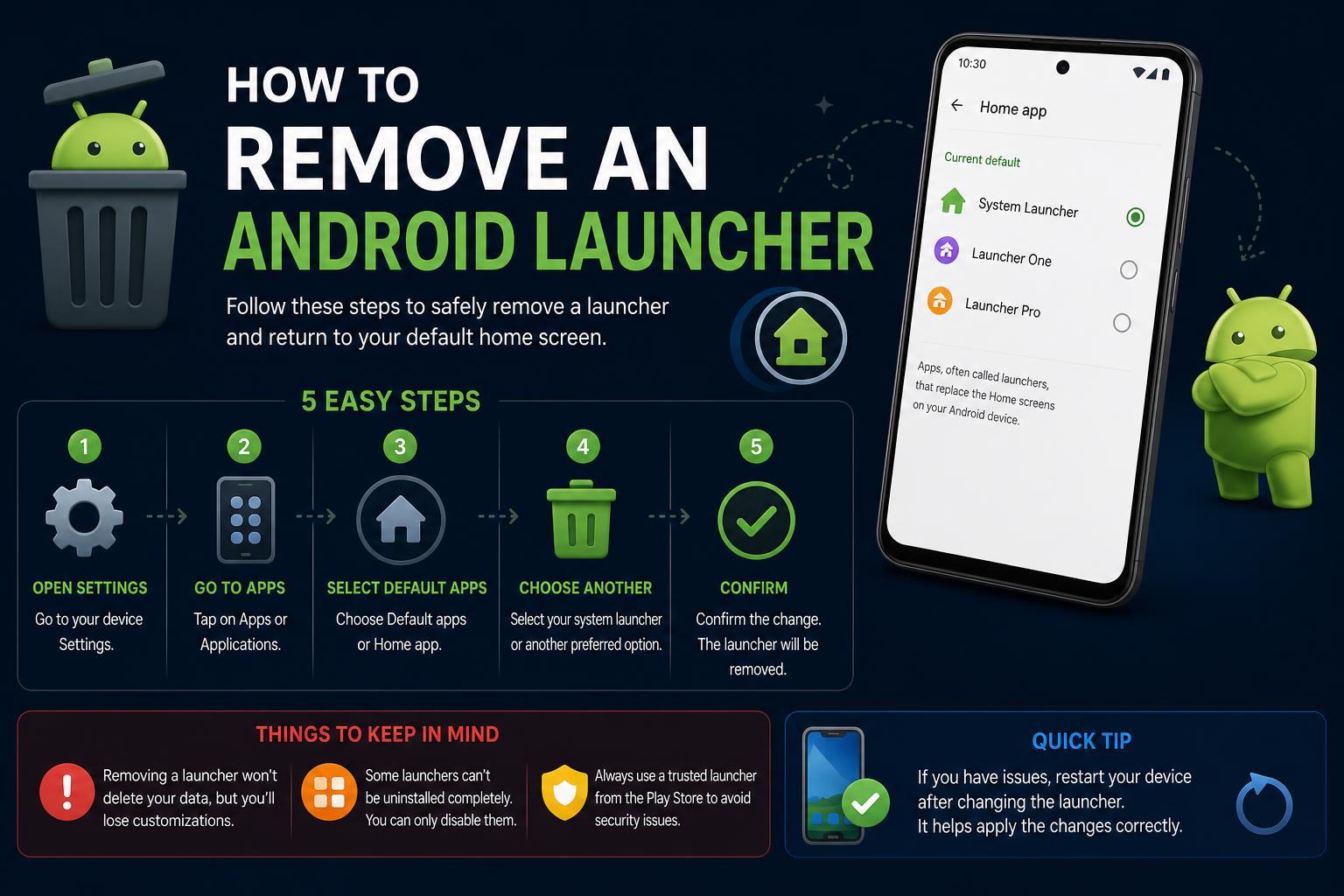
- Most Android launchers can be removed or replaced by clearing default settings and uninstalling the app.
- System or pre-installed launchers are not removable but can be hidden by setting a new launcher as default.
- Specialized tools and careful use of settings streamline home screen management and reset.
Changing the way your Android phone looks and feels is one of the platform’s best perks. Whether you’re chasing a cleaner home screen, better performance, or simply want something fresh, custom launchers make Android truly yours. However, sometimes you might regret the change, get stuck with a buggy home screen, or just want your phone back to its original look. Figuring out how to remove an Android launcher or reset your home screen might seem confusing, but don’t worry: you’re not alone and the solution is often simpler than it seems.
This guide will walk you through everything you need to know about uninstalling launchers and returning your Android device to its default setup. We’ll cover scenarios from easy one-tap fixes to more stubborn situations where the launcher comes pre-installed, plus tips on keeping your home screen organized and advice for when things get tricky.
Why Android Launchers Exist & When to Remove Them
Android launchers let users revamp their devices without rooting or deep modifications. You’ll find options like Nova Launcher, Espier Launcher 7, and Aviate offering new icons, widgets, and layouts. However, after a while, you might realize your favorite custom launcher is slowing your phone down, causing glitches, or simply isn’t your style anymore.
In some cases, you may have accidentally set a launcher as default and now have trouble going back to the original, or find out the launcher can’t be removed due to system restrictions. If you ever feel stuck or want to simplify your device, it’s a good idea to review your installed launchers and remove the ones you no longer use.
Understanding the Problem: Why Can’t I Just Uninstall This Launcher?
Most launchers installed from Google Play or other sources can be uninstalled like any other app. However, there are exceptions—especially when it comes to launchers pre-installed on brands like Xiaomi (Redmi), Oppo, or other manufacturers. For example, some phones ship with a third-party launcher, such as GoLauncher, that’s deeply integrated into the system, making it difficult or impossible to remove without advanced steps. Even after a full factory reset, these launchers can persist because they’re baked into the phone’s software build.
Also, if you’ve set a custom launcher as default, the home button may always take you to it, until you change the default setting. Knowing whether your launcher is user-installed or part of the system makes a big difference in your options for removing it. Below, we break down the steps for both situations.
How to Tell Which Launcher is Active (and Default)
Before you can remove or reset a launcher, you should figure out which one is currently set as default. Here are some quick ways to check:
- Go to Settings → Apps → Default apps (or Home app). Here you’ll be able to see which launcher is managing your home screen.
- If that option isn’t obvious on your version of Android, you can also check under Apps & Notifications, looking for special app access settings or the home app configuration.
- On some devices, simply pressing the Home button will prompt you to choose which launcher to use—if multiple are installed and none is set as default.
Identifying the launcher is helpful, especially if you’re working with third-party uninstall tools like Uninstall Launcher or if you’re trying to remove the app manually.
Step-by-Step: Removing a Third-Party (User-Installed) Launcher
If you installed the launcher from Google Play or another app store, removing it is straightforward. Here’s how:
- Go to Settings on your Android device.
- Find and tap Apps (this might show up as “Apps” or “Apps & Notifications”).
- From the list, find the launcher you want to remove (for example, “Nova Launcher”).
- Tap the launcher app, then select Uninstall. If the option isn’t available, you may need to clear the launcher’s default settings first (see below).
If the launcher is set as default, you might notice that “Uninstall” is grayed out. In that case, do the following first:
- Scroll down to Clear defaults (you’ll find it after tapping the launcher in the app list).
- Tap that option. Now, pressing the home button will let you choose another launcher or restore the original one.
- With the defaults cleared, go back and tap Uninstall.
If You’re Stuck: What To Do When the Launcher Won’t Uninstall
Sometimes, devices come with launchers that can’t be removed through normal means, especially on budget phones with “custom builds” like in this scenario on Reddit. Phones like the Redmi A2 may use a launcher, such as GoLauncher, so deeply integrated into the software that not even a factory reset can remove it.
Here are some strategies to try if you can’t uninstall it directly:
- Clear defaults: even if it can’t be removed, you can usually clear its default status using the apps menu as described above. This lets you install another launcher and set it as default.
- Install an alternative launcher: something like Nova Launcher or Microsoft Launcher, available on Google Play, can often override persistent system launchers by setting it as default.
- Reset app preferences: under Settings → Apps, there’s usually an option to reset all app preferences. This clears default settings and can help disable a stubborn launcher.
- Factory reset: as a last resort, a full reset (Settings → System → Reset) can remove a problematic launcher, though it won’t work for the ones deeply embedded in the system.
- Developer options and custom ROMs: for advanced users, unlocking the bootloader and installing a custom ROM can replace even the most stubborn launchers, though this is a complex and risky process.
If none of these options work, your best bet is usually to set a new launcher as default and hide the original one as much as possible.
Using Tools: Uninstall Launcher Apps from Google Play
To make it easier to identify and remove unwanted launchers, apps like Uninstall Launcher on Google Play can be useful.
- These apps scan your device for all installed launchers, showing icons and names to make them easy to identify.
- You can then tap to uninstall any user-installed launcher (keep in mind: they can’t remove system launchers, but will clearly flag them as such).
- They offer a simple interface, with no ads and no data collection.
- This method is handy if you’ve tried several launchers and want to quickly clean things up.
Keep in mind that, while useful, no tool can bypass Android’s security rules: system launchers pre-installed by the manufacturer can’t be removed, but they can be hidden by setting a secondary launcher as default and keeping them running in the background.
General Tips for a Clean and Fast Home Screen Experience
Switching launchers doesn’t just affect style—it also impacts performance, stability, and battery life. Here are a few tips to keep your device running smoothly:
- Don’t overload your phone with multiple launchers at once. Only keep one or two that you actually use.
- If you’re trying out new launchers, always clear the defaults before uninstalling them to avoid issues with the home button.
- Update your launcher apps regularly to benefit from bug fixes and new features.
- Consider lightweight launchers if speed and battery life are a priority.
- If you ever feel “stuck” with a launcher you can’t remove, you can “hide” it by installing another one and setting it as default.
Specific Scenarios and Troubleshooting
Every Android device is different, and there’s no one-size-fits-all solution. Below, we cover some common situations:
1. Trouble installing widgets or switching launchers (redundant launcher issue)
Some users report that pre-installed launchers (like GoLauncher on the Redmi A2) aren’t easily replaceable and limit widget installation. In these cases:
- Check the launcher’s settings to see if it supports widgets or has special permissions.
- Install a reliable alternative launcher—most support a wide variety of widgets.
- If you still run into restrictions, it may be due to custom manufacturer software. Enable Developer Options, but be careful, since making system-level changes can be risky.
This usually means the default launcher is set. The fix:
- Settings → Apps → All apps → Find the launcher → Clear defaults.
- Press the home button and the system will prompt you to choose which launcher to use. Select your preferred option and choose “Always”.
3. Accidentally downloaded a malicious launcher
If you installed a “pirated” launcher that’s misbehaving, take these steps right away:
- Restart in Safe Mode (usually by holding Power > then holding “Power off”). This prevents third-party apps from running.
- Go to Settings and uninstall the malicious launcher as described above.
- If you can’t remove it because it has admin rights, revoke them under Settings > Security > Device admin apps, then uninstall it.
- If nothing works, back up your data and perform a factory reset.
Frequently Asked Questions
Will I lose personal data by uninstalling a launcher?
Uninstalling a launcher won’t delete your contacts, photos, or files. However, you will lose shortcuts, widgets, and custom settings made within that launcher. It’s a good idea to back up before switching launchers.
Can I completely remove the system launcher?
No. Android always keeps at least one launcher active. System or manufacturer-default launchers can’t be removed without rooting the device (which carries risks and voids warranties). However, you can hide it by setting a third-party launcher as default.
What about launchers with brand-specific themes or features?
Manufacturers often include their own launchers (like Samsung’s One UI Home). You usually can’t remove them without rooting, but you can install and set another launcher as default. Keep in mind: on some devices, theme or widget support might be tied to the original launcher, limiting your options.
How can I fix lag and battery drain caused by launchers?
Uninstall unused launchers and use lightweight, well-rated ones. Some launchers are known for running background processes or showing ads, so choose carefully and read recent reviews on the Play Store.
Knowing your options for getting out of a tricky situation with an Android launcher comes down to understanding how the settings work. Whether the launcher is user-installed or pre-installed by the manufacturer, you can generally remove it or at least hide it and use a different one. Checking which one is active, clearing defaults, and using uninstall tools when needed gives you full control over your phone’s home screen, no matter what obstacles you run into along the way.