
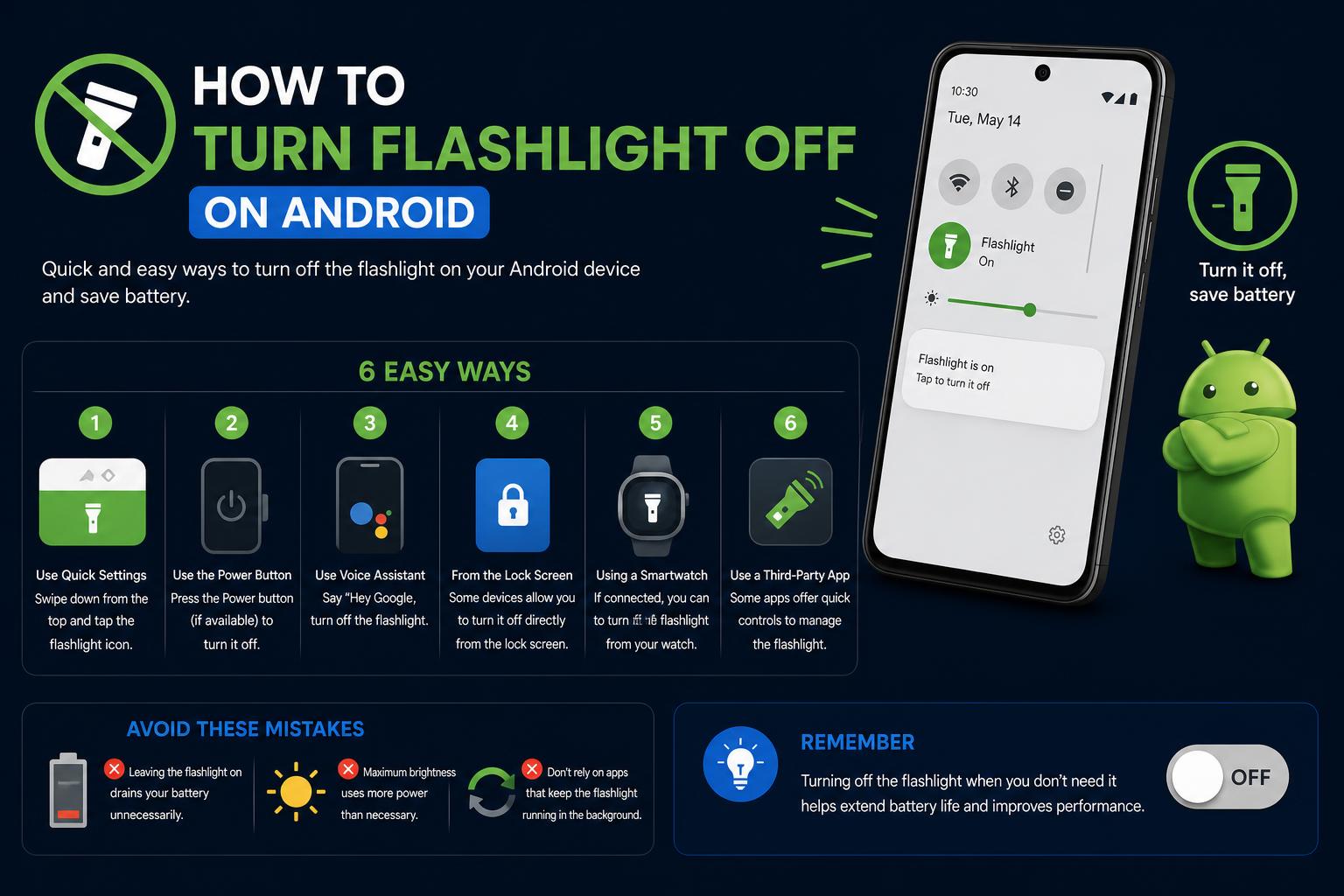
- Master all available methods to disable your phone’s flashlight easily.
- Discover device-specific controls, shortcuts, and accessibility options.
- Learn how to resolve common issues like stuck flashlights or accidental activation.
Have you ever found yourself in the awkward situation where your phone’s flashlight turns on by mistake, and you just can’t seem to switch it off? Or maybe you simply want to know all the ways you can control your flashlight for those late-night moments when you actually need it, but only for a second? Luckily, shutting down that mini searchlight is quick—if you know where to look. This complete guide brings together all the tricks, official guidance, and clever fixes for both iPhone and Android, so you’ll never get caught flashing again.
Smartphone flashlights are incredibly handy, but with so many device models and software changes, it’s easy to get lost in menus or trigger the light by accident. Whether you’re new to smartphones or a seasoned user, understanding every option, from voice commands to secret gestures, ensures you can handle any lighting situation—or mishap—with confidence. This article covers each method in clear, natural language, while highlighting which steps work on which devices.
Turning Off the Flashlight on iPhone
Apple has integrated flashlight controls throughout iOS, making it accessible from various parts of your iPhone, regardless of whether it’s locked or unlocked. The methods you use depend on your device model and iOS version, but knowing all the entry points means you’re never stuck in the dark—or the light! Below, we break down every technique for disabling your iPhone flashlight efficiently.
1. Using the Lock Screen Flashlight Button
If your iPhone is locked and you see the flashlight icon at the bottom left of the Lock Screen, just wake the device and press and hold the flashlight icon until you feel a gentle tap and watch the light go off. Release as soon as the torch extinguishes. It’s quick, tactile, and doesn’t require unlocking your phone at all.
- Wake the device by pressing the Side button or tapping the display.
- Locate the flashlight icon in the bottom-left corner.
- Press and hold until you feel feedback and the flashlight turns off.
If you find yourself accidentally triggering the flashlight—a common headache—consider exploring your Lock Screen customization settings. Some iOS versions let you swap out that control with something less prone to accidental taps. If not, look into disabling or tweaking features like Tap to Wake, Raise to Wake, or Back Tap to reduce unintentional activations.
2. Using Control Center
Control Center is a reliable, quick-access hub for iPhone features. You can turn off the flashlight from here, no matter what app you’re in (or even from the Lock Screen, for many models):
- On Face ID iPhones, swipe down from the upper-right corner.
- On iPhones with a Home Button, swipe up from the bottom edge.
- Tap the flashlight icon once to turn it off. If you don’t see it, visit Settings > Control Center and add “Flashlight” to available controls.
If your Control Center layout is missing the flashlight option, you can easily add or customize it in your settings. This feature is typically the fallback for people who have trouble with the Lock Screen button or want to access the flashlight faster inside other apps.
3. Turning Off Flashlight Using Siri
Imagine your hands are full or wet—maybe you’re cooking or repairing something—and you can’t easily touch the screen. This is where Siri comes to the rescue. Just say, “Hey Siri, turn off the flashlight,” or press and hold the Side button, then give the command. Siri will respond whether you’re using your phone, your AirPods, or certain CarPlay setups.
Common working phrases include:
- “Hey Siri, turn off my flashlight.”
- “Siri, please turn off the flashlight.”
Siri is especially helpful in conditions where your device’s screen isn’t responsive or when you’re operating the phone remotely.
4. Turning Off the Flashlight with the Action Button (iPhone 15 Pro and Later)
Apple introduced the customizable Action Button in recent models, such as the iPhone 15 Pro series. This one-click superhero button can be set to toggle your flashlight on or off instantly.
- Open the Settings app on your iPhone.
- Tap Action Button.
- Scroll or swipe through the available assignments until you reach the Flashlight option.
- After assigning, press and hold the Action Button any time you want to toggle your flashlight.
This is a next-level shortcut for users who love fast, tactile controls. For official details, check the Apple Support: Flashlight Controls page.
5. Using Dynamic Island (iPhone 14 Pro and Above)
On models that support Dynamic Island, the flashlight may show a special indicator and even offer controls to adjust beam length and width. Simply tap the Dynamic Island area and look for a Light icon—touching and holding it allows you to manipulate the beam. While it’s neat, most users still turn to Control Center or Lock Screen for standard off/on toggles.
Other Options and Accidental Flashlight Triggers
Many users wonder why their flashlight keeps turning on by accident. It’s not just clumsy fingers—the placement of the controls means even a tight jeans pocket or case pressure can activate the light. Here are a few culprits:
- Tap to Wake: Disable via Settings > Accessibility > Touch if you keep tapping the screen unexpectedly.
- Raise to Wake: Turn off in Settings > Display & Brightness to prevent auto wake-ups inside bags.
- Back Tap: If double tapping the back triggers the flashlight, remove it under Settings > Accessibility > Touch > Back Tap.
- Case fit: Poorly fitting cases or overlays that press the device edge can press these virtual buttons without you noticing.
- Customizable Lock Screen: Swap flashlight for another control (if your iOS allows it) to cut down on accidental taps.
Troubleshooting: If Your iPhone Flashlight Gets Stuck
Sometimes, the common controls don’t respond and you find your flashlight stuck on. This typically results from a temporary iOS glitch or a conflict with the Camera app, since both use the same LED. Here’s how to fix it:
- Control Center Fail: Open Control Center and tap the flashlight again. If nothing happens, wait a couple seconds and try once more.
- Camera App Conflict: If Camera is open, close it. The flashlight (LED) won’t work properly when the camera is in use.
- Lock and Unlock your iPhone. This refreshes Lock Screen controls and usually clears the issue.
- Restart the device. Force restart as per your iPhone model if a simple restart doesn’t help—Apple has a full guide here: Official Restart Guide.
- Update iOS if the problem persists post-restart. Persistent bugs may already have been fixed by Apple in newer software.
- Reset all settings as a last measure: Settings > General > Transfer or Reset iPhone > Reset > Reset All Settings. (Photos and files aren’t deleted, but Wi-Fi, keyboard, and related preferences reset.)
Turning Off the Flashlight on Android Phones
Android phones, with their variety of interfaces, can make finding the flashlight off switch slightly different on each device. But some universal tips apply across most Samsung, Google Pixel, Xiaomi, OnePlus, and other major brands.
1. From Quick Settings/Notification Shade
Android’s Quick Settings panel is the fastest route for most users. Here’s what to do:
- Swipe down from the top of the home screen to reveal the Quick Settings.
- Look for the Flashlight or Torch icon. (On some devices, you may have to swipe down a second time to expand the full menu.)
- Tap the Flashlight icon once to turn it off. The icon will usually darken or animate to show it’s now off.
If you don’t see the icon, tap the pencil or edit icon to customize your Quick Settings and move Flashlight up where it’s always visible.
2. With Voice Commands: Google Assistant
Modern Androids let you control the flashlight with your voice using Google Assistant. Hands full? Just say “Hey Google, turn off flashlight” or “OK Google, switch off torch.” This works on supported phones, smartwatches, and even some tablets that support Google Assistant.
3. In-App Flashlight Controls and Widgets
Some manufacturers include built-in apps or widgets for flashlight control. These can often be added directly to your home screen for rapid on/off access. If yours is missing, check the Play Store for official applications from your device’s manufacturer.
4. Physical Buttons and Gestures
Certain Android phones have gestures or button shortcuts. For example, Motorola’s “chop twice” gesture toggles the flashlight. Samsung and some others let you assign side button double presses or customize them in settings.
- Check Settings > Advanced Features or Gestures.
- Assign flashlight toggle if available, then use the gesture or side button.
5. Tips for Avoiding Accidental Activation
Android users, like their iPhone counterparts, may turn on flashlights by mistake. This often happens when swiping down for notifications, or if you add the icon too close to other commonly used shortcuts. If this keeps happening, try rearranging your Quick Settings so Flashlight isn’t right next to Wi-Fi or Bluetooth—or simply lock the phone before pocketing it.
Troubleshooting Android Flashlight Issues
Sometimes, the Android flashlight won’t switch off. Causes include system bugs, a third-party app conflict, or background usage by another app (such as Camera or a barcode scanner). Here’s how to resolve it:
- Close any app currently using the camera or LED.
- Restart your phone—most glitches resolve after a reboot.
- If a third-party flashlight app is causing problems, uninstall and use the built-in tool only.
- Check for device updates or security patches.
- Factory reset should be your last resort, but it’s very rarely necessary for a stuck flashlight.
Flashlight Safety, Power Saving, and Device Considerations
Leaving your flashlight on for extended periods can drain your phone’s battery much faster and even warm up the device noticeably. Some older phones may experience hardware glitches or wear on the LED if left lit for very long stretches, so always remember to turn off the flashlight as soon as you’re done using it!
If you notice your flashlight switches back on after turning it off, or won’t stay off, it’s worth checking if a background service or task automation app is interfering—especially on Android. On iPhone, a software update or settings reset usually solves recurring problems.
Customization and Accessibility Options
Both iPhone and Android allow a fair amount of customization for flashlight controls, designed to help users who need alternative access due to mobility or vision issues.
- iPhone: Back Tap, Siri Shortcuts, Accessibility Settings
- Android: Accessibility Quick Settings, Voice Assistant, Customizable Widgets
To optimize accessibility or reduce accidental activations, consider placing the controls in easier-to-reach locations or adjusting gestures and shortcuts accordingly.
Where to Find Official Support and Tutorials
For iPhone users, the latest and most accurate guidance on flashlight settings and troubleshooting can always be found on Apple’s official Flashlight page. Android users should check their manufacturer support site, such as Google Pixel Support or the help documents for Samsung, Xiaomi, etc.
Quick video tutorials are also popular—just search “turn off flashlight” on YouTube or TikTok for device-specific walk-throughs. Also, Facebook guides like this Android flashlight tutorial can offer visual step-by-step instructions.
Having complete command over your smartphone’s flashlight ensures you never waste battery or disrupt the room with unexpected lighting. With all the options detailed above, from Lock Screen and Control Center on iPhone to Quick Settings, voice commands, physical gestures, and troubleshooting on Android, you’re prepared for both everyday tasks and unexpected technical hiccups. Next time your phone becomes that accidental pocket lighthouse, you’ll know exactly how to bring back the night.