
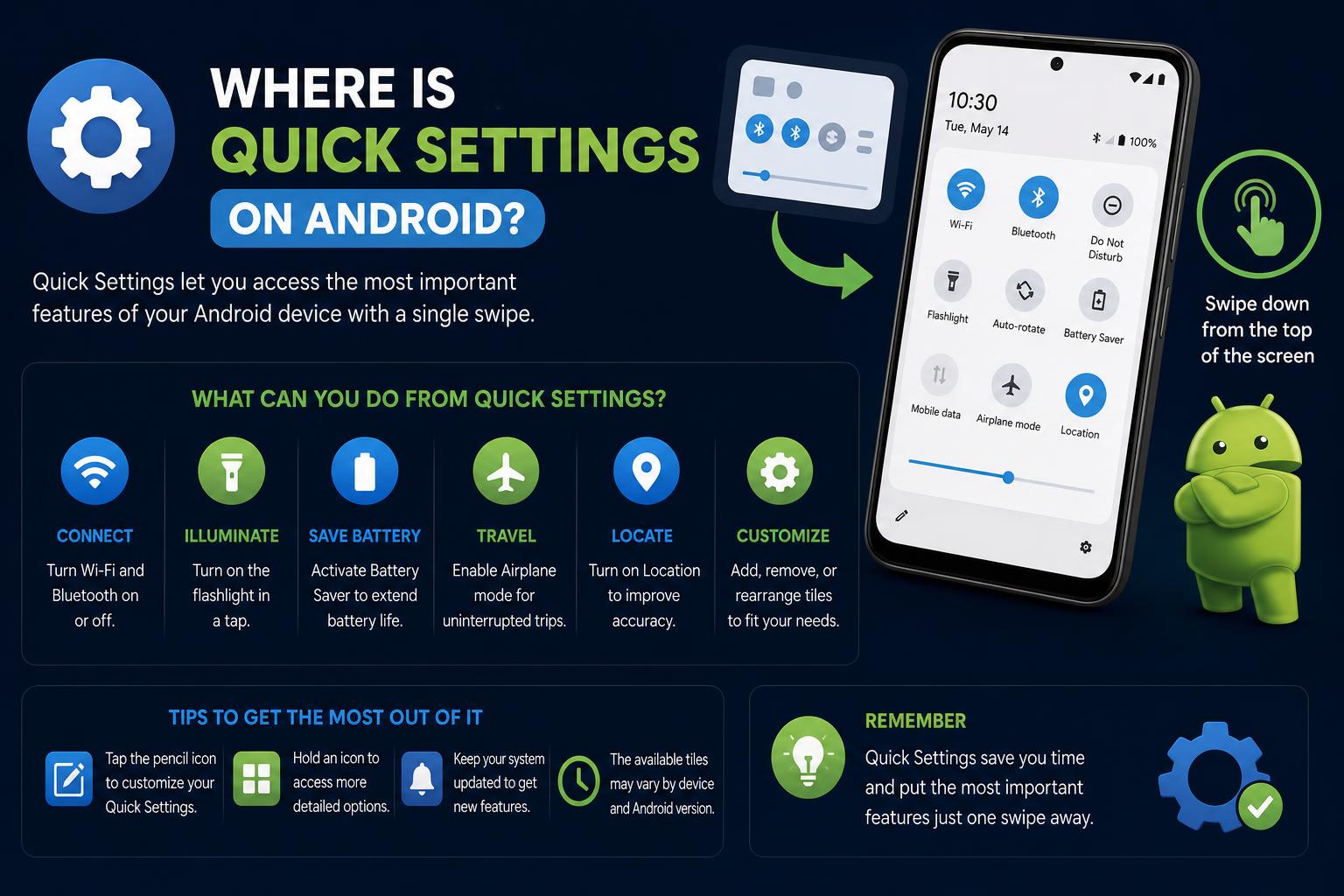
- Quick Settings on Android puts essential controls at your fingertips and is fully customizable across most devices.
- You can expand, rearrange, or add new tiles—including for apps and advanced features—all directly within the Quick Settings panel.
- Third-party apps and productivity tools can enhance Quick Settings, letting you add unique shortcuts and more detailed info.
Getting to grips with Android’s Quick Settings can turbocharge your daily phone experience—whether you’re a die-hard techie or just want fast access to Wi-Fi and Bluetooth. Yet, despite its central role, many users aren’t sure where to find Quick Settings, what you can do with it, or how far you can truly take its customization.
This thorough guide will not only help you locate and open Quick Settings on your Android device, but will also open your eyes to all the power it hides: from rearranging tiles to integrating third-party apps, setting up productivity shortcuts, triggering hidden features, and troubleshooting when things don’t work as expected. If you ever found yourself swiping down and wondering what else could be possible, grab your phone and let’s dive in!
What Is Quick Settings on Android?
Quick Settings is essentially Android’s control dashboard, letting you access core settings like Wi-Fi, Bluetooth, flashlight, airplane mode, and more with just a swipe and a tap. Introduced back in Android 4.2 (2012), it’s evolved significantly—morphing into a panel of customizable tiles existing above your notifications. Unlike rooting around Settings menus, Quick Settings minimizes the steps to reach frequent toggles, offering convenience and power at your fingertips.
Manufacturers (like Samsung, Google Pixel, Xiaomi, and others) will tweak the look and features slightly, but the fundamental gesture and function remain the same across modern Android devices. You can even open advanced settings, trigger app actions, or extend capabilities dramatically with third-party utilities.
How to Open Quick Settings on Android
Accessing Quick Settings is all about the swipe:
- Swipe down from the top edge of your screen to open the notification shade, revealing the first set of Quick Settings tiles (‘Quick Quick Settings’ or QQS).
- Swipe down again and you’ll see the full Quick Settings panel, with extra rows of toggles and options.
This works from virtually any screen (including your home screen or when apps are open). Devices with different skins might show fewer or more default toggles in the initial swipe, but the double-swipe method is standard.
Using Quick Settings: Toggling and Adjusting Controls
Each tile in Quick Settings represents a system feature or shortcut. Here’s what you can do with a tile:
- Tap an icon to quickly turn a setting on or off (dimmed icons are off, bright ones are active).
- Tap the name or long-press the icon to access more options or advanced features—ideal for adjusting brightness, Wi-Fi networks, or advanced sound controls.
- Some tiles are expandable (like ‘Internet’ or ‘Flashlight Strength’ on newer Android versions). You can now reveal deeper controls with a single tap or swipe.
Editing Quick Settings: Add, Remove, or Rearrange Tiles
Out-of-the-box, Quick Settings comes with a collection of default toggles prioritized by your device manufacturer. But did you know you can edit, rearrange, and even supercharge this panel?
- Swipe down twice to reveal the full Quick Settings panel.
- Look for the Edit (pencil) icon, usually in the bottom right or top corner—tap it to enter edit mode.
- Drag and drop to reposition tiles, helping you prioritize your daily needs. Double-tap for faster repositioning on some versions.
- Add new tiles from the available options (scroll down to see third-party app tiles, system features, and more). Tap ‘Add’ or drag them into place.
- Remove tiles you don’t use by dragging them out of the active area or tapping the corresponding ‘Remove’ button.
Many Android versions now let you tap an undo button to restore accidentally removed tiles, making customization safer and more intuitive.
Advanced Features and Material You: The Evolution of Quick Settings
Android’s look and features keep evolving—most recently with Material You (and its extension ‘Material 3 Expressive’), allowing a more colorful, rounded, and spatially aware Quick Settings experience.
- Resizable Tiles: You can now shrink or expand tiles from the default 2×1 size down to 1×1, fitting more toggles in your panel.
- One-tap Action Splits: Key toggles like Bluetooth can be tapped to switch instantly, or you can tap the label for detailed options.
- Streamlined Editing: Tiles are grouped by categories—like Connectivity, Display, Privacy—making it easier to organize and find what you need faster.
As manufacturers decrease heavy customizations, the Quick Settings panel is becoming more consistent across brands—making your experience more predictable and easy to follow.
Third-party Apps: Supercharge Quick Settings
Beyond the built-in toggles, third-party apps allow you to unlock new capabilities and customize your panel further. Some top options:
- Tile Shortcuts (Play Store): Creates custom tiles for apps, websites, or specific actions. Useful for quick contacts, folders, or automations.
- CalenTile: Adds your upcoming calendar appointment directly into Quick Settings, providing instant meeting info and quick access to your calendar.
- Wakey: Keeps your screen on with a toggle—ideal for reading or following recipes hands-free. Enable the tile after installation and avoid auto-lock.
- Chronus: Shows weather and time widgets on your home screen and includes a Quick Settings tile for current weather conditions, providing real-time updates.
Many productivity apps, like TickTick, Todoist, and Microsoft To Do, offer Quick Settings tiles to create reminders and tasks immediately, streamlining your workflow from any screen.
Quick Settings for Productivity and Accessibility
Quick Settings is increasingly supporting productivity and accessibility features:
- Reading Mode: Activates Google’s Reading Mode to display pages distraction-free, with adjustable options for fonts and text-to-speech, enhancing comfortable reading.
- Live Caption, Recorder, Quick Share: Pixel users can add shortcuts for these apps directly into Quick Settings for instant access to features.
- Flashlight Strength Slider: In recent Android versions, expanding the Flashlight tile lets you control brightness, improving usability after dark.
Troubleshooting: When Quick Settings Goes Wrong
Sometimes Quick Settings can malfunction—such as a tile not working or access being lost. These issues, though rare, do happen. Tips for resolving problems:
- Try restarting your device—especially after an update or app installation, as this often resolves temporary glitches.
- If tiles are missing or misbehaving, re-enter the Edit mode and add them again, ensuring they’re configured correctly.
- If issues persist, apps like ‘Quick Settings’ from the Play Store can restore basic panel access, particularly on legacy devices where bugs may inhibit normal operation.
Hidden Shortcuts and Expert Tips for Power Users
Want to boost your efficiency and impress friends? Here are some lesser-known tricks:
- Quick Expansion via Long-press: Hold on the status bar to reveal multiple rows of Quick Settings, especially helpful when multitasking.
- Double-tap to Reposition: In Edit mode, double-tap a tile and then tap where you want it to place itself, simplifying rearrangements.
- Find Hidden Icons: If many toggles are active, Android may hide some to save space and show a small indicator; tap it to reveal hidden options.
- Tile Categories API: Android 16+ allows apps to organize their tiles into categories, keeping your Quick Settings streamlined and manageable.
Note: The initial 4-8 toggles after swiping down are called ‘Quick Quick Settings’ (QQS), a fun Android trivia.
Exploring Quick Settings: A World of Customization
For advanced users, the Play Store provides utilities that unlock deeper customization, such as Android Quick Settings by frandro, which offers categorized and searchable shortcuts for hundreds of system settings. Explore it here. These tools bring power-user features often overlooked in daily use.
Other utilities can restore access to essential controls if the default Settings app becomes corrupted or unresponsive, especially on older or Samsung devices, making them invaluable in emergencies.
Device-Specific Variations: What to Expect
While the core Quick Settings design is now quite consistent across Android devices, some manufacturers add unique tweaks:
- Samsung: Larger tiles, additional controls like Edge Panels, and sometimes exclusive integrations. The layout can be customized but maintains Samsung-specific features.
- Google Pixel: Features the cleanest interface, latest Material You design, and direct shortcuts to Google apps.
- Other Android brands: Visual or organizational differences are minor, with the fundamental gesture and flow remaining similar.
Keep your device updated to benefit from new features and improvements in Quick Settings as Android evolves.
Final Thoughts
Quick Settings on Android has evolved from a simple toggle area into a versatile and customizable system that enhances productivity and convenience. Thanks to editable tiles, advanced gestures, and community-created enhancements, users can personalize their device experience. Whether you seek faster app access, better accessibility, or more control over your phone, mastering Quick Settings empowers you to optimize your Android device effectively.