
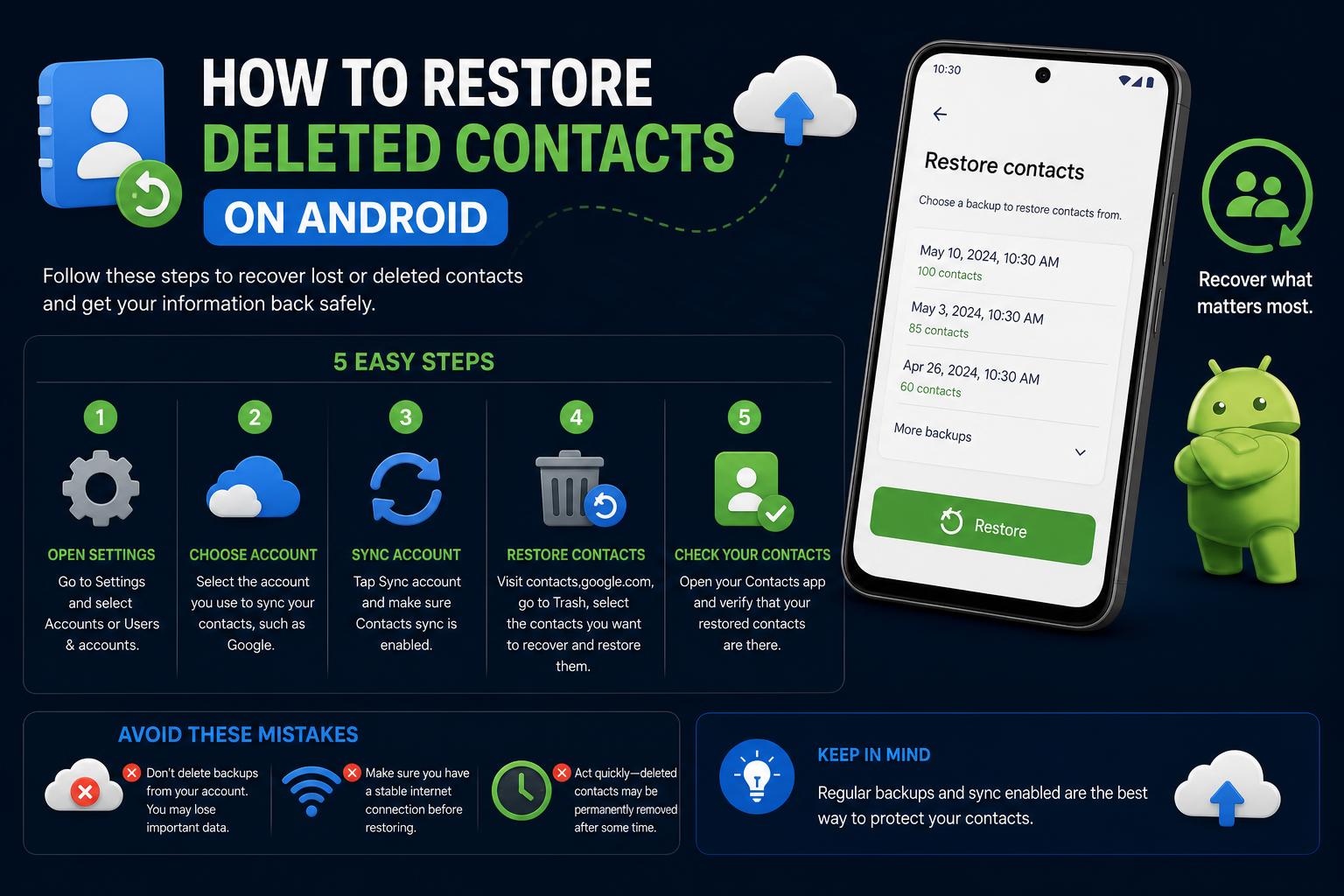
- Most deleted contacts can be recovered if sync is enabled with Google Account.
- Google Contacts offers recovery options like Trash and Undo Changes for 30 days.
- Proper sync settings and regular exports protect against future contact loss.
Losing contacts on your Android device can be a nightmare—whether it’s close friends, business associates, or critical clients, losing phone numbers disrupts your day-to-day life. If this has ever happened to you, you’re not alone. Fortunately, modern Android phones and cloud services have made recovering deleted contacts much easier. Whether your contacts disappeared due to accidental deletion, sync issues, or switching devices, there’s a good chance you can get them back.
This comprehensive guide breaks down every method for recovering deleted contacts on Android using only proven, effective techniques. Whether your device is synced with a Google account or you’re trying to rescue lost numbers through a backup, you’ll find a step-by-step solution here. We’ll also cover tips for preventing future losses and how to get the most out of your phone’s backup tools.
Why Do Contacts Disappear on Android?
Before diving into recovery methods, let’s quickly go over why contacts can disappear on your Android device:
- Accidental deletion: You or someone else with access may have deleted them by mistake.
- Sync issues: Failed syncing between the phone and your Google account can hide or remove contacts.
- Phone settings: Sometimes, display settings in the Contacts app only show certain lists (Google, SIM, or internal storage).
- Software updates or glitches: Updates can disrupt contact storage or syncing.
- Switching devices or SIM cards: Changing phones or inserting a different SIM card can change contact visibility.
No matter the cause, recovery is usually possible if you act promptly, especially if you use Google services to sync and store your contacts.
Step 1: Check the Display Settings in Your Contacts App
Sometimes, contacts aren’t actually deleted—they’re just hidden due to incorrect settings. Before you start to worry, check the following:
- Open the Contacts app on your Android device.
- Tap the menu icon (often three horizontal lines or dots) to access the options.
- Go to Settings.
- Look for “Contacts to display”.
- Set it to show “All contacts” instead of just the SIM, the device, or a specific account.
If the missing contacts show up, you’ve solved the problem, and no recovery will be needed! If they were just hidden, they’ll simply reappear.
Step 2: Recover Contacts Using Google Contacts on the Web
Most Android users keep their contacts synced with a Google account, which significantly increases your recovery options. If you delete contacts on your phone, they’re not always gone for good; they move to Google’s trash for 30 days.
Here’s how to restore them:
- Go to Google Contacts and sign in with the Google account linked to your Android device.
- In the left sidebar, click “Trash” (if it’s not visible, select “More” to expand the options).
- Recently deleted contacts are shown here for up to 30 days.
- Check the contacts you want to restore.
- Click the Restore icon at the top of the list.
Once you restore the contacts on the web, they’ll automatically sync to your phone, as long as contact syncing is enabled.
How to Repair Windows 11 Using Command Prompt: Advanced Techniques & Best Practices
Troubleshooting: Contacts Not Syncing
If the restored contacts don’t show up right away, try the following:
- Open Settings on your Android device.
- Go to Accounts > Google > .
- Tap Account sync.
- Make sure Contacts is turned on, then tap Sync now.
- Sometimes, refreshing the Contacts app or restarting the phone also helps resync the data.
This ensures your Google account and device are communicating correctly. The contacts you restored online should now show up.
Step 3: Use the ‘Undo Changes’ Feature in Google Contacts
If you made several unwanted changes, such as deleting multiple contacts or accidentally editing information, Google offers a handy “Undo changes” feature. This option lets you revert your entire contact list to a previous state (within the last 30 days).
To use it:
- Sign in from a browser.
- Click the gear icon (Settings) in the top-right corner.
- Select “Undo changes”.
- Choose the time period: 10 minutes, 1 hour, yesterday, 1 week ago, or a custom date/time within the last 30 days.
- Click Undo, and your entire contact list will revert to how it was at that point.
Keep in mind: this feature will revert all changes, not just deletions, so check what other modifications might be lost or duplicated.
Step 4: Restore Contacts from an Android Device Backup
Google offers device-level backups that cover not just app data and settings, but also your contacts. If you’re setting up a new phone or recovering from a lost device, follow these steps:
- Sign in with your Google account on your new Android device.
- Go to Settings.
- Look for Set up & restore or type “restore contacts” in the search bar.
- Tap Restore contacts.
- If you have multiple Google accounts, select the correct one.
- Choose the device backup you want to restore contacts from.
- Tap Restore. If prompted, enter your password.
Once finished, a notification will confirm that your contacts have been restored. This only works if you previously had Google Drive backups enabled.
Step 5: Import Contacts from the SIM Card or Alternate Accounts
Android devices often let you store contacts in multiple locations: your Google account, internal storage (phone), and the SIM card. If your lost contacts were on the SIM or another account:
- Insert the SIM card into your current device.
- Open the Contacts app.
- Tap the menu, then select Settings > Import/Export.
- Choose Import from SIM card or Import from .vcf file if you previously exported your contacts.
- Select your Google account as the destination to improve future syncing and backups.
This keeps your contacts safe in case your phone is lost, stolen, or damaged—Google’s cloud backup is far more secure than keeping everything on the SIM.
How to Export Your Contacts as a Backup (Just in Case!)
The best way to prevent future losses is to periodically export your contacts as a backup. Here’s how:
- Visit from your computer.
- Select one or more contacts (or all of them).
- Click More actions > Export.
- Choose the format: Google CSV (to import into Google) or vCard (for iOS or other services).
- Click Export and save the file somewhere safe.
Handy tip: you can use this exported file to move contacts between services or create an emergency backup on your computer or cloud storage.
Check That Google Contact Syncing Is Turned On
For recovery to be possible, you need to have automatic contact syncing with your Google account turned on. To check this:
- Go to Settings on your Android device.
- Look for Account services or Accounts.
- Select your Google Account.
- Tap Account sync and make sure Contacts is turned on.
For additional options, go to Google Contacts sync in your account settings and turn on “Automatic backup and sync of device contacts”.
What to Do If Some Contacts Are Still Missing
If you’ve tried everything above and still can’t recover some or all of your contacts, consider these recommendations:
- Multiple Google accounts: Check which account the lost contacts were associated with, since they’re sometimes saved under different profiles.
- SIM card limitations: Not all Android devices automatically sync SIM contacts with Google. Make sure to import the SIM data into your Google account.
- Outdated backups: If your device backups are outdated, some newer contacts might not show up. Run regular backups to avoid this.
- Unsupported devices: Some phones (especially older ones or those with heavily customized Android) use proprietary storage, which can complicate recovery. Manufacturer support services, like Carlcare, can help in certain cases.
If You Need Professional Help
If everything else fails and those contacts are critical, many manufacturers have official support centers. For example, Carlcare is the official after-sales provider for Infinix, Tecno, Itel, Oraimo, and Syinix, offering expert assistance in person or remotely. It’s a good idea to back up your contacts regularly to avoid ending up in this situation in the first place!
Losing contact information can feel overwhelming, but thanks to Google’s powerful cloud syncing and backup tools, along with step-by-step recovery methods, your important numbers rarely disappear for good. By checking your display settings, using Google Contacts on the web, restoring from backups, and exporting regular copies, you’ll reduce both the risk and the recovery time. Modern Android devices, properly synced, put you in control: restore with confidence and enjoy the peace of mind that your digital address book is safe.