
- Message bubbles and floating notifications are controlled by global, per-app, and per-conversation settings that often need to be managed in multiple places for full control.
- Both Google Pixel/stock Android and Samsung Galaxy devices offer straightforward ways to disable bubbles, but each phone brand may use different menu names or group similar features under broader settings like Floating notifications.
- Updating your phone or messaging apps sometimes resets these settings, so it’s important to double-check after major updates and be aware of app-specific overlays or extra permissions that might cause bubbles to reappear.
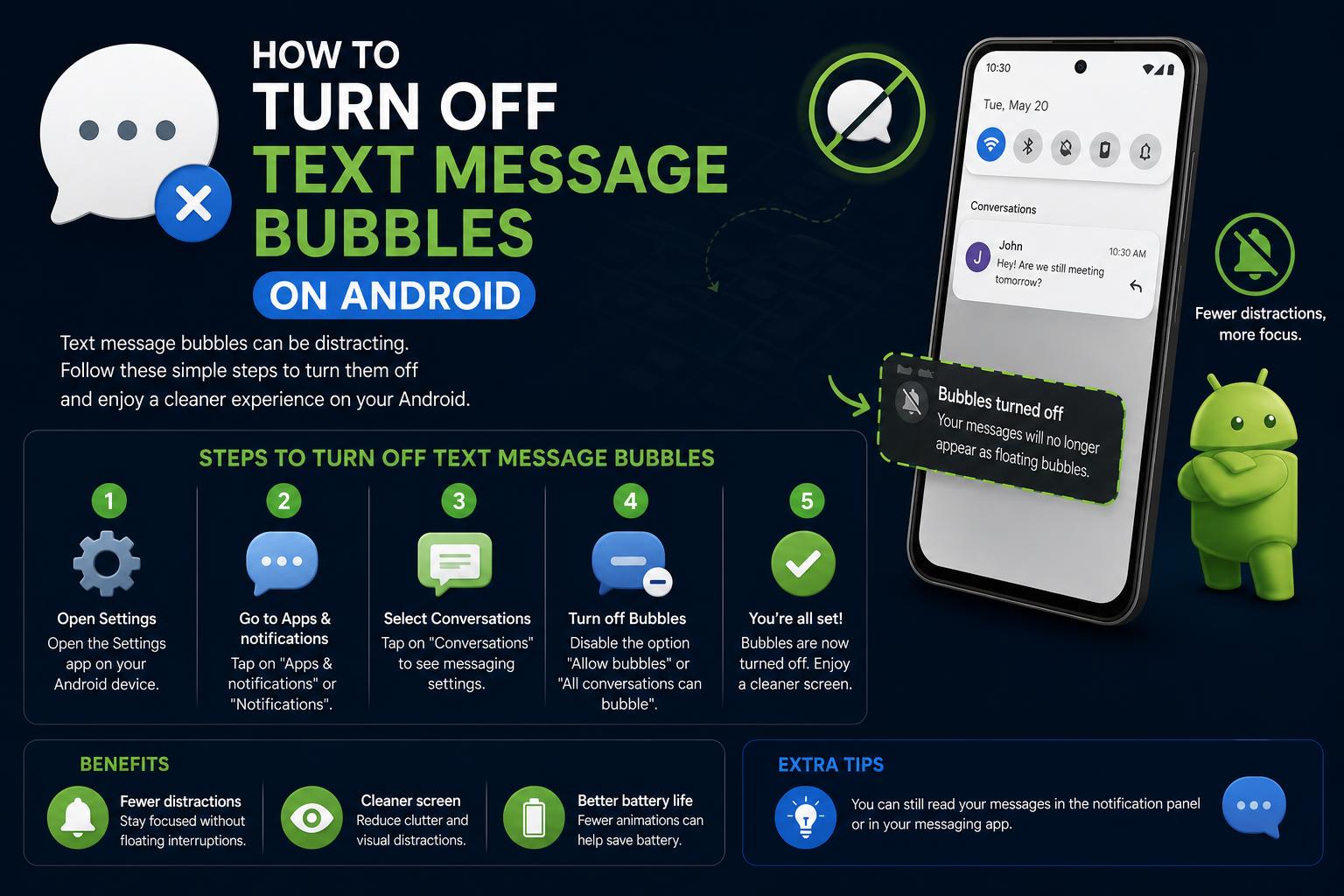
If you’re constantly noticing little floating circles that pop up over your screen whenever you get a text or chat message on your Android phone, you’re not alone. This feature, often called message bubbles or floating chat heads, was introduced to make multitasking easier by letting you quickly reply to conversations without switching apps. But for many users, they’re more distracting than helpful—and sometimes even put your privacy at risk by displaying message content over apps, videos, or during public presentations.
Whether you have a Google Pixel, a Samsung Galaxy device, or another brand running Android 11 or later, turning off these floating bubbles is absolutely possible. In this in-depth guide, we’ll break down exactly what message bubbles are, why they appear, and provide detailed, up-to-date instructions for disabling them across all major messaging apps and Android versions. We’ll also troubleshoot stubborn cases and suggest privacy tweaks for a more peaceful notification experience.
Understanding Android Message Bubbles: What Are They and Why Do They Appear?
Android message bubbles are like pop-up chat windows that float on top of your screen, allowing you to reply quickly to messages without opening the full messaging app. They work similarly to Facebook Messenger’s old “chat heads.” When a chat is bubbled, you’ll see a small, movable icon—often with your contact’s photo—on the side of your screen. Tap the bubble to interact with the message; drag it to the bottom of the screen to close it temporarily.
What makes these bubbles show up? There are three main layers in Android’s settings that decide whether a bubble will appear:
- Global bubble switch: This is the master control in your phone’s system settings that lets any (or no) app show these pop-ups.
- Per-app permission: Each messaging app (like Google Messages or Telegram) can be allowed or blocked from showing bubbles regardless of the global setting.
- Per-conversation toggle: Even if bubbles are allowed for an app, you can choose to let only specific conversations use them.
Understanding which switch is responsible is the secret to switching bubbles off for good. Next, we’ll show you exactly how to do that—with step-by-step paths for every major phone and messaging app.
Quick Reference: How to Find Bubble Settings on Popular Android Phones
The settings menu can look a bit different depending on your phone brand and Android version. Here’s a cheat sheet for the most common paths:
- Pixel / Stock Android (Android 12, 13, 14, 15):
Open Settings > Notifications > Bubbles > Allow apps to show bubbles (turn off).
To change just one app: Settings > Apps > [App Name] > Notifications > Bubbles > Nothing can bubble. - Samsung Galaxy (One UI 5/6):
Settings > Notifications > Advanced settings > Floating notifications > Off.
Per-app control: Settings > Notifications > App notifications > [App Name] > turn off bubble/pop-up categories. - Dismiss a single bubble immediately:
Tap and hold the bubble, then drag it to the X at the bottom of the screen, or tap the bubble itself, then look for Manage > Don’t bubble conversation.
If these shortcuts solve it for you, great. If not, let’s take a deeper look at each pathway.
Detailed Steps: Turning Off Message Bubbles on Pixel and Stock Android Devices
Disable All Bubbles System-Wide
- Open Settings on your device
- Select Notifications
- Tap Bubbles
- Toggle off Allow apps to show bubbles
This will stop all apps from showing floating bubbles. If you keep seeing something floating, it may be an app using its own overlay (such as older versions of Facebook Messenger), which you’ll need to turn off from inside that app’s settings.
Block Bubbles for Specific Messaging Apps
- Go to Settings > Apps > See all apps
- Select the messaging app (for example, Messages, Messenger, Telegram)
- Tap Notifications
- Select Bubbles
- Choose Nothing can bubble.
You can also allow bubbles only for selected conversations if you occasionally find them useful.
Stop Bubbles for Just One Conversation
- If a bubble is already open for a chat, tap the bubble, go to Manage, and choose Don’t bubble conversation.
- Alternatively, when you see the notification in your shade, press and hold it, then select the option to stop bubbling this thread.
Turning Off Bubbles on Samsung Galaxy Phones (One UI)
Samsung often calls these features Floating notifications, and also offers a separate Smart pop-up view for even more pop-up windows. If you want to stop all pop-ups, disable this feature globally.
Completely Disable Floating Notifications
- Open Settings
- Choose Notifications
- Tap Advanced settings
- Select Floating notifications
- Set to Off
This action turns off both Google-style bubbles and Samsung’s own pop-ups.
Check Each App for Bubble/Pop-up Permissions
- Settings > Notifications > App notifications
- Pick the messaging app you want to change
- Look for notification channels or categories about Bubbles, Chat heads, or Smart pop-up, and switch these off.
On Samsung, both the Floating notifications master switch and each app’s categories must be disabled to ensure no floating windows sneak through.
Stop a Single Conversation from Bubbling
- If you’re seeing a bubble for a single chat, tap it, go to Manage, and select Don’t bubble conversation.
- You can also long-press the notification for that thread and turn off bubbling for it specifically.
Disabling Bubbles on Google Messages
Depending on your Android version and device brand, Google Messages might suggest using bubbles or auto-enable them at app startup. There are two ways to turn them off:
- For the entire Messages app: Settings > Apps > Messages > Notifications > Bubbles > Nothing can bubble.
- For just one conversation: Open the bubble, tap Manage, and choose Don’t bubble conversation. Alternatively, long-press the conversation’s notification and switch off the bubble option.
After updating your phone or the app, if bubbles persist, try toggling the system-wide setting off and on, clear the Messages app’s cache (Settings > Apps > Messages > Storage & cache > Clear cache), and double-check bubble permissions specifically for Messages.
Special Case: Facebook Messenger Chat Heads and Bubbles
Facebook Messenger introduced “chat heads,” which later became system bubbles in modern Android. But the app sometimes uses its own pop-up system even when Android’s bubble feature is off. So you’ll want to check both places.
Turn Off Chat Heads from Messenger Settings
- Open the Messenger app
- Tap your profile photo to open Settings
- Look for Bubbles or Chat heads
- Turn the switch off or set to Nothing can bubble
Disable Bubbles via Android Settings
- Settings > Notifications > App notifications > Messenger
- Look for Notification categories
- Switch off anything labeled Chat heads active, Bubbles, or Pop-up
If chat heads or bubbles keep coming back after you update your device, check both the in-app Messenger settings and Android’s notification categories for Messenger. Device software updates sometimes reactivate default notification types.
Controlling Bubbles in Other Messaging Apps (Telegram, WhatsApp, Signal, and More)
Telegram
Telegram supports Android’s bubble system but might not offer an obvious setting in-app. The most reliable method is to use the Android notification options:
- Pixel / Stock Android: Go to Settings > Apps > Telegram > Notifications > Bubbles > Nothing can bubble.
- Samsung: Settings > Notifications > App notifications > Telegram > Notification categories > disable bubble/pop-up categories, and also make sure Floating notifications is set to Off at the system level.
If one conversation keeps showing up as a bubble, long-press its notification and disable bubbling for that thread.
WhatsApp normally does not use Android’s bubble feature. If you’re noticing something similar, it may be your device manufacturer’s own pop-up system (like Samsung’s Smart pop-up view), or a third-party overlay app. Turn off these features in Settings > Notifications > Floating notifications (for Samsung), or remove overlay tools and the issue should disappear.
Other Messaging Apps (Signal, Slack, Teams, Discord, and OEM Messaging Apps)
- Signal uses standard Android notifications. If you see bubbling, go to Settings > Apps > Signal > Notifications > Bubbles > Nothing can bubble.
- Slack, Teams, and Discord do not usually use bubbles, but some phones may enable floating pop-ups—disable them individually under each app’s notification channels or via the global floating notifications/bubbles menu.
- If your phone came with a custom branded Messages app (from Xiaomi, Oppo, etc.), search the app’s own Settings for terms like bubble, pop-up, or floating and disable those options.
Instantly Dismissing a Bubble
- To get rid of a bubble right away: Touch and hold the bubble, then drag it downward to the X that appears at the bottom of your screen.
- To stop one specific conversation from bubbling: Open the bubble, select Manage, and choose Don’t bubble conversation.
- From a notification: Long-press the conversation notification and select the bubble settings to stop bubbling.
These quick actions are crucial if you’re in the middle of work or a meeting and need the floating chat to disappear immediately.
Understanding the Differences: “Bubbles” vs “Smart Pop-up View” vs “Floating Notifications” on Samsung
Samsung’s Android phones offer several different floating notification options, which can get confusing! Here’s what each term means:
- Bubbles: Android’s official floating chat circles for messaging apps.
- Smart pop-up view: Samsung’s own pop-up windows—which can be used by many apps, including those not for messaging. Adjust this under Samsung settings.
- Floating notifications: The system-wide menu where you choose between Off, Bubbles, or Smart pop-up view.
If you never want anything floating, set Floating notifications to Off and double-check individual apps don’t have their own pop-up channels enabled.
Why Message Bubbles Keep Coming Back—and How to Stop Them Forever
- Android or app updates might reset notification categories.
After installing an OS or app update, check global bubble settings and each app’s notification categories. If you see new or reactivated categories like “Chat heads active,” “Bubbles,” or “Pop-up,” turn them off again. - Settings can exist in more than one place.
On Samsung devices, you might disable Bubbles globally but still have Smart pop-up view enabled, so pop-ups keep appearing. Turn off Floating notifications completely and also disable pop-up permissions for each app. - Conversation-specific bubbling can linger.
If a notification thread was set to bubble before changing system settings, it may continue to bubble. Open that bubble or long-press the notification and choose to stop bubbling for that chat. - Other apps may show overlay bubbles.
Some utility apps (like clipboards, screen recorders, battery widgets) can display floating icons over other apps. To revoke permissions, search for “appear on top” or “draw over other apps” in your phone’s Settings, and switch off the offender.
What’s New in Bubbles for Android 12, 13, 14, and Beyond?
- Android 11 introduced bubbles as a core part of notifications.
- Android 12 and 13 reorganized how notifications appear, but kept the same access path (Settings > Notifications > Bubbles) for Pixel/stock devices.
- Android 14 and 15 maintain the familiar structure for managing bubble permissions.
- OEMs (like Samsung with One UI) may use different terms or group features under different menus, but the core controls remain: a global setting, per-app channels, and per-conversation toggles.
If your device menus look different, use the Settings search bar for terms like “bubble,” “floating,” or “pop-up” to jump straight to the right option.
Quick App-by-App Recipes
Google Messages (SMS/RCS)
- System-wide: Settings > Notifications > Bubbles > Allow apps to show bubbles (set to off)
- Per-app: Settings > Apps > Messages > Notifications > Bubbles > Nothing can bubble
- Per-conversation: Open the bubble, go to Manage, and tap Don’t bubble conversation
Facebook Messenger
- In Messenger: Settings > Bubbles/Chat heads > Off
- System:** Settings > Notifications > App notifications > Messenger > Notification categories > Disable “Chat heads,” “Bubbles,” or similar
Telegram
- Settings: System notification menu > Apps > Telegram > Notifications > Bubbles > Nothing can bubble
Samsung Messages / Smart Pop-up
- Global: Settings > Notifications > Advanced settings > Floating notifications > Off
- Per-app: Notification categories for the app > Disable pop-up/bubble options
- Not supported by default, but if you see pop-ups, turn off floating views or overlay permissions.
Troubleshooting: If Pop-ups or Bubbles Won’t Go Away
- On Samsung: Be sure Floating notifications is set to Off and not just “Bubbles” or “Smart pop-up view.”
- Messenger keeps displaying chat heads: Disable both the in-app Messenger setting and the Chat heads or Bubbles notification category in your Android settings.
- Settings reset after an update: Periodically review the global and per-app bubble/pop-up settings.
- A stubborn thread still bubbles: Open that bubble, go to Manage, and choose Don’t bubble conversation, or long-press its notification.
- Unidentified floating icon: Check which app is allowed to “draw over other apps” and revoke its permissions.
Pro Tips and Privacy Suggestions
- If your main goal is fewer disruptions, consider muting conversations or choosing a less intrusive notification style—this silences notifications but doesn’t remove bubbles unless you adjust both.
- Use Do Not Disturb mode for focus: Schedule DND times so messages, notifications, and bubbles won’t interrupt you during important work or quiet time.
- You can enable bubbles for a single event: If you only want one chat to bubble (for a trip or special occasion), activate bubbles just for that conversation and turn it off afterward.
A Two-Minute Bubble Cleanup Routine
- Turn off globally:
- For Pixel/stock devices: Settings > Notifications > Bubbles > Allow apps to show bubbles (off)
- For Samsung: Settings > Notifications > Advanced settings > Floating notifications > Off
- Sweep through all your apps:
- Settings > Apps > Messages, Messenger, Telegram, etc. > Notifications > Bubbles > Nothing can bubble
- In Messenger, disable the “Chat heads” or similar category as well
- Remove any currently visible bubbles:
- Tap and hold the bubble, drag downward to the X
- Or, open the bubble, go to Manage, and select Don’t bubble conversation
When finished, your phone will only show notification alerts, eliminating floating chat heads and overlays during your activities.
Privacy and Notification Peace of Mind
Many users disable message bubbles for privacy reasons besides avoiding distractions. Floating messages can unexpectedly reveal contact names and snippets during screen sharing, presentations, or when passing the device to others. To protect sensitive information, disabling bubbles and limiting notification previews to “sender only” is highly recommended.
Managing your notifications with a tidy system helps reduce stress and ensures you won’t miss critical alerts. Consider services like Certified Mail Labels for tracking important mail, leaving your device free from unwanted interruptions.
Once you become familiar with the key settings, controlling message bubbles on Android becomes straightforward. Adjusting system permissions, reviewing app-specific settings, and staying alert after updates are key to maintaining a clutter-free notification experience where your messages stay neatly tucked away until you choose to view them.