
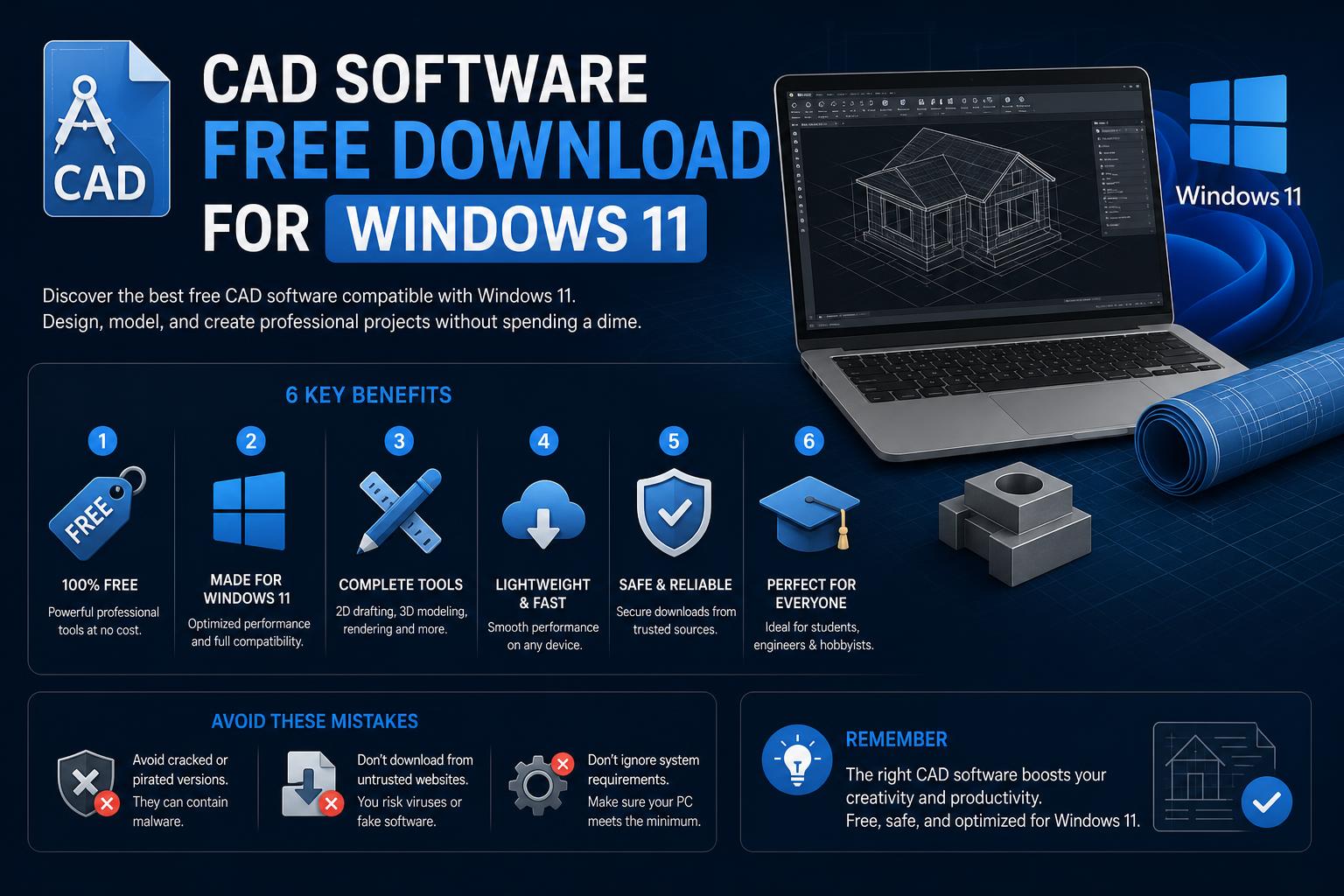
- Compare leading free and open-source CAD software fully compatible with Windows 11
- Learn about unique features, community support, and which options work for education, hobby, or professional projects
- Find safe download sources and understand license limitations for each CAD solution
Looking to start designing in 2D or 3D without spending a fortune? If you’re a Windows 11 user searching for the best free CAD software downloads, you’re definitely not alone. Whether you’re an aspiring engineer, architect, student, or hobbyist, there has never been a better time to explore powerful computer-aided design tools available at zero cost. This guide is packed with the latest info, detailed comparisons, and advice to help you pick the perfect free CAD software for your needs.
The world of CAD (Computer-Aided Design) is constantly evolving. Professional architects, engineers, and students depend on CAD tools, but navigating the vast selection—especially those claiming to be “free”—can be overwhelming. Let’s break down the main free options, highlight what makes each one unique, and guide you step by step to the best download for your projects on Windows 11.
What Is CAD Software and Who Needs It?
CAD software allows you to create, edit, and view precise drawings and models in 2D or 3D. From designing mechanical parts and electrical layouts to architectural plans and artistic 3D objects, the applications are wide-reaching. Modern CAD tools often include:
- Smart drawing tools for geometry, dimensioning, and annotation
- 3D modeling, rendering, and simulation capabilities
- Collaboration and cloud storage options
- Automation, customization, and plugin support
Windows 11 users benefit from compatibility with the latest hardware and features. Free versions can be perfect for learning, quick design sprints, and even real professional projects, depending on the software chosen.
Why Choose Free CAD Software?
The primary advantage is obvious—zero cost. But there are more reasons to explore free CAD tools:
- Great for students, educators, and hobbyists getting started
- No licensing headaches—ideal for open source enthusiasts
- Flexible enough for basic professional use or experimentation
- Access to thriving user communities for support and resources
Keep in mind, though, that ‘free’ can mean different things: perpetual licenses, time-limited trials, open-source projects, or educational versions. Always check the details before deciding.
Top Free CAD Software You Can Download for Windows 11
1. AutoCAD (Trial and Educational Versions)
AutoCAD, developed by Autodesk, is recognized worldwide as the de facto standard for CAD professionals. While the AutoCAD trial version offers seven days of free access, it’s worth mentioning that the educational version is available to students and teachers for a full year at no cost. AutoCAD delivers top-tier precision and control, letting users:
- Create, annotate, and manage 2D/3D designs using advanced tools for geometry, solids, and surfaces
- Automate repetitive tasks through built-in AI, AutoLISP scripting, APIs, and extensions
- Collaborate and sync designs easily through the cloud
- Customize the workspace with tool palettes, macros, and add-ons
AutoCAD is a paid solution, but the generous trial and educational programs make it an accessible ‘free’ option for many.
2. FreeCAD: Open Source 3D Parametric Modeling
For those looking for an open, customizable alternative, FreeCAD is a standout choice. Focused on 3D parametric modeling, it stands out for:
- Full cross-platform support for Windows (including Windows 11), macOS, and Linux
- Active community development —expect frequent updates and new features
- Weekly development builds for advanced users to try out new features, while official releases offer stability
- Add-ons and macros to extend its capabilities through the built-in Add-on Manager
FreeCAD’s modular architecture and freedom make it a favorite among engineers, designers, and educators who value flexibility. While the interface can feel overwhelming for beginners, the extensive community support helps speed up the learning curve.
3. LibreCAD: Lightweight Open Source 2D CAD
If your main focus is 2D drafting, LibreCAD offers a fast, open-source alternative. Developed by a dedicated team, it’s especially useful for:
- technical drawings, architectural plans, schematics, and mechanical drawings
- Runs smoothly even on modest hardware
- A community-driven project that welcomes new contributors and supports multiple languages
No perpetual contracts or hidden restrictions—just an open, vibrant ecosystem that encourages developers, translators, testers, and writers to get involved. LibreCAD keeps evolving, shaped by feedback and contributions from users around the world.
4. nanoCAD Free: No-Cost 2D/3D CAD Platform
nanoCAD Free combines professional CAD capabilities with a genuinely free license for personal and educational use. Its key features include:
- Modern interface with DWG format support
- 2D drafting tools and basic 3D modeling
- Free, easy to download and install
During our research, we came across a unique technical issue worth mentioning: in some cases, incorrect operating system dates can cause installation or runtime errors. If you run into issues related to incorrect system dates or event logs, fixes include adjusting file creation dates, clearing logs, replacing the BIOS battery, or, as a last resort, reinstalling the system. These situations are rare, but knowing about them can save a lot of time. It’s worth clarifying: these system-level errors aren’t nanoCAD’s fault.
5. CAD· App from Microsoft Store
CAD· is a simple, straightforward app available on the Microsoft Store. Updated and verified for Windows 10 and 11, it offers:
- Safe one-click installation directly from the official store
- Basic features for lightweight drawing or shape editing
Note: This app focuses on accessibility and speed, rather than professional features. It’s suited for basic needs or for those just starting out in the CAD world.
6. Community Opinions and Recommendations: Reddit & Forums
Community feedback helps cut through the hype. On platforms like Reddit’s r/FreeCAD, experienced users highlight popular options like FreeCAD, blog roundups of “top 10” lists, and browser-based tools like Tinkercad. The advice tends to focus on:
- Starting with basic 2D tools and moving to 3D as the project’s needs grow
- Peer recommendations for genuinely free solutions with no hidden costs
Don’t underestimate the value of these communities—they offer ongoing support, practical guides, and up-to-date reviews based on real-world experience.
Main Features to Expect in Free CAD Software
What features matter most when choosing a free CAD tool? Here’s what you can generally expect (but always double-check before downloading!):
- Basic 2D drawing and annotation capabilities
- 3D object editing and viewing (in most professional tools)
- File compatibility (DWG, DXF, STL, etc.)
- Customizable interface and workspace
- Plugin and macro support for automation
- Online documentation, tutorials, and community support
More advanced features (like automation, collaboration, or AI) are usually reserved for paid or enterprise plans; however, open-source tools like FreeCAD and LibreCAD keep adding new features with every update.
How to Choose the Right Free CAD Solution for Windows 11
Choosing the best CAD solution depends on your workflow and goals. Here’s what to consider:
- Do you work in 2D or 3D? Choose LibreCAD for drafting, or FreeCAD/nanoCAD for 3D parametric design.
- Do you need professional features or cloud connectivity? Try the AutoCAD trial or educational version first.
- Do you value open source? Go with FreeCAD or LibreCAD for greater freedom and transparency.
- Looking for something simple and lightweight? CAD· or browser-based tools might be what you need.
- Installation and compatibility: All the software mentioned here runs natively on Windows 11, but always check requirements on the official website.
Installation and Troubleshooting Tips
Downloading and installing CAD software on Windows 11 is usually straightforward, especially through the Microsoft Store. For direct downloads (FreeCAD, LibreCAD, nanoCAD):
- Only download from official pages or trusted sources to avoid malware
- Choose 64-bit installers, since all modern apps require updated hardware
- If you run into errors related to system dates or files (especially with nanoCAD), check for issues with the operating system or the BIOS battery
Keeping Windows updated, maintaining a clean system, and backing up regularly are always good practices before installing new software.
How Free Is Free? Understanding Licenses and Limitations
It’s essential to understand what ‘free’ actually means in each case:
- Free trials (AutoCAD) with time restrictions but full functionality
- Educational licenses (AutoCAD) limited to non-commercial users
- Open-source licenses (FreeCAD, LibreCAD) with free use and modification for life
- Freemium models (nanoCAD) combining a free basic version with paid upgrades
- Store apps (CAD·) offering free basic tools, with paid advanced features
It’s worth checking these details on official pages before relying on any software for your work, education, or business.
Exploring Additional Features and Future Trends
Innovation in CAD is booming, even in free software:
- AI-powered drawing assistants (as in AutoCAD), which speed up repetitive edits and annotations
- Cloud syncing and mobile access for collaboration on the go
- Modular add-ons and open marketplaces (FreeCAD, AutoCAD) that expand capabilities as you grow
- Community documentation offering up-to-date answers and guides
- Online support forums for widely adopted open-source projects
With Windows 11 as the new standard, expect compatibility and support for free CAD tools to keep improving—leading to smoother performance and new creative possibilities.
Free CAD software for Windows 11 has matured into offering polished options, with plenty of features for every skill level. AutoCAD remains an industry benchmark, offering generous trial and educational versions, while FreeCAD and LibreCAD provide true freedom with 3D and 2D projects. nanoCAD offers a simple, DWG-compatible experience at no cost, and Microsoft Store’s CAD· app lets you get started in seconds. Community platforms like Reddit are invaluable for tips and troubleshooting, reflecting how accessible and collaborative the open CAD world has become. Whatever your goal—learning, experimenting, or launching your next project—you have more solid free options than ever on Windows 11.