
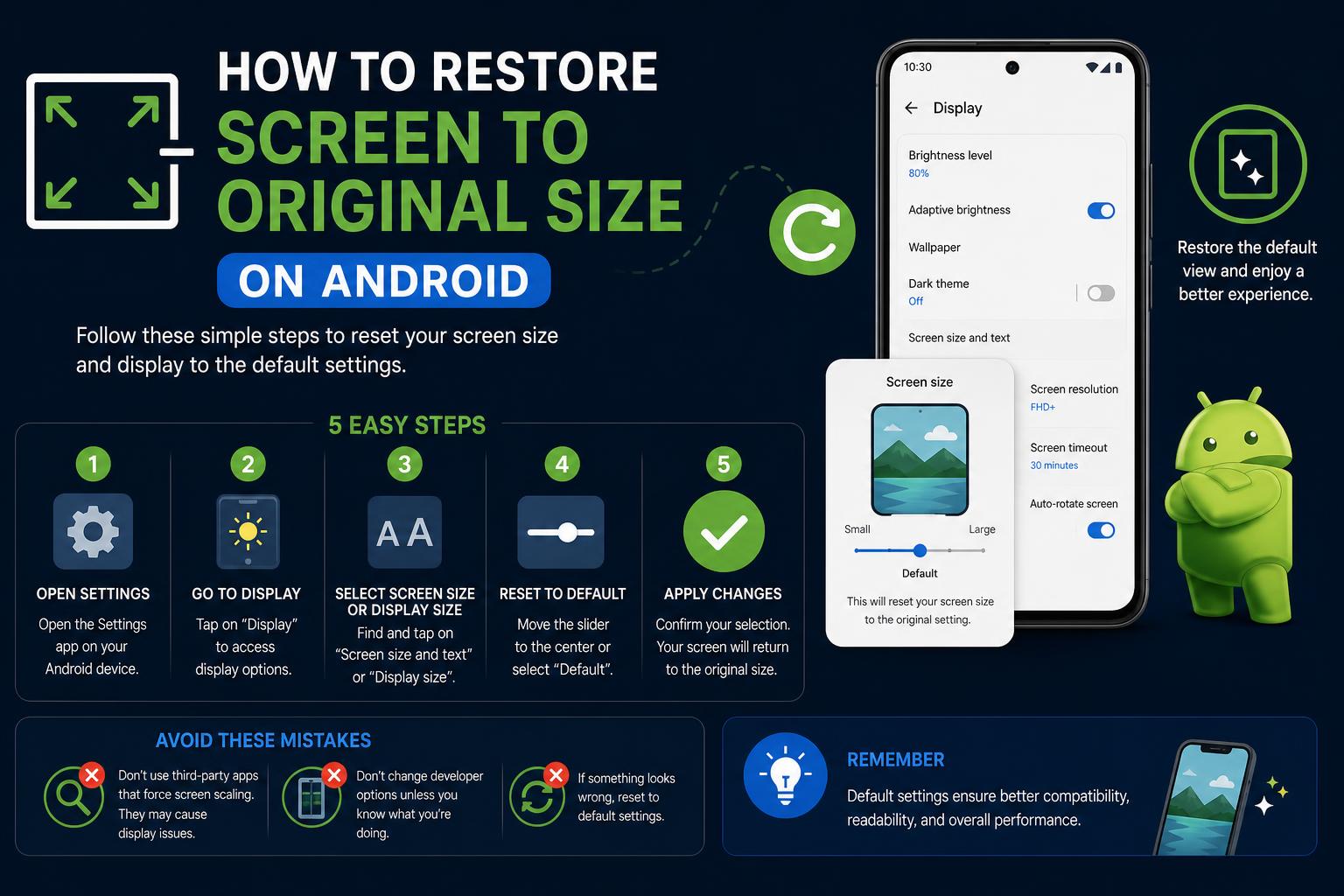
- Understanding screen scaling and resolution issues is crucial for restoring display size.
- Quick fixes include keyboard shortcuts, adjusting settings, and restarting your computer.
- Device-specific steps (Windows, Mac, browsers) ensure you always have a solution ready.
Have you ever turned on your computer only to find your screen display oddly zoomed in or your icons suddenly gigantic? Maybe everything just shrank, leaving you squinting to read text. If this feels all too familiar, don’t worry – you’re definitely not alone! Many people accidentally change their screen size or resolution without realizing it, especially through quick touchpad gestures, keyboard shortcuts, or even software glitches. Fortunately, restoring your screen to its original, comfortable size is usually quick and painless once you know what to look for.
Why Your Screen Size Changed Unexpectedly
Understanding why your screen display might look different helps prevent future similar issues. Occasional mishaps can occur for a few simple reasons:
- Accidental Zoom: It’s easy to trigger zoom in or out by pinching a laptop’s touchpad, pressing Ctrl and mouse wheel, or using shortcuts like Ctrl + / –.
- Display Settings Changed: Switching monitor cables, plugging into a new screen, or updating your system can revert or modify your display settings automatically.
- Software Glitches: Programs crashing or operating system updates may unintentionally alter scaling or resolution.
Quick Fixes: Keyboard Shortcuts and Touchpad Gestures
Sometimes, fixing your screen size is as simple as a keystroke:
- Windows: Press Ctrl + 0 (zero) in web browsers or supported programs to reset zoom to default. Also try Win + Ctrl + left/right arrow for screen orientation.
- Mac: Use Cmd + 0 (zero) to reset zoom in browsers like Safari or Chrome for Mac.
Touchpad users: If you accidentally zoomed in/out with your touchpad, use a two-finger pinch gesture to reset back to normal view.
Restoring Your Screen Size in Windows
Windows offers several ways to return your screen to its original size. Let’s cover the most reliable ones:
1. Adjust Scaling Settings
- Right-click anywhere on your Desktop (not on an icon).
- Select Display settings.
- Look for the section called Scale and layout.
- Set scaling to 100% (Recommended) for a normal display. Higher percentages will make text and elements look larger, lower ones will make them smaller.
2. Adjust Screen Resolution
- Still in Display settings, click Display resolution.
- Select the resolution marked “Recommended” (usually the highest option).
- Click Keep changes if prompted.
3. Fix Magnifier or Ease of Access Settings
- Press Windows Key + ESC to close Magnifier.
- Or, open the Ease of Access Center in settings and make sure Magnifier is turned off.
How to Repair Windows 11 Using Command Prompt: Advanced Techniques & Best Practices
Restoring Your Screen Size on a Mac
1. Reset Zoom Level in Apps
- Safari, Chrome, or Firefox: Press Cmd + 0 (zero) to return to the default zoom in browser windows.
2. Adjust Display Resolution
- Click the Apple Menu > System Settings (or System Preferences on older versions).
- Select Displays.
- Use the Default for display option, or select Scaled to manually choose the optimal resolution.
3. Fix Universal Zoom
- Go to System Settings > Accessibility > Zoom.
- Make sure all zoom options are turned off if you don’t want to use that feature.
Fixing Oversized or Undersized Browser Windows
- Click anywhere in the browser.
- Press Ctrl + 0 on Windows or Cmd + 0 on Mac to reset the default zoom.
- Also check the browser’s zoom settings, usually found in the three-dot or gear menu, then under the Zoom option.
Touchpad Mishaps: The Oversized Laptop Screen Fix
- Try undoing the gesture – this usually means bringing two fingers together to zoom out (returning to normal size).
- If the entire Windows screen is out of proportion, check the Scaling options as explained earlier.
Checking Connections and Updating Drivers
- Make sure all cables are firmly connected to your computer and monitor (if you’re using a desktop).
- Update your graphics drivers from Device Manager in Windows (right-click Start > Device Manager > Display adapters).
- Restart your computer after making changes to see if it’s fixed.
What If Nothing Works?
- Boot into Safe Mode to determine whether any third-party software is affecting your display settings.
- Roll back recent Windows or Mac updates if they introduced the problem.
- Scan for malware, since some types can affect display behavior.
Get Help from the Community
Pro Tips for Preventing Screen Size Problems in the Future
- Lock Your Preferred Display Settings: On Windows, consider writing down or taking a screenshot of your recommended settings so you can quickly refer to them if something changes.
- Familiarize Yourself With Gestures: If your laptop has a touchpad or touchscreen, practice the gestures that control zoom and avoid accidental pinches.
- Keep Drivers Up to Date: Graphics driver updates often include improvements to display stability.
- Backup Your System or Settings: If your display settings keep resetting, use restore points or Time Machine to recover them quickly.
Tweaking your display settings and returning to the original screen size is a common task that’s now within your reach! Whether you’re a beginner or an advanced user, taking a minute to learn a few tricks and precautions can save you a lot of time and frustration. Use these tips to get your screen back to being comfortable and enjoy a better computing experience every day!