
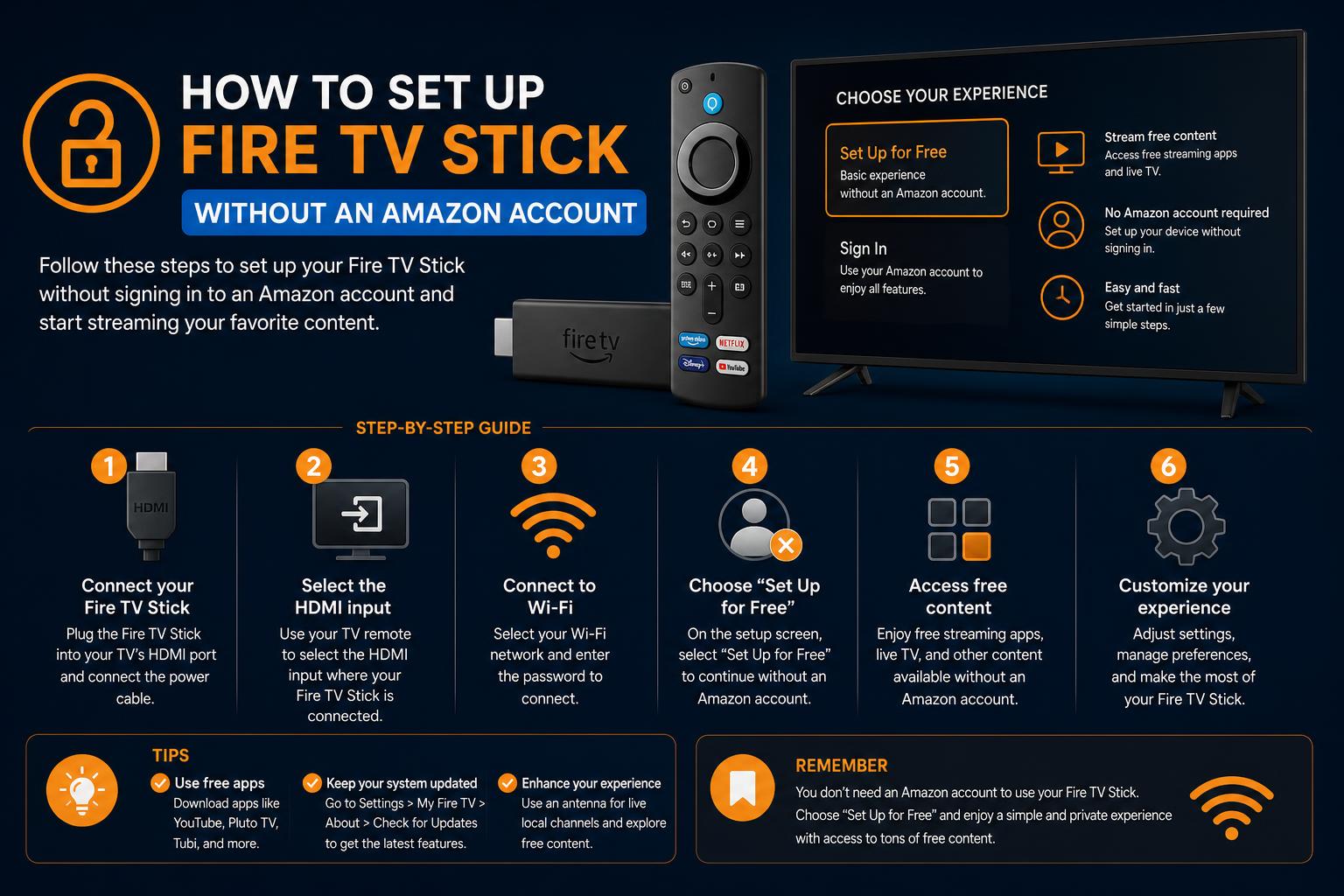
- Amazon accounts are central to Fire TV Stick's official setup and functionality
- Certain TV models offer a limited “Basic” mode without account linkage
- Sideloading apps is possible but comes with significant limitations and risks
If you recently purchased an Amazon Fire TV Stick and are wondering whether it’s possible to set it up without creating or using an Amazon account, you’re not alone. Many users have privacy concerns, want to avoid sharing personal information, or simply prefer not to tie every device to a single ecosystem. This guide will walk you through the ins and outs of setting up the Amazon Fire TV Stick without an Amazon account, examining advantages, important limitations, and various workarounds available to maximize your experience for cord-cutters and privacy-focused viewers alike.
Before jumping into specific methods, it’s critical to first grasp how Amazon designed the Fire TV platform and where the process becomes restrictive. Without understanding the intended flow and essential requirements, you may get stuck, miss features, or even limit your TV’s regular functionality. Let’s break down what really happens when you try to use a Fire TV device without Amazon’s login, explore potential solutions, and see what usability trade-offs you should expect.
Is It Possible to Set Up a Fire TV Stick Without an Amazon Account?
The short answer: Setting up and using a Fire TV Stick without an Amazon account is highly restricted and comes with several limitations. The Fire TV OS has been designed by Amazon to natively integrate with its ecosystem, including access to their app store, content services, updates, and device sync features. However, there are some basic TV functionalities or modes you can use, though they are nowhere near as smooth or full-featured as with a registered Amazon account.
The Ultimate Guide to Connecting Your Tablet to a TV: All Methods Explained
Why Does Amazon Require an Account?
The Amazon account is essentially the key to accessing most Fire TV features. With it, you’re granted entry to:
- Appstore support: Download apps and stream content through the Amazon Appstore.
- Prime Video and Amazon-exclusive content: Benefit from Amazon’s video library (Prime membership is not required, only an account).
- Device updates and registration: Security and feature updates are managed via your account.
- Equipment integration: Sync with Alexa, smart devices, and Fire TV’s universal search and voice controls.
While a paid Amazon Prime subscription offers additional content and perks, the base level account used for shopping is sufficient for most tasks—a fact often misunderstood by new users.
Core Limitations Without Using an Amazon Account
Trying to avoid logging in or creating an Amazon account on your Fire TV Stick comes with several big caveats:
- Access to most streaming apps and download options is blocked because you can’t reach the Fire TV Appstore.
- No Prime Video or Amazon content available unless you have at least a free account.
- Device updates and firmware improvements might be limited or unavailable if the device isn’t registered.
- Any attempt to deregister your device later may remove downloaded content and disable many features.
- Sideloading apps is sometimes possible, but often “clunky,” involves security risks, and might not work on newer device models due to evolving security checks.
- Parental controls and device lock features may permanently lock out usage if you don’t have valid account access or PINs set previously.
The upshot: Amazon has intentionally designed Fire TV devices to be used with—at minimum—a free Amazon account. Full functionality is almost impossible to achieve otherwise.
Official Setup Pathways: Step-by-Step Procedures
Here’s what the standard Fire TV Stick setup involves:
- Plug your Fire TV Stick into an HDMI port and connect to a power source.
- Turn on your TV and select the HDMI input you connected the Fire TV to.
- Follow the on-screen prompts to select your language and region.
- Connect to a Wi-Fi network of your choice (enter your network password if prompted).
- Sign in or create an Amazon account:
- Scan the on-screen QR code with your smartphone for automatic sign-in.
- Alternatively, visit amazon.com/code and enter the unique code displayed on your TV to authorize the device.
- Answer additional prompts for setting up remote control, soundbars, and accessibility features as needed.
- Installation complete: Home screen is displayed with app and video recommendations.
Amazon Prime is not required—only a free shopping account is needed unless you want enhanced services like Prime Video. Some users have reported the setup screens may nudge you to subscribe to Prime, but these screens can typically be skipped.
Exceptions: TV Models with Built-in “Basic Mode” or Shop Mode
Certain smart TVs that run Fire TV OS—like some Panasonic and Toshiba models—offer slightly different setup flows. These devices may let you opt for a “Basic” or “Shop” mode for users who either lack an Amazon account or don’t want to use the “smart” features.
This functionality can enable alternative viewing options:
- Basic Mode: Lets you access live TV via built-in tuners, use HDMI inputs for external devices, and get access to a small selection of free streaming apps (as available on the specific TV model).
- Shop/Store Mode: Disables most smart features; intended for in-store display cycles. It can serve as a fallback if you wish to use the physical TV only for its display, bypassing most online/Amazon features.
Instructions for these models often appear during first-time setup, allowing you to choose between “Full” and “Basic” experiences. The “Basic” experience, while functional for live TV and a handful of free streaming options, is extremely limited compared to using an Amazon account.
What to Expect with Basic vs Full Experience
- Full Experience: Requires signing into an Amazon account and gives access to the Amazon Appstore, paid services, personalized recommendations, Prime Video, and cloud-linked features.
- Basic Experience: Offers live TV (if you have an antenna or compatible input), as well as a few pre-installed or basic streaming apps not requiring Amazon account linkage. No downloads or additional app installations are possible in this mode.
Selection of the experience type often appears on TV models by Panasonic, Toshiba, and possibly others. If you opt for “Basic,” you forgo almost all of the advanced features and app selection Fire TV is known for.
Sideloading as a Workaround: Pros, Cons, and Cautions
One workaround discussed in online communities is “sideloading” apps onto the Fire TV Stick without using the Amazon Appstore. Sideloading means installing apps from external APK files, bypassing the standard app installation flow. Experienced users sometimes use this approach to avoid account setup, but it carries numerous issues:
- Complex process: Typically requires enabling developer modes, “apps from unknown sources,” and using tools like Downloader or ADB (Android Debug Bridge) to install APKs over network or USB.
- Security risks: Sideloaded apps may not be vetted for malware or security issues.
- Functionality gaps: Most of the pre-installed Fire TV OS features—including search, recommendations, and voice control—don’t work properly without an Amazon account.
- Varied success: Some newer Fire TV models have measures that restrict sideloading unless the device is registered with an Amazon account.
- No support: You won’t get technical support or updates for sideloaded apps, and some may break with system updates.
Sideloading is more of a technical workaround than a user-friendly alternative—best suited to tech-savvy individuals comfortable with risk and manual methods.
Accessibility Features and Equipment Control
Fire TV devices are equipped with various accessibility features such as closed captions, audio descriptions, screen magnification, and a screen reader. These can be configured either during or after the standard setup process. If you skip the Amazon account requirement and use only “Basic Mode,” access to accessibility settings may be significantly limited, though you should still be able to control basic audio and caption settings from your TV’s physical menu if available.
When configuring soundbars and other accessories, the setup usually involves following on-screen prompts with the Alexa Voice Remote or a compatible TV remote. Be aware that some advanced equipment control features—especially those reliant on the Alexa voice ecosystem—require an Amazon account for full functionality.
What Happens If You Deregister or Remove Your Amazon Account?
If you set up your Fire TV Stick with a free account and later opt to deregister (remove) the Amazon account from the device, most of the content linked to your Amazon account is deleted and many interactive features stop working. In effect, the device becomes a basic HDMI streaming stick—many streaming apps will no longer be usable, app updates stop, and any content purchased under that account may disappear.
On models with “shop” or “basic” mode, this is less of a concern as those are purposely isolated modes, but on standard Fire TV Sticks or streaming devices, deregistering will significantly cripple your device. Carefully consider before removing your account if you wish to retain full device functionality.
Step-by-Step Sample: Setting Up a Fire TV Smart TV Without an Amazon Account (If Supported)
- Power on your TV and Fire TV Stick.
- At the setup screen, choose your preferred language and region.
- Choose your TV mode:
- Home Mode: For regular users (full features).
- Shop/Store Mode: For display use or basic functionality (very limited features).
- Select your setup method:
- Via Fire TV app (requires Amazon account and smartphone app).
- With TV remote for more manual setup; follow prompts.
- Connect to your preferred Wi-Fi network and update firmware if necessary.
- When prompted to sign in with Amazon, look for “Basic” or “Limited” experience options on compatible models and select it if you wish to bypass login.
- Complete any additional setup such as channel scan (for antenna) and sound tuning as prompted by your TV’s firmware.
- Setup is complete—the home screen will be significantly simpler and limited to built-in/live TV features only.
Note: If you do not see a “Basic” mode option or cannot skip the Amazon account page, your model or firmware may not support true use without an Amazon account. In that case, you will need to use an account or attempt sideloading as described earlier.
Additional Advice: Creating a Free Amazon Account
If you want to maximize your Fire TV experience but don’t want to share private data, creating a free Amazon account with minimal information is an easy way to get basic device access. You do not need to subscribe to Prime or enter payment information immediately, and can use this account to access the Appstore, manage updates, and download most apps safely. Visit Amazon’s official site to register a new account in minutes. This is strongly recommended unless you are strictly avoiding all device linkage.
Common Issues and Troubleshooting Tips
- Forced Prime prompts: If you are asked (strongly) to sign up for a Prime trial or subscription during setup, there is usually an option to skip; look for small “Not now” or “Skip” text/link at the edge of the screen.
- Parental PIN lock: If your device is tied to an Amazon account and you forget the PIN and can’t access the account, the device can be permanently unusable—always keep recovery info safely stored.
- Network and update issues: Always make sure your TV firmware is up-to-date; completion of initial updates may be required even for “Basic Mode.”
- Remote not pairing: Insert fresh AAA batteries, and try pressing the “home” button for 10 seconds to pair. If using the Fire TV app for remote control, both devices must be on the same Wi-Fi network.
While the Fire TV Stick and Fire TV platform are built to work seamlessly within Amazon’s ecosystem, there are a few potential paths for users determined to avoid or minimize account involvement. Using basic or shop mode on select TV models, creating a privacy-focused free Amazon account, or delicately sideloading apps are all viable alternatives, but each method comes with distinct limitations and risks compared to the “official” experience. For most users, registering with at least a dummy or barebones Amazon account is the simplest way to unlock the essential streaming functionality these devices offer.