
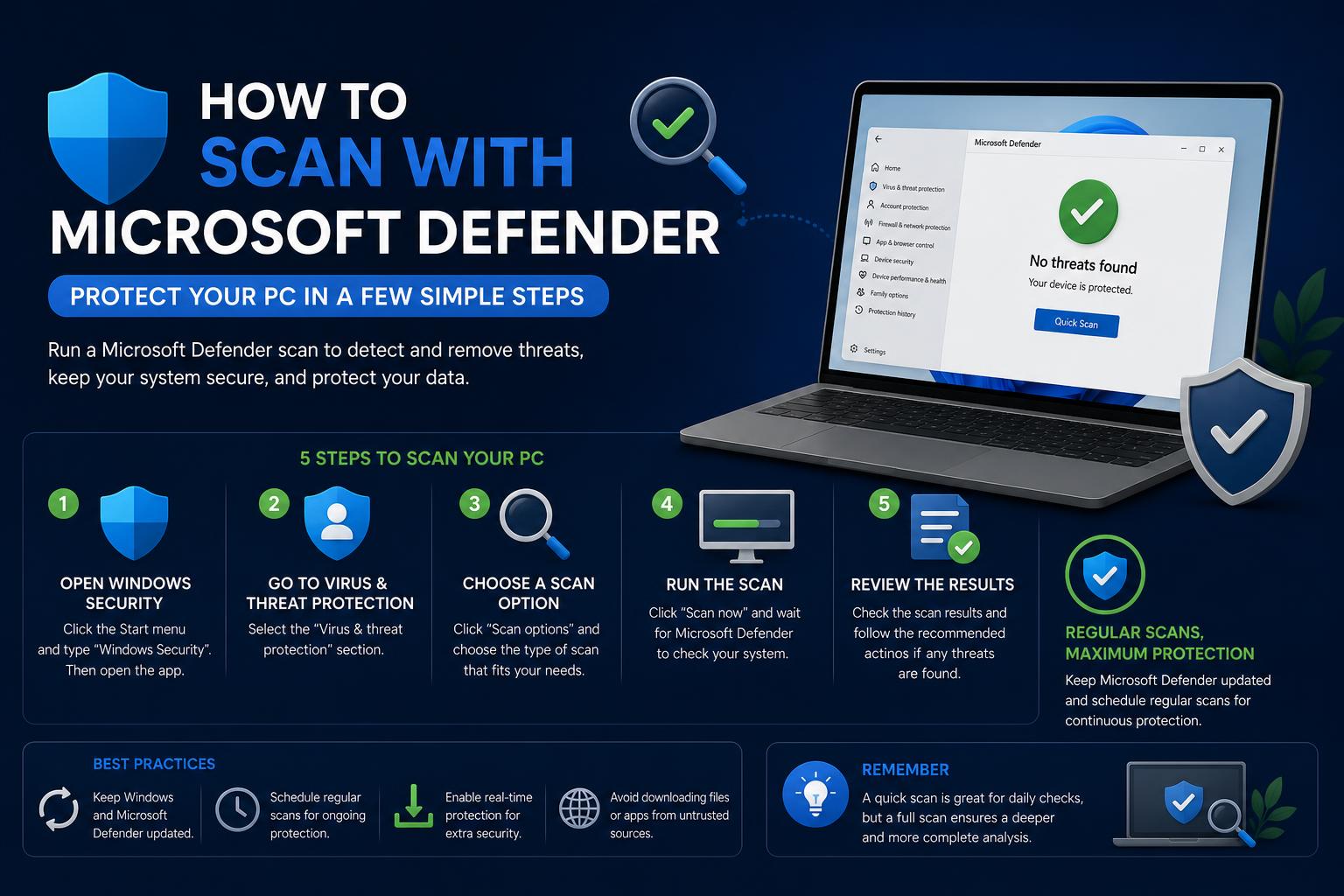
- Microsoft Defender offers real-time and on-demand scans against malware threats.
- Different scan modes let you check your whole system, specific folders, or individual files.
- Manual scans are crucial when you notice suspicious device behavior or have security concerns.
Diving into the world of computer security can be overwhelming, but one tool that makes the process accessible and effective is Microsoft Defender. For those who use Windows devices, understanding how to scan your system for viruses, malware, and other threats is not just good practice—it’s essential for keeping personal data and privacy intact. In a landscape full of evolving cyber risks, knowing how to utilize built-in tools like Defender can add a vital layer of defense to your daily computing routine.
Many users underestimate lurking dangers until their device starts behaving strangely or slows down to a crawl. Whether you’re concerned about a recent suspicious email, unexpected pop-ups, or just want peace of mind, running regular scans with Microsoft Defender gives you a proactive shield against threats. This comprehensive guide breaks down all the details, options, and best practices so you can confidently use every feature Defender has to offer.
What Is Microsoft Defender and Why Is It Important?
Microsoft Defender, formerly known as Windows Defender, is a core component of the Windows Security suite built directly into the Windows operating system. It’s designed to identify, quarantine, and remove a wide range of threats—including viruses, ransomware, spyware, and rootkits—before they can compromise your device. Unlike many third-party antivirus solutions, Defender works seamlessly from the moment you boot your PC, performing real-time scans in the background and automatically updating itself to counter the newest security threats. This integration ensures that your computer stays protected without manual intervention—unless you want to dig deeper and run scans yourself.
Defender stands out because it’s free, lightweight, and doesn’t bombard you with upgrade prompts or ads. The antivirus engine works hand-in-hand with additional features like the Windows Firewall and Smart App Control, providing multi-layered protection. With regular automatic updates and no need for additional downloads, Microsoft Defender is the go-to choice for millions of Windows users looking for security with minimal hassle.
Key Features of Defender’s Protection Suite
- Real-time protection: Scans every file and app you open or download, blocking threats before they cause harm.
- Multiple scanning modes: Options include quick scans, full system checks, or custom scans for specific files and folders.
- Firewall and network protection: Keeps an eye on incoming and outgoing network traffic, flagging suspicious behavior.
- Automatic updates: Frequently updates its malware definitions and scanning engine without user intervention.
- Built-in for Windows: Starts protecting your system right out of the box, requiring no complex setup.
Comprehensive Guide: What to do when Windows Defender Firewall Blocks features of an App
How to Open Windows Security and Access Defender
Accessing Defender is simple since the Windows Security app acts as its main dashboard. You can launch Windows Security by searching for it in your Start menu—just type “Windows Security” and hit Enter. The interface is intuitive, featuring a navigation menu with sections for virus & threat protection, firewall & network, and more. Each tile gives you quick access to core Defender functions.
Running Different Types of Scans with Microsoft Defender
Quick Scan: For Fast, Routine Checks
When you need to ensure your system hasn’t picked up a recent infection, the quickest route is the Quick Scan. This mode checks major system areas where threats are most likely to lurk—think temporary files, system memory, startup processes, and commonly infected folders.
To trigger a Quick Scan:
- Open Windows Security from your Start menu.
- Click the Virus & threat protection tile or the shield icon.
- Click the Quick scan button.
Quick scans usually take just a few minutes and are ideal for daily peace of mind. The results appear immediately, telling you whether any action is needed.
Full Scan: Comprehensive Deep Dive
If you suspect a hidden threat or want to be certain no malware exists anywhere in your system, a Full Scan is your best option. This scan combs through every file, folder, and program—regardless of where it’s stored on your drive.
Full Scan procedure:
- In Windows Security, go to Virus & threat protection.
- Under Current threats, click the Scan options link located below the Quick scan button.
- Select Full scan from the options presented.
- Click Scan now and let Defender run through your entire device.
Full scans can take anywhere from 30 minutes to several hours, depending on your system’s size and the amount of data stored. It’s smart to reserve these deeper scans for when you won’t need your device immediately—like overnight or during long breaks.
How to Remove Fake Virus Pop-Ups from Chrome: Complete Guide
Custom Scan: Target Specific Files or Folders
Defender also allows for custom scans. For instance, if you downloaded a file from an unfamiliar source or suspect a particular folder is compromised, you can check just those locations.
Custom scan process:
- Navigate to Virus & threat protection in Windows Security.
- Click Scan options.
- Select Custom scan and then click Scan now.
- Choose which folders or drives you want Defender to inspect.
You can also right-click any file or folder in Windows File Explorer and select Scan with Microsoft Defender for a super-fast, on-demand check.
Offline Scan: For Stubborn Malware
Some deeply rooted threats can slip past regular scans by hiding in system memory or launching before Windows loads. For these cases, Defender offers an Offline Scan that boots your computer into a safe, isolated environment and runs a thorough check for malware that other scans might miss.
Offline Scan steps:
- Inside Windows Security, select Virus & threat protection.
- Click Scan options.
- Choose Microsoft Defender Offline scan and follow on-screen prompts. Save your work before starting because your computer will restart automatically.
This advanced scanning technique can detect and remove rootkits or persistent malware that hides from standard scans.
When Should You Run a Manual Scan?
While Defender continuously protects your PC in real-time, there are specific scenarios where running a manual scan makes sense:
- After clicking on suspicious links or attachments in emails.
- If your computer suddenly slows down, experiences frequent crashes, or behaves abnormally.
- When you notice drastic decreases in battery life or unexpected spikes in data usage.
- Upon seeing pop-ups, advertisements, or being redirected to unfamiliar websites during normal browsing.
- To confirm that a prior infection has been effectively cleared.
Manual scans are a great way to double-check your system’s clean bill of health after risky incidents or whenever you feel unsure about your device’s security.
What to Do if Defender Finds Threats
If Microsoft Defender detects a threat during any scan, you’ll be instantly notified with clear instructions on how to proceed. Typically, Defender automatically quarantines or removes the malicious file, but you may be given several options, such as:
- Remove – Deletes the threat from your system completely.
- Quarantine – Moves the file to a safe, isolated location where it can’t do harm.
- Allow – If the file is a false positive and you trust it, you can mark it safe (use this cautiously).
Detailed scan results provide the threat’s name and a summary of actions taken. If you have any doubts about a particular detection, you can check online virus databases, contact Microsoft support, or seek help through the official Microsoft Defender support page.
Configuring Real-Time Protection and Advanced Settings
By design, Defender’s real-time protection is always enabled to stop threats immediately. However, there might be moments—such as installing certain trusted software—when you may need to temporarily turn off real-time scanning. Here’s how:
- Go to Virus & threat protection in Windows Security.
- Click Manage settings under “Virus & threat protection settings.”
- Toggle Real-time protection On or Off.
Note that real-time protection will reactivate automatically after a short period or on the next device restart. Turning it off leaves your system temporarily vulnerable, so only use this setting if absolutely necessary, and for as short a window as possible. For more details, consult this guide to disabling Windows Defender temporarily.
Disabling Windows Defender on Windows 11: Complete Step-by-Step Guide
Tips for Making the Most of Microsoft Defender
- Keep Windows updated: Defender and the Windows Security app receive frequent updates through Windows Update. Always install these updates promptly for the latest threat protection.
- Run full scans periodically: Even though real-time and quick scans catch the majority of threats, it’s a good habit to run thorough full scans every month or after significant system changes.
- Customize your notifications: You can choose which alerts you receive from Defender, ensuring you’re only notified of serious threats or required actions.
- Use alongside smart browsing habits: No antivirus solution is foolproof. Avoid downloading files from untrusted sources and steer clear of suspicious emails and links.
Scanning on Other Devices: Android and Mac
Microsoft Defender isn’t limited to Windows. With Microsoft Defender for Endpoint, you can protect Macs and Android devices too. The dashboard lets you:
- Check device details and protection status.
- Initiate malware scans with a single tap or click (e.g., tap Device details > Malware protection > Scan on Android).
- Review notifications for identified threats.
What If You Want Extra Layers of Security?
While Defender’s out-of-the-box protection is very robust, some users may want to combine it with additional measures like:
- Windows Firewall: Already included, provides network-level protection.
- Controlled Folder Access: Blocks unauthorized programs—including ransomware—from making changes to protected files.
- SmartScreen: Warns you about suspicious websites and phishing attempts when browsing the web.
These additional defenses can be managed within the Windows Security app, giving you comprehensive control over your device’s defenses, all from a single, user-friendly interface.
Frequently Asked Questions
- Do I need to install Microsoft Defender separately?
- No, it’s built into Windows 10 and 11 by default. Activate it through the Windows Security app.
- Does running a scan slow down my PC?
- Quick scans have minimal impact, but full scans may slow performance on large drives or older computers. Schedule them during idle times for minimal disruption.
- Is Microsoft Defender enough on its own?
- For most individual users, Defender provides more than adequate protection, especially when combined with safe online habits and regular Windows updates.
Leveraging Microsoft Defender is one of the easiest, most cost-effective ways to keep cyber threats at bay. By familiarizing yourself with the different scan types and the broader security features integrated into Windows, you stand an excellent chance of keeping your device—and your data—secured against the majority of threats. Regular scans, a watchful eye for suspicious activity, and prompt action on detected risks together make your computer experience safer and worry-free.