
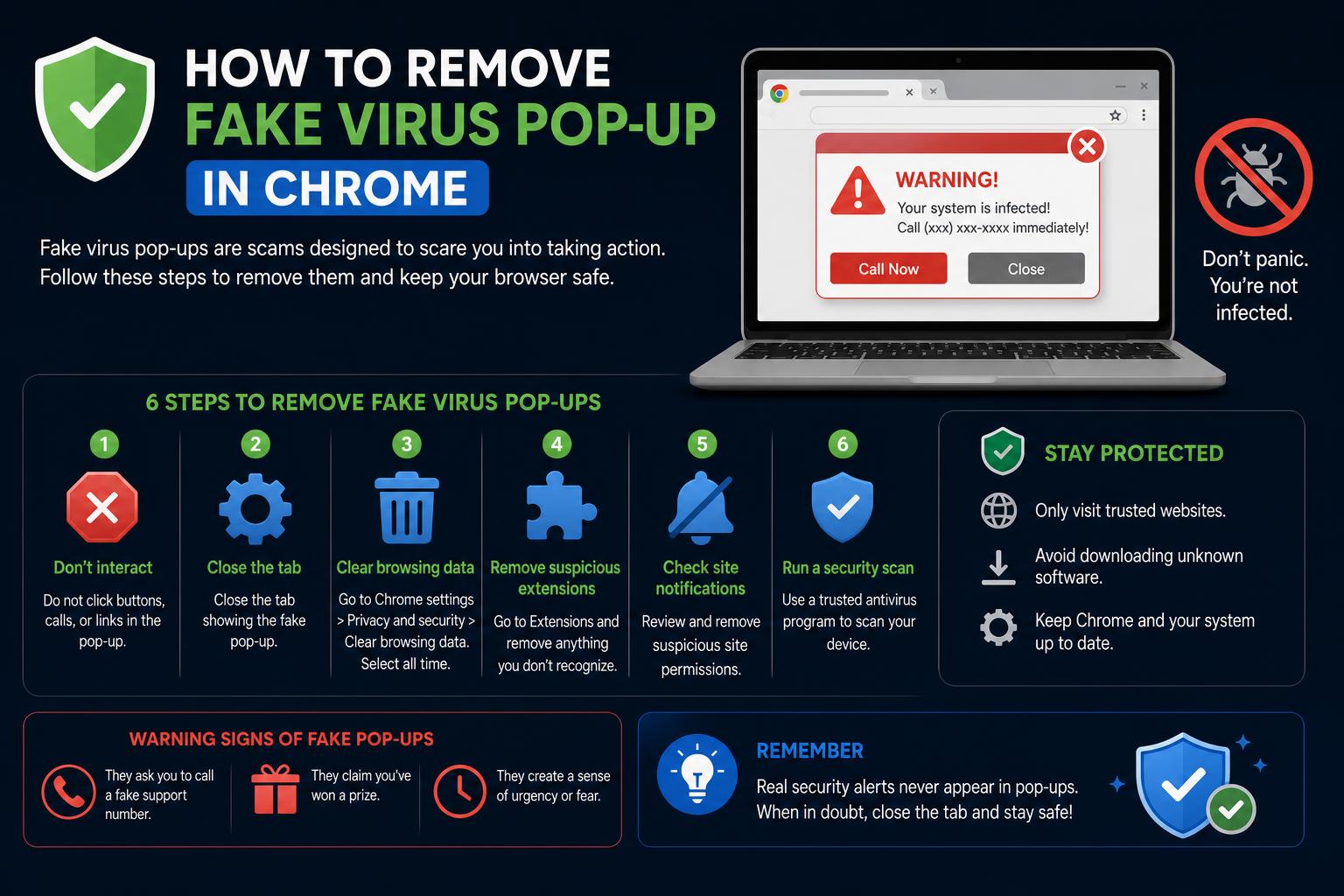
- Fake virus pop-ups in Chrome are usually triggered by malicious notifications or browser extensions, not real malware.
- Comprehensive removal involves updating permissions, cleaning out extensions, and running a full malware scan on your device.
- Enhancing Chrome’s security settings and being vigilant online helps prevent rogue pop-ups in the future.
Seeing fake virus alerts pop up in your Chrome browser can be a stressful and confusing experience. Many users worry that their computer has been compromised, when in reality, these scare tactics are often just deceptive ads or notifications designed to trick you into clicking suspicious links or installing unwanted software. It’s important to address these pop-ups quickly, not just for your peace of mind, but to protect your device from actual threats.
This guide will walk you through every step you need to take to eliminate fake virus pop-ups in Chrome, understand where they come from, and prevent them from returning. Drawing on expert advice and practical experiences, we’ll cover everything from browser settings, extension clean-up, malware scanning, and even some tips to help you avoid falling for these scams in the future. If you’ve ever been hounded by pop-ups claiming your system is infected—keep reading. We’ll get you back to safe, smooth browsing in no time.
Why Are Fake Virus Pop-Ups Appearing in Chrome?
Fake virus pop-ups are most often triggered by malicious or compromised websites that have gained permission to push notifications or have managed to install unwanted extensions in your Chrome browser. These notifications might display alarming messages like ‘Virus Detected!’, ‘Your System Is Infected’, or pretend to be security warnings from well-known antivirus brands such as Norton, McAfee, or even Google itself. The aim is to scare you into clicking a malicious link, calling a fake support number, or downloading unnecessary (and potentially harmful) software.
Common scenarios leading to these pop-ups include:
- Visiting dubious sites and inadvertently granting them notification permissions.
- Installing browser extensions or plug-ins from untrusted sources.
- Clicking suspicious flashing buttons or ‘I am not a robot’ CAPTCHAs on unsafe sites.
- Your browser’s start page or homepage suddenly changes without your consent.
- Unfamiliar toolbars or extensions reappearing even after you’ve removed them.
Even if your antivirus doesn’t detect a problem, these pop-ups may persist until you remove their source. That’s why it’s crucial to follow a comprehensive clean-up process.
Spotting the Signs of Fake Virus Alerts
Not all virus warnings are legitimate. Here’s how you can identify fake pop-ups and scam notifications in Chrome:
- Overly alarming language: Messages warning of immediate danger or urging you to take urgent action, like ‘Your computer is at risk!’
- Notifications from unknown websites: Especially those you don’t recall visiting or giving permission to.
- Repeated alerts: Warnings that continue to reappear even after closing the browser tab.
- Requests to click, call, or download: Instructions to call a phone number, download an ‘antivirus’ app, or click a link to ‘fix’ issues.
- Inconsistent branding: Sometimes these pop-ups mimic the look of popular antivirus programs, but often have typos, strange logos, or odd grammar.
If something feels off or too aggressive, it’s best to err on the side of caution. Don’t interact with the pop-ups—especially don’t click any buttons or follow instructions within them.
Step-By-Step Guide: Removing Fake Virus Pop-Ups from Chrome
1. Clear Suspicious Notifications Permissions
Many fake pop-ups are delivered as notifications through Chrome itself. This happens when a malicious website tricks you into allowing notification permissions. To stop these notifications:
- In Chrome, click the menu (three dots) in the top right corner.
- Select Settings.
- Click Privacy and security in the left sidebar.
- Choose Site Settings > Notifications.
- Review the list under Allow. Look for unfamiliar or suspicious sites—often these will have strange, slightly misspelled names.
- Click the menu (three dots) next to any suspicious website and choose Remove.
- If you prefer, you can go directly to this page by entering chrome://settings/content/notifications in your address bar.
This simple step often stops fake notifications immediately.
2. Remove Unwanted or Suspicious Extensions
Extensions can be a common source of persistent pop-ups or browser hijacking. If you’ve recently added new plugins—or notice extensions you don’t remember installing—be sure to clean them up:
- In Chrome, click the menu (three dots) in the top right.
- Hover over Extensions and select Manage Extensions.
- You can also go directly to chrome://extensions.
- Scroll through and look for any extensions you don’t need, don’t recognize, or seem suspicious.
- Click Remove for each unwanted extension.
Tip: Only keep extensions from trusted developers and the official Chrome Web Store.
3. Change Pop-Up and Redirect Permissions
Prevent future unwanted pop-ups by adjusting Chrome’s built-in settings:
- Open Settings again via the menu.
- Choose Privacy and security > Site Settings.
- Scroll down to Pop-ups and redirects.
- Set this to Don’t allow sites to send pop-ups or use redirects.
This limits a popular attack vector for unwanted pop-ups.
4. Run a Full Malware Scan on Your Device
Even with everything else cleaned up, it’s essential to check your system for malware infections. Here’s how:
- If you’re on Windows: Use Windows Security (built-in), or a reputable third-party antivirus such as Bitdefender, Avast, Kaspersky, or Malwarebytes.
- For Mac users, try built-in protections or options like Malwarebytes for Mac.
- Open your security program.
- Run a full system scan—not just a quick scan.
- Allow the tool to remove or quarantine any threats it finds.
Even if your browser is at fault, a full malware scan rules out more persistent infections not isolated to Chrome.
5. Reset Chrome Browser Settings (if Problems Persist)
If fake alerts keep coming back, resetting Chrome can help. This puts Chrome back to its default state, removing all changes made by unwanted programs:
- Open Chrome and click the menu (three dots).
- Select Settings.
- Scroll down and click Reset settings > Restore settings to their original defaults.
- Confirm by selecting Reset settings.
Note: This will disable your extensions (you can manually enable those you trust again), delete cookies, and reset your homepage, but it does not remove bookmarks or passwords.
6. Manually Remove Problematic Programs from Your Computer
If you suspect something more persistent is installed:
On Windows:
- Go to Start > Settings > Apps > Installed apps.
- Look for any recently added, unfamiliar, or suspicious programs.
- Select them and choose Uninstall.
On Mac:
- Open Finder and go to Applications.
- Review the list for anything strange or unknown.
- Right-click and move unwanted apps to the Trash, then empty the Trash.
Removing these can prevent future pop-up issues caused by installed adware.
7. Enable Enhanced Protection in Chrome
To prevent malicious sites from reaching you in the future, turn on Enhanced Protection:
- Head to Settings > Privacy and security > Security.
- Choose Enhanced protection.
This gives Chrome a stronger ability to warn you about phishing, malware, and scam sites before they can cause trouble.
Extra Tips to Avoid Fake Virus Pop-Ups in the Future
Once you’ve cleared out the pop-ups, it’s important to stay vigilant so you don’t run into the same scam again. Here’s what you can do:
- Be cautious with unfamiliar websites. Avoid downloading files or programs, especially from sites offering free copyrighted material or suspicious contests.
- Look for HTTPS. Prefer secure websites (the address should start with https). Chrome will flag insecure sites in the address bar.
- Don’t turn off your antivirus protections. Sometimes, malicious websites will urge you to disable your security software—don’t do it.
- Avoid clicking pop-up ads or update prompts in your browser. For software updates, always go to the official product website—never trust a pop-up insisting something is out of date.
- Be wary of encrypted archive downloads. Password-protected .zip or .rar files may bypass standard antivirus scans—avoid them if you’re not certain of their origin.
- If a website or pop-up urges you to call for support, it’s a red flag. Genuine companies like Google or Microsoft will never ask you to call a random number via a pop-up.
What If I Still Get Pop-Ups After Cleaning?
Sometimes, even after taking all the above steps, persistent pop-ups or strange browser behavior may continue. If that’s the case:
- Double-check your notification and extensions lists. Occasionally, a single missed setting can let spam continue.
- Repeat your malware scan using a different security tool for a second opinion.
- Contact IT support—especially if you’re using a computer at work, school, or if you just can’t shake the issue. Your IT department may have more advanced tools to diagnose or clean infections.
You can also seek help on official forums:
Frequently Asked Questions About Chrome Fake Virus Pop-Ups
- Are fake virus pop-ups a sign my computer is actually infected?
- Most of the time, these messages are just attempts to scare you. However, it’s always smart to run a full antivirus scan to make absolutely sure nothing has installed itself quietly in the background.
- Can Google Chrome itself get a virus?
- Chrome cannot get a virus like a traditional program, but extensions and notification access can be abused to create the illusion of infection or compromise your browsing experience. That’s why cleaning these is so crucial.
- If I click a fake virus pop-up, is my computer doomed?
- Just clicking the pop-up doesn’t always lead to infection. The real danger comes when you enter personal information, download files, or give remote access to scammers. Always close the warning using Task Manager if it won’t go away normally.
- How can I report or block these scams in the future?
- Aside from cleaning your browser and running malware checks, you can report phishing sites to Google using their reporting tool at the official Google Safe Browsing Report page.
Proactively maintaining your browser’s security settings, avoiding suspicious sites, and being cautious about what you install are your best defenses.
When Professional Help Is Needed
If you’ve tried everything and the fake virus pop-ups keep coming back, or you suspect something serious is wrong, don’t hesitate to reach out to a professional. IT support services at workplaces or schools are equipped to handle persistent cases using specialized tools and can get your system back to normal. Some universities, such as Chico State IT Support, even provide detailed removal guides you can reference for more assistance.
Remember, you’re not alone. Tech support teams deal with these scams daily—it’s nothing to be embarrassed about, and getting the issue handled quickly is always your safest move.
Taking the time to properly clean and secure your browser can save you endless frustration down the line. Understanding the root causes, thoroughly removing suspicious permissions, extensions, and potential malware, and sticking to best practices for safer browsing will help ensure you don’t have to deal with fake virus pop-ups again anytime soon. Stay alert, trust your instincts, and enjoy a worry-free online experience.