
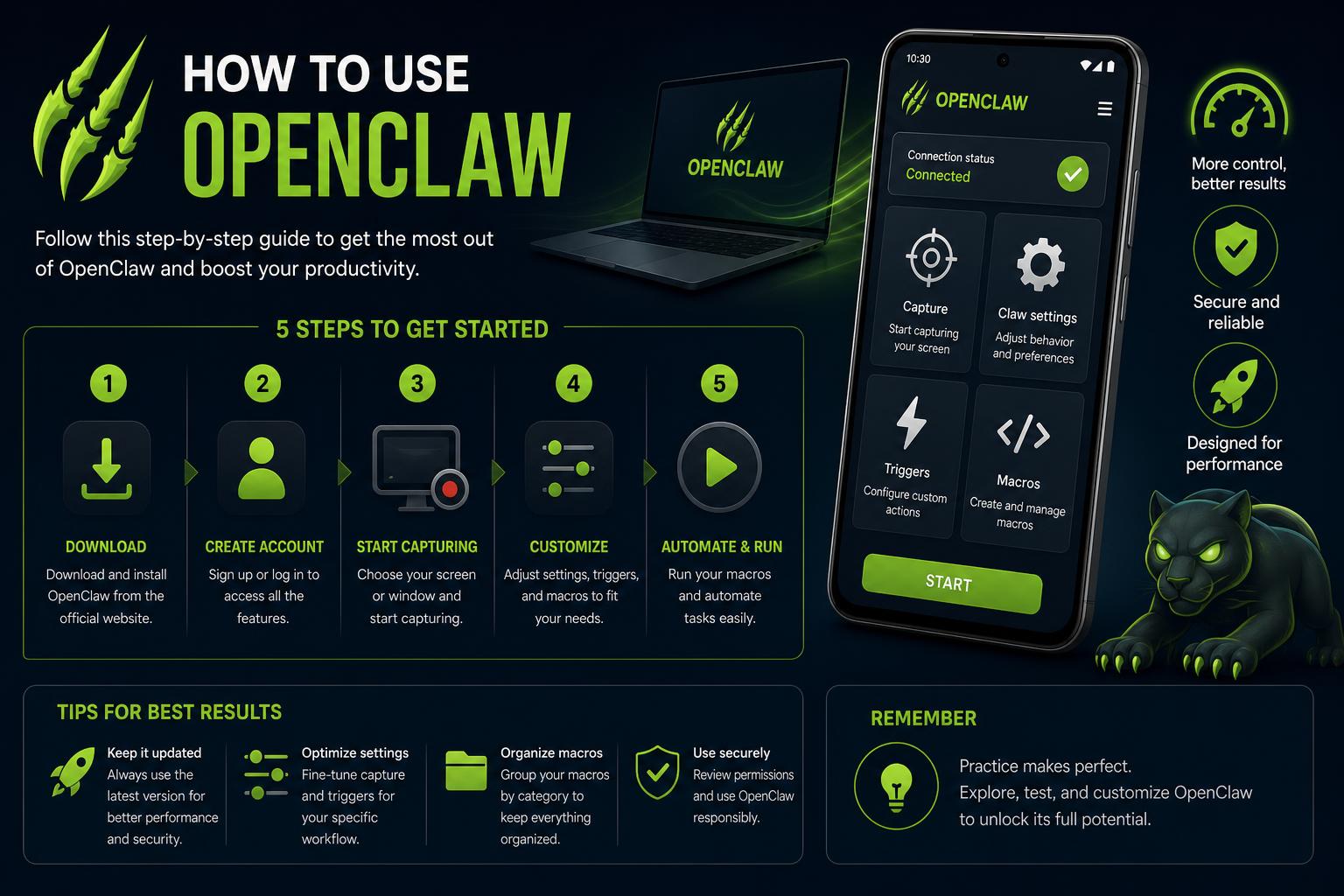
- OpenClaw transforms local AI automation by connecting to popular platforms and tools.
- Simple guided onboarding ensures a fast, secure setup with customizable model support.
- Flexible integrations, from messaging apps to document editing, empower tailored workflows.
OpenClaw has rapidly emerged as a premier choice for those seeking a powerful, autonomous AI agent capable of managing complex digital tasks locally and securely. With its open-source foundation, scalable features, and compatibility with major AI model providers, OpenClaw has attracted developers and curious newcomers alike, looking for customization, hands-on control, and straightforward setup that doesn’t compromise on capability.
Learning to use OpenClaw effectively can seem daunting at first. However, with today’s advancements, transparent documentation, and vibrant community support, getting up and running with OpenClaw has never been easier. In this article, we’ll break down every element you need to deploy your own OpenClaw instance, connect it to leading AI models, leverage its integrations with popular platforms like Google Workspace, and ensure you’re adhering to robust security standards—all while emphasizing what makes OpenClaw unique and highly practical for both individuals and teams.
What is OpenClaw?
OpenClaw is a cutting-edge, open-source autonomous agent framework designed to help users automate digital tasks and communications through familiar channels such as WhatsApp, Telegram, and Discord.
Unlike traditional chatbots that passively respond to prompts, OpenClaw operates proactively, autonomously executing workflows, managing long-term memory, and supporting advanced integrations and plugins. This empowers users to offload repetitive or complex tasks, create personalized assistants, and even build agents that manage their own schedules, send contextual reports, and manipulate documents on command.
To learn more and access the latest updates about OpenClaw, you can always visit the official documentation and project resources.
Prerequisites: Before You Begin
Getting started with OpenClaw is refreshingly simple, but there are some essentials you’ll need for a smooth installation:
- Node.js (Version 22.22.3+, 24.15+, or 25.9+). The developers recommend running Node 26 for optimal performance. You can check your current version with
node --version. - An AI model provider API key (such as Anthropic, OpenAI, Google, etc.). During onboarding, OpenClaw will prompt you to provide this. If you use the Minimax 2.1 model, you can bypass API keys entirely for a limited time.
If you’re a Windows user, there’s an easy-to-use native Hub app, but you also have the option to use PowerShell or WSL2 for installation. Detailed setup steps for each system are available in OpenClaw’s official docs.
Installing and Setting Up OpenClaw
The installation experience for OpenClaw is streamlined, focusing on quick onboarding without sacrificing depth:
- Install OpenClaw using the package manager or instructions provided on the project’s GitHub. For most users, it’s as easy as copy-pasting the installer commands into a terminal. There are also Docker and Nix options for advanced setups or containerized environments.
- Onboarding Wizard: Once installed, OpenClaw launches an interactive onboarding process guiding you through model selection, API key setup, and Gateway configuration. This is typically a brief procedure unless you opt for signing into external services, additional skills, or plugins.
- Gateway Launch: If everything is successful, you’ll see the Gateway listening on port 18789. This means OpenClaw’s heart—its communication and task engine—is running, ready for integration with dashboards or chat platforms.
The best part? Many users have reported having their own OpenClaw agent ready for conversation in under five minutes, making the setup process accessible even for beginners.
First Launch and Initial Testing
When your Gateway is live:
- Access the Dashboard: OpenClaw provides a user-friendly web control panel that you can open in your browser. If it loads correctly, your setup is on track.
- Initiate a Chat Session: In the dashboard’s chat box, type a simple “hey” or “are you online?”. A successful AI-generated reply means the agent is operational.
If you’re looking to use OpenClaw on your phone, platforms like Telegram are supported and can be connected with just a bot token. Full details on channel integration—covering WhatsApp, Discord, and more—are documented within the channels section of the official guide.
Troubleshooting: When Things Don’t Work
No system setup is immune from hiccups, but OpenClaw provides a smart inbuilt diagnosis tool. By running openclaw doctor, the software checks health, surfaces issues, and even prepares a prompt for coding agents—such as Claude Code or the built-in OpenClaw agent—so you can automate troubleshooting next steps. Your secrets and logs remain private unless you explicitly choose to share them with an agent.
If you prefer manual diagnostics, all findings are presented plainly for your review, and the Troubleshooting section in the docs can guide you through symptom-specific solutions.
OpenClaw’s Security: Keeping Your Bot Safe
Security is a major pillar of OpenClaw’s design philosophy. Whether you’re using your agent locally or connecting it to sensitive accounts, it’s vital to implement good practices:
- Dedicated Device: Run your bot on a specific machine—some users prefer an older laptop or dedicated home server—to isolate it from personal files and other accounts.
- Unique Credentials: Give your bot a separate Gmail or Apple ID. This helps maintain boundaries and reduces the impact of any accidental exposure.
- Selective Permissions: Restrict the bot’s access so it can read certain data (like your calendar) but only write to files you explicitly allow (like specific Google Docs or Sheets).
- Run Security Audits: OpenClaw has a built-in
security audit --deepcommand to evaluate permissions, configuration, and access policies, with step-by-step advice to tighten security. - Don’t Share Access: For most use cases, keep the agent private. Avoid adding it to group chats or allowing others to message it unless you are certain of their intent and technical background.
Environment Variables and Customization
Advanced users running OpenClaw as a service account or with custom paths will appreciate the use of environment variables. Some useful ones include:
OPENCLAW_HOME— Set where OpenClaw stores internal paths.OPENCLAW_STATE_DIR— Define a custom directory for persistent state data.OPENCLAW_CONFIG_PATH— Specify a different config file location.
Comprehensive details on these can be found in the official environment variable reference.
Expanding Functionality: Skills, Plugins, and Memory
What gives OpenClaw its edge is the vast ecosystem of skills and plugin modules. These let your agent perform everything from editing documents, web searching, executing system commands, and integrating third-party APIs to specialized tasks like managing your calendar or sending tailored weekly reports by email.
- To add new skills or plugins, use the dashboard or command-line interface. Popular third-party modules are listed on Clawhub, OpenClaw’s skill repository.
- You can build custom skills using YAML or Markdown, allowing highly granular and personalized behaviors tailored to your workflows.
- Persistent memory files let your agent retain long-term context—ideal for those who want their bot to remember preferences or ongoing projects.
Connecting to Popular Channels and Platforms
One reason for OpenClaw’s viral popularity is its smooth integrations with mainstream communication and productivity platforms. Here’s how users are benefitting:
- WhatsApp, Telegram, Discord: The agent can join channels using tokens, allowing seamless chat-based automation. Integrate your bot into community groups or use it privately for personal reminders and workflows.
- Google Workspace: Many users connect OpenClaw to manage their calendar, edit Docs and Sheets, and send automated emails. You can finely control what the bot can access—grant only the permissions required.
- Email Reporting: With a dedicated email identity, the agent sends status reports, analytics, or personal briefings at scheduled intervals, pulling data from various sources like YouTube or Substack.
- Specialized Integrations: Set up custom cron jobs, use browser automation for platforms without proper APIs, and even leverage voice reply features by linking to text-to-speech services like Microsoft Edge TTS.
Real-World Use Cases: Making AI Work for You
The community has discovered all sorts of creative uses for OpenClaw:
- Personal Task Manager: Automatically schedule appointments, track deadlines, and send daily briefings based on your calendar and to-do lists.
- Document Editing & Research: Dictate changes to Google Docs or Sheets, or instruct the agent to fetch web results for project research.
- Weekly Insight Reports: Aggregate statistics from your YouTube, newsletter, and other channels into clean, email-based reports.
- Automated Communications: Use predefined triggers to notify you of important events, alert teammates, or even share jokes with friends through voice responses.
- Advanced Coding & Project Management: Pair OpenClaw with development tools like Linear, assign tickets to AI coding agents, and sync project context from Slack, support portals, or code repositories.
Pro Tips for New and Advanced Users
- If you’re just starting out, select a model like Minimax 2.1 for a no-hassle, free trial without needing API keys.
- For uninterrupted automation, run your OpenClaw agent on a dedicated machine kept online 24/7. Tools like Amphetamine (for macOS) can help keep your computer awake.
- Always audit your permissions and only expose what’s needed—OpenClaw’s security audit tools make it easy to stay on top of best practices.
- If you need to revert or revisit onboarding steps, simply rerun
openclaw configureto make changes on the fly. - For the most up-to-date advice, deep dives, and video walkthroughs, refer to community resources like freeCodeCamp’s beginner guide or the Master OpenClaw newsletter.
Common Questions Answered
- Is OpenClaw difficult to install? Not at all—the process is as simple as copy-pasting a few commands. Most get it running in minutes.
- Can I use OpenClaw for free? Yes, especially with certain models that offer trial periods. Local running means no ongoing cloud costs, but 24/7 access may require a paid VPS.
- Is it secure? Yes, if you follow best practices: dedicated devices, minimal permissions, and regular audits.
- What if my PC turns off? Local instances require your machine to be on. For continuous uptime, consider a VPS.
- Is it beginner-friendly? Absolutely! The interface is approachable, and the guided onboarding makes it accessible to all experience levels.
OpenClaw bridges the gap between passive automation and truly proactive digital assistance. It empowers users to automate daily workflows, handle communication, and customize agents to their unique needs—all while running privately on their own hardware. Its flexibility, security features, and expanding ecosystem make it an ideal platform for anyone interested in AI-driven productivity tools. Visit the official OpenClaw documentation and start exploring today.