
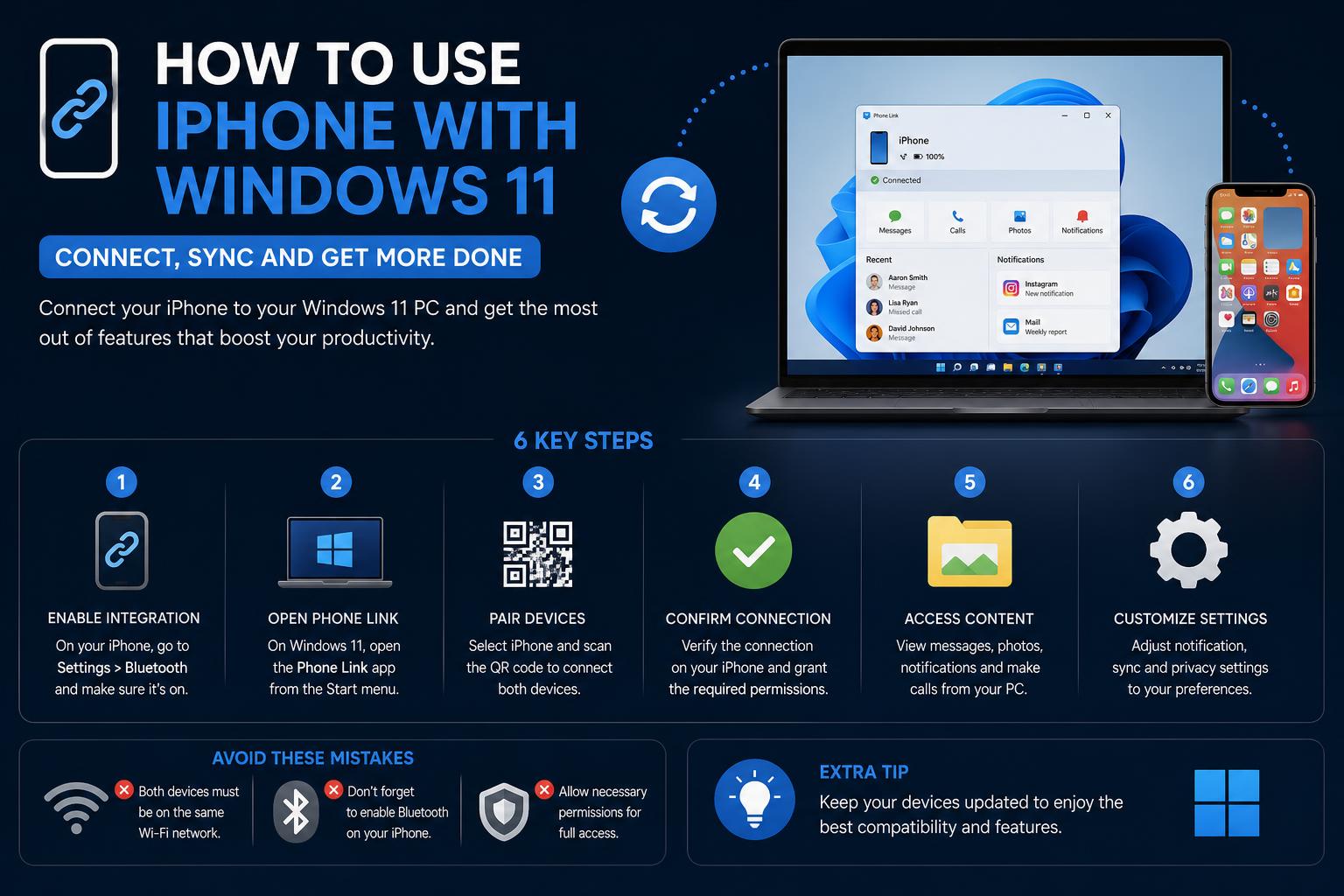
- Phone Link and Link to Windows now enable file sharing and syncing between iPhone and Windows 11 PCs.
- iTunes remains essential for advanced media library management and backups.
- Third-party apps facilitate high-quality iPhone-to-PC screen mirroring for presentations or gaming.
Trying to get your iPhone and Windows 11 PC to play nicely together can feel a bit like convincing two distant relatives to chat at a family reunion. There’s always a bit of awkwardness at first, but when you know exactly what to do, you’ll be surprised at how well these devices can get along. Whether you want to sync photos and music, mirror your iPhone screen, or just share a few files, Windows 11 offers several ways to connect your iPhone with minimal fuss.
In this detailed guide, you’ll find everything you need to know about connecting, syncing, and sharing data between your iPhone and your Windows 11 PC. From setting up Phone Link and using popular apps to troubleshooting pairing issues, every method is covered to stop you from pulling your hair out. Let’s get started and make your workflow seamless—no matter what side of the tech fence you’re from.
Understanding Your Connection Options
When it comes to using your iPhone with a Windows 11 computer, you have a few main paths to explore, each with its own strengths. The landscape has changed a lot in the past couple of years, with Microsoft’s new offerings improving compatibility, so it’s important to know what’s current. The most common goals people have include syncing media (like photos, music, and videos), sharing files, and mirroring the iPhone screen for tasks such as presentations or gameplay.
Before you start, be aware that iPhones and Windows PCs don’t have the same deep integration as Apple devices do with each other. However, with the right tools and setup, you can achieve most of what you need reliably and securely. Below is an in-depth walkthrough of the most effective options, including how to set them up, what to expect, and how to troubleshoot if things don’t go smoothly.
Using Microsoft Phone Link with iPhone and Windows 11
Microsoft’s Phone Link app (formerly known as Your Phone) is the official way to bring some of your iPhone’s features onto your Windows 11 desktop. While the integration is more limited than with Android, it’s been expanding, especially with file-sharing capabilities. Here’s what you need to know:
Requirements for Phone Link and Link to Windows
- iPhone with iOS 16 or newer
- Link to Windows app installed on your iPhone (available on the Apple App Store, version 1.24112.73 or newer)
- Windows 11 PC with Phone Link app (version 1.24112.89 or higher)
- Latest Windows updates installed to enhance compatibility
The latest updates have gradually enabled Phone Link to offer file sharing between your iPhone and Windows 11. However, note that new features may be in limited rollout initially, so check your app versions.
How to Set Up Phone Link for iPhone
- Install the Link to Windows app from the Apple App Store on your iPhone.
- On your Windows 11 PC, ensure you have the Phone Link app installed or updated (should come pre-installed on modern systems).
- Open Phone Link on your PC. If starting for the first time, you’ll be guided through the process.
- You’ll be prompted to sign in with your Microsoft account on both devices. Make sure you use the same account for a seamless connection.
- The app will display a QR code on your PC. Open Link to Windows on your iPhone, allow necessary permissions, and scan the code to pair.
- If you’ve used Phone Link before, go to aka.ms/addAccount to add your iPhone.
File sharing is now part of the setup process, if available for your account.
Sharing Files Using Phone Link
Transferring files between your iPhone and Windows 11 is straightforward if you’re set up with Phone Link and Link to Windows. If not yet available, keep your app updated, as rollouts may take time. Here’s how sharing works:
From iPhone to PC
- On your iPhone, locate the file(s) you wish to share—this could be a photo, document, or other supported files.
- Tap the Share icon and choose Link to Windows.
- Select your Windows 11 PC from the device list.
From PC to iPhone
- Find the desired file(s) in File Explorer.
- Right-click and select Share, then choose My Phone (if available) or Phone Link.
- Your iPhone will receive the files via the Link to Windows app.
If you do not see these options, make sure both the Phone Link and Link to Windows apps are updated to the required versions and that you’ve paired your devices accordingly.
Troubleshooting File Sharing
If you encounter any sticking points—perhaps the apps don’t recognize each other, or the share icon is missing—ensure:
- Both devices are on the same Wi-Fi network.
- Background app permissions are enabled for Link to Windows on your iPhone.
- App versions are current.
If you spot a potential bug, Microsoft encourages users to submit feedback via Feedback Hub (Apps → Phone Link), providing details or screenshots for troubleshooting.
Syncing Content Using iTunes and Windows
If you need deeper syncing—such as music libraries, movies, or backing up your iPhone—the classic method remains installing iTunes for Windows. While it may feel old-school, iTunes still offers robust media library management, and Apple continues to support it on Windows platforms.
How to Get Started with iTunes
- Download and install iTunes from the official Apple website or the Microsoft Store.
- Connect your iPhone to your Windows 11 PC via a USB or USB-C cable.
- On your iPhone, you’ll be prompted to Trust This Computer—tap and enter your passcode if required.
- Your iPhone icon should now appear in iTunes. Click it to access syncing options.
Choosing What to Sync
Within iTunes, you can pick what content you wish to transfer:
- Select entire categories (such as all music, movies, TV shows, or photos), or
- Choose specific items for granular control, perfect for managing storage space.
Before syncing, you can check the storage bar at the bottom of iTunes for available space—and once you’re ready, click Apply to start the transfer.
Wirelessly Syncing Your iPhone
If cables aren’t your thing, you can set up Wi-Fi syncing between your iPhone and Windows 11 PC. Simply connect your iPhone to your PC once, set up the Wi-Fi sync option in iTunes, and afterward, syncing can proceed wirelessly so long as both devices are on the same network.
Remember to always safely eject your iPhone from iTunes before unplugging the cable to avoid file corruption.
Accessing iPhone Photos from Windows 11
One of the most common tasks is transferring photos and videos from your iPhone to your computer. Here’s how you do it:
- Connect your iPhone to your PC with a USB cable and unlock your phone.
- When prompted, tap Trust This Computer and enter your passcode.
- Open File Explorer on your PC and navigate to This PC > Apple iPhone > Internal Storage > DCIM. All your photos and clips will be inside folders here.
Note: While you can browse and copy these files, direct editing, organizing, or deletion may not always be supported due to Apple’s security model.
Pairing with Bluetooth: Limitations
Pairing an iPhone with a Windows 11 PC over Bluetooth is possible for some basic tasks (like using your phone as an audio device), but Apple does not allow Bluetooth file transfer or browsing. If your goal is data transfer, stick to the above USB or software-based approaches.
Mirroring Your iPhone Screen to Windows 11
Many users want to go a step further by mirroring their iPhone screen on a Windows 11 PC, for example to hold a presentation, play games on a bigger screen, or record a tutorial. While Apple doesn’t provide native tools for this on Windows, there are reliable third-party applications designed to bridge the gap.
Popular Tools for Mirroring iPhone to PC
- ApowerMirror
- AirServer
- Reflector
These apps work by creating an AirPlay receiver on your Windows PC, allowing your iPhone to cast its screen wirelessly.
Choosing the Best Mirroring App
When searching for an app, look for features such as high-quality mirroring, ease of setup, and compatibility with the latest iOS versions. Most of these solutions offer free trials, though some advanced features might require a premium subscription.
Cómo usar AirPlay para duplicar la pantalla
- Install your chosen mirroring software on your Windows 11 PC, and ensure both the PC and iPhone are on the same Wi-Fi network.
- Open the software and enable its AirPlay receiver mode.
- On your iPhone, open Control Center y selecciona Screen Mirroring.
- Choose your PC from the list. After a few seconds, your iPhone’s display should appear on your Windows 11 desktop.
The experience will vary depending on your network speed and the capabilities of your chosen app, so it’s worth testing a few options to find what works best for your needs.
Troubleshooting Common Issues
- Connection Fails: Double-check that both devices are connected to the same Wi-Fi network and that you’ve approved all necessary permissions on your iPhone.
- Apps Not Pairing: Log out and back in to your Microsoft account on both devices, restart the apps, and ensure both are updated.
- File Transfer Error: Try restarting both devices. With USB issues, verify your cable supports data transfer (some cheap cables are charge-only!).
Tips to Streamline the Experience
- Always keep both your Windows and iOS devices up to date to ensure compatibility with the newest features and bug fixes.
- When using third-party tools, check for official documentation or support articles.
- For more seamless workflow, automate recurring photo or music backups using iTunes, or set reminders to sync regularly via Phone Link.
- Security Tip: Never install third-party apps from unverified websites—always use the official project page, Microsoft Store, or App Store links.
Staying Updated
With technology evolving rapidly, keep an eye on updates to both Windows 11 and iOS, as new versions regularly expand integration. For real-time announcements, check the official page and Apple’s Windows support portal. Además, si quieres aprender a gestionar las copias de seguridad, puedes revisar dónde guardar las copias en Windows 11.
If a feature described isn’t available yet, it may be rolling out gradually. Joining Microsoft’s Insider Program or keeping your apps up to date increases your chances of early access.
Windows 11 and iPhone connections are more convenient and versatile than ever. Whether you want to sync your media, share files quickly, or mirror your screen, there are multiple solutions to suit your comfort and needs. With a little setup, you can finally get your two devices working together—without pulling your hair out.
How to use iphone with windows 11