
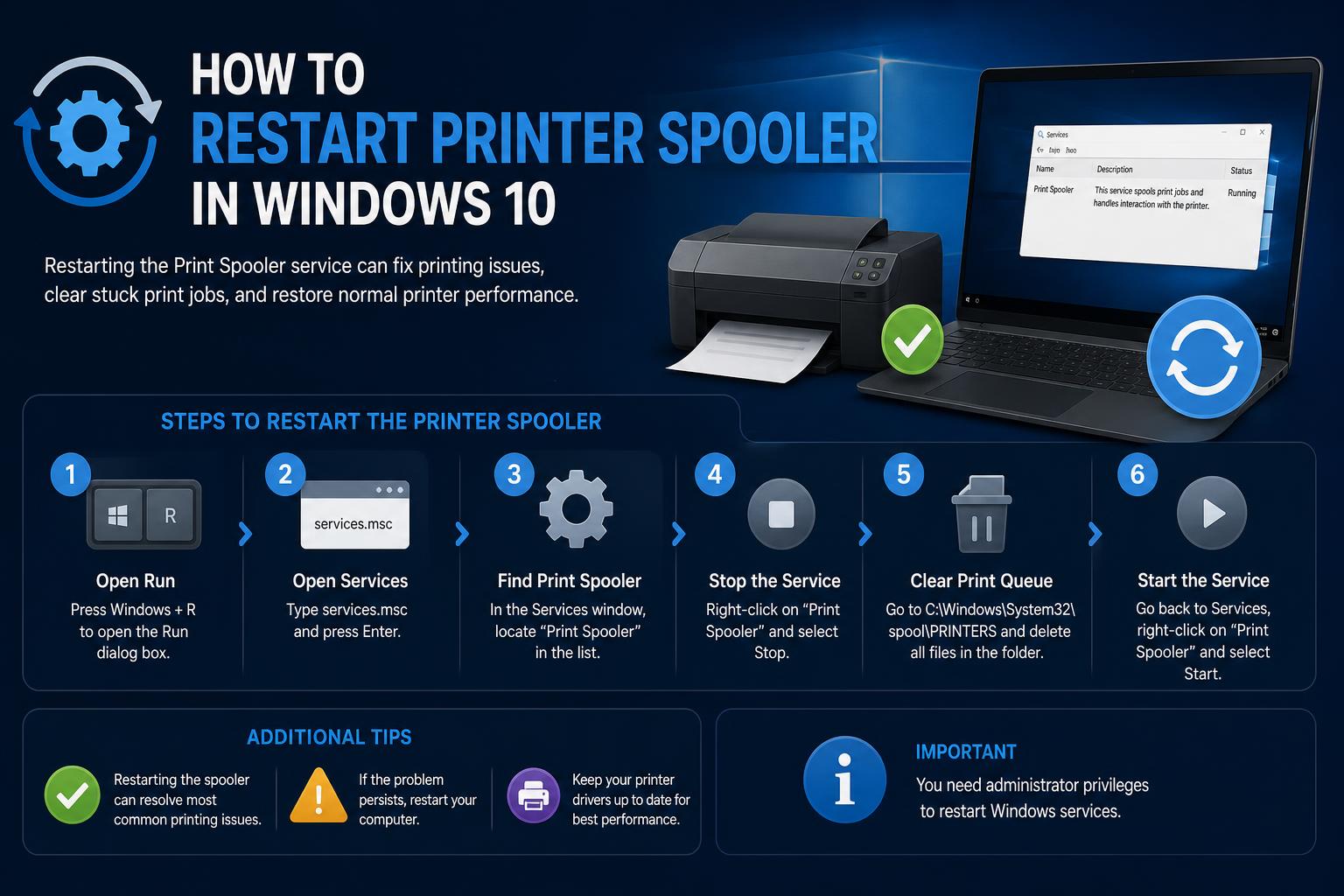
- The print spooler is essential for managing print jobs in Windows 10
- Common printer issues often relate to the spooler service failing
- Manual spooler restart can quickly resolve job and driver conflicts
Dealing with pesky printer issues on Windows 10 can be endlessly frustrating. Whether your documents keep getting stuck, printing halts unexpectedly, or your apps seem to freeze as soon as you hit print, the culprit behind all this chaos is frequently the Windows Print Spooler service. It’s a background process designed to manage all your print jobs, but when it crashes or stops working, your printer can become completely unresponsive.
Luckily, understanding and restarting the Print Spooler is a practical skill every Windows user can master. This detailed guide covers everything you need to know, from what the spooler actually does, to clearing queues, managing drivers, and (most importantly) restarting the service in multiple ways. Knowing these procedures can make troubleshooting common printer problems much easier. For more detail, you can also check our complete guide to setting up printers in Windows.
What is the Print Spooler and Why Does it Matter?
The Print Spooler is a critical Windows system service responsible for storing print jobs in a queue and facilitating their orderly transfer to your printer. When you send a document to print, the spooler accepts the job, stores it temporarily, and manages communication between your computer and the printer. As long as the spooler is running smoothly, printing should proceed without a hitch. But if it fails—due to corrupt files, outdated drivers, or conflicts—printing stops in its tracks and queued jobs may get stuck indefinitely.
Common Signs That Your Print Spooler Needs a Restart
- Printing is suddenly interrupted or won’t start at all.
- Documents accumulate in the print queue with no progress.
- Your printer appears as “offline” or unresponsive in Windows.
- Apps freeze or crash when selecting ‘Print’.
- Error messages like ‘Print Spooler service not running’ or error code 0x000006ba appear.
If you’re noticing any of these symptoms, you should troubleshoot by restarting the Print Spooler service. Let’s dive into exactly how that works.
Clearing the Print Queue for a Clean Restart
Before restarting the spooler, it’s essential to clear out any stubborn print jobs lingering in the queue. Leftover jobs can sometimes cause problems even after a restart.
- Go to Start > Settings > Devices > Printers & Scanners.
- Select your printer from the list, then click Open queue.
- Right-click each document inside and choose Cancel until the list is empty.
This step ensures the spooler will relaunch without being bogged down by already-stuck jobs.
Checking for Conflicting or Outdated Printer Drivers
The Print Spooler’s proper functioning often depends on having the right drivers installed. Driver conflicts—caused by leftovers from old printers, duplicate entries, or generic Windows drivers—can sometimes crash the spooler outright. Here’s how to clean things up:
- Open the Start menu and type Device Manager, then select it.
- Expand the Print queues or Printers section.
- Right-click and Uninstall any old, unused, or duplicate printers and drivers. Don’t worry—these can be reinstalled if needed.
- Visit your printer manufacturer’s official site (such as HP, Canon, Brother, or Epson) and download the latest driver for your exact model.
- Install the new driver and reboot your PC for good measure.
Tidying up your drivers not only helps the spooler behave, but can fix print errors across the board. You can also check the guide to fixing driver errors on HP printers if you run into brand-specific issues.
How to Restart the Print Spooler Service in Windows 10
Now, for the main event. Restarting the Windows Print Spooler is straightforward, and there are several ways to do it. Always make sure you have administrator privileges before following these steps.
Method 1: Using the Windows Services Console
- Press Windows Key + R to open the Run dialog.
- Type services.msc and press Enter. This will open the Services window.
- Scroll down until you find Print Spooler.
- Right-click Print Spooler and select Restart.
- If the “Restart” option is disabled, select Start.
- For greater reliability, double-click Print Spooler, find Startup type, and make sure it is set to Automatic. This ensures the service starts automatically with Windows.
Method 2: Clearing Spooler Files Manually
Sometimes, stuck print jobs are located in the spooler’s folder and need manual removal:
- Open the Run dialog again (Windows Key + R) and type %WINDIR%\system32\spool\printers, then press Enter.
- If prompted, confirm administrator privileges.
- Delete all files shown in this folder—these are leftover print jobs, and removing them will not affect your installed printers.
- Repeat Method 1 to make sure the spooler service is running.
Method 3: Command Prompt for Fast Power Users
If you’re comfortable with the command line, or if the Services window is unresponsive, using Command Prompt is a quick choice. You can also visit the complete guide to reinstalling drivers and troubleshooting printer issues.
- Search for cmd in the Start menu, then right-click Command Prompt and select Run as administrator.
- If the User Account Control window appears, click Yes.
- Type net stop spooler and press Enter to stop the spooler service.
- Then type net start spooler and press Enter to restart it.
Method 4: Handling Remote Print Servers (for Advanced Users)
In IT environments or larger networks, sometimes you’ll need to restart the Print Spooler remotely. Some administrators use tools such as Microsoft PsExec to run commands remotely on servers and workstations.
Troubleshooting Persistent Print Spooler Issues
If you continue to experience problems with the spooler after following the above steps, there could be deeper, underlying issues. Here are some further steps to explore:
- Scan Windows for system file corruption: In Command Prompt (run as administrator), type sfc /scannow and allow it to scan your system.
- Update Windows: Make sure your system is fully up to date through Settings > Update & Security > Windows Update. Some updates include fixes for spooler-related issues.
- Double-check for malware: Malicious software can affect system services or corrupt spooler files. Run a full scan with Windows Security or your trusted antivirus software.
- Review event logs: Open Event Viewer and look for Print Spooler-related errors under Windows Logs > System.
- Consider removing and re-adding your printer: Sometimes, removing and reinstalling the device and its software is the last effective option.
- Check help resources: For additional support, review Microsoft’s official troubleshooting guide.
How to Set Print Spooler to Start Automatically
One often-overlooked tip is ensuring the Print Spooler service is configured to start automatically every time your computer boots. This helps prevent the printer from stopping working after a restart. You can also review the relevant configuration guidance.
- Open Services as shown earlier (Run > services.msc).
- Locate and double-click Print Spooler.
- Set Startup Type to Automatic, and click OK.
This configuration ensures the spooler runs in the background and restarts whenever needed, enhancing overall print reliability.
Managing Advanced Print Spooler Scenarios
Large organizations or users operating print servers often face more complex scenarios. In these cases, network tools and automated scripts can make it easier to restart remote services, for example by using techniques for managing drivers and services in Windows 11 and Windows 10.
Dealing With Stubborn Printer Issues: When to Seek Further Help
If you’ve followed all these steps and problems persist, it might be time to investigate deeper. Common causes include:
- Faulty or incompatible printer firmware
- Unreleased updates or known software bugs
- Physical hardware defects in the printer itself