
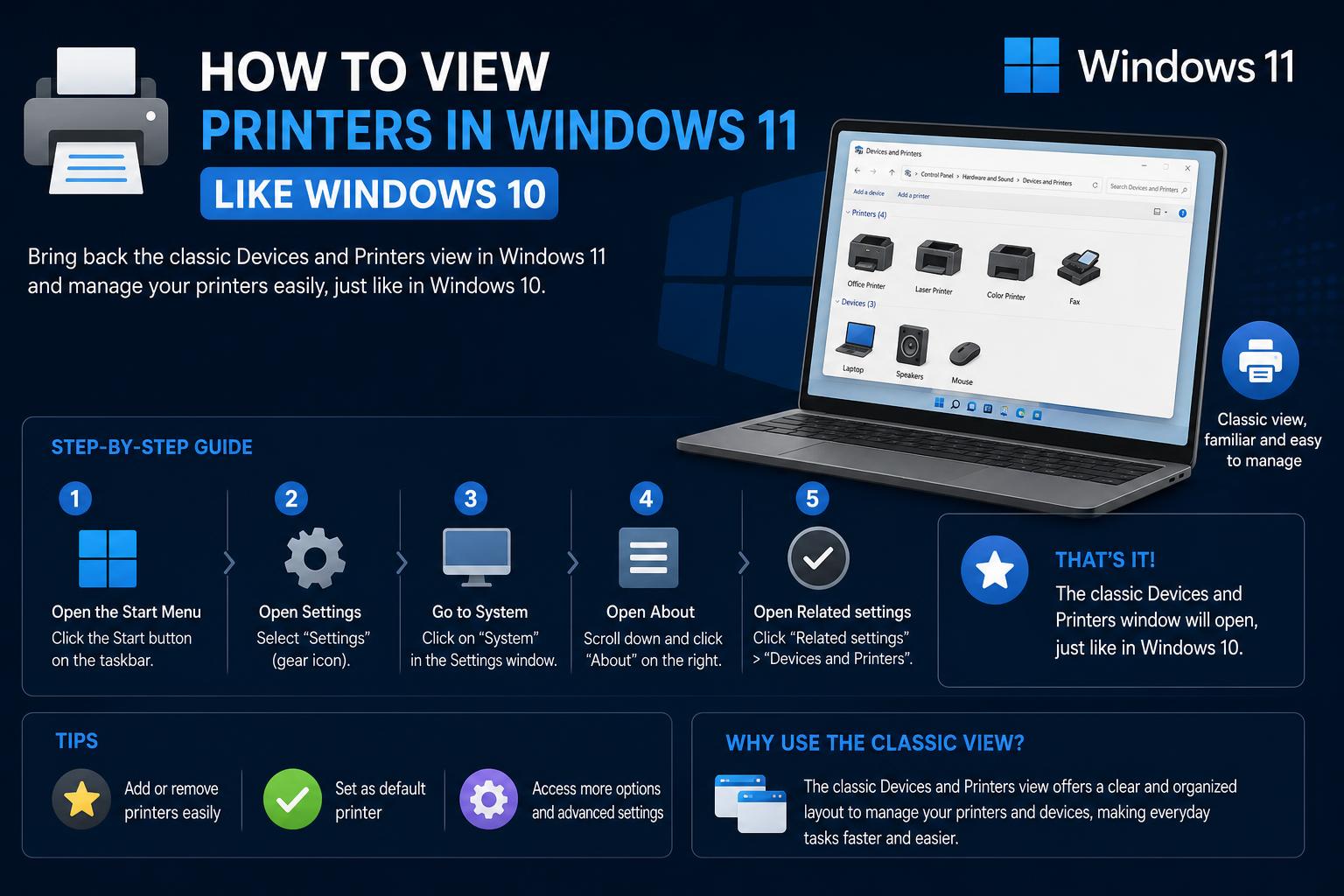
- Classic Devices and Printers view is still accessible in most Windows 11 builds via shortcuts and hidden settings.
- Microsoft continues to shift device management toward the Settings app, gradually phasing out legacy interfaces.
- Power users and admins should prepare for future changes by adopting modern workflows and creating custom shortcuts.
When Microsoft released Windows 11, one of the biggest learning curves for users familiar with Windows 10 was its new approach to settings, especially for fundamental tasks like managing printers. Many regular users, IT professionals, and even system admins immediately noticed that the familiar ‘Devices and Printers’ window—straightforward in Windows 10—seemed to be hidden or even eliminated. If you’ve upgraded to Windows 11 and are now wondering how to view printers the classic way, like you did in Windows 10, you’re definitely not alone.
This article will be your exhaustive guide to managing and viewing printers in Windows 11, replicating (as closely as possible) the old Windows 10 experience. We’ll dive deep into the new interface, thoroughly examine the hidden pathways to the classic view, and even go over community-sourced tips and expert tricks to ensure you can work efficiently with your printers—whether you’re at home or handling a fleet of devices at the office.
Why Did Microsoft Change Printer Management in Windows 11?
Starting with Windows 11, Microsoft has pushed users towards the modern Settings app for most device-related tasks. The idea is to consolidate the management experience, streamline updates, and make everything compatible with touch/screens and accessibility features. However, this shift means some traditional interfaces are less accessible, which can disrupt well-trodden workflows—especially for people deeply familiar with Windows 10 or earlier versions.
This new approach isn’t without growing pains. As noted by many on tech forums and even Microsoft’s own community, the classic Devices and Printers panel often feels buried, and for some, appears to be completely missing. Still, with the right steps, you can often bring back the functionality you knew.
The Modern Printers & Scanners View: What Changed?
Upon opening the Settings app in Windows 11, you’re now directed to Bluetooth & devices › Printers & scanners when attempting to manage printers. Here, you’ll find a list of all installed printers, the ability to add new devices, and basic settings for each printer. For many tasks—such as viewing the print queue, setting up a default printer, or printing a test page—this new interface is actually pretty streamlined.
However, advanced printer settings (like changing complicated driver options, configuring advanced preferences, or easily seeing all network and software devices side-by-side) are less immediately accessible. That’s why so many users still want access to the old panel.
Methods for Accessing Classic Devices and Printers in Windows 11
If you’re missing that old-school window where every device is shown—printers, scanners, Bluetooth devices, monitors, and more—there are a few approaches you can still use, based on community findings and official documentation. Below are the best current options for accessing the classic Devices and Printers panel on Windows 11:
Option 1: Open via Control Panel
- Press Windows + R to open the Run dialog.
- Type control and press Enter to launch the Control Panel.
- Click on View by: Category (top-right), if needed, and choose Devices and Printers.
- Note: In some Windows 11 builds, clicking here may not bring up the old window directly. Instead, it could redirect you to the modern Settings app.
Many users, including those on Reddit and Microsoft forums, noted that right-clicking the ‘Devices and Printers’ link and choosing Open in new window can sometimes force Windows 11 to bring up the classic panel. This trick doesn’t always work on every system or update, but it’s a persistent tip among power users and system administrators.
Option 2: Use a Direct Shortcut or Command
- Press Windows + R.
- Type:
control printers
and hit Enter.
This command opens the Devices and Printers window directly—if your Windows 11 version still supports it. Some recent builds are beginning to phase out even this shortcut, instead redirecting users to the Settings app.
Option 3: Dive Through Settings to Find ‘More Devices and Printer Settings’
On builds where the classic view isn’t directly available, Windows 11 offers a less obvious route via the Settings app:
- Open Settings (Windows + I).
- Go to Bluetooth & devices › Printers & scanners.
- Select any printer from your list.
- Look for a link at the bottom labeled something like ‘More devices and printer settings’.
- Clicking this will launch the classic Devices and Printers panel as it appeared in Windows 10.
According to discussions on Microsoft Answers, some users reported they do NOT see this ‘More devices and printer settings’ link in their settings dialog. This can be due to Windows 11 version differences, membership in Windows Insider channels, or administrative policy restrictions.
Option 4: Pinning the Classic Devices and Printers Panel for Quick Access
If you’ve successfully opened the classic panel, you can make it easier to access in the future:
- Right-click the taskbar icon for Devices and Printers when it’s open.
- Select Pin to taskbar to save it for quick access—even as Windows 11 updates.
- You can also create a desktop shortcut by right-clicking on the desktop, selecting New › Shortcut, and entering
control printersas the location.
This little productivity hack lets you work almost as efficiently as you did on Windows 10.
Option 5: What If Nothing Works?
Some users have found none of these approaches are available on their systems—especially on enterprise versions or computers with group policy restrictions. If that’s the case, your options may be limited to the new Settings interface, or you might need to adjust permissions with the help of your IT department.
As Windows 11 continues to evolve, Microsoft may eventually remove access to the classic Devices and Printers panel altogether. It’s advisable to start familiarizing yourself with the new workflow, just in case. También puedes consultar cómo solucionar problemas en Windows 11 utilizando la línea de comandos en esta guía práctica.
Differences Between Windows 10 and Windows 11 Printer Management
The move towards the Settings app means certain convenience features are now further away, or re-organized under new headings. In Windows 10, you could glance at everything—devices, printers, and even device properties—all in one place. In Windows 11:
- Printers are listed in Settings › Bluetooth & devices › Printers & scanners.
- Clicking on a printer gives access to queue, test pages, removal, and general configuration.
- Advanced properties and port management require digging deeper, often through additional links or the classic panel when accessible.
- Network devices are separated out, and may not display as clearly unless you use legacy views or third-party tools.
Mastering these reorganizations can initially be disruptive, but many users find it ultimately simplifies daily device management.
How to Repair Windows 11 Using Command Prompt: Advanced Techniques & Best Practices
Community Tips and Workarounds
Users across Microsoft’s own answers forums, Reddit, and other communities shared several hints, tricks, and workarounds, including:
- Right-clicking Devices and Printers in Control Panel and choosing ‘Open in new window’ can summon the classic view on some builds.
- Creating a batch file or PowerShell script to run
control printersfor managing multiple devices efficiently. - Utilizing third-party printer management utilities for enterprise environments (verify compatibility beforehand).
Several users expressed concern regarding the gradual disappearance of legacy menus, especially for advanced settings or driver configuration. Providing feedback to Microsoft (Windows Feedback Portal) can help influence future updates.
Common Issues Encountered and User Experiences
Experiences vary when trying to access the classic panel. For example, a Microsoft forum user reported that after following the steps, the ‘More devices and printer settings’ link was completely absent. Searching manually or via the Settings search also yielded no results. Many users only see the modern printer list without the full classic interface.
These inconsistencies are often related to Windows build versions, user permissions, or regional deployment differences. To troubleshoot, ensure your system is fully updated, your account has the necessary permissions, and consult the community for specific workarounds.
Future Changes and Evolving Expectations
There is ongoing discussion on forums like about how long the classic Devices and Printers panel will remain accessible. As Microsoft aims for a more integrated, modern experience, legacy portals are likely to be deprecated. Users reliant on these tools should adapt to the new environment, monitoring Windows Insider updates and upcoming releases.
Recommendations for Power Users and Admins
If managing multiple Windows devices or supporting less tech-savvy users, creating shortcuts, documenting workflows, and providing user feedback can ease the transition. Preparing scripts and quick access links helps maintain productivity during these changes. También puedes aprender cómo reparar Windows 11 usando líneas de comando en .
Stay informed on Windows updates by visiting Microsoft’s official updates page.
Ultimately, efficiently managing printer settings in Windows 11 requires familiarity with both new and classic methods. Although the traditional “Devices and Printers” window has become less prominent, various solutions allow experienced users to access it when necessary. Staying up to date with community recommendations and official documentation will ensure you can effectively manage your hardware as Windows 11 evolves.