
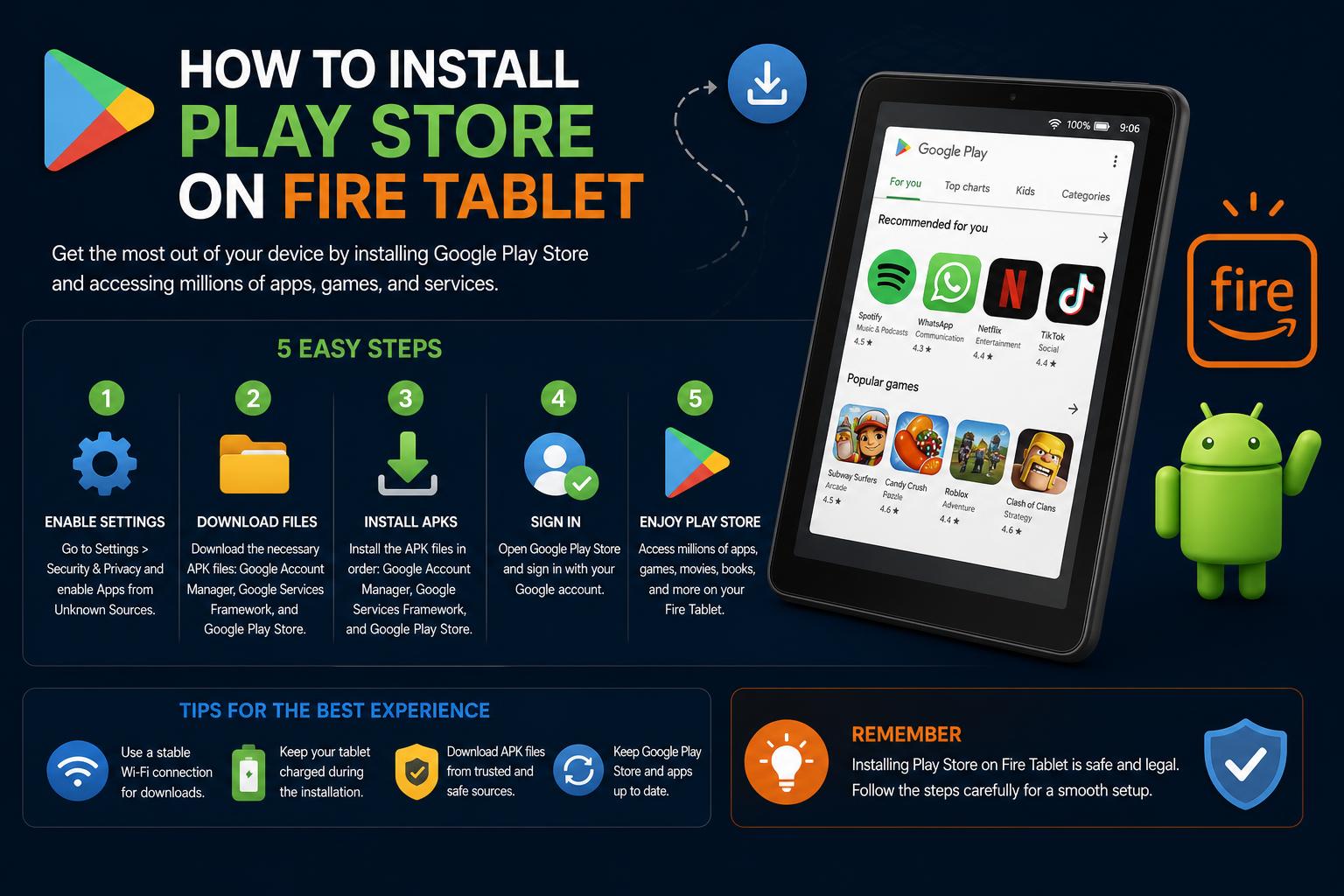
- Amazon Fire tablets run Fire OS, a unique Android fork lacking Google apps and Play Store support out of the box.
- Installing the Google Play Store is possible through sideloading but requires careful selection of APK versions and step-by-step procedures.
- Not all Google apps or Play Store features work perfectly on Fire tablets, and software updates can impact functionality.
If you’ve just bought an Amazon Fire tablet, you may have been surprised — or even disappointed — to discover that it doesn’t include the familiar Google Play Store out of the box. Instead, you’re presented with Amazon’s own Appstore, which often means some of your favorite Google apps and millions of Android titles are missing. But don’t worry — you’re not locked into Amazon’s ecosystem forever. While Amazon’s Fire OS is a custom version of Android, it’s entirely possible to bring the Play Store (and its wealth of apps) to your tablet with a bit of know-how and patience.
Ready to open up your Fire tablet’s full potential? This up-to-date, detailed guide covers everything you need — from device prep, downloading and installing the right APKs, to troubleshooting, ensuring you don’t miss a step or end up with a bricked device. Whether you’re looking to get YouTube, Chrome, Gmail, or just access your purchased Play Store apps without rebuying them, you’re in the right place.
What You Need to Know Before Installing the Play Store
Fire tablets run on Fire OS, which is a heavily modified fork of Android that replaces core Google services with Amazon’s alternatives. This means, by default, Google apps and services (including the Play Store) are absent. The good news? The underlying Android architecture makes it possible to add them. The caveats? There are a few — and skipping them could lead you into endless headaches.
- Play Store installation doesn’t replace Fire OS with regular Android. You’ll still use Amazon’s home screen, launcher, and built-in apps even after installation.
- Device model and Fire OS version matter. Different tablet generations require specific APK versions for reliable Play Store operation.
- Not all Google Play apps will be visible/functional. Some titles (like Netflix) or Play Store features check for Google certification (SafetyNet), which Fire tablets lack. Other apps, especially those tightly integrated with Google services, can behave unpredictably.
- Future Amazon software updates might break the Play Store or your installation. Many enthusiasts recommend disabling automatic updates after successful setup. This is often a cat-and-mouse game as Amazon updates its locking methods, so always check current methods before making major changes.
- Installing the Play Store is at your own risk. Sideloading from unofficial sources opens the door to potential security risks. Only use trusted APK sources and be aware of data privacy and device warranty implications.
Preparing Your Amazon Fire Tablet
Before diving into downloads, take a couple of important preparatory steps. Start by ejecting your microSD card if you use one — the Play Store and the support APKs must be installed to internal storage, not SD, or you’ll likely have problems. You can safely return the card once you’re done.
Note: Even with the Play Store installed, you can’t set up Google Family Link on your Fire device. For kid-friendly controls, stick with Amazon’s own child profiles.
Enabling App Installation from Unknown Sources
Since Amazon restricts app installations to its own storefront, to install the Google Play Store you’ll need to allow app installs from outside sources (“sideloading”). Here’s how to enable this setting safely:
- Open your tablet’s Settings from the home screen or by pulling down from the top.
- Navigate to Security & Privacy (depending on your model, this may just read Security).
- Tap Apps from Unknown Sources. Newer Fire OS versions will display a list (often just showing the Amazon Silk Browser by default).
- Locate Silk Browser (or whatever browser you’ll use to download the APKs), and switch the toggle to Allow from this source.
Older tablets may feature a single global toggle instead of per-app controls. Just enable it.
Which Files Do You Need? The Four Essential APKs
Four Google APKs are required to enable the Play Store and its core services. Install each in sequence; out-of-order installs can break the setup:
- Google Account Manager — Manages your Google identity.
- Google Services Framework — The backbone for Google APIs.
- Google Play Services — Enables communication between apps, syncing, and authentication.
- Google Play Store — The app store interface itself.
Download these APKs from a trusted site — APKMirror is a safe choice, but beware of ads and deceptive download buttons. Avoid sites requiring extra permissions or app downloads.
Choosing the Right APK Versions
Your Fire OS version (and hardware) will dictate the APK version needed. Para identificar la versión exacta de tu Fire OS, puedes consultar esta guía donde se explica cómo hacerlo fácilmente. Es importante usar las versiones correctas para garantizar que la instalación funcione correctamente y no tengas problemas en el futuro.
- Fire Max 11, Fire HD 8 (2022), Fire 7 (2022), or any Fire running OS 8.x: Use Google Account Manager 7.1.2, Google Services Framework 10, and recent (non-beta) Google Play Services built for Android 11 (arm64, nodpi). For the Google Play Store, choose the latest stable version.
- If you’re unsure which Fire tablet you own, go to Settings > Device Options & System (or just Device Options) and check under Device Model and System Updates for your Fire OS version.
Do not install the downloaded files yet. Grab all four first, then proceed step by step.
Step-by-Step Installation Guide
1. Locating Your Downloads
Open the Files app (some tablets may call it Docs or Documents). Navigate to your Downloads folder — if you land elsewhere by default, use the hamburger menu (three horizontal lines) to find the correct location.
2. Installing the APKs (In Order!)
Install each APK one by one, strictly in the following order:
- com.google.gsf.login (Google Account Manager)
- com.google.android.gsf (Google Services Framework)
- com.google.android.gms (Google Play Services)
- com.android.vending (Google Play Store)
For each: Tap the APK, follow the on-screen prompts to confirm installation, and tap Done afterwards. Don’t tap Open; wait until all four are installed.
Ignore any warnings that the APK is out of date or unsigned. As long as you chose the right file for your Fire OS, updates will take care of themselves later.
If you see a pop-up about unsafe files, especially in Silk Browser, tap Download anyway to proceed. These warnings are normal for sideloaded APKs downloaded outside Amazon’s Appstore.
3. Restart Your Fire Tablet
After all four APKs are installed, push and hold the Power button, then select Restart. On older Fire models, power off, then turn the tablet back on manually.
4. Launching the Google Play Store
When your tablet boots up, look for the Play Store icon on your home screen. Tap it — you’ll be prompted to sign in with your Google account. Once logged in, your Fire tablet is ready to install most Play Store apps. Enjoy access to Chrome, Gmail, YouTube, and more — just like any standard Android device.
Troubleshooting Common Issues and Advanced Tips
Even if you follow every step, Fire tablets can be fussy. Here’s how to troubleshoot common problems, as reported by tech enthusiasts and verified by testing on recent Fire OS 8.x devices.
Problems Signing Into Google Apps (‘This account already exists on your device’)
If you hit this message when logging into Chrome or other Google apps, or if certain apps fail to detect your signed-in account, try the following:
- Close the problematic app completely (swipe it away from the Recents or multitasking menu).
- Open Settings > Apps & Permissions > Manage All Applications (names may vary slightly by OS version).
- Scroll to the affected app, tap it, then select Permissions.
- Enable all available permissions — most notably, Contacts is critical for Google apps to function.
- Reopen the app and retry logging in.
- For Chrome: After adjusting permissions, launch the app, tap the Settings menu, and select Continue as .
Play Store Won’t Open or Crashes
If after all steps your Play Store refuses to load or closes unexpectedly:
- Restart your device again using the Power button.
- If issues persist, clear the Play Store data:
- Go to Settings > Apps & Notifications > Manage All Applications (or similar), locate Play Store, tap Force Stop, then Storage & Clear Data.
- Repeat for Google Play Services if problems persist.
- Restart once more before opening the app.
If the Play Store is completely unresponsive or continues crashing even after all troubleshooting, a full factory reset of your Fire tablet, followed by a fresh install (with an untouched backup), is your last resort.
Known Issues with Recent Fire Models (2022+)
Earlier builds of the 2022 Fire 7 and Fire HD 8 had problems running the Play Store, but as of the Fire OS 8.3.1.8 update those issues have largely disappeared. Still, if you’re struggling to get things working, check that your device is up to date by heading to Settings > Device Options & System > System Updates. Sometimes, spending minutes updating can save hours of frustration.
Blocking OTA Updates After Play Store Installation
Amazon sometimes releases software updates that can break custom Play Store installations. If you want to “freeze” your setup, consider disabling OTA (over-the-air) updates. This is not officially supported and the method changes regularly, but communities like XDA Developers and the r/kindlefire subreddit are invaluable resources for up-to-date blocking techniques. Always read up before making changes — bricked tablets are no fun.
[relacionado url=”https://www.ikkaro.net/best-alternatives-to-google-play-store/”]
Using Fire Toolbox (Advanced)
If you’re comfortable using a Windows or Linux PC, Fire Toolbox is an open-source toolkit that automates many of these hacks: Play Store installation, de-bloating Amazon apps, and blocking updates. The process is significantly easier but requires connecting your tablet over USB and running scripts, so it’s best suited for tech-savvy users.
Tweaks for Smoother App Performance
Fire tablets aren’t performance monsters. Even with the Play Store installed, you might notice lag or sluggishness, especially on older models. You can improve things by:
- Clearing cached data and unused apps regularly
- Restricting background processes in Settings
- Using lightweight versions of apps where possible (e.g., Gmail Go or Google Go)
For a deeper dive, you can consult how to download apps from the Play Store to find alternative app sources and optimize your experience.
Important Limitations and Ongoing Considerations
- Fire tablets cannot be managed through Google Family Link, even with Play Store access. Use Amazon’s parental controls for child supervision.
- Google Play hides some apps on non-certified devices. These include apps that require SafetyNet checks like Netflix and certain games. Some can be installed manually from APKMirror, but may lack updates or key features.
- Fire OS updates may impact your Play Store installation reliability and require reapplying the procedure or seeking out workarounds from enthusiast forums.
- Some apps integrated with Google services may not work properly, or might need extra permissions manually toggled to function at all (notably, Chrome).
Ubuntu Touch: The Definitive Guide to Linux on Your Phone and Tablet