
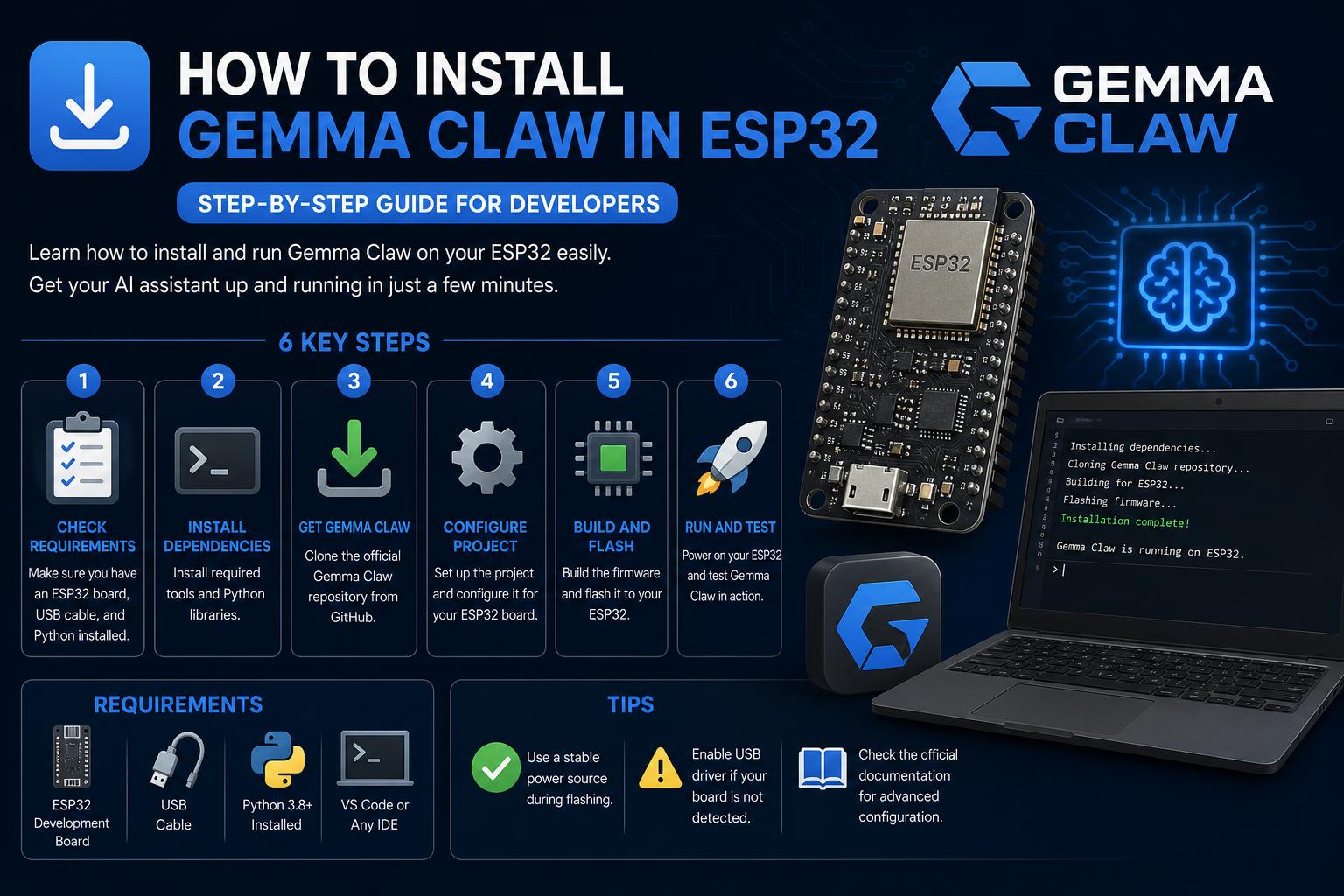
- Gemma 4 paired with OpenClaw enables private, cost-free AI assistants on local hardware.
- Setup works across multiple environments (Ollama, LM Studio, advanced Linux/GPU workstations).
- Careful configuration and hardware consideration are crucial for best performance, especially with large models.
If you’re looking for a modern, private, and budget-friendly way to set up your own AI assistant right on your hardware, Gemma 4 paired with OpenClaw is the winning combo people are talking about. The latest advancements from Google and the open-source community mean that running state-of-the-art models like Gemma 4 on consumer-grade machines is not only possible, it’s practical. Whether you’re aiming to use this setup for development, productivity, or as a hands-on tech exploration, this guide will walk you through everything – from core requirements to nuanced configuration details and practical troubleshooting. Let’s break down exactly how to get Gemma 4 up and running with OpenClaw on your system, leveraging tools like Ollama, LM Studio, and even advanced hardware for heavy-duty AI work.
The landscape for local AI assistants changed with the release of Gemma 4 – Google’s powerful open-weight model optimized for multi-device performance. OpenClaw, designed to act as a privacy-focused and highly extensible AI orchestrator, can tie these models directly into your favorite messaging apps and coding environments. No more API bills, no more cloud-only privacy concerns. The entire workflow, from model downloads to in-depth local configuration and optimization, is within reach for developers and tinkerers alike. Read on for an exhaustive, hands-on look at bringing Gemma 4 to life on your own terms.
What is Gemma 4 and Why Use It Locally with OpenClaw?
Gemma 4 is Google’s flagship open-weight model family, designed for a new era of local AI applications.
- Smaller variants (2B/9B): These can run comfortably on most modern laptops and consumer hardware, making high-quality local AI accessible to everyone.
- Larger models (27B/31B): For those with a beefier setup, these offer nearly Claude-level quality and require serious GPU or Apple Silicon resources.
- No per-token API costs: Once the model is running locally, there’s zero cost to usage.
- Full data privacy: All processing stays on your machine – no sending sensitive instructions or files over the wire.
OpenClaw was built from the ground up to manage and automate workflows across local and cloud AI models. Its robust plugin system, agent orchestration, and compatibility with OpenAI, Ollama, and LM Studio APIs mean you can switch models and expand capabilities on the fly. Point it at your local Gemma 4 instance, and suddenly, your connected chat apps (like Telegram, WhatsApp, and Discord) get a brain upgrade – all running on hardware you control.
Planning Your Environment: What You Need to Get Started
Before diving in, make sure your hardware and software meet the prerequisites for smooth setup. Here’s your basic checklist:
- A computer with at least 8GB RAM: You’ll want more (16GB+ or at least a decent GPU/Apple Silicon) for larger models or multitasking.
- Ollama or LM Studio installed: These tools handle serving Gemma 4 locally with minimal fuss.
- Node.js 18+ installed: Required for OpenClaw, which you’ll get via npm.
- For Mac users: Apple Silicon (M1/M2/M3/M4/M5) with unified memory makes the process easier and faster, thanks to automatic MLX backend support in Ollama.
Choose your Gemma 4 model based on your available hardware. Smaller models run just fine on most laptops; the bigger ones require dedicated GPUs or lots of unified memory (24GB+ is ideal for the largest variants).
Getting and Running Gemma 4 Locally: Ollama Quickstart
If you want the simplest route to running Gemma 4, Ollama is the go-to toolkit.
- Install Ollama
If you’re using macOS, install via Homebrew for convenience:brew install --cask ollama-app - Start Ollama
open -a Ollama
Wait a few seconds, and you’ll see the Ollama icon in your taskbar. - Pull the Gemma 4 model you want
ollama pull gemma4
This downloads the latest core model (about 9.6GB for the base model). For larger variants, append:9b,:27b, etc., depending on what your workstation can handle. - Verify your install
ollama list
This command ensures the model is available and ready to run. - Test the model quickly
ollama run gemma4:latest "Hello, what model are you?"
This lets you check for successful initialization, as well as confirm GPU or CPU acceleration is working usingollama ps.
On Apple Silicon, Ollama v0.19+ automatically uses Apple’s MLX for faster inference. No manual toggling needed, just make sure you’re on the latest version.
Alternative: LM Studio for GUI Lovers and Advanced Options
For those who like graphical interfaces or want to experiment with multiple model quantizations, LM Studio is a powerful alternative. Download Gemma 4 within LM Studio, test and benchmark various configurations, and start the built-in OpenAI-compatible server. It’s especially handy if you plan on running several AI models side by side.
- Download and install LM Studio.
- Search for Gemma 4 models and download the quantization that fits your specs.
- Load your chosen model, jump to the Local Server tab, and click Start Server.
- Copy the base URL (commonly
http://localhost:1234/v1) for later configuration in OpenClaw.
Integrating Gemma 4 into OpenClaw: Step-by-Step
OpenClaw acts as the bridge between your local model and external interfaces like chat apps. Here’s how to tie everything together:
- Install OpenClaw globally
npm install -g openclaw@latest
This gives you theopenclawCLI and access to the onboarding wizard. - Run the onboarding wizard
openclaw onboard --install-daemon
The wizard automates provider setup, including installing a gateway background daemon so OpenClaw can run as a service. You may skip the provider for now if you prefer to configure manually. - Edit your OpenClaw config file
You can hand-edit~/.openclaw/openclaw.jsonfor maximum flexibility. Here’s a sample configuration for connecting to Ollama (and optionally another cloud provider for hybrid setups):
{
    "models": {
        "providers": {
            "ollama": {
                "baseUrl": "http://localhost:11434/v1",
                "api": "openai-completions",
                "models": [{
                    "id": "gemma4:latest",
                    "name": "Gemma 4 8B",
                    "reasoning": false,
                    "contextWindow": 131072,
                    "maxTokens": 8192
                }]
            },
            "haimaker": {
                "baseUrl": "https://api.haimaker.ai/v1",
                "apiKey": "YOUR_HAIMAKER_API_KEY",
                "api": "openai-completions",
                "models": [{
                    "id": "anthropic/claude-sonnet-4-6",
                    "name": "Claude Sonnet 4.6",
                    "reasoning": true,
                    "contextWindow": 200000,
                    "maxTokens": 16384
                }]
            }
        }
    },
    "agents": {
        "defaults": {
            "model": {
                "primary": "ollama/gemma4:latest",
                "thinking": "haimaker/anthropic/claude-sonnet-4-6"
            }
        }
    }
}
Note: Setreasoning: falsefor Gemma 4 to avoid tool call formatting errors, and adjustcontextWindowandmaxTokensbased on your memory. - Switch models on the fly within OpenClaw
Use the built-in chat command:/model gemma4or/model sonnet - Keep Gemma 4 loaded
By default, Ollama may unload models after inactivity. To keep it alive indefinitely, set an environment variable:launchctl setenv OLLAMA_KEEP_ALIVE "-1"(macOS). Add to your shell config for persistence:export OLLAMA_KEEP_ALIVE="-1" - Auto-preload the model on startup
You can drop a LaunchAgent in~/Library/LaunchAgents/to touch the model every five minutes, keeping it instantly available for OpenClaw sessions.
Tuning Performance and Memory: Model Sizes and Hardware Considerations
Depending on the size of Gemma 4 and your hardware, the experience will vary greatly. Here is a breakdown of what to expect:
- Gemma 4 2B: Runs efficiently on laptops with 8GB RAM. Ideal for basic conversations.
- Gemma 4 9B: Requires about 12GB VRAM or 16GB of unified memory. Good for more advanced tasks on high-end MacBooks or gaming PCs.
- Gemma 4 27B/31B: Needs professional GPUs with more than 24GB VRAM or enterprise-level Apple Silicon systems. Offers high-level, uncensored capabilities, but expect memory usage that can reach 64GB on systems with F16 Python.
If resources are limited, quantized models like Q4_K_M can significantly reduce required VRAM and RAM with only a slight loss in quality. For instance, a 31B model in Q4 fits in 18GB instead of the 62GB required for full precision.
Advanced: Custom Linux, Containers, and Power User Setups
In high-performance setups like DGX Spark or other Linux workstations with multiple GPUs, Gemma 4 can coexist with other large models, such as NVIDIA’s Nemotron, using advanced routing tools. This is ideal for:
- Dual-model setups: Instantly switch between local models for direct comparisons.
- Container deployments and sandboxing: Using tools like NemoClaw and OpenShell to isolate inferences and ensure flexibility and security.
- Automatic switching scripts: Programs that switch providers and models with a single command, updating configurations and restarting services.
- Routing in network namespaces: Tools like OpenShell that act as a proxy for secure communications between sandboxes and local servers.
For power users, building from source with llama.cpp and managing models with HuggingFace CLI offers total control. But beginners should stick to Ollama or LM Studio until they feel comfortable.
Key Configuration Lessons and Troubleshooting Tips
- Thinking/reasoning mode: Some large models (like 31B) enable “thinking mode” by default in chat templates. If you get no responses or blank outputs, ensure that
--chat-template-kwargs '{"enable_thinking":false}'or similar is active at startup. - API endpoint precision: Always use the correct base URL to your local API (
http://localhost:11434/v1on Ollama,http://localhost:1234/v1on LM Studio). Omitting “/v1” or using incorrect paths can block tool calls or agent responses. - Model configuration file location: OpenClaw saves configurations in your user directory. If you use Docker or sandbox environments, always update the main configuration outside the container and copy it in.
- Common troubleshooting:
- No response from the agent? Verify that “thinking” is disabled and that you are not limiting RAM/VRAM.
- Context window errors? Adjust
contextWindowto your hardware limits; a value that is too large degrades inference quality on consumer setups. - Provider not found? Custom providers must be explicitly registered with the CLI (e.g.,
openshell provider create) in complex configurations. - Slow loading or model crashes? Close heavy applications, free up memory, or reduce the model size.
What Gemma 4 Offers in Practice
From a practical perspective, Gemma 4 excels at automation, code navigation, and simple programming tasks. In local setups with OpenClaw, users report effective results in:
- Boilerplate generation: Quickly write configuration files, basic CRUD, simple components, and templates.
- Code reading and summarizing: Explain functions, parse files, look for patterns, or propose improvements.
- Quick file editing and mechanical changes: Renaming, modifying variables, or adding fields are common tasks.
- Workflow integration: Through chatbots on Telegram/Discord/Slack, automate multiple actions, run plugins (GitHub, Spotify, etc.), and combine skills to automate real development tasks.
Of course, it has limitations. Multi-file debugging, tasks with high levels of abstraction, or long context memory (more than 32K–64K tokens, depending on the system) may be better handled by cloud models if you run out of local capacity.
Hybrid Integration: Local and Cloud Models in Harmony
Most users maximize value by running Gemma 4 locally for routine coding tasks and sending the most complex tasks to powerful cloud models (like Claude or GPT-5 via Haimaker). OpenClaw supports seamless switching, even with automatic routing based on complexity, allowing you to save on API costs while enjoying almost instantaneous private inference for the majority of cases.
Practical Ollama Commands and Model Management
| Command | Function |
|---|---|
| ollama list | Shows all downloaded models |
| ollama ps | Shows running models and memory usage |
| ollama run gemma4:latest | Interactive chat and quick prompt testing |
| ollama stop gemma4:latest | Unloads the model from RAM, freeing memory |
| ollama pull gemma4:latest | Updates your model to the latest version |
| ollama rm gemma4:latest | Deletes the model, freeing up disk space |
Final Thoughts
Setting up Gemma 4 with OpenClaw allows you to take local AI to the max in your personal environment without the usual hassles (or credit card expenses) of cloud APIs. Whether you are a developer, an admin, or a power user, you have a vast toolkit for private, scalable automation—from laptops to enterprise GPU clusters. With open frameworks like Ollama and LM Studio constantly evolving to make setup easier and improve performance, the line between local and cloud AI is blurring. Experiment with different versions and workflows, integrate with your favorite chat apps, and if you hit a wall, simply switch to a cloud provider for the most demanding tasks. The hybrid, local-first AI vision is already a reality, and if you are ready to explore it, the possibilities are wide open.