
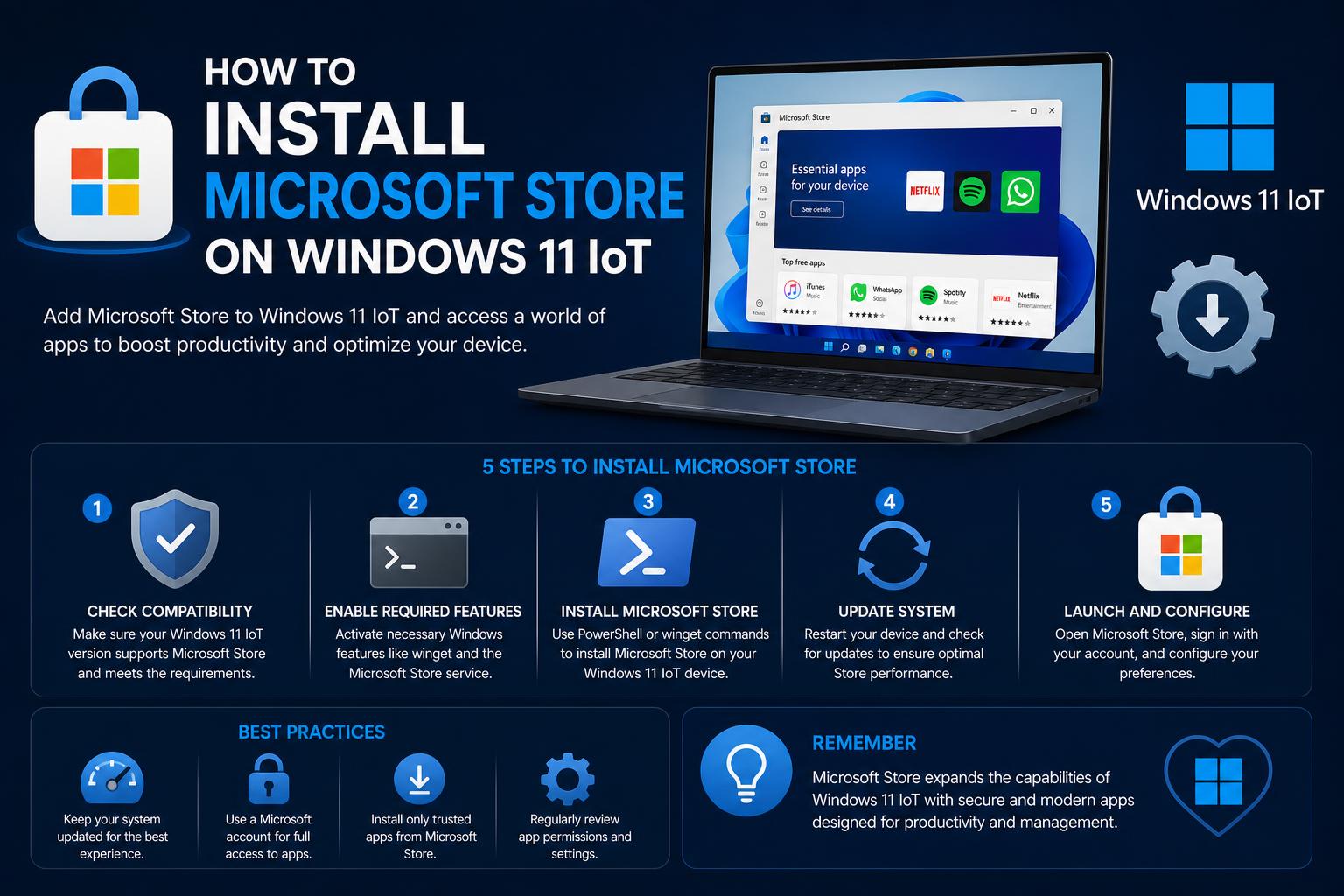
- Specialized Windows editions lack the Microsoft Store by default, requiring manual or workaround installation methods.
- Both official and community-driven solutions exist, including GitHub scripts, PowerShell commands, and indirect approaches like using the Xbox App installer.
- Configuring dependencies (e.g., VCLibs, UI.Xaml, .NET frameworks) is often essential for success and app stability.
- WinGet offers a command-line alternative to app installation where the Microsoft Store cannot be restored.
If you’ve recently installed Windows 11 IoT or LTSC and noticed the absence of the Microsoft Store, you’re definitely not alone. Many users working with specialized versions of Windows 11—including IoT Enterprise LTSC and Enterprise LTSC—quickly discover that the slick app marketplace we expect on standard consumer editions is missing by default. Whether you run a kiosk, develop embedded solutions, or simply prefer the stability and minimalism these editions offer, you may eventually need access to the Microsoft Store for exclusive downloads or hassle-free updates.
Microsoft doesn’t officially provide a direct route to add the Store to Windows 11 IoT or LTSC editions, and community solutions can be scattered or overly technical. This guide compiles the best approaches, from PowerShell commands to open-source toolkits, and explains exactly what works—and what might trip you up. If you’ve been frustrated by conflicting advice, missing steps, or cryptic error codes, read on: everything you need is laid out exhaustively here, with clear steps and additional context to boost your success.
Understanding the Problem: Microsoft Store on Windows 11 IoT & LTSC
The Windows 11 IoT Enterprise LTSC and Enterprise LTSC (Long-Term Servicing Channel) releases are designed for reliability and longevity, thriving in environments where device function needs to remain consistent over many years. As a result, features perceived as unnecessary—like the Microsoft Store—are left out. While this makes sense for production devices, it can hinder users who still require access to apps available only via the Store, or for whom automatic updates through the Store are preferable.
LTSC editions commonly lack the Microsoft Store, Xbox app, Game Bar, and other Store-dependent tools. While some specialized apps can be installed manually, users may struggle when certain frameworks or dependencies must be resolved. This leads to a search for alternative solutions, some official, others more community-based.
Quick Solutions: Will PowerShell Alone Do the Trick?
By far, the simplest and quickest method users try is re-registering or resetting the Microsoft Store using command line tools. Here’s a breakdown of the process and its nuances:
- Open PowerShell as Administrator (search for PowerShell, right-click, and choose Run as administrator).
- Run the command:
wsreset -i
This command triggers Windows to attempt installing the Microsoft Store. For newer versions and some users, a notification will confirm the installation after a short wait. If successful, you will be able to use the Store normally.
However, depending on your LTSC or IoT version and network conditions, this option may produce errors—the most frequent being 0x80070520. If this happens, or if nothing installs, move on to the alternative solutions detailed below.
Indirect Route: Installing the Xbox App to Trigger the Store
A clever strategy found in community forums is to leverage the Xbox App for Windows. This method essentially tricks your system into installing Store components as dependencies for the Xbox experience.
- Download the official Xbox App installer from the Microsoft website.
- Run the XboxInstaller.exe file and follow the instructions (accept terms and click INSTALL).
- Launch the Xbox App and navigate to the ‘Browse the Catalog’ section.
- Pay attention to the top bar indicating “Missing components for the Xbox app”. Click on Review Now.
- When prompted, install the Microsoft Store as the missing component.
This method takes advantage of dependencies: the system retrieves the Store as a requirement for the Xbox App to function. Although indirect, it works on many LTSC and IoT editions, especially on newer builds that support this flow.
Community-Powered: GitHub Projects to Add the Microsoft Store
If PowerShell commands or the Xbox solution don’t work, open-source toolkits on GitHub offer robust solutions. A standout option is the LTSC-Add-MicrosoftStore project, which simplifies the process into a few easy steps.
To use them:
- Access the repository.
- Click on “Code” and select “Download ZIP” to get the latest version.
- Extract the full contents of the downloaded file. Inside, you’ll see a key script: Add-Store.cmd.
- Before running it, enable Developer Mode in Windows Settings (Settings > Update & Security > For developers > Developer Mode).
- Right-click Add-Store.cmd and select “Run as administrator”.
- Follow the on-screen prompts; the script will install the minimum necessary components for the Store to work on Windows 11 LTSC 24H2 or IoT editions.
Key requirements and components:
- VCLibs (Visual C++ libraries)
- UI.Xaml (the user interface framework)
- .NET Native Framework & Runtime
- AppRuntime modules
- Services.Store.Engagement
- Bundled packages like Advertising.Xaml, WinJs, and Media.PlayReadyClient
The toolkit validates and installs these components as needed. If the Microsoft Store does not open automatically after completing the process, restarting your machine is generally recommended. If it still doesn’t appear, continue with the advanced solutions described below.
Advanced Troubleshooting: Re-registering the App Manifest via PowerShell
Sometimes, the Microsoft Store app installs but fails to launch or encounters glitches. In these cases, re-registering its manifest can resolve the issue:
- Open Command Prompt as Administrator.
- Type and execute the following command:
PowerShell -ExecutionPolicy Unrestricted -Command "& {$manifest = (Get-AppxPackage Microsoft.WindowsStore).InstallLocation + '\\AppxManifest.xml' ; Add-AppxPackage -DisableDevelopmentMode -Register $manifest}"Restart your computer after the operation. If you are prompted to close applications currently in use, follow the instructions or close them manually before trying again.
Required Dependencies for Full Store Functionality
LTSC and IoT versions of Windows 11 lack many of the dependencies built into standard releases. Although the previous methods attempt to add the essential frameworks, you may sometimes need to manage them manually if errors persist:
- Microsoft.UI.Xaml: This UI framework is essential and is obtained as a NuGet package. Download it from Microsoft’s NuGet repository, change the extension from .nupkg to .zip, extract the installer, and then install it via PowerShell.
Add-AppxPackage -Path "C:\path\to\Microsoft.UI.Xaml.2.8.appx"- Visual C++ Desktop Framework (VCLibs): Download the version compatible with your architecture and perform a similar installation using PowerShell.
Ensuring these frameworks are present significantly increases Store stability.
WinGet as an Alternative to Manage Apps Without the Store
While the Microsoft Store makes it easy to search for and install applications, some users prefer—or need—to use WinGet, the command-line tool, to manage software directly and bypass the Store altogether. This is especially useful in editions where the Store does not work or in minimalist environments that restrict its components. For more information, visit the Microsoft PowerToys guide.
Microsoft explains in its documentation how to perform this process, particularly for Windows IoT Enterprise and LTSC. The basic steps are:
- Download the WinGet MSIXBundle and License1.xml from the official WinGet releases page (avoid preview versions).
- Get the latest VCLibs Desktop Framework installer compatible with your architecture.
- Download Microsoft.UI.Xaml (typically version 2.8) as indicated above.
- Install these dependencies in order using PowerShell:
Add-AppxPackage -Path "<path\to\VCLibs.appx>"Add-AppxPackage -Path "<path\to\Microsoft.UI.Xaml.appx>"Add-AppxPackage -Path "<path\to\WinGet.msixbundle>"
- Provision WinGet with the license using:
Add-AppxProvisionedPackage -Online -PackagePath "<path\to\WinGet.msixbundle>" -LicensePath "<path\to\License1.xml>"
With winget installed, you’ll be able to search for, install, update, and remove public Windows applications without needing the Store.
If Nothing Works, Consider Upgrading or Reinstalling
For some users, the above methods may not be enough if, for example, the Windows build is overly restrictive or certain services are disabled. If accessing the Store is essential, consider upgrading or reinstalling your system to standard Windows 11 24H2. This version includes all Store components and other features missing from LTSC releases. To learn more about Microsoft Loop ecosystem features, check out this resource.
Before proceeding, remember that a clean installation erases all data on the computer, so it is crucial to back up your files using reliable software like MiniTool ShadowMaker.
Key Takeaways and Common Error Recovery
LTSB, LTSC, and IoT versions of Windows have built-in restrictions, meaning even common fixes (such as Get-AppxPackage commands) don’t guarantee success. Errors like 0x80073D02 indicate files are currently in use; in these cases, close the specified applications or restart to try again. To better manage system tasks, you can consult the Microsoft Surface devices documentation.
Always make sure that:
- Your system is up to date via Windows Update.
- You are signed in with a Microsoft account (some Store features rely on this).
- Developer mode is enabled when using community scripts.
Persistence is key. Even if the Store doesn’t install immediately, these solutions ensure coverage for almost every scenario reported across forums, GitHub, and Microsoft communities.
With all the techniques described, from command-line resets to using toolkits and managing WinGet without the Store, you can find a suitable option for your version and needs. Whether you’re upgrading a kiosk system, deploying devices in bulk, or simply streamlining access to applications, the right combination of these solutions will quickly and safely restore or replace the Microsoft Store.
Everything You Can Do with Microsoft Loop: A Detailed Guide