
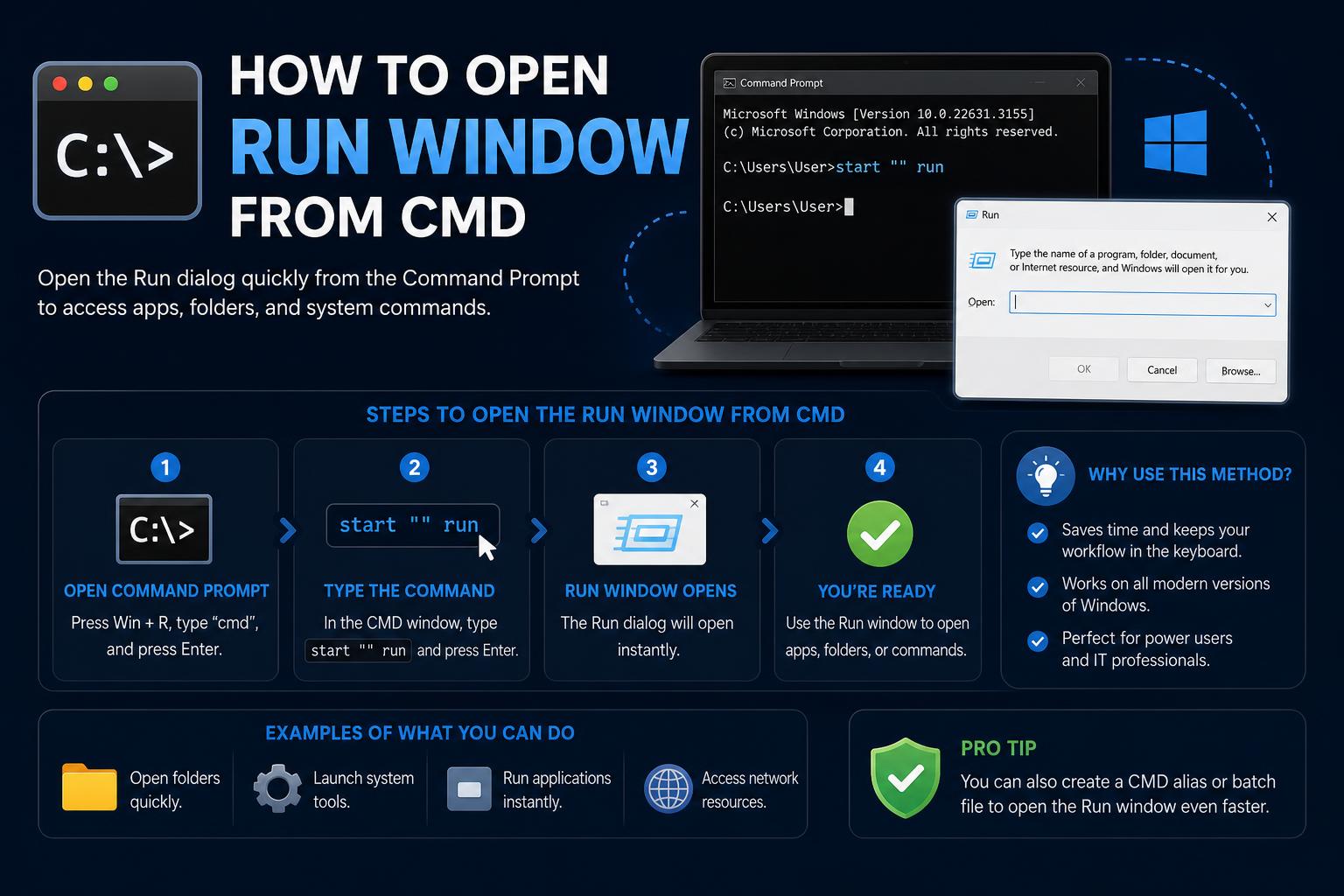
- The Run dialog can be launched from CMD, PowerShell, shortcuts, and taskbar.
- Windows offers both built-in shortcuts and advanced workarounds for all versions.
- Using third-party utilities or custom batch scripts expands accessibility and efficiency.
The Windows Run dialog is a hidden gem that delivers instant access to system utilities, hidden folders, and apps—all in a couple of keystrokes or commands. Yet, even experienced users sometimes overlook the small tricks and lesser-known backdoors to bring up this time-saving dialog from a variety of environments, including right inside the command prompt.
This guide not only shows you exactly how to launch the Run window from CMD (Command Prompt) but also reveals every other practical method, shortcut, and workaround for all modern Windows versions, including unique ways to create desktop icons and even your own hotkeys. Whether you’re handling a keyboard without a Windows logo key or simply want the speediest workflow, you’ll find your solution here. Here’s how to make the most of Windows’ built-in quick access tool.
What Is the Windows Run Dialog (“Run Window”) and Why Does It Matter?
The Run window (Win + R by default) is a tiny, command box built into Windows that lets you instantly launch apps, control panels, system folders, and websites by name or code. Instead of navigating endless menus, you pop open Run, type something like cmd or appwiz.cpl, and off you go. This dialog is lightweight, always available, and crucial for power users, troubleshooting, and quick navigation.
The Classic: How to Open Run with Keyboard Shortcuts
The quickest way to open Run on any Windows PC is simply tapping Windows + R. This works virtually anywhere—in your browser, Explorer, or even while gaming.
- Press
Windows+Ranywhere, any time. The Run window appears, ready for your command.
If your keyboard is missing a Windows logo key, or it just isn’t working, don’t panic! There are special workarounds detailed further down below to ensure you can still bring up the Run dialog.
How to Launch the Run Window Directly from Command Prompt (CMD)
You can trigger the Run dialog from within Command Prompt (CMD) using a special Explorer command. This is perfect if you’re already working in CMD and want quick access to another utility without reaching for your mouse or closing windows.
- Open Command Prompt via the Start menu or by pressing
Windows + Sand typing cmd. - Type or paste this command and press Enter:
explorer.exe shell:::{2559a1f3-21d7-11d4-bdaf-00c04f60b9f0}
This command calls on Explorer to display the Run dialog, no matter where you are. It also works from PowerShell, from batch files, and even within automated scripts.
Opening Run from PowerShell
If you’re operating inside PowerShell—Microsoft’s powerful automation shell—you can use an almost identical command:
- Type and launch this cmdlet in PowerShell:
Start-Process explorer.exe "shell:::{2559a1f3-21d7-11d4-bdaf-00c04f60b9f0}"
The result: The Run dialog pops up instantly. This is especially handy for those using scripts to automate or chain system management tasks.
Alternative Ways to Access the Run Dialog
Windows offers diverse ways to open the Run box beyond keyboard shortcuts and command-line trickery. Here’s every method you can try—pick whichever fits your workflow:
Via the Power User Menu
- Right-click the Start Menu icon in the taskbar, or just press
Windows + Xto bring up the Power User Menu. - Select “Run” from the options. This works in Windows 8, 10, and 11.
Using Windows Search
- Open Windows Search by clicking the search box or pressing
Windows + S. - Type “Run” and select the matching app. The Run dialog opens as a standard app in Windows.
From Task Manager
- Press
Ctrl + Shift + Escto launch Task Manager. - Click “Run new task” near the top. This opens a mini Run dialog (labeled “Create new task”) where you can type commands just like in the classic Run.
- To open something with admin privileges, check the box for “Create this task with administrative privileges” before clicking OK.
Create a Desktop Shortcut for the Run Dialog
If you want single-click access to Run from your desktop, you can create your own shortcut:
- Right-click an empty spot on your desktop, choose New > Shortcut.
- For the location, paste:
explorer.exe shell:::{2559a1f3-21d7-11d4-bdaf-00c04f60b9f0} - Name it anything (like “Run”) and finish.
- Double-click your new shortcut to launch the Run dialog from anywhere.
Customize the icon for easier recognition:
Right-click your shortcut, select Properties, open the Shortcut tab, and hit “Change Icon”. Browse to shell32.dll, pick the Run icon, and apply your changes.
Pinning Run to the Taskbar
For even quicker access, just pin the Run dialog to your taskbar:
- Search for “Run” via the search box (press
Windows + S), right-click the result, and choose “Pin to taskbar”. - Now the Run icon is always just one click away at the bottom of your screen.
Special Scenarios: Opening Run Without a Windows Key
Missing the Windows logo key? It’s more common than you’d think—some compact keyboards, remote desktops, or specialty PCs simply don’t have it. If you’re in this boat:
- Use the methods above: Power User Menu (
Ctrl + Shift + Escto Task Manager, or right-click Start), Taskbar pin, or search-based access. - Create a custom desktop shortcut and assign a hotkey (see below).
Assigning Your Own Keyboard Shortcut for Run (No Win Key Needed)
If you crave instant keyboard access to Run but can’t use Win + R, you can create your own combination using a shortcut:
- Create a desktop shortcut as above for the Run dialog.
- Right-click the shortcut, go to Properties.
- In the Shortcut Key field, click and type a preferred letter (like
R). - Windows will automatically assign
Ctrl + Alt +(e.g.,Ctrl + Alt + R). Hit OK to save. - Press your new shortcut anytime to open the Run dialog—no Windows key required.
This method is perfect for older versions of Windows or keyboard setups that lack special keys. If you need advanced remapping, consider using AutoHotkey to mine even more custom shortcuts.
Advanced: Open Run with Third-Party Utilities and Scripting
Seasoned users and IT pros can leverage specialized tools or write small batch scripts to call the Run dialog programmatically.
- Batch File Example: Create a file called
open-run.batwith:explorer.exe shell:::{2559a1f3-21d7-11d4-bdaf-00c04f60b9f0}
Save and double-click any time you need Run, or link it to a custom script for automation or troubleshooting routines. - System Path: If you place this batch file in a folder included in your system PATH variable, you can launch Run from any command line or Explorer window with ease.
- JPSoft, and other utility suites offer similar programmable access to system dialogs.
Power users often combine batch files, AutoHotkey macros, and shortcut assignments to make Windows navigation as fast as possible.
Opening CMD from Run—and with Admin Rights
Just as you can invoke Run from CMD, you can also use the Run box to open CMD or many other tools:
- Press
Win + R, typecmd, Enter: You’ll open a regular Command Prompt window. - For Admin CMD: You cannot use the Run dialog to elevate privileges for Command Prompt directly. However, you can right-click Start, choose “Command Prompt (Admin)”, or use
PowerShellfor more flexibility in launching elevated terminals. - Scripted Workarounds: Place batch files or shortcuts with the “Run as Administrator” flag, or use tools like for one-hotkey admin window launchers.
Run Dialog Tricks for Every Windows Version
Older Windows versions (XP, 7, 8) may differ slightly in icon locations or default shortcuts, but most methods above are universal, including explorer.exe shell:::{2559a1f3-21d7-11d4-bdaf-00c04f60b9f0} which remains valid since Windows XP.
- For Windows 8, 10, and 11, the Power User Menu and Search will always provide the Run option.
- In XP, dragging “Run” from Start to your Desktop or Quick Launch still works. See archived tutorials at TechRepublic and SevenForums.
- Each version lets you assign your own keyboard shortcut using the shortcut creation method above. Even Vista supports this.
Pinning and Customizing the Run Dialog Further
If you use the Run box often, you can truly make it a permanent fixture on your system with a pinned taskbar icon, custom desktop shortcuts, and assigned hotkeys. Modify icons for better organization, combine with scripting for advanced setups, and integrate with your taskbar workflow for maximum efficiency.
There are countless ways to access the Run dialog in Windows, ensuring that every user—regardless of their version, keyboard layout, or tech expertise—can quickly launch almost any tool, folder, or configuration setting. Mastering these methods streamlines troubleshooting, boosts productivity, and opens up hidden corners of Windows, making this tiny utility one of the most powerful built-in features available.