
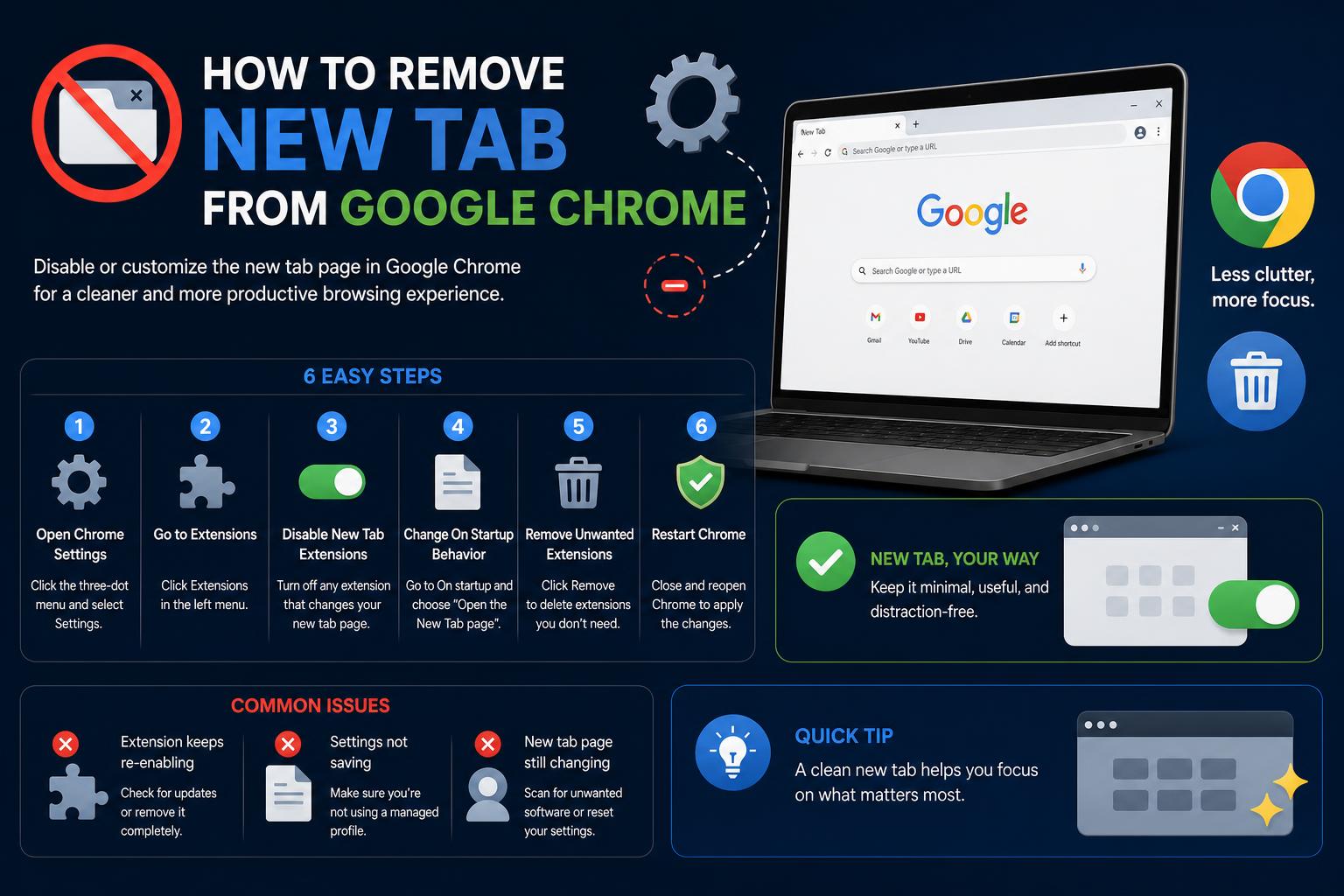
- Google Chrome's New Tab customization options let users control shortcuts, themes, and cards.
- Disabling or removing the New Tab page isn’t directly possible, but workarounds and settings can minimize its impact.
- Browser flags and extensions offer advanced users deeper control for altering New Tab behavior.
Does the New Tab page in Google Chrome not fit your workflow? Chrome’s clean interface might be one of its strongest points, but the New Tab—complete with shortcuts, search box, cards and even themed backgrounds—can sometimes feel unnecessary or distracting. Whether you want to remove it entirely, change it, minimize it, or just get control over what appears each time you hit Ctrl+T, there are a bunch of strategies you can use. The official documentation mostly covers customization, but with some expert tricks and a bit of tinkering, you can take even more control of your New Tab experience.
Let’s be honest: many users ask about getting rid of or customizing the New Tab page for productivity, privacy, or aesthetics. Maybe you don’t want to see the big search box every single time, or maybe you prefer each new tab to appear blank, or to open your favorite site. Although Chrome doesn’t officially let you ‘remove’ the New Tab page completely, this article brings together all available options—from built-in settings to browser flags and beyond—to help you set up your browser exactly how you want it.
Understanding the New Tab Page in Chrome
By default, every time you open a new tab in Google Chrome you’re greeted by the New Tab page. This page looks simple, but packs in plenty of features:
- A search box centered on the page, typically showing Google or your set search engine.
- Shortcuts to your most visited sites or a set of custom shortcuts curated by you.
- Personalized cards—such as recent browsing history, Google Drive file links, ‘Continue where you left off’ suggestions, etc. (Appearance varies by region and account settings.)
- Custom themes and backgrounds, often with options for daily refresh or color pairings.
- Footer showing active extensions or, on managed devices, a ‘Drive priority’ card.
This page appears each time you hit Ctrl+T or use the new tab button, on any platform: Windows, Mac, Linux, or Chrome OS. Customization and removal options do have some limitations depending on Chrome’s version, your device, and whether you use a managed account.
What You Can and Cannot Remove from the New Tab
Out of the box, Chrome does not give a way to truly ‘remove’ the New Tab page entirely. However, you have a wide range of controls—especially when it comes to hiding elements you don’t like, customizing visual appearance, or even using advanced browser flags and third-party extensions for deeper tweaks.
These are the main features you can manage and the controls available for each one:
- Shortcuts (Most visited / My shortcuts): Can be hidden completely through the Customize menu.
- Search bar: Cannot be removed by default, but can be minimized in visual impact by hiding other elements.
- Background/theme: Can be customized or reset, including daily refresh, via the Customize menu.
- Footer (shows extension info): Can be toggled on/off. On managed profiles, this may be locked down.
- Chrome Cards, history, ‘Continue browsing’, Drive cards: Can usually be hidden or customized, but not fully disabled in all cases.
- New Tab page itself (full removal): Not possible natively, but advanced users can use browser flags, experimental features, or a new tab extension to replace it with a blank or custom page.
How to Customize or Hide Elements on the New Tab Page
If you want to keep the New Tab but make it less cluttered, Chrome’s built-in customization tools are quite robust.
Hide or Edit Shortcuts
- Open a new tab and click on Customize Chrome at the bottom right corner.
- Choose Shortcuts.
- Switch between My shortcuts (custom), Most visited sites, or Hide shortcuts.
- To remove a shortcut, hover over it, click the three-dot menu, then Remove. You can also Edit shortcut here.
Hiding all shortcuts greatly reduces New Tab clutter and puts more focus on the background or search box.
Change or Remove New Tab Background
- In the same Customize Chrome menu, select Change theme.
- Pick a color or background, or upload your own image. There’s also a daily refresh option for some categories.
- If you don’t want any background or custom color, choose Reset to Default Chrome.
This is purely visual, but it can dramatically change the feel of your New Tab.
Manage or Hide Cards on the New Tab
- Personalized ‘Cards’ may show up, suggesting recent activity or Google Drive files. To disable or dismiss:
- Click Customize on the New Tab page.
- Select Cards then Customize Cards.
- Toggle each type of card on or off.
- For specific cards (such as ‘Drive priority’): Click the menu on that card and choose Hide or Never show for permanent removal.
Note: On some work/managed devices, you might not be able to disable certain cards because of administrator settings.
- The footer sometimes pops up to display which extension is controlling your New Tab. To show or hide it:
- Go to Customize Chrome in the New Tab page.
- Look for a Footer section, then toggle Show footer on or off.
- You can also right-click the footer and select Hide footer.
If you can’t change the footer, your Chrome policies might be managed by your organization.
Advanced Methods: Using Chrome Flags and Extensions
If basic customization is not enough, you can dig deeper. Some users want to truly eliminate or modify the New Tab behavior, especially techies or people with specific productivity setups. Let’s walk through advanced methods.
Using Chrome Flags
Warning: These are experimental settings. Proceed with caution and expect that features may change or break across updates!
- Navigate to chrome://flags/ in your Chrome address bar.
- Use Ctrl+F to search for keywords like “extended API”.
- If an option relating to the New Tab appears, switch it to Disabled.
- After changing a flag, click Relaunch Now (or close and relaunch Chrome manually).
These flags are highly version-dependent, so results vary. Power-users on forums like Reddit have reported success, but Google periodically removes or renames these features.
Note: There’s no guarantee your version of Chrome will show these flags. If not, skip to the next method.
Use a Chrome Extension to Control the New Tab
A popular solution for full control over the New Tab is to install an extension dedicated to overriding or customizing it.
- Visit the Chrome Web Store and search for “New Tab” extensions.
- Look for well-rated, trustworthy add-ons that allow you to:
- Set New Tab to blank, a specific website, or a custom dashboard.
- Completely hide the search box, shortcuts, and other UI elements.
- Protect your privacy by not sharing browsing history or recent activities.
After installing, most extensions ask if you want to set them as your new New Tab page. Follow the prompts to activate.
Remember: If you ever have issues, or want to revert, heading to Chrome Settings > Extensions lets you disable or remove these add-ons easily.
Browser Profiles, Managed Devices, and Limitations
Some controls may be unavailable depending on your device, profile, or account:
- If your Chrome is managed by a school or company admin, customization may be limited or locked.
- Multiple user profiles may each have their own New Tab settings, so switch to your intended profile when customizing.
- Some features (like cards or Drive suggestions) are region- and account-dependent—if you don’t see options, they’re likely not enabled for your account yet.
What If Chrome Keeps Opening a New Tab on Startup?
Another issue users face is Chrome automatically opening a New Tab window on launch, even if you closed everything before.
- Open Chrome and hit the three-dot menu (upper right).
- Head to Settings > On startup.
- Select Continue where you left off if you want to restore old tabs, or Open a specific page or set of pages to define exactly what opens each time.
- If the issue persists, see if an extension is forcing the New Tab page, or if the ‘continue with this tab’ setting is active under Customize New Tab > Cards.
On Android, you can also control the “Continue with this tab” option:
- Tap the 3-dot menu and select New Tab.
- Select Customize new tab page and turn off ‘Continue with this tab’.
Quick Tricks: Managing Tabs and Windows Efficiently
If you can’t (or don’t want to) remove the New Tab page, mastering tab and window management can help keep clutter down.
- Open links in a new tab: Ctrl+Click any link (Windows/Linux), Command+Click (Mac).
- Pin tabs you always want open: Right-click and select Pin. They become small, icon-only tabs.
- Group and organize tabs: Right-click and create new tab groups, color-coded for projects.
- Bulk actions: Ctrl+Select multiple tabs, then right-click to move, close, or mute them together.
- Reopen a closed tab: Ctrl+Shift+T brings the last closed tab back.
- Name your windows: Right-click next to the New Tab and select ‘Name window’—helpful when juggling many open projects.
Learning these shortcuts gives you flexibility, even if you stick with the standard Chrome experience.
Troubleshooting: Flags, Extensions, and Sudden Changes
Unexpected changes can result from Chrome updates, modified flags, or extension conflicts. In this case:
- Check for updates in Chrome—new versions can change the flag and extention landscape abruptly.
- Visit Help or Support forums (like Google Chrome Help or the official ) to see if others have handled the problem.
- Review your extensions—disable them one by one to pinpoint which one alters your New Tab, or reset their permissions.
- If you experimented with flags and experience instability, simply revert the flag to ‘Default’ or reset all to default.
Don’t forget: Managed (enterprise or school) setups may block certain changes, and sometimes, the only answer is using Chrome alternatives (like Brave or Vivaldi) for ultimate customization.
Chrome doesn’t let you erase the New Tab page outright, but with careful use of built-in settings, extension tools, and a touch of advanced tinkering, you can dramatically reduce unwanted elements, control what’s shown, and tailor the experience to your needs. Whether you prefer ultra-minimalism, a blank slate, or your own set of quick links, the solutions above will help you make Chrome feel like your own kind of browser.