
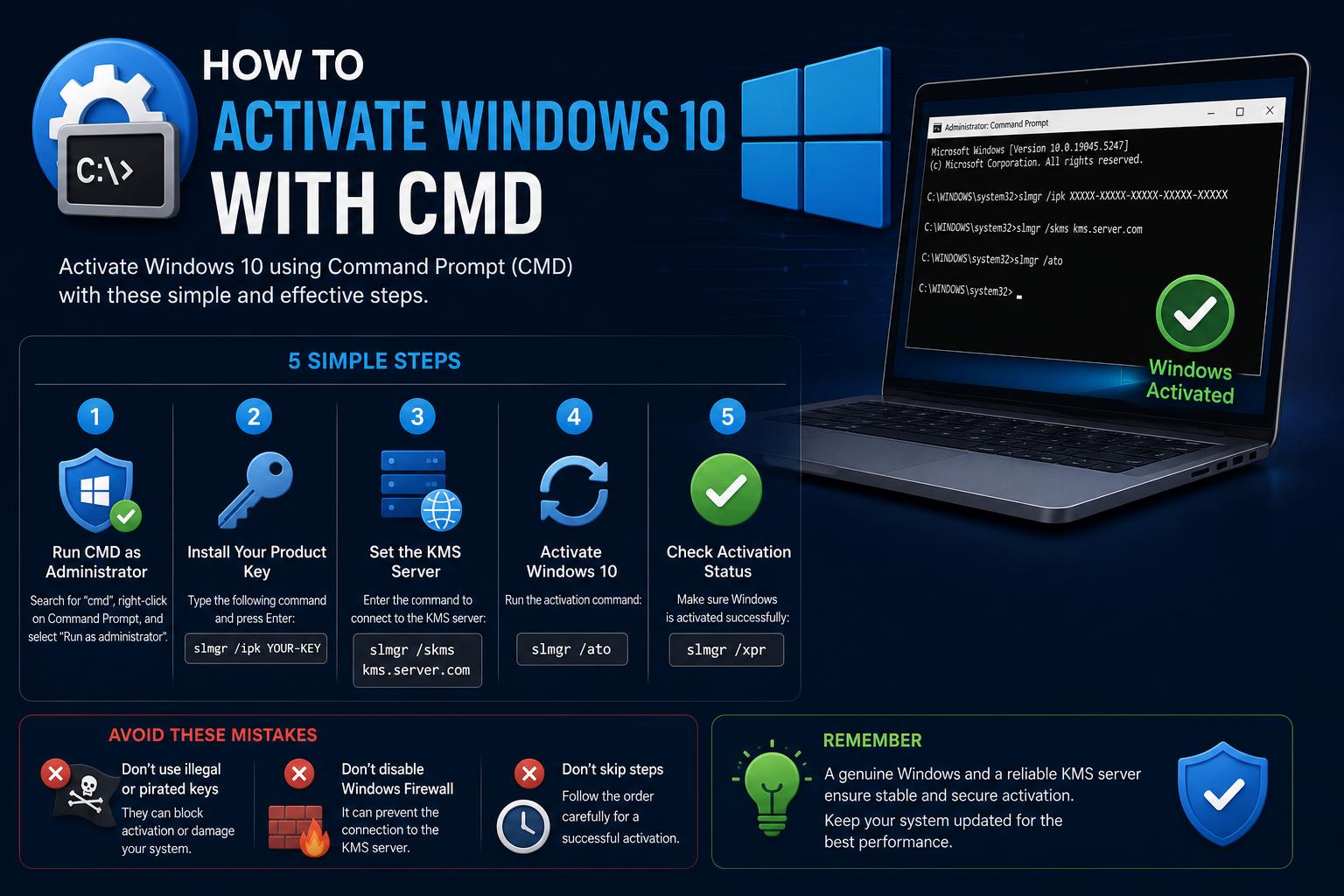
- Explains all viable CMD-based methods for activating Windows 10, including KMS, batch files, and PowerShell
- Compares different activation scenarios (official licenses, OEM, upgrades) and how to handle each
- Covers important safety and backup measures to protect your data before making changes
- Addresses frequently asked questions and common activation errors with practical troubleshooting steps
Have you ever run into that nagging watermark in the corner of your desktop that says “Activate Windows”? If you’re running Windows 10 and looking for a way to activate your system using only the tools built into Windows — specifically, Command Prompt — you’re in the right place. With so much confusing information online, getting clear and updated instructions can be a challenge. Let’s solve this with a friendly, thorough, and easy-to-follow guide!
Why Use CMD to Activate Windows 10?
Using the Command Prompt (CMD) to activate Windows 10 provides a direct, fast, and transparent method for managing your operating system’s licensing status. It allows system administrators and power users to bypass graphic user interface glitches, troubleshoot licensing errors quickly, and install Volume Licensing/KMS keys directly without requiring extra third-party software installation.
Preparation and Safety Precautions
Back up your current activation information before making any changes. If you purchased a license online, or your machine came pre-installed with Windows, write down your activation key so you can restore it later. Here is how to retrieve your embedded/OEM product key using PowerShell:
- Press Windows + S, type “PowerShell”, right-click Windows PowerShell, and select “Run as administrator”.
- Copy and paste:
(Get-WmiObject -query 'select * from SoftwareLicensingService').OA3xOriginalProductKey - Press Enter. If a key appears, save it in a safe place!
It is also recommended to create a System Restore Point before proceeding:
- Open the Start Menu and search for “Create a restore point”.
- Select your system drive and click “Create”.
- Name the restore point (for example, “Before CMD activation”) and confirm.
Understanding Your Activation Type
- Digital License: Linked to your Microsoft account; generally only requires logging in with your credentials.
- OEM Key: Embedded into your hardware by the manufacturer. Can be reactivated after reinstalls.
- Retail/Volume Key: Purchased separately; entered during setup or via Settings.
- KMS Activation: Used by organizations (Key Management Service); can utilize public KMS servers for temporary activations. Read carefully regarding legitimacy and limitations!
Method 1: Manual Activation Using Key Management Service (KMS)
- Open Command Prompt as Administrator:
- Right-click the Start button and select Command Prompt (Admin) or search for ‘cmd’, right-click, and choose ‘Run as administrator’.
- Install a Volume License Key. This depends on your edition of Windows. Replace
yourlicensekeywith the relevant key from the following list and run:slmgr /ipk yourlicensekey
Here are some common volume key examples for Windows 10:- Professional:
W269N-WFGWX-YVC9B-4J6C9-T83GX - Home:
TX9XD-98N7V-6WMQ6-BX7FG-H8Q99 - Education:
NW6C2-QMPVW-D7KKK-3GKT6-VCFB2 - Enterprise:
NPPR9-FWDCX-D2C8J-H872K-2YT43
- Professional:
- Connect to a public KMS server that allows online activation:
slmgr /skms kms.msguides.com(orkms8.msguides.com,kms9.msguides.com) - Activate Windows:
slmgr /ato
Method 2: Batch File Activation (Automated for All Editions)
- Open Notepad and paste an automated batch script tailored to your system (you can check reliable sources such as GitHub Gists or MSGuides).
- Save the file as activate.cmd or 1click.cmd. Make sure to select “All Files” in the Save as type dropdown in Notepad.
- Right-click the file and select Run as administrator. Windows will automatically execute every step: reset the KMS address, enter the volume key, and call the activation sequence.
Method 3: Permanent Activation Through Digital License & Microsoft Account
- Make sure you are logged in with your Microsoft account in Windows.
- Go to Settings > Update & Security > Activation. Check if it states “Windows is activated with a digital license linked to your Microsoft account”.
- If it does not appear, enter your purchased product key in Settings or via CMD using:
slmgr /ipk XXXXX-XXXXX-XXXXX-XXXXX-XXXXX
(replace with your 25-character key)
Upgrading Editions (e.g., Home to Pro) Using CMD
- First, verify the target editions available for your system:
DISM /online /Get-TargetEditions(executed in CMD as administrator) - If “Professional” appears in the results, run:
changepk.exe /productkey VK7JG-NPHTM-C97JM-9MPGT-3V66T - Allow Windows to complete the upgrade process. You can ignore 100% completion errors if they appear; this is usually normal.
- Restart your computer and verify in System Information that you are now running the Pro edition.
- If Pro does not activate automatically, repeat the CMD activation steps.
Troubleshooting Activation Issues
Even with these steps, activation sometimes fails due to specific system errors:
- Unrecognized digital license: Verify that you are signed in with your correct Microsoft account.
- Errors like 0xC004F074: Indicate that the KMS servers are unavailable. Try again later or test a different KMS server address.
- Hardware reserved memory issue: Could be related to activation limits. In these cases, check system logs and attempt activation again via CMD or PowerShell.
If internet activation is failing entirely, you can attempt telephone activation:
- Press Windows + R, type
slui 4, and press Enter. - Select your country and follow the on-screen prompts to contact Microsoft and retrieve a verification code.
- Provide your Installation ID to the automated system or representative, who will return a Confirmation ID for manual entry.
Advanced: PowerShell and Server/Datacenter Activation
For Windows Server and Datacenter environments, activation via command tools ensures efficient deployment across virtual machines and networked hosts.
- Open PowerShell (Admin).
- Execute:
slmgr /ipk W3GGN-FT8W3-Y4M27-J84CP-Q3VJ9(replace with edition-specific keys) - Restart the VM to apply changes.
Common Questions About Windows 10 Activation via CMD
- Is activating Windows 10 via CMD legal? Using CMD to enter your officially purchased retail, OEM, or volume licensing key is 100% legal. Utilizing third-party KMS servers without proper organization licensing falls into an evaluation/unlicensed category and may require periodic renewal.
- Will KMS activation expire? KMS activations typically last 180 days and require periodic connection to a KMS host to auto-renew.
- Does activating via CMD remove the watermark? Yes, once the system successfully processes the
slmgr /atocommand, the desktop watermark disappears immediately or after a quick reboot.
Recommended Practices and Extra Tips
- Do not share your private key online, and be cautious of unofficial third-party sellers.
- Batch scripts are convenient, but always review their contents before running them for security reasons.
- If you contribute guides or help others, reference official sources or trusted projects for updated key lists and scripts.
- If something goes wrong, using your restore point or backup key will save you hours of frustration and potentially a clean reinstall.
[related url=”https://www.ikkaro.net/why-is-windows-11-so-slow/”]
Activating Windows 10 with CMD remains one of the most effective, transparent, and adaptable methods for home users and IT professionals alike. By following the steps in this guide, you will be able to solve almost all activation issues, upgrade your edition, and keep your system running safely. Remember to keep your key in a safe place, link your activation to your Microsoft account whenever possible, and consult official Microsoft updates when facing persistent errors. With a little patience and the right commands, you can keep Windows 10 running smoothly without hassle.