
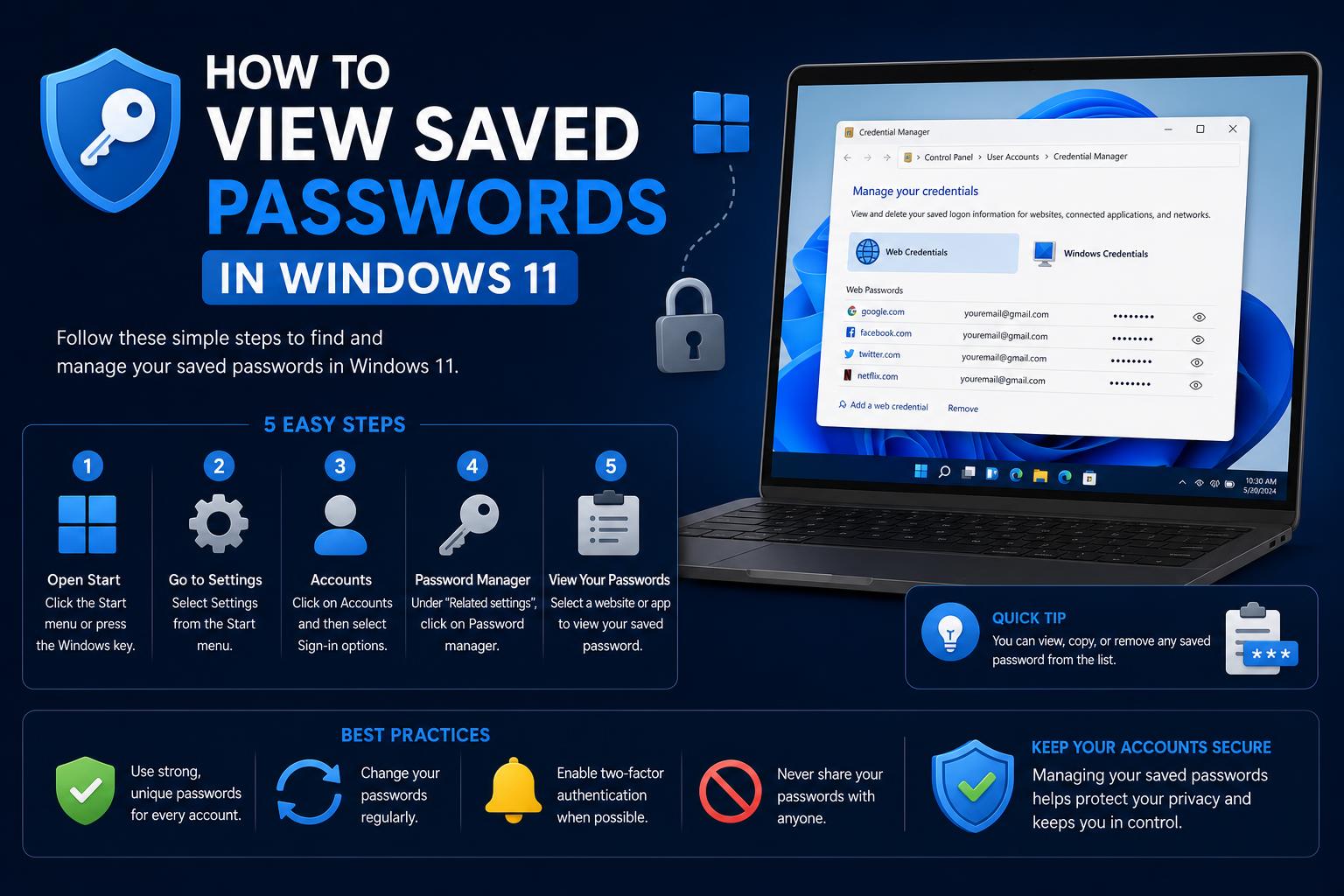
- Windows 11 passwords can be stored in Credential Manager, browser managers, or third-party apps.
- Edge's new Password Manager and Wallet centralize and sync credentials across devices.
- Special tools can recover WiFi, local, or forgotten passwords—all while needing strong device authentication.
Whether you’re the tech whiz in your friend group or someone who just accidentally clicked “Save password” too many times, chances are you’ve wondered where all those saved credentials in Windows 11 are actually hiding. Password management on modern Windows devices can feel like black magic—seemingly invisible, yet incredibly powerful for anyone who relies on convenience and security. But when you really need to access, edit or recover those saved passwords—maybe because you got a new device or just forgot the login details for an important website—it can suddenly turn into a frustrating scavenger hunt.
Let’s take a journey through the password jungle in Windows 11. Instead of scattered tricks or one-size-fits-all solutions, we’ll map out every method you can use to find, manage, and protect passwords stored on your Windows 11 machine. Expect insider tips on using built-in Windows apps, browser managers, third-party utilities, and even the nuances of Microsoft’s own Edge Wallet versus the classic Credential Manager. Ready to become your own Windows security expert? Let’s get started!
Where Are Passwords Really Stored in Windows 11?
Windows 11 doesn’t keep all your passwords in one predictable spot. Depending on where you log in—think websites, WiFi networks, or your Microsoft account—your saved credentials could be tucked away in the Credential Manager, within your favorite browser’s own password manager, inside the Windows registry, or even synced to the cloud. Each storage method has its quirks and specific process for retrieval. Learn more about managing different digital accounts and credentials.
Credential Manager is the backbone of Windows’ password storage: it securely stores internet and network credentials, allowing Windows and other apps to authenticate without constantly bugging you for logins. Anytime you connect to a shared printer, mapped network drive, or certain apps, Credential Manager usually handles the credentials behind the scenes, encrypting them to keep hackers out.
Understanding Credential Manager in Windows 11
Credential Manager has gotten a facelift in recent Windows versions, especially with integration into Microsoft’s cloud services. Here’s how it works now:
- Windows Credentials: These are mainly local system logins, network drive access, and other OS-level connections.
- Web Credentials: Saved logins from Internet Explorer and some versions of Microsoft Edge—these might not include passwords saved in newer Chromium-based browsers.
To access Credential Manager:
- Open the Start menu and search for Credential Manager.
- Select either Web Credentials or Windows Credentials.
- Click on the drop-down arrow next to any entry to see the saved login details. To view the password itself, click Show and confirm with your Windows account password or PIN for security.
Credential Manager encrypts sensitive data. You won’t be able to view these passwords unless you’re an approved user and pass the Windows security prompt.
[relacionado url=”https://www.ikkaro.net/what-is-flipper-zero/”]
Microsoft Password Manager in Edge: The New Approach
If you rely on Microsoft Edge for web browsing, there’s a whole new layer to password management. With updates to Edge and the rollout of Edge Wallet, saved passwords are now being centralized within the Microsoft Password Manager ecosystem.
What can you do with it?
- Store, Access, and Edit Passwords: Edge prompts you to save passwords or passkeys as you use the web. These get encrypted and sync across devices linked to your Microsoft account.
- Edit or Remove Passwords: Access Settings > Passwords and autofill > Microsoft Password Manager in Edge, then find the password entry.
- Reveal Passwords: Click the eye icon next to each credential after confirming your Windows account for security.
- Cloud Sync: Edge can sync credentials across multiple platforms—including Android and iOS—for an integrated experience.
Edge Wallet has changed how passwords are displayed and managed. Depending on updates, saved credentials might move or temporarily hide, which can cause some confusion. Autofill still works, but not all stored items may be visible until processed by the new system.
How to View Saved WiFi Passwords in Windows 11
Network and WiFi passwords pose a unique challenge in Windows 11. Many users forget their WiFi passwords after setup! Here are the main strategies:
- Open Control Panel (type it in the Start menu).
- Go to Network and Sharing Center.
- Click your WiFi connection (appears as a blue link next to ‘Connections’).
- In the WiFi Status window, click Wireless Properties > Security tab.
- Check Show characters to reveal the WiFi password (admin confirmation required).
You can also use the Command Prompt to list all saved WiFi networks and dump out password info using the netsh wlan show profile command. It’s a powerful method for advanced users! Discover more about network security tools.
Browser-Based Password Managers: Edge, Chrome, Firefox
Browsers like Edge, Chrome, and Firefox offer their own password management tools, independent of the Windows operating system. If you’ve opted to save your logins in the browser, here’s what to know:
- Edge: Go to Settings > Profiles > Passwords.
- Chrome: Visit chrome://settings/passwords to view saved passwords.
- Firefox: Click Logins and Passwords in the menu.
Most browser managers let you view, update, export, and delete passwords. You’ll need to verify your identity before revealing the actual password.
Third-party Solutions: EaseUS Key Finder & NordPass
For more advanced recovery, dedicated tools can scan your system and extract stored passwords in bulk. Two notable options are EaseUS Key Finder and NordPass:
EaseUS Key Finder
- Automatic Scan: Detects software keys, product IDs, and saved credentials across browsers and files.
- WiFi Recovery: Finds all stored WiFi passwords quickly.
- User Friendly: Designed for easy use with a clear GUI.
- How to Use: Download, run, then select Windows Credentials to view recovered data. Export or save securely.
NordPass
- Cross-Platform Sync: Securely stores your passwords on multiple devices with encryption.
- Easy Import: Transfer credentials from browsers or system files efficiently.
- Enhanced Security: Offers better protection compared to browser managers, especially for privacy-focused users.
Be cautious: Always choose reputable software to ensure your data remains safe. Password recovery tools, while useful, should be used responsibly.
Security Implications and Best Practices
Although password managers provide convenience, they also introduce risks if not managed properly. Data breaches, malware, or local snooping can compromise stored credentials—particularly if your device isn’t secured.
- Use strong device authentication: PINs, Windows Hello, or biometrics help prevent unauthorized access to password stores.
- Keep your system updated: Updates patch security vulnerabilities and protect against exploits.
- Limit browser password saving: Store sensitive logins—like banking or admin accounts—in dedicated password managers rather than browsers.
- Regular audits: Remove outdated or unnecessary credentials periodically.
- Enable two-factor authentication (2FA): Adds an extra layer of security for crucial accounts.
Frequently Asked Questions about Passwords in Windows 11
1. Where are admin passwords stored?
Admin passwords used for Windows login are stored securely within Windows’ security database, part of the system’s registry. Only authorized users with administrative privileges can attempt to view or access these details, and the data is heavily protected. Explore related security devices.
2. How do I save passwords in Windows 11?
The default method is through credential prompts when accessing resources. Browsers ask to save passwords automatically; for more control, consider using the built-in Microsoft Password Manager or trusted third-party apps like .
3. Can I export or sync my passwords across devices?
Yes. Microsoft Password Manager allows syncing via your Microsoft account. Additionally, tools like enable exporting and importing credentials for seamless management across systems.
4. Is storing passwords in browsers safe?
It depends on your device’s security. Browsers offer encryption and device-specific protections, but if your hardware is compromised or malware is present, stored passwords could be at risk.
Troubleshooting: What If Passwords Don’t Show Up?
Sometimes, after updates or system changes, saved passwords may disappear or not display correctly. To resolve issues:
- Ensure you’re logged into the correct user profile, as mismatched profiles can cause discrepancies.
- Access known sites with saved passwords; autofill might still function even if the passwords aren’t visible.
- Use sync or import features: These can recover or restore credentials from backups or previous storage locations.
- Keep your system and apps updated: Patch any bugs affecting password storage features.
If passwords are permanently missing, dedicated recovery tools like may help retrieve them from system files, provided they haven’t been overwritten.
Power User Tips: Command Prompt, Windows Registry, and More
If you enjoy tinkering beneath the hood, Windows 11 still provides command-line options for viewing certain stored credentials. Here’s some useful commands and tips (requires admin rights):
- Viewing WiFi passwords:
Runnetsh wlan show profilesto list networks, thennetsh wlan show profile name="NetworkName" key=clearto reveal passwords in the ‘Key Content’ section. . - Windows Vault and registry:
Password hashes for Windows logins reside deep within system files; accessing them is complex and generally not recommended unless for recovery purposes, with caution.
Warn: Editing system files or the registry can pose security risks if not done carefully. Always back up data before making changes.
Exploring password management in Windows 11 reveals a wide array of secure storage solutions, from Credential Manager to the latest cloud-synced Microsoft Password Manager and specialized third-party recovery tools. Each method offers options to recover, manage, and safeguard your credentials—whether you’re recovering a WiFi password, managing multiple online accounts, or troubleshooting after updates. With proper security practices and the right tools, you can prevent losing access to your important credentials. For advanced recovery, always opt for reputable software or consult official support channels for guidance.