
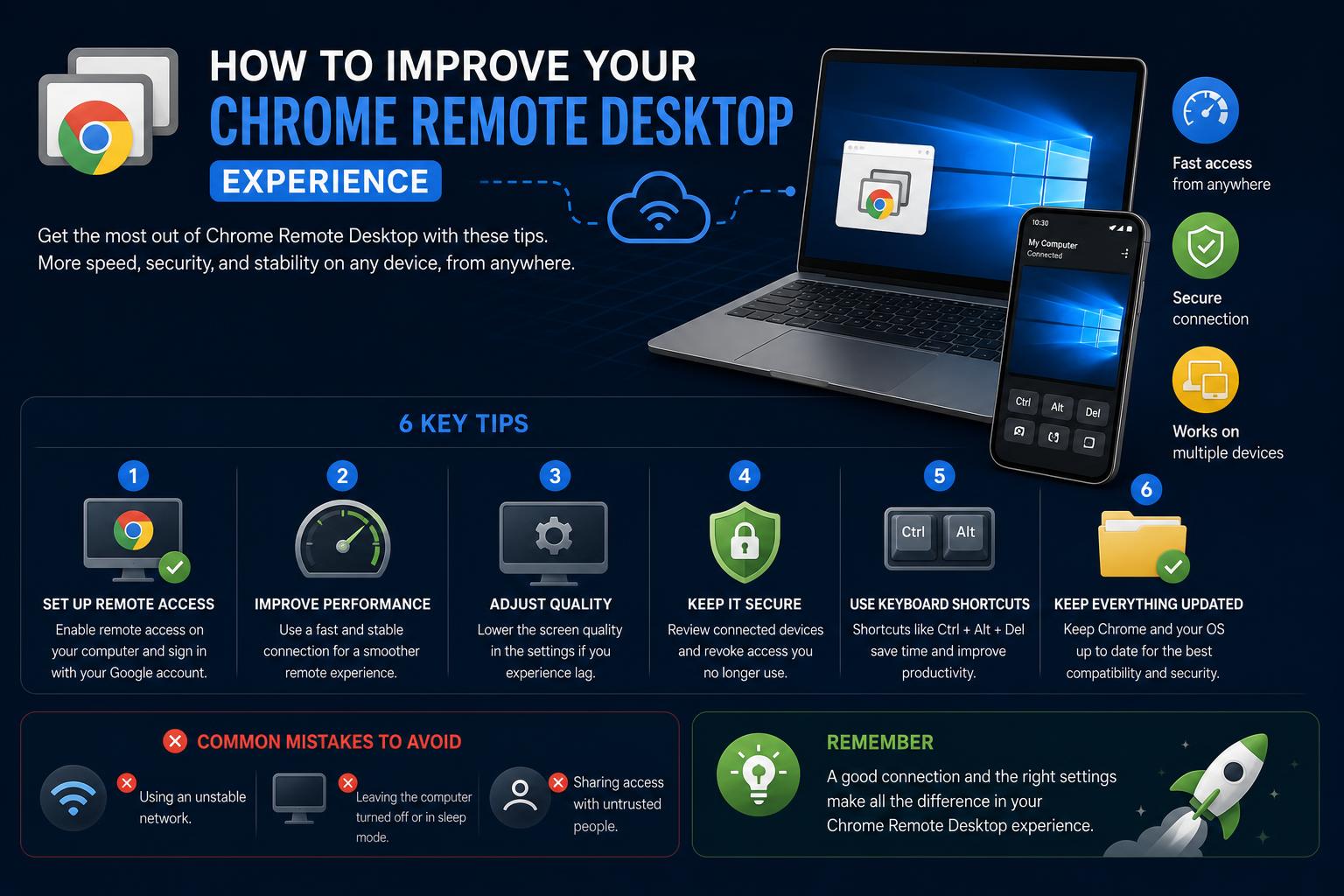
- Chrome Remote Desktop enables secure, cross-platform remote access using Google's Chromoting protocol.
- Supports both permanent computer access and temporary support sessions, providing robust options for users and IT professionals.
- Easy to set up on Windows, macOS, Linux, ChromeOS, and mobile devices, with automated deployment for enterprise scenarios.
Staying connected to your computer from anywhere in the world is simpler than ever thanks to tools like Chrome Remote Desktop. Whether you need to access important files on your home PC while at a coffee shop, help out a family member with technical issues remotely, or just keep control over your office setup while traveling, Google’s Chrome Remote Desktop is one of the leading free options available today.
But what is Chrome Remote Desktop all about? How does it really work, what makes it unique, and how do you actually get everything set up on your devices? In this comprehensive guide, we’ll walk through everything you need to know about Chrome Remote Desktop, using the latest details from the authoritative resources—and we’ll help you get the most from this flexible tool, whether you’re a beginner or a seasoned pro.
What is Chrome Remote Desktop?
Chrome Remote Desktop, developed by Google, is software specifically designed to enable secure, remote connections between computers and devices. It lets you use your smartphone, tablet, or another laptop to seamlessly control another computer—just as if you were sitting in front of it. The underlying technology relies on Google’s proprietary Chromoting protocol, which securely relays keyboard, mouse, and screen updates between the connected devices.
Why does this matter to you? Because Chrome Remote Desktop isn’t just about accessing your own machines—it’s also an excellent tool for providing tech support, collaborating remotely, or helping someone else directly from your own device. Unlike many other tools in its category, it’s entirely free, works cross-platform (Windows, macOS, Linux, iOS, Android, Chrome OS), and is maintained by one of the most trusted names in tech.
Main Features of Chrome Remote Desktop
Let’s dive into what Chrome Remote Desktop can do:
- Remote Access: Log into your personal computers from anywhere using an internet connection. Launch apps, manage files, and work as if you were sitting at your own desk.
- Screen Sharing and Support: Allow someone else to temporarily connect to your computer to troubleshoot, collaborate, or offer tech support. This is especially useful for helping friends or family with IT issues remotely.
- Cross-Device Compatibility: The platform works with Windows, Mac, Linux, Android, iOS, and Chrome OS, so you can control or be supported on pretty much any major operating system.
- Security: All sessions are fully encrypted, and you’ll use PIN codes or one-time-generated connection codes for secure access and sharing.
- Clipboard and Audio: Copy and paste between devices, and in some cases (like Windows) experience real-time audio streaming for a richer remote desktop experience.
How Chrome Remote Desktop Works
So, what’s going on under the hood? Chrome Remote Desktop works by transmitting keyboard and mouse events between the client (the device you’re using) and the server (the device being controlled). Graphical updates are streamed back, giving you live feedback and interaction. Unlike some older tools that rely on Microsoft’s RDP or VNC, Chrome Remote Desktop leverages its own Chromoting protocol—this ensures a more secure and streamlined communication channel.
There are two main use cases:
- Permanent Remote Access: Ideal for connecting to your own computers on the go. You set up Chrome Remote Desktop Host on the remote PC, choose a permanent PIN, and can always access it (as long as it’s online and authorized).
- One-Time Remote Support: Designed for short sessions, you can generate a one-time code that someone else can use to access your device. You have to be present and approve the connection, so it’s great for tech support but not for ongoing unattended access.
Setting Up Chrome Remote Desktop
Getting started is surprisingly simple, but the process does vary depending on your devices. Here’s a simple step-by-step overview:
1. Set Up Remote Access
- Open Chrome on your computer.
- Go to remotedesktop.google.com/access.
- Under “Set up Remote Access,” click the download button and follow the on-screen directions to install the Chrome Remote Desktop Host. You may need to enter your computer’s password or change security settings, especially on macOS.
- Choose a name for this computer and set a PIN for secure future access.
That’s it! Repeat on each computer you want to be able to access.
2. Connect Remotely
- From another computer, use Chrome and go to remotedesktop.google.com/access. Log in with the same Google account you used above.
- You’ll see a list of available devices; click “Access” next to the one you want, enter your PIN, and you’re in.
On mobile? Install the Chrome Remote Desktop app from the App Store or Google Play, log in, and follow similar instructions.
3. Sharing Your Computer for Support or Collaboration
- Open Chrome on your computer and visit remotedesktop.google.com/support.
- Under “Get Support,” click Download if prompted to install the host component.
- Click “Generate Code” to create a one-time access code.
- Send this code to the person you want to grant access. When they enter it, you’ll see a prompt to approve. You retain full control and can end the session at any time by clicking “Stop Sharing.”
Access codes expire after a single use and require you to be present every 30 minutes for longer sessions, ensuring secure, temporary support only when you want it.
Advanced Installation: Chrome Remote Desktop on Windows Servers & Cloud VMs
If you need to set up Chrome Remote Desktop on Windows cloud servers (like Google Cloud Compute Engine), you have a choice between an interactive setup (where you use Remote Desktop Protocol to connect and install) and a more automated, script-based deployment for larger scale or restricted networks.
Interactive Installation with RDP
- Create your VM instance on Google Cloud (set display device enabled as Chrome Remote Desktop requires this).
- Confirm Windows credentials, connect over RDP, open PowerShell, and download the Chrome Remote Desktop Host installer. Run it, confirming administrative permissions.
- On a local machine, generate the unique authorization command from the Chrome Remote Desktop site, copy it, and execute it within your VM to link your Google account and establish secure access.
- Set a 6-digit PIN for connection security. Once complete, simply close PowerShell and your RDP session; Chrome Remote Desktop is now active for your VM.
Automated Installation with Startup Scripts
- Generate the required authorization code and command string on your local device via the Chrome Remote Desktop website.
- Create a startup script that includes the command, PIN, and instance identity as metadata.
- Spin up your new cloud VM using this script—Chrome Remote Desktop will be installed and activated upon first boot.
- Monitor startup log output to confirm successful deployment and availability.
This approach is ideal for enterprise or IT administrators needing to set up multiple remote-accessible machines in an automated, scalable fashion.
Features Worth Highlighting
Platform Support
Chrome Remote Desktop has excellent compatibility for accessing or hosting:
- Windows PCs (including servers and cloud VMs)
- Mac computers
- Linux systems (including explicit instructions for Debian)
- Chromebooks and devices running ChromeOS
- Mobile devices via iOS or Android apps
The Chrome browser is required for setup and access on desktop platforms, while mobile apps are used for tablets and smartphones.
Security and Privacy
Sessions with Chrome Remote Desktop are encrypted end-to-end using TLS. Access to computers is controlled by PINs for permanent connections, or single-use access codes for support sessions. Administrators, individuals, and corporate users can further control who has remote access—and sharing can only occur with your active consent.
Need to give remote IT support? The person being helped remains in charge at all times—their consent must be given, and sharing will pause every half hour for reauthorization. Security preferences ensure connections are safe from accidental or unwanted intrusion.
IT administrators can also manage permissions and deploy Chrome Remote Desktop in managed environments using enterprise policies and installation scripts.
Performance and Usability
Thanks to the Chromoting protocol and optimized cloud servers, Chrome Remote Desktop delivers a smooth, responsive experience—often far superior to classic VNC or RDP for remote access, even over standard home internet connections.
Clipboard copy-paste: Windows users can share clipboard data between their host and remote session, making it easy to copy text, links, or documents between devices. Audio streaming also works well for remote feedback, though users should note that audio cannot always be disabled independently from the remote session.
Managing and Customizing Chrome Remote Desktop
How to Remove Devices or Connections
- Open Chrome and navigate to remotedesktop.google.com/access.
- Find the device you want to remove and select “Disable remote connections,” instantly revoking its remote accessibility.
Customizing on Linux
Linux users get some granular control over which desktop environment starts during Chrome Remote Desktop sessions. By editing the .chrome-remote-desktop-session file in your home directory, you can specify your preferred GUI environment (like Cinnamon, GNOME, or XFCE). Each environment typically has a corresponding .desktop file in /usr/share/xsessions/—simply reference the right “Exec” command in your config. Note: some desktop environments only support one concurrent session, so pick wisely for frictionless use.
Improving the Remote Experience
- Screen Resolution: You can tweak the remote device’s resolution to best fit your viewing screen. In Windows, right-click on Desktop → Display Settings → adjust Resolution for a more natural feel.
- Standalone Apps: Install the Remote Desktop Chrome app to enjoy more native windowed sessions, keyboard shortcut support, and extra flexibility. This is especially useful if you want to manage multiple desktops or use advanced hotkeys that browser tabs can’t always handle.
- Clipboard & File Transfers: Copy and paste between host and remote sessions on Windows, streamlining cross-device productivity.
Troubleshooting & Advanced Tips
Chrome Remote Desktop is extremely reliable, but sometimes problems crop up. Here’s how to handle common issues:
- Ensure active internet connections on both devices. Network issues are a very common cause of dropped or failed sessions.
- Check antivirus or firewall settings. Some security software may block Chrome Remote Desktop’s required network ports (TCP 443, TCP/UDP 3478, UDP traffic).
- If connecting on a managed (corporate or school) device or network, admin rights may restrict remote access. IT support can provide guidance if you can’t connect as expected.
- Always keep Chrome, ChromeOS, or the mobile app up to date for best security and performance.
- When in doubt, report persistent issues via the Chrome Help Forum—Google actively reviews these reports to keep the platform reliable.
How Chrome Remote Desktop Compares to Others
Chrome Remote Desktop stands out for its blend of security, accessibility, and price (it’s totally free). In the wider ecosystem of remote desktop solutions—including AnyDesk, TeamViewer, LogMeIn, Microsoft Remote Desktop, and VNC—Chrome Remote Desktop is distinguished by its cross-platform support without extra licensing, deep integration with Google accounts, web-based configuration, and fast, responsive session quality.
However, if you need advanced file transfer, printing, or enterprise network mapping, you may prefer premium solutions—but for most individuals and small businesses, Chrome Remote Desktop more than delivers.
Privacy and Data Collection
Google collects minimal anonymized data related to session duration and network latency in order to improve Chrome Remote Desktop’s performance. All collected information is protected under the Google Privacy Policy as well as the Chrome Privacy Policy. No session content, host data, or clipboard information is retained by Google.
Key Points for Administrators
- Full deployment options: From manual setup on individual devices to scripted deployments for hundreds of Windows or Linux machines, Chrome Remote Desktop is highly flexible for both personal and enterprise use.
- Central management: IT teams can use Google policies and startup scripts to manage remote access rights and restrict or enable features as required.
- Support for managed devices: Admins can exercise granular control through Active Directory or Google Workspace, ensuring compliance and safety.
Chrome Remote Desktop has redefined what it means to work and support others remotely. With effortless setup, robust security, and broad device compatibility, it’s an essential tool for anyone needing seamless remote desktop access. From quick one-off support sessions to permanent connections with your personal or cloud machines, everything is handled through a user-friendly web interface or convenient mobile app. For further information, official instructions or project updates, always check the Chrome Remote Desktop site and associated Google Support page. With the right knowledge, you’ll never be cut off from your files, apps, or people again—no matter where you roam.