
- Importing data and customizing your browser are crucial to personalizing Microsoft Edge for seamless transitions and enhanced productivity.
- Collections, extensions, and performance features offer unique ways to boost browsing efficiency and organize your online experience.
- Edge's shopping tools, privacy controls, and cross-device integration stand out, providing both security and convenience for everyday web use.
tips
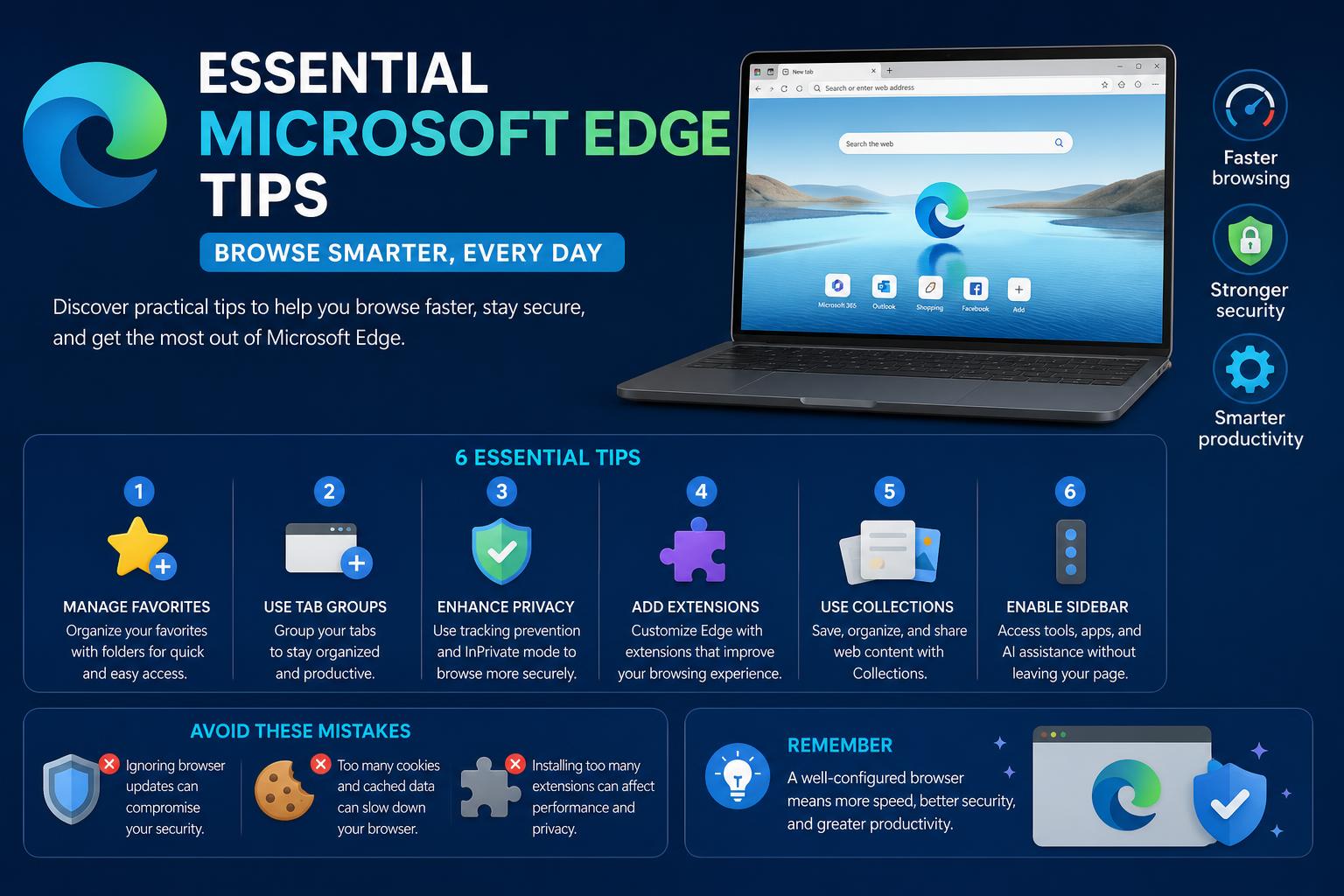
Microsoft Edge has come a long way from its Internet Explorer roots, shaking off the past and emerging as a contender in the world of modern browsers. With a fresh Chromium base and a flood of useful features, Edge now caters to casual users, professionals, and everyone in between—mixing speed, security, and pure convenience under one hood. If you’re looking for ways to unlock Edge’s full potential, you’ve landed at the right place. This guide will share the most extensive and current microsoft edge tips, tricks, and must-know features to instantly level up your browsing experience.
What sets Microsoft Edge apart isn’t just its speed or compliance with web standards, but its impressive toolkit built to help you browse smarter, stay organized, and get more done—on any device. Whether you’re switching from another browser, want to make Edge truly yours, or are simply curious about everything it can do, we’ve gathered detailed advice leveraging all the best public sources and official documentation for a truly in-depth exploration.
1. Importing Data: Seamless Transition from Any Browser
Moving to a new browser can feel daunting. Thankfully, Edge streamlines the entire migration process so you can bring your bookmarks, saved passwords, history, and other personalized settings straight from Chrome, Firefox, or any other popular browser.
- Open the Edge browser and head to Settings.
- Click on ‘Profiles’ and locate the option ‘Import browser data.’
- Choose your previous browser (e.g., Chrome), confirm the profile, and hit ‘Import.’
Let the transfer finish; make sure your PC stays on during migration. This simple process ensures you don’t lose any of your digital essentials during the jump to Edge.
2. Transform Your Experience with Edge Extensions
The Microsoft Edge Add-ons Store (find it here) is packed with productivity boosters, security tools, shopping extensions, and aesthetic tweaks. Whether you want to block ads, manage passwords, or spruce up your browser with a new theme, it’s all there.
- Browse thousands of extensions, including options ported from the Chrome Web Store.
- Install add-ons with one click and manage permissions directly in the extensions tab.
- Keep extensions updated for maximum benefit—and don’t shy away from experimenting with new ones to streamline your workflow!
3. Personalize Edge: Themes, Homepages, and More
Edge lets you customize every corner of your browsing environment to match your style and habits.
- Switch to Dark Mode for a more comfortable browsing experience at night or in low-light settings. Look for the ‘Appearance’ section in Settings to enable this eye-friendly mode with just a click.
- Customize your homepage and new tab layouts by clicking the gear icon on your start page. Here, you can select between layout presets or design a completely unique homepage experience, including quick links, background images, and personalized news feeds.
4. Organize with Collections: Next-Level Bookmarks
Collections on Edge are a game-changer for organizing research, shopping lists, recipes, trip plans, or any set of web pages. They go beyond bookmarks, letting you gather web content, add notes, and sync everything across devices.
- Click the ‘Collections’ icon in the top-right or use the menu to start a new collection.
- Name your collection, then add web pages, images, or drag-and-drop content directly into it.
- Add personalized notes to any item, helping you keep extra context or reminders for later.
- Collections are shareable—send them to friends or colleagues, or access them on any device logged into your Microsoft account.
Perfect for students, professionals, or avid web explorers who need structure to their online activities.
5. Tidy Tabs: Master Vertical Tabs for Productivity
If you’re a chronic multi-tabber, vertical tabs are a lifesaver. Instead of cramming endless tabs at the top, this feature shifts your tabs to a sidebar, neatly organizing even dozens at a time.
- Enable vertical tabs by clicking the vertical tab icon (top left) of the tab row.
- Collapse the bar when you need more screen space—thumbnails and tab titles remain accessible.
- This feature shines for those juggling research-heavy tasks, projects, or comparing products across multiple sites.
6. Performance Boosters: Efficiency and Battery Savings
Edge is designed to be thrifty on resources—but there’s more you can do to maximize battery life and speed.
- Activate Efficiency Mode: Click the battery icon in your taskbar and turn on ‘Battery saver.’ When browsing on laptops, this mode also optimizes energy usage—just look for the ‘heart pulse’ icon in the browser as confirmation.
- In Settings, you can tweak when Efficiency Mode activates automatically or keeps running under certain conditions (like unplugged or low battery states).
- Startup Boost: This feature shortens launch times by keeping core Edge processes running, so your browser springs to life with minimal delay.
7. Streamlined Shopping: Coupons, Price Comparisons, and Edge Shopping Tools
Edge has baked-in tools that make online shopping smarter and often cheaper.
- When you visit a shopping site, Edge will highlight coupon notifications in the address bar. Click the price tag icon to see available offers and apply discounts at checkout—no third-party extensions needed.
- The price comparison tool automatically scans for better deals, alerting you if the same product is cheaper elsewhere.
These features help you save time and money, making Edge one of the best browsers for value-conscious shoppers.
8. Privacy, Security, and Site Blocking
Your privacy comes first in Microsoft Edge. The browser comes with robust controls that block intrusive trackers, third-party cookies, and other privacy threats by default.
- Under ‘Privacy, search, and services’ in Settings, choose between three preset privacy levels: Basic, Balanced, and Strict. Adjust these to control how much data sites can collect about you.
- Customizable site blocking: Block websites or unwanted trackers to further secure your browsing. You can specify sites to never allow cookies or even prevent access altogether.
With regular security updates and integration with Microsoft Defender SmartScreen, Edge sets a high bar for browsing safety.
9. Cortana and Voice Assistance
Edge is deeply integrated with Microsoft’s voice assistant, Cortana, giving you hands-free control and smart search suggestions.
- Enable Cortana in your Windows system settings, then use voice commands to search the web, set reminders, or check the weather right from your browser.
- Cortana also appears in the Windows Search bar and can help you seamlessly continue tasks initiated in Edge on other devices.
This hands-off approach streamlines multitasking and helps you stay organized, especially on busy days.
Edge bridges the gap between devices beautifully. If you start reading an article or researching a project on your phone, you can continue instantly on your computer using the ‘Continue to PC’ feature (see Microsoft’s official Edge features) for more details. All you need is your Microsoft Account activated on both devices.
- This keeps your browsing history, open tabs, and even collections perfectly in sync, no matter where you are.
- It’s a fantastic feature for users with multiple PCs or who regularly switch between work and personal devices.
[relacionado url=”https://www.ikkaro.net/what-is-flipper-zero/”]
11. Rewards for Searching: Make the Most of Bing on Edge
Did you know you can earn points just by browsing? Microsoft’s rewards program gives you extra value for searching with Bing on Edge. These points can be redeemed for gift cards, sweepstakes entries, or charitable donations. Sign up here to start earning more for your everyday browsing.
12. Saving with Enhanced Print and PDF Features
Edge’s built-in PDF reader is among the best you’ll find in a browser. Annotate, highlight, and even add signatures to PDF files directly in the browser—no need for any external software. The browser’s print preview options let you print clutter-free pages or save web content to PDFs for reference, archiving, or easy sharing.
13. Accessibility and Screen Time Tools
Edge places a heavy emphasis on making the web accessible and helping you manage your online habits. Features like immersive reader simplify web pages for distraction-free reading, while tools for managing parental controls and tracking screen time put browsing safety and balance at the forefront. Check out this Windows Forum guide for actionable tips on optimizing productivity and well-being using Edge.
14. In-Browser Help and Support
If you ever need guidance with Edge, Microsoft and PC manufacturers like Dell offer extensive help desks and video tutorials. These resources, such as the Dell’s Edge tips video, walk you through everything from importing data to organizing shopping with collections or finding real-time support for any technical bumps.