
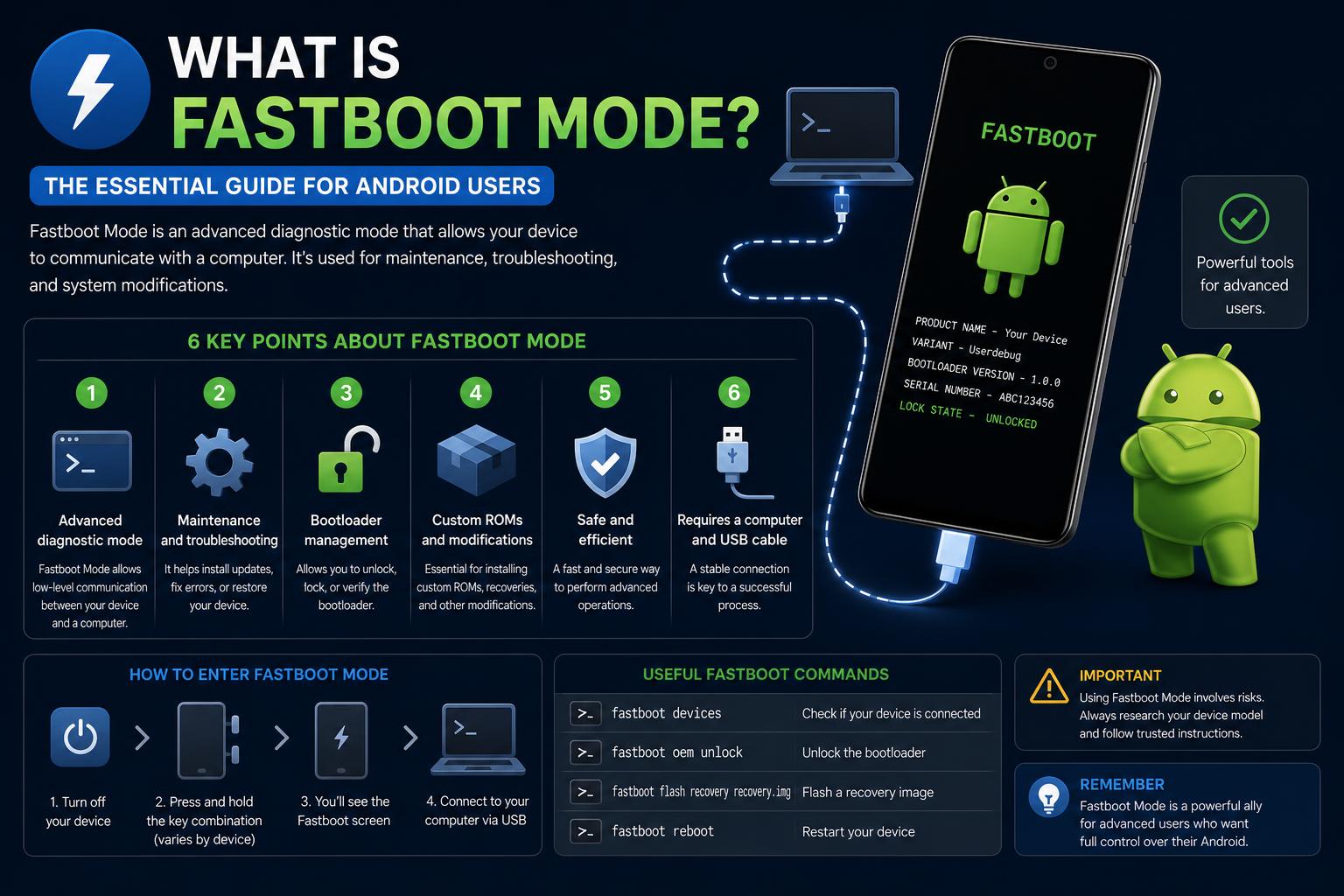
- Fastboot mode grants deep access for Android recovery, unlocking, and custom firmware installation.
- It enables businesses to restore, secure, and configure devices efficiently at scale.
- Understanding risks, commands, and correct procedures is essential for safe Fastboot use.
Fastboot mode is one of those behind-the-scenes tools that sounds intimidating at first, but knowing how to use it can be the difference between reviving your Android device or having to replace it. The world of Android is full of surprises, and while most of us go about our daily device use oblivious to the complex systems running underneath, Fastboot mode quietly enables deep recovery, customizations, and advanced troubleshooting. If you’ve ever wondered what happens when your device just won’t start or how repair experts recover so-called ‘bricked’ phones, Fastboot mode is likely at the heart of their magic.
If you feel lost when you hear terms like bootloader, flashing, or partitions, you’re not alone. This article breaks everything down into plain English, guiding both newcomers and more adventurous users through what Fastboot mode really is, why it matters, and how it can be used safely for everything from simple fixes to complete device overhauls. Whether you want to breathe life back into a stubborn phone, flash a brand-new firmware, or even enforce company-wide device security, you’ll discover how Fastboot mode can be a game changer.
What is Fastboot Mode on Android?
Fastboot mode is a low-level diagnostic and communication mode built into most Android devices. It serves as a bridge between your phone or tablet and a connected computer, allowing commands to be sent over USB even before the operating system starts. Think of Fastboot as a secret entryway into your device’s deepest controls—the moment the device powers on, Fastboot is accessible through the bootloader long before Android itself loads.
Unlike the more familiar Recovery Mode, which offers basic troubleshooting menus, Fastboot Mode bypasses Android entirely. It works at a more fundamental level, directly interacting with your device’s partitions, bootloader status, and firmware. That’s why it’s the go-to method for unbricking, flashing, unlocking bootloaders or fixing problems that standard OS recovery tools can’t touch.
Originating from Google, Fastboot is officially part of the Android SDK (Software Development Kit) and is written in C++ for efficiency and flexibility. Its role is so important that every manufacturer—unless they’ve chosen to exclude or lock it—has to decide which button combination will put their device into Fastboot mode at startup.
Key Uses and Powers of Fastboot Mode
Fastboot mode isn’t just for techies and developers. It’s used by IT professionals, repair shops, and even advanced everyday users who understand its risks and rewards. Here are common scenarios and tools provided by Fastboot mode:
- Unlocking or locking the bootloader: Essential for anyone wanting to install custom recovery, ROMs, or root their device. Locking it afterwards restores device security.
- Flashing stock or custom firmware: Helps recover corrupted devices, manually update Android when over-the-air (OTA) updates fail, or load custom ROMs for extra features and better performance.
- Fixing bootloops and soft bricks: When a device is stuck in a never-ending cycling reboot, Fastboot can often flash a fresh system image to rescue it.
- Installing new recovery images: Advanced backups and low-level fixes require custom recoveries like TWRP, typically installed with Fastboot commands.
- Repairing or erasing system partitions: Clean specific areas without resorting to a full factory reset, or perform complete wipes for new setups.
At its core, Fastboot is about direct access to your device’s deepest controls—like having the keys to the digital workshop, not just the toolbox.
How Does Fastboot Mode Differ from Recovery Mode?
Fastboot mode and Recovery mode are often confused because both are reached via hidden button combinations and can help rescue a problematic device. However, their roles and capabilities are different:
- Recovery mode lives at a higher level—it’s meant for tasks like factory resets, updating via official files, and cache wipes.
- Fastboot mode sits at the core: it can tell the bootloader what to do, flash complete system images, and even intervene when Android won’t start.
When Recovery fails—and especially if the device won’t even reach that menu—Fastboot is your last lifeline.
How to Enter Fastboot Mode on Your Device
Accessing Fastboot mode can vary by manufacturer. However, the general approach follows these steps:
- Turn your device off entirely.
- Press and hold a specific combination of buttons while powering on. For many devices, that’s Power + Volume Down. Some use Power + Volume Up, sometimes even all three (Power + Volume Up + Volume Down). For brands like HTC, Google Pixel, Motorola, and Xiaomi: it’s most often Power and Volume Down. Sony might require Power and Volume Up. Always double-check your device’s manual to avoid confusion.
- Release the buttons when the Fastboot (or Bootloader) screen appears. This screen may feature the Android robot, brand logo, or just the word ‘Fastboot’ depending on your model.
Alternatively, if your device is already running with developer options and USB debugging enabled, you can enter Fastboot mode directly via your computer. Connect your device to your PC, open your Command Prompt or Terminal, and type:
adb reboot bootloader
This command—sent from Android’s ADB tool—will restart your device straight into Fastboot mode.
Exiting Fastboot Mode
Leaving Fastboot mode is simple but important to do correctly. The universal method is holding down the power button for about fifteen seconds until your device restarts. If you’re connected to your computer, you can issue:
fastboot reboot
This command tells your device to safely exit Fastboot and return to normal operation. If your device seems stuck, avoid disconnecting cables or removing batteries unless you absolutely must—this can cause data corruption. Patience here pays off.
Most Important Fastboot Commands
Once in Fastboot Mode, your device waits for instructions from your computer via the Fastboot tool included in the SDK. Here are some of the fundamental Fastboot commands:
- fastboot flashing unlock / fastboot oem unlock: Unlocks the bootloader so you can flash custom images.
- fastboot flashing lock / fastboot oem lock: Relocks the bootloader, restoring device security.
- fastboot flash : Writes a specific image file to a targeted partition (system, boot, recovery, etc).
- fastboot erase : Erases a partition (like userdata or cache), often for troubleshooting or prepping for a fresh install.
- fastboot format : Formats a partition with the necessary file system for deep cleaning.
- fastboot reboot: Restarts your device from Fastboot mode back to normal operation.
- fastboot devices: Lists all Fastboot-compatible devices connected to your computer.
- fastboot oem device-info: Checks the device’s bootloader status and other useful hardware details.
- fastboot getvar all: Displays device variables including IMEI, battery status, bootloader version, and more.
Each command directly manipulates system-critical files and partitions—accuracy is essential. One wrong image or mistyped partition name and you could brick your device for good. Always verify the files and commands you use, and whenever possible, do a full backup first.
Benefits of Using Fastboot Mode
Fastboot mode is invaluable for anyone who needs absolute control over Android devices, especially for businesses, developers, and power users. Key advantages include:
- Restoring broken devices: Fastboot can revive devices that refuse to boot, potentially saving hundreds of dollars in hardware replacements.
- Manual updates and upgrades: Install the latest firmware or custom ROMs even when official support ends.
- Advanced recovery options: Fix bootloops, flash custom recoveries, or reformat partitions without Android running.
- Bulk device configuration for enterprises: IT teams can standardize and configure large fleets of devices by automating Fastboot flashes, making onboarding and maintenance much smoother.
- Improved security and privacy: Installing custom ROMs via Fastboot can embed deeper permission controls and strip out unwanted tracking or pre-installed bloatware.
When the regular settings don’t cut it—or the device won’t even get to that point—Fastboot puts you in the driver’s seat.
Risks and Precautions
With great power comes great responsibility; Fastboot commands can be risky if used without care. Important tips include:
- Always back up your data before proceeding. Unlocking or formatting partitions will likely wipe everything, including personal files, apps, and system settings.
- Use only firmware and images designed specifically for your device model. Mixing files between models is a sure-fire path to permanent bricking.
- Do not rush—take your time confirming each command and file. A slow, patient approach reduces the risk of mishaps.
- Keep your device charged above 50% to avoid dying mid-process. If the phone shuts down unexpectedly during a flash, the damage could be irreversible.
By following these precautions, Fastboot becomes a powerful ally with minimal risk.
Fastboot Mode and Mobile Device Management (MDM) in Organizations
Fastboot isn’t just for hackers and hobbyists. In corporate environments, it’s a cornerstone for robust Mobile Device Management (MDM), especially at scale.
- Device Recovery and Troubleshooting: IT teams rely on Fastboot mode to restore bricked devices, handle wide-scale firmware updates, or bring a device back to life from corruption or malware attacks. With MDM solutions, this process can even be automated, reducing downtime and support costs.
- Enforcing Security Policies: Fastboot allows administrators to lock or unlock bootloaders, install secure firmware, and quickly wipe and re-provision lost or compromised devices. Combined with MDM, this can ensure strict compliance and minimize data breaches.
- Deploying Custom Firmware at Scale: Companies often have devices pre-configured with custom ROMs, security lockdowns, or company branding—which is streamlined by Fastboot automation through MDM tools. Learn more about enterprise solutions by visiting solutions like VantageMDM.
- Preventing Unauthorized Changes: By using MDM to enforce locked bootloaders and monitor for unauthorized unlock attempts, organizations protect devices (and sensitive data) from being tampered with by users or third parties.
- Streamlined Provisioning: Fastboot enables devices to be flashed, enrolled, and secured rapidly, ensuring new hires or remote workers get up and running without IT bottlenecks.
Common Fastboot Mode Problems and How to Fix Them
No technology is perfect, and Fastboot can sometimes cause confusion, especially if a device appears stuck in this mode.
- Device is stuck in Fastboot mode and won’t exit: Usually resolved by holding the Power button for 10-20 seconds or using
fastboot rebootfrom a connected computer. Some stubborn cases may require battery removal or waiting for a full discharge. - ADB and Fastboot commands aren’t recognized: Ensure the Android SDK tools are properly installed on your computer and that device drivers are up-to-date. Always check your USB cable and port, as a faulty connection can result in failed flash attempts or lost communication.
- Bootloader unlock option is unavailable: Some devices (especially those sold by carriers) have locked bootloaders that cannot be unlocked without special codes or prerequisites. Make sure OEM unlocking is enabled in developer options and that your device is not carrier-locked beyond end-user control.
Which Devices Support Fastboot Mode?
While Fastboot support is widespread among Android devices from leading brands like Google, HTC, Motorola, and Xiaomi, not every device has it enabled. Manufacturers can choose to implement their own protocols, such as Samsung, which uses ODIN mode instead for low-level flashing.
- For Samsung devices (non-Nexus), the equivalent is ‘Download’ or ‘ODIN’ mode, entered by pressing Power, Volume Down, and Home. Fastboot commands won’t work there—you’ll need Samsung’s proprietary tools.
- Always confirm with your manufacturer’s documentation whether Fastboot is available on your specific device—and never assume cross-brand compatibility.
The breadth of Fastboot’s support is part of why it’s so powerful, but double-checking saves a lot of headaches in the long run.
Extra Resources and Official Documentation
Diving deeper into Fastboot mode pays off, whether you’re a tinkerer, IT admin, or just someone who wants to be prepared for Android emergencies. Official guides and further reading include:
Understanding and using Fastboot mode unlocks new levels of power and flexibility over your Android device.
How to Repair Windows 11 Using Command Prompt: Advanced Techniques & Best Practices