
- Microsoft Dev Home unified environment setup, workflows, and resource monitoring for Windows developers in a single dashboard.
- Key integrations included Visual Studio, WSL, WinGet, system widgets, and deep GitHub connectivity.
- Deprecation in 2025 means features are migrating; alternatives and future solutions are already available for developers.
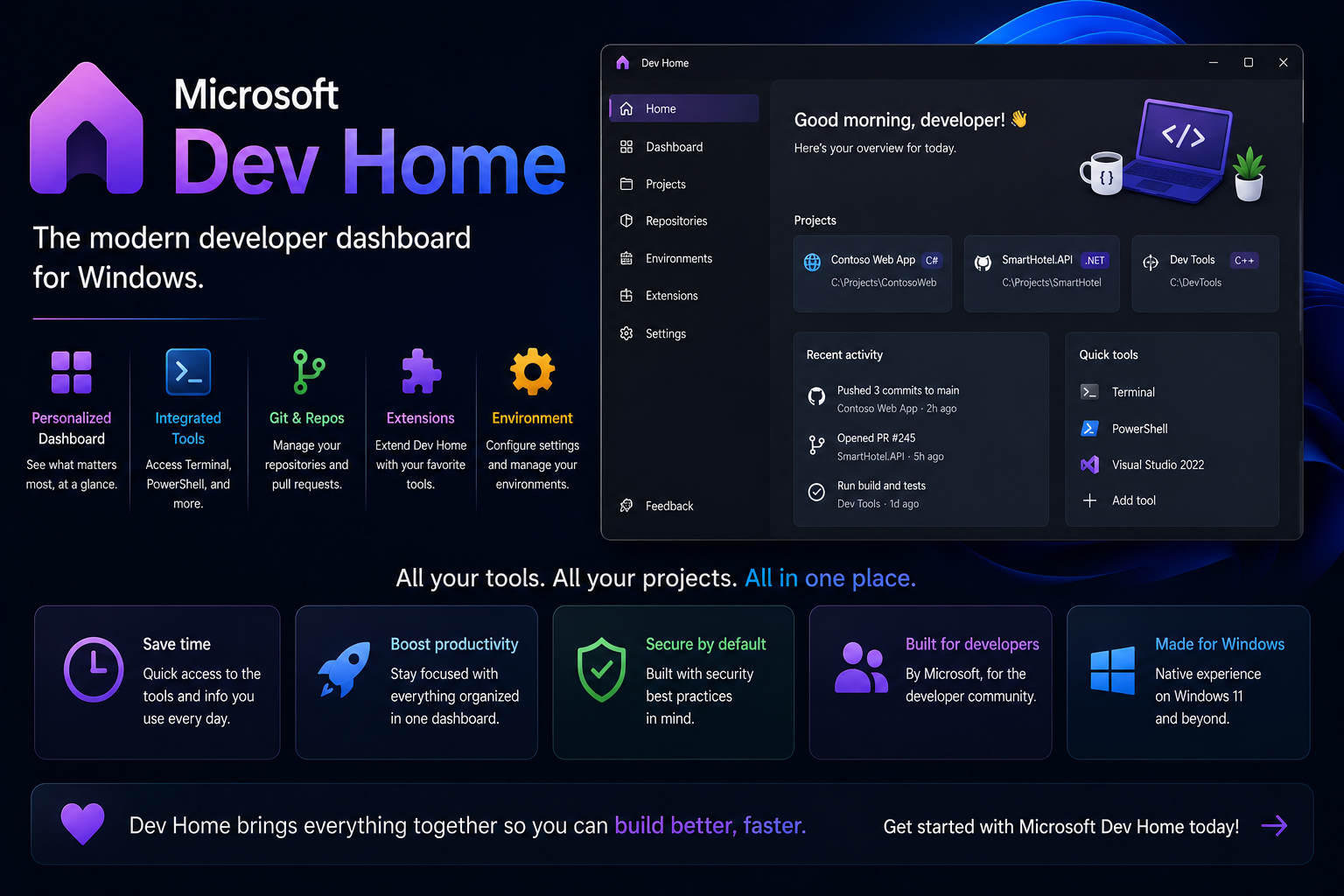
Are you a developer eager to transform your Windows experience? Over the last few years, Microsoft introduced and evolved an app known as Microsoft Dev Home, aiming to streamline workflows, simplify environment setup, and give both seasoned coders and newcomers a powerful central hub for their development needs. Just as Dev Home sought to unite key tools and processes under one roof, the developer community quickly took notice—and with good reason.
However, the journey of Dev Home has been anything but static. From its promising release in 2023 through headline-worthy innovations and, lately, to news of its abrupt deprecation, there’s been a flurry of interest and questions. What exactly is Dev Home? What features set it apart? Why is Microsoft discontinuing it, and what does this mean for you as a developer or enthusiast interested in tailored Windows development? This guide brings together everything you need to know, digging deep into features, supported tools, extensibility, usage, and the future of development on Windows in the post-Dev Home era.
Understanding Microsoft Dev Home: Origins and Core Intentions
Microsoft Dev Home (view project) was built with a clear vision: to provide a cohesive, customizable dashboard that helps developers manage, configure, and monitor their coding environment on Windows 11 and Windows 10.
Launched in May 2023 as a response to community demand, its debut was nothing short of ambitious. Microsoft positioned Dev Home as “a new experience in Windows 11 that gets you back in the zone and streamlines your workflow”. It centralized essential developer resources, made environment setup faster, and introduced powerful features like WinGet configuration, Dev Drive, a customizable dashboard, and integrations with GitHub, Virtual Machines, and more.
What Is M5Stack Stick? In-Depth Guide to Powerful Mini IoT Dev Kits
Dev Home’s Most Important Features
Let’s break down the pillars of Dev Home, which made it so interesting for Windows developers:
- Customizable Dashboard: At its heart, Dev Home offered a unified dashboard for tracking workflows, coding tasks, and resource usage through widgets. This meant developers could quickly monitor CPU, RAM, GPU metrics, and see project summaries all in one place.
- Machine and Environment Setup: With Machine Configuration, users could provision local machines or even cloud-hosted VMs, all managed through the powerful WinGet Windows Package Manager. This simplified not just app installations, but also configuring the entire development stack.
- Integration with Developer Tools: Out of the box, Dev Home connected with popular tools like Visual Studio, Visual Studio Code, Windows Subsystem for Linux (WSL), Windows Terminal, and more. Importantly, it enabled deep GitHub integration, making it easier to clone repositories and synchronize coding environments.
- Dev Drive and Enhanced File System: Using the ReFS file system, Dev Home let users set up a ‘dev drive’ with improved performance and security tailored for source code and developer workloads.
- Widgets and Extensions: Dev Home was built for extensibility. Developers could add custom widgets to the dashboard and experiment with extensions, like those tailored for game development (see the Game Development Extension Preview).
Why Was Dev Home So Unique?
Microsoft wasn’t simply building another app; it was creating a developer-focused command center. With Dev Home, everything from environment configuration to progress monitoring was brought under a single interface. It solved headaches like tracking down scattered tools, wrangling dependency issues across multiple machines, and getting new environments up faster—whether locally or in the cloud.
Highlights that cemented its popularity included:
- One-Stop Setup: Developers could install multiple packages, set variables, tweak key settings, and even create optimized dev-oriented drives—all from the dashboard.
- Extensibility for Specializations: For example, the Microsoft Game Dev Extension demonstrated how widgets and customizations could tailor the Dev Home experience for specific fields.
- Fast Project Kickstarting: Integration with GitHub and Microsoft Dev Box meant setting up cloud coding environments like GitHub Codespaces became painless.
How Did Dev Home Work in Practice?
Getting started with Dev Home was refreshingly simple:
- Installation: Users running Windows 11 21H2 or Windows 10 22H2 or newer could find Dev Home in the Start Menu or download it from the Microsoft Store. For manual installs or for users preferring package management, the
Microsoft.DevHomewinget package was also available. - Dashboard Customization: The interface relied on Windows widgets, based on Adaptive Cards, allowing a modular approach. Developers immediately benefited from critical system and workflow insights placed front and center.
- Machine Configuration Tool: Powered by the Dev Home GitHub Extension, this tool simplified cloning repos, installing project-required applications, and configuring the entire coding stack—whether from scratch or for onboarding new teammates.
- Extensions and Widgets: The 2024 introduction of the Game Development Extension Preview illustrated how extensions let communities build tailored experiences atop Dev Home—solving specific pain points for fields like game development by helping automate repetitive installs and making critical info accessible at a glance.
What is Kode Dot? The Ultimate All-in-One Device for Makers and Hackers
The Toolkit: What Could You Install and Manage?
Dev Home enabled quick setup and management of the most popular developer tools, emphasizing seamless workflow integration. Among the primary supported apps and features were:
- Visual Studio and Visual Studio Code – For full-scale application development and code editing, respectively.
- Windows Subsystem for Linux (WSL) and Windows Terminal – Bringing Linux workflows and multi-shell access directly to Windows.
- WinGet Windows Package Manager – Automated installation of apps and dependencies, optimizing for speed and repeatability.
- Environment Variable Management and Dev Drive Configuration – Giving granular control over dev-specific settings, variables, and filesystems.
- Modern System Tools – Including a modernized Hosts File Editor and Registry File Editor for power users.
Choosing and installing these tools became as easy as a couple of clicks, with the dashboard offering recommendations based on what was popular with other developers in the ecosystem.
Complete guide to setting up your new phone from an old device
Why Are Developers Talking About Its Deprecation?
Despite its initial promise and active community, 2025 brought a major turn: Microsoft announced the deprecation of Dev Home, with support ending in May 2025 (details here).
The official message was terse, stating that while “a subset of its features will be moved to new places”, the standalone Dev Home app would cease to exist. The specifics about which features would survive or where they’d be relocated remained unclear as of early 2025, prompting developers to explore alternative setups and to voice concerns regarding the loss of such an all-in-one configuration tool.
Community and Ecosystem Impact
The community surrounding Dev Home played a crucial role in its direction. Since all development occurred openly on GitHub (), third parties and enthusiasts were able to suggest, debug, and even extend the app themselves. One highlight was the Game Development Extension Preview (), where Microsoft, working alongside Team Xbox, created a tailored extension to show just how specialized Dev Home could become for different developer audiences.
This openness fostered new possibilities—such as automation of dependencies for complex environments, improved discoverability of hidden developer tools, and easy access to important project data. However, while the source code and documentation remain available, and some widget and extension ideas may carry over to built-in Windows features or third-party solutions, the project will no longer receive official Microsoft support.
Microsoft Surface Devices: The Definitive Guide to Laptops, Tablets & More
Installation, Compatibility, and Versioning
Who could use Dev Home? Anyone on Windows 11 (version 21H2 or higher) or Windows 10 (22H2 or higher) was eligible. For the smoothest experience, Microsoft recommended using Windows 11 23H2 and above, as some widgets required the latest system-level widget platform updates.
Dev Home could be installed directly from the Start Menu, via the Microsoft Store, or with the WinGet command-line package. Even with its deprecation notice, older versions may still be available for download on GitHub releases for a time, but with the caveat that ongoing security and feature updates will cease after May 2025.
Troubleshooting and Support During the Transition
As Microsoft winds down Dev Home, the company has actively recommended that users consult the official documentation for any ongoing use cases. Community support mainly persists through GitHub Issues and discussions, but these are being slowly archived, along with direct feedback mechanisms (see the archive notice).
New issues relating to installation, extensions, or compatibility should be checked against the closed issues and docs before seeking alternatives. Microsoft has also referenced the likely migration of some Dev Home features to other built-in Windows 11 experiences, but concrete details remain pending at this time.
What Are the Alternatives and Next Steps?
The impending deprecation doesn’t leave developers without options. Given Dev Home’s extensive integration with existing Microsoft tools, users can continue using:
- WinGet Package Manager for app installation.
- Visual Studio / VS Code for source editing and IDE work.
- Windows Terminal and WSL for advanced shell and Linux-in-Windows workflows.
- Cloud solutions like Microsoft Dev Box and GitHub Codespaces for virtualized setups.
Widgets and configuration dashboards may shift toward the existing Windows 11 Widgets Board or rely on third-party extensions until a replacement for Dev Home’s dashboard emerges. Power users may still operate with scripting and tools like PowerShell for more customized environment orchestration.
Developers and IT admins should stay alert for updates on where (and how) Dev Home’s best features get reincorporated into the broader Windows ecosystem. With new features moving into Windows 11 and ongoing innovation in package management, environment setup, and dashboards, it’s likely developers will see even better solutions on the horizon.
Microsoft Dev Home marked an important step for Windows development, offering a centralized, extensible dashboard, fast setup tools, and a glimpse into the future of streamlined developer experiences. Its impact is still felt in how upcoming features are designed to cater to modern workflows—proving that even as the app sunsets, the drive for better developer tools on Windows is only gaining momentum.