
- ,
- Microsoft Publisher specializes in simple, visual desktop publishing for non-designers.
- Publisher will no longer be supported by Microsoft after October 2026.
- Modern alternatives include Word, PowerPoint, and third-party publishing tools.
- Timely file conversion is crucial due to the phased discontinuation and evolving formats.
Microsoft Publisher has long been a cornerstone tool for desktop publishing within the Microsoft Office suite. Although it may not enjoy the same limelight as Microsoft Word or Excel, Publisher has carved out a niche for users who want to design visually appealing printed materials without investing in advanced and often expensive graphic design applications. Whether you’re running a small business looking to create professional flyers or an everyday user making greeting cards at home, Publisher’s easy-to-use layout tools and built-in templates have made it a go-to solution for decades.
This guide explores in depth what Microsoft Publisher is, how it fits into the desktop publishing landscape, the core features it offers, its strengths and weaknesses, and the eventual discontinuation of the product. We’ll also tackle practical usage, compatibility concerns, available alternatives, and futureproofing your documents, so you’re fully informed about Publisher’s capabilities and legacy.
What is Microsoft Publisher?
Microsoft Publisher is a desktop publishing application developed by Microsoft as part of various Microsoft Office editions, first released in 1991. Unlike Microsoft Word—which emphasizes document creation, text composition, and proofreading—Publisher is purpose-built for page layout and graphic design. It enables users to combine text, images, backgrounds, graphics, and other design elements into compelling visual publications.
Publisher stands out due to its user-friendly interface and deep integration with the Windows ecosystem. It’s best suited for users who aren’t professional designers but need to produce professional-looking materials such as brochures, newsletters, postcards, banners, business cards, and more. With a wide range of templates and “building blocks,” people can quickly produce eye-catching designs without advanced skills.
History and Evolution of Microsoft Publisher
Launched in 1991, Publisher quickly became a staple of higher-tier Microsoft Office bundles, positioning itself as a cost-effective and approachable alternative to dedicated, professional-grade publishing programs like Adobe InDesign and QuarkXPress. Its audience mainly included small businesses, educators, and personal users needing periodic creation of marketing or informational material.
Over its development lifecycle, Publisher’s interface evolved to mirror the core Office experience while maintaining powerful layout controls. Notably, while most Office applications adopted the “ribbon” UI in Office 2007, Publisher kept its traditional toolbars until Office 2010. Despite enhancements, Publisher maintained a relatively small share of the desktop publishing market compared to industry heavyweights but remained a preferred tool for users seeking simplicity and robust templates.
Key Features of Microsoft Publisher
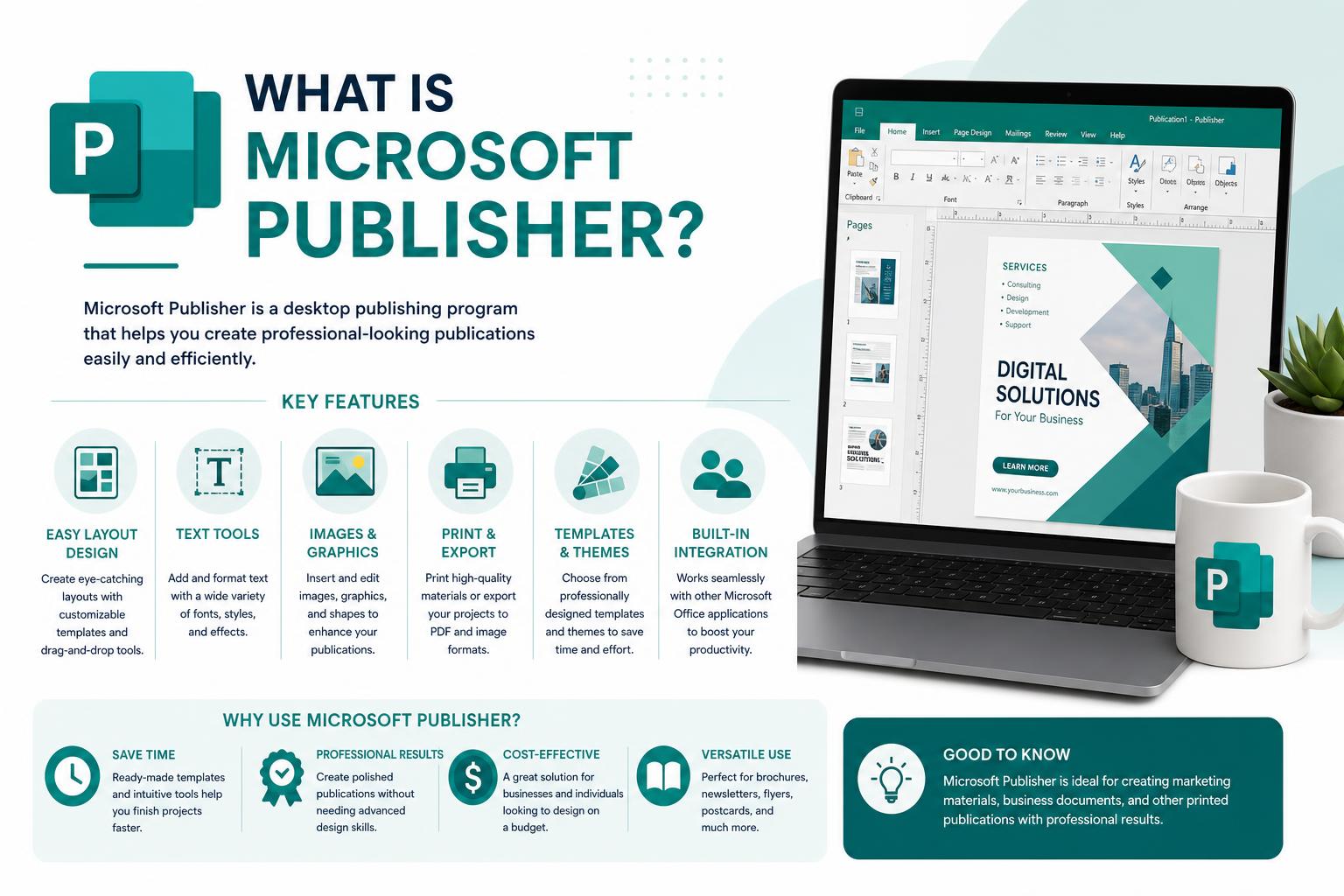
- Ready-to-use Templates: Offers a vast collection of professionally designed templates for business cards, newsletters, flyers, postcards, banners, catalogues, greeting cards, and calendars, providing a jumpstart to any project.
- Building Blocks: Allows users to drag and drop reusable elements—like sidebars, headers, borders, and calendars—into designs, easily constructing multi-purpose layouts.
- Technical Effects: Supplies effects and formatting tools for text, shapes, and images such as shadows, gradients, and detailed color schemes, elevating document aesthetics with minimal effort.
- Simple Image Management: Makes importing, replacing, and arranging images straightforward, with drag-and-drop functionality and the ability to swap pictures effortlessly within placeholders.
- Text and Paragraph Controls: Provides advanced control over text, including linking text boxes for seamless content flow and fine-tuning fonts, spacing, and columns.
- Integrated Mail Merge: Enables personalization for mass mailings, perfect for business communications or invitations, directly pulling recipient info from Excel or Outlook contacts.
- Custom Color Schemes: Lets users pick from pre-made palettes or create unique color combinations to maintain brand consistency.
- Detailed Rulers and Guides: Helps achieve precise alignment and placement of all objects and text through adjustable rulers and baseline guides.
- Export and Sharing Options: Supports saving in various formats (including PDF and HTML), facilitating print and digital sharing, and makes sending drafts or preparing print orders easy.
Use Cases: What Can You Create with Publisher?
Thanks to its template-driven workflow and range of features, Publisher excels at a wide range of publication types:
- Newsletters and Brochures: Ideal for small business updates, product launches, and community news.
- Flyers and Posters: Great for advertising events, special offers, or announcements with customizable graphics and text.
- Business Cards and Letterhead: Design bespoke branding materials without design experience.
- Calendars, Certificates, Invitations: Personalize important documents for professional or personal use.
- Labels, Envelopes, and Mailing Lists: Streamline organization and outreach with export and mail merge capabilities.
- Catalogues and Yearbooks: Build complex, multi-page documents using text flow and image tools.
Getting Started: Basic Workflow in Publisher
Microsoft Publisher’s workflow is designed for simplicity. Here’s an overview of its fundamental tasks:
- Start with a Template: Every new publication begins with a template, accessible via “File > New.” Choose from featured templates, built-in categories, or search online for options matching your vision.
- Personalize Your Layout: Insert and modify text, images, and building blocks. Use “Home > Draw Text Box” to add or link text boxes, “Insert > Pictures” to add graphics, and manipulate page elements using drag-and-drop tools and guides.
- Format and Arrange Elements: Fine-tune fonts, colors, spacing, and alignment. Utilize detailed rulers and guides to achieve a polished look.
- Save and Share: “File > Save As” lets you save projects locally, to the cloud with OneDrive, or other web locations. Documents can be exported as PDF or HTML, perfect for sharing or printing.
- Print and Deliver: Publisher’s print settings (“File > Print”) make it easy to select printers, paper sizes, and output preferences—ensuring your final product looks exactly as intended.
Advanced Capabilities
For users needing more, Publisher provides advanced features not typically found in Word or PowerPoint:
- Image Backgrounds: Place high-resolution images as backgrounds, and use transparency tools to blend graphics seamlessly into your layouts.
- Professional Drawing Tools: The drawing toolbar allows for custom shapes, lines, and arrows—useful for diagrams, unique section dividers, or custom graphics.
- Table Creation and Management: Easily insert and configure tables for product lists, calendars, or directories, ensuring organized and professional-looking content.
- Symbol and Special Character Insertion: Add characters for languages, math, or decorative content, enhancing the document’s versatility.
- Selection Pane: Manage and reorder all objects in your publication from a single window, streamlining the editing of complex projects.
Sharing, Saving, and Compatibility
Publisher is built for both sharing and long-term document management. You can save projects as PUB files for editing, but also as universally accessible formats like PDF for viewing and printing, or HTML for web publishing. If multiple objects and images are used, Publisher bundles them together for efficient transfer or backup.
If you need to collaborate or ensure cross-device compatibility, exporting to PDF is recommended since not all collaborators may have Publisher. Additionally, the official Microsoft Publisher support resources provide conversion guides for exporting or importing Publisher files to different formats and applications.
The Discontinuation of Microsoft Publisher
Microsoft announced in early 2024 that Publisher will be discontinued and no longer supported after October 13, 2026. This decision marks the end of an era for the tool, meaning Publisher will be removed from Microsoft 365 subscriptions and no longer receive official support or updates. While perpetual licenses (like Office LTSC 2021) can still use the app, no new versions or fixes will be released.
What does this mean for existing users? You can use Publisher as normal until October 2026. After that, if you have a Microsoft 365 subscription, you’ll lose access to the app and your Publisher files. Users with perpetual versions (standalone software bought outright) can technically continue using the application without updates, but no security fixes or customer support will be available.
Prepping for Publisher’s Retirement: Microsoft recommends converting existing PUB files to other formats—such as PDF or Word—well before the support deadline. After October 2026, you might not be able to open or edit PUB files with Publisher. Automated conversion is possible with PowerShell scripts for bulk processing of large file collections. You’ll find an example on the official support page for Publisher’s end of life.
Alternatives and Successors to Microsoft Publisher
As Publisher fades out, Microsoft is encouraging users to transition to alternative tools within the Microsoft 365 ecosystem:
| I want to create… | Try this app… |
|---|---|
| Brochures, Flyers, Business Cards, Certificates | Word or PowerPoint |
| Banners, Posters, Signs | PowerPoint |
| Envelopes, Labels, Letterhead | Word |
| Calendars | Word or PowerPoint |
| Invoices, Forms | Word |
| Greeting or Compliment Cards | Word or PowerPoint |
| Newsletters | Word |
These alternatives incorporate most major Publisher workflows, bolstered by vast template libraries and design features. For users needing even richer publishing options or native PUB file importing, consider third-party programs such as Affinity Publisher, Adobe InDesign, LibreOffice Draw, or Scribus. Some of these tools can import Publisher formats and offer professional-grade design features.
Transitioning Your Publisher Files
To preserve your files:
- Convert PUB files to PDF for long-term viewing and sharing.
- For editing, convert to a Word file by going from PUB to PDF, then opening the PDF in Word. This ensures easy access and continued editing capability after Publisher is discontinued.
- If you have a significant volume of files, consider automating the process with scripts (guides available on Microsoft’s official support site).
Who Uses Microsoft Publisher?
Publisher was intentionally designed for non-designers who need to achieve professional results quickly:
- Small business owners looking to craft marketing material, catalogs, menus, or invoices.
- Educators and students producing bulletins, yearbooks, or newsletters.
- Administrative professionals preparing forms, event flyers, or branded communications.
- Individuals making invitations, calendars, or celebratory cards for personal occasions.
The intuitive interface and close similarity to other Microsoft Office products ensured a gentle learning curve for those familiar with Word or PowerPoint.
Key Technical and Workflow Details
Some of the more technical highlights and practical workflow features include:
- Workspace & Ribbon: Publisher shares the ribbon interface and core navigation with Office, helping users find tools quickly.
- Objects Toolbar: Provides fast access to drawing utilities and building blocks on the workspace’s left sidebar.
- Paragraph Controls & Rulers: Customizes line spacing, paragraph settings, and ensures precision layout using horizontal and vertical rulers.
- Tables and Catalog Pages: Enables list-based data organization and catalog creation, including ready-made, professionally designed pages or the option to start from blanks.
Cross-compatibility and File Format Support
Publisher uses a proprietary .pub extension that’s not universally supported outside Microsoft applications. However, third-party solutions have emerged over time—, , and cloud services such as Collabora Online offer some level of PUB import with varying success. When deeper compatibility is needed, converting to PDF or image formats is strongly advised.
Course Offerings and Training for Publisher
Though Publisher is winding down, many institutions—such as Xavier University of Louisiana—still offer specialized training for users seeking expertise, covering navigation, customization, adding content, formatting, working with graphics, and preparing documents for sharing. Skilled professionals include layout specialists, graphic designers, and office staff who need to efficiently produce and share visually rich publications.
Prerequisites for most courses are basic familiarity with Windows and the Office suite, so beginners can get up to speed quickly.
Looking Ahead: The Legacy of Publisher
While Microsoft Publisher will no longer be developed past 2026, it remains an important chapter in the history of office productivity software. Its ease of use helped millions launch marketing campaigns, announce events, and express creativity—without requiring professional design skills. Users should act now to convert and preserve their .pub documents, exploring alternatives like Microsoft Word, PowerPoint, or third-party programs to keep their workflow seamless.
Publisher’s strengths have always been in its balance of capability and simplicity—the ability to bring together text, images, and creative layouts so even non-designers can produce professional-grade results. As part of Microsoft’s evolution, Publisher’s legacy continues through new tools and enhanced design options within the Microsoft 365 suite and beyond.