
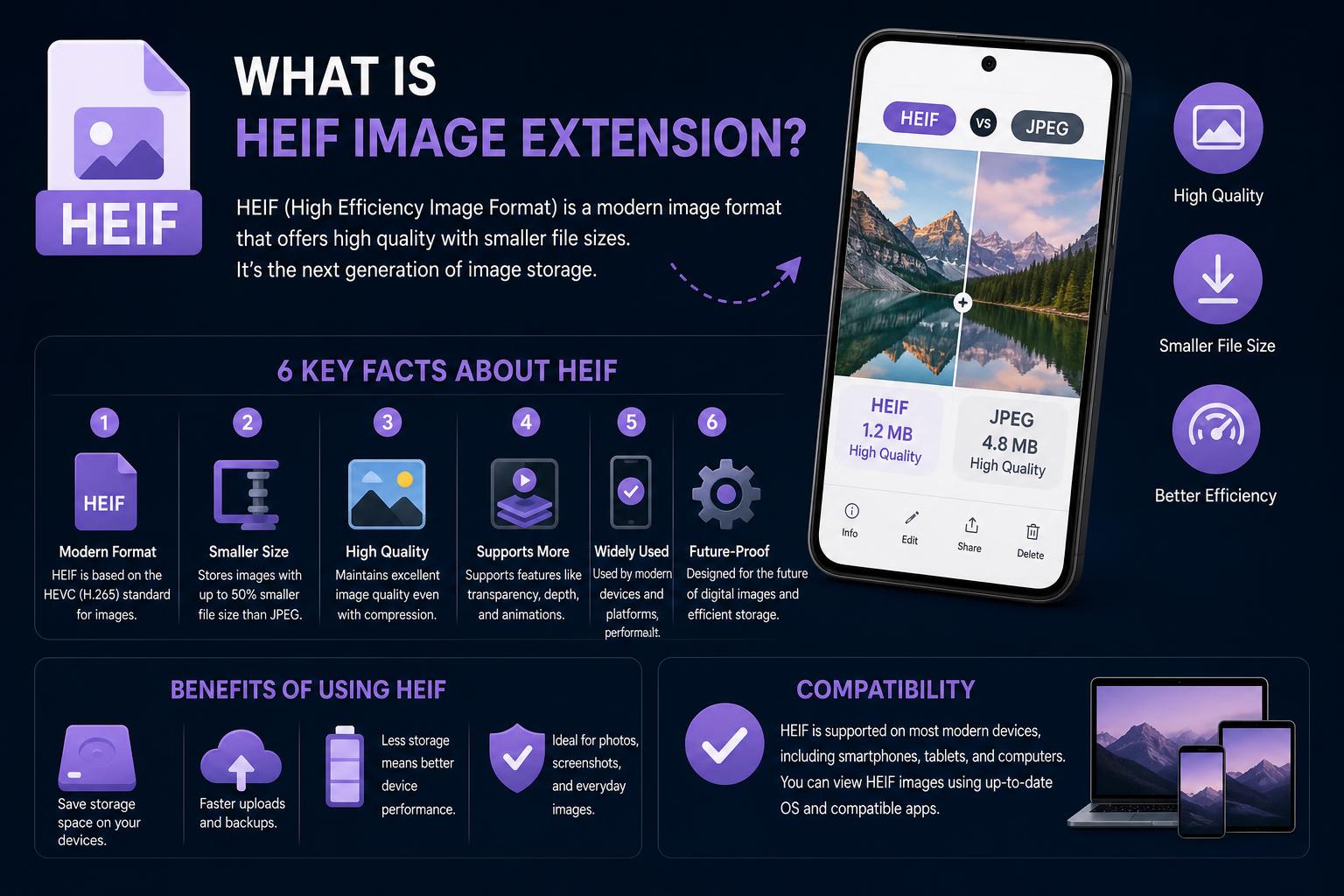
- HEIF offers high-quality images at much smaller file sizes than JPEG
- Native support for HEIF/HEIC requires specific extensions on Windows
- HEIF enhances media with sequences, non-destructive edits, and rich metadata
Have you ever come across a photo with the .heif or .heic extension and wondered what on earth it is? If you’re tired of stumbling over unsupported image files and cryptic download prompts, you’re not alone! The HEIF image extension is rapidly becoming the go-to standard for high-quality digital pictures, but unless you know what it is and how it works, it can be more headache than help.
In this friendly, no-nonsense guide, we’ll crack open the mysterious world of HEIF images and extensions. We’ll break down what makes this format so efficient (spoiler: it stores amazing shots using half the space), how it compares with JPEG, how to view and convert these files, and why your phone, camera, or PC might suddenly be saving images in this format by default. Strap in and let’s explore everything you need to know about HEIF – no jargon, just answers!
What Is the HEIF Image Extension?
HEIF stands for High Efficiency Image File Format. Think of it as a lean, mean image-saving machine developed by the Moving Picture Experts Group (MPEG). Officially introduced in 2015, HEIF is a digital container that can store both still images and image sequences—think regular photos and bursts or animated shots—in an incredibly efficient way. It delivers images with significantly better quality at a fraction of the file size when compared to traditional JPEGs.
The HEIF extension refers to a system add-on or app that allows your device to understand and open these files. For example, Microsoft’s HEIF Image Extension is required to natively view HEIF and HEIC images in Windows’ Photos app. Without this extension, Windows 10 and 11 simply can’t read HEIF files out of the box.
The Origins and Development of HEIF
HEIF emerged from the need for higher-quality images and better compression, meeting modern demands for storage efficiency on high-resolution photos. Its foundation is the ISO Base Media File Format (ISOBMFF), the same multimedia container that underpins MP4 videos and JPEG 2000, making it extremely versatile.
Apple adopted HEIF in 2017 with iOS 11, setting the .heic extension as the default for iPhones. Android joined in with support in Android 10 for HEIC images, and premium camera manufacturers like Canon, Sony, Nikon, and Fujifilm have integrated HEIF into some of their latest devices for capturing high-dynamic range (HDR) photos.
HEIF vs JPEG: A Head-to-Head Comparison
The classic JPEG has served us well for decades—almost every device and app can open it. But when it comes to balancing image quality and storage space, HEIF leaves JPEG in the dust:
- Twice the image quality for the same file size, or the same quality as JPEG at half the storage. That’s not an exaggeration: A colorful landscape might be 2–2.5 MB in HEIF compared to 4–5 MB in JPEG.
- Supports features JPEG can’t handle, like image sequences (for bursts and animations), non-destructive editing instructions, transparency (alpha channel), depth maps, embedded audio, and more.
- HEIF handles modern media—you can store multiple images, thumbnails, EXIF data, even audio or text, all in one container.
Are there any limitations? Compatibility is still developing. While JPEG is universally supported, HEIF support isn’t yet as widespread across all OSs and apps, meaning issues may arise when sharing or editing outside supported environments.
HEIF Image Extensions: What Are They, and Why Do You Need One?
Most Windows PCs can’t display HEIF or HEIC images without an extra step. If you see a “this file format is not supported” error on your Windows 10 or 11 computer, it means you’re missing the HEIF Image Extension. This extension is like a key, unlocking your PC’s ability to read, open, and show thumbnails for HEIF files in the Photos app and File Explorer.
However, many HEIF files (especially those from Apple devices) use HEVC encoding, so you’ll also need the HEVC Video Extensions from Microsoft (which sometimes costs a small fee) to get full compatibility.
You can either download both extensions from the Microsoft Store or opt for an all-in-one solution, such as CopyTrans Studio, which offers free support for HEIF, HEIC, and HEVC, plus its own photo viewer—avoiding compatibility issues altogether.
HEIF File Types, Codecs, and File Extensions
Here’s where things get a bit geeky, but stick with us—it’s not as messy as it sounds!
- .heif: The main extension for single HEIF images.
- .heifs: Used for HEIF image sequences (like bursts or photo series).
- .heic: The common extension for images encoded with HEVC (High Efficiency Video Coding).
- .heics: For sequences of HEIC images.
- .avif: Images encoded with the AV1 codec; known as AVIF, a next-generation royalty-free format.
- .avci / .avcs: For images or animations using older AVC (H.264) encoding.
- .HIF: Used in some high-end Canon cameras for HDR images.
Confused by the jumble? Remember: most smartphone photos with .heic are HEIF files using HEVC encoding; many viewers and social media platforms are gradually supporting them—though not universally yet.
Under the Hood: What Can HEIF Do?
HEIF isn’t just a container for images; it offers a range of features that make it a modern digital powerhouse:
- Non-destructive edits: Store cropping, rotations, overlays, and adjustments as metadata, allowing reversibility.
- Image sequences: Keep bursts, animations, or short clips all in a single file.
- Auxiliary data: Store transparency (alpha channel), depth maps, multiple focus layers, or embedded text.
- Rich metadata support: Keep EXIF and XMP data intact, preserving camera info, location, and copyright tags.
This versatility isn’t limited to smartphones. High-end cameras, professional editors, and web apps are increasingly adopting HEIF, making it popular among both professionals and casual users.
Why Are Devices Switching to HEIF?
Why do manufacturers like Apple and Samsung choose HEIF/HEIC for photos? Because it allows storing more high-quality images while consuming less storage space. You get more memories without needing to upgrade your cloud subscription or device storage!
For instance, iPhones switched to HEIF with iOS 11. Many Android devices from brands like Samsung, Xiaomi, OPPO, and others support HEIF as well, along with high-end cameras from Canon, Sony, Nikon, and Fujifilm offering high-bit-depth HDR options.
However, some apps or OSs may still default to converting images to JPEG for broader compatibility, especially during sharing or uploading processes.
A Tour of HEIF Support: Operating Systems, Apps, and Devices
Let’s review where HEIF images are supported and where limitations remain:
1. Operating System Support
- Windows 10/11: Requires installing the HEIF Image Extension (free) and HEVC Video Extension (often paid) from the Microsoft Store. Windows 11 (from 22H2) may include these by default, but verify installations.
- macOS (High Sierra and newer): Fully supports HEIF/HEIC natively in Photos and Preview. Also used in dynamic desktop backgrounds.
- iOS 11+: HEIC is default for new images; revert to JPEG in Settings if preferred.
- Android v8 Oreo+ (HEIF), v10+ (HEIC): Many newer Android phones capture HEIF-format photos, depending on hardware and settings. Support for 10-bit output is available on Android 13+.
- Linux (Ubuntu 20.04+, Debian 10.13+, Fedora 36+): Can view and edit HEIF images using libraries like libheif.
2. Photo-Editing Software
- Photoshop: Supports HEIF with installed codecs (HEIF & HEVC) on Windows; native support on Mac. Limited to 8-bit color depth.
- Other programs like Adobe Lightroom, Affinity Photo, GIMP (from v2.10.2), and Pixelmator offer compatible support for HEIF/HEIC, varying by platform.
- There are specialized tools, such as CopyTrans Studio and CopyTrans HEIC, designed for open and conversion support on Windows.
3. Hardware Devices
- Smartphones: iPhone 7+, many Samsung Galaxy, Xiaomi, OPPO models capture HEIF images.
- Digital Cameras: Canon EOS-1D X Mark III, Sony α1, Nikon Z9, Fujifilm X-series, and Hasselblad X2D include HEIF options, especially for HDR imaging.
- Qualcomm Snapdragon chips: Support HEIC image capture with newer SoCs incorporating HDR and 10-bit capabilities.
4. Web and Social Media
- Browsers: As of 2026, major browsers support AVIF (using AV1). HEIC isn’t supported natively yet, but many platforms convert images server-side during uploads.
- Websites: Popular sites like Facebook or Telegram (desktop) can handle HEIF/HEIC files through conversion or upload support, but not universally. Always verify compatibility.
- Platforms like Discord and Wikimedia Commons: Currently don’t support HEIC; check each service for updates.
Getting HEIF Working on Windows: Installation and Viewing
If you receive an image from your iPhone or latest camera and can’t open it on Windows, follow these steps:
- Download the HEIF Image Extension. Usually free.
- Install the HEVC Video Extensions. Often paid, necessary for HEIC files encoded with HEVC.
- Restart your PC. After this, images should open natively and thumbnails will appear in Explorer.
If you prefer third-party options or face regional restrictions, consider tools like CopyTrans Studio for straightforward support and a dedicated viewer, avoiding OS or plugin issues.
How to Convert HEIF/HEIC Images to JPEG, PNG, or PDF
Why convert? Since many platforms, apps, and services still favor JPEG or PNG, converting is often necessary for sharing or online use.
Converting HEIF can be easily done via:
- Online tools: Upload your HEIF/HEIC files and download converted JPEG, PNG, or PDF versions—ideal for few images.
- Batch converters: Software like CopyTrans Studio allows batch conversion without uploading—saving metadata and quality.
- Apps on Android or iPhone: Search for “HEIF converter” in app stores; or change camera settings to save as JPEG for future photos. Transfer old images as needed.
- Special considerations: To preserve metadata or avoid quality loss, use desktop software rather than online converters.
How to set your camera to shoot JPEG automatically
To avoid HEIF issues, switch to JPEG in your device settings:
- Samsung: Settings → Camera → Camera Settings → High-efficiency pictures, toggle off.
- iPhone: Settings → Camera → Formats, select “Most Compatible” for JPEG, or “High Efficiency” for HEIC.
HEIF Use Cases: Real-World Benefits and Quirks
HEIF offers significant advantages, especially in storage and quality management. It helps double your storage capacity without sacrificing image details, making it perfect for mobile users or those with large photo collections.
1. Storage Savings
The biggest advantage is reducing file size while maintaining quality. Capture high-resolution images and preserve more photos on limited device storage or cloud plans.
2. Creative Features for Users
- Non-destructive editing: Keep your original image intact, applying edits as metadata to allow easy reversions and fine-tuning.
- Image sequences and animations: Store bursts, live photos, and short videos together.
- HDR and depth data: Capture extra information to enhance display and editing on capable devices and software.
3. Compatibility Considerations
- Automatic conversion by messaging apps: Many convert HEIF images to JPEG for broad compatibility during sharing.
- Upload limitations: Some websites or platforms may reject HEIF/HEIC files, so having a conversion option is useful.
Advanced Details: Codecs, Compression, and File Structure
What makes HEIF tick? It’s a flexible container capable of storing images with compressed data using various codecs, mainly:
- HEVC (H.265): Provides high compression efficiency; most HEIC files use HEVC.
- AV1: Open-source, royalty-free codec gaining ground, stored as AVIF.
- AVC (H.264): Older codec, associated with .avci/.avcs extensions.
- Other standards: JPEG, JPEG 2000, JPEG XR, and JPEG XS can also be stored within HEIF containers or as secondary images, ensuring backward compatibility.
- Emerging codecs like VVC (H.266) and EVC are beginning to support next-gen compression, promising even more efficiency.
The file extension hints at both the container and the encoding; decoding may require specific software support, underscoring the importance of compatible extensions or viewers for seamless access.
Licensing and Patents: Is HEIF Really Open?
The container format of HEIF is royalty-free; however, the codecs embedded inside—like HEVC (H.265) — often require licensing for commercial use. Microsoft’s HEVC Video Extension, for instance, can involve costs, although the AV1-based AVIF format is freely open-source and gaining popularity.
Libraries such as libheif and others help maintain open-source, non-commercial implementations, providing flexibility for developers and users alike.
Common Questions About HEIF
Should I switch my phone or camera to HEIF?
Basically yes, unless you face ongoing compatibility issues. It’s a smart choice to save space and future-proof your collection—just keep a converter handy for sharing with devices or services that still prefer JPEG.
Can I batch convert HEIF images?
Yes! Use online tools for small numbers, or software like CopyTrans Studio to convert entire folders efficiently, preserving quality and metadata.
Are HEIF images always better than JPEGs?
In most cases, yes, especially for storage efficiency and advanced features. Still, for maximum compatibility or working with legacy apps, JPEG might be more practical in some situations.
Will browsers support HEIC or HEIF natively soon?
While AVIF (using AV1 codec) is rapidly gaining support, HEIC support isn’t widespread yet due to licensing and technical issues. For online content, AVIF is the practical alternative; use converters for other HEIF or HEIC files.
Handy Tips and Troubleshooting
- Regularly update your OS and apps for optimal compatibility with HEIF files.
- If you work with HEIF often, configure your device to save in JPEG to reduce hassles.
- Windows users: Verify the installation of both HEIF Image Extension and HEVC Video Extension if files won’t open.
- For privacy/security: Offline conversions help avoid uploading sensitive images online.
Beyond Photos: Other Uses for HEIF
HEIF isn’t limited to still images; it’s capable of storing other media types:
- Short video clips, live photos, and multi-angle captures.
- Embedded audio, text, or depth maps enhance creative possibilities.
- Future standards aim for smarter multimedia files utilizing VVC and EVC codecs, improving efficiency and interactivity.
Whether you’re a professional, a casual photographer, or just want to save space, HEIF is poised to make your digital content more efficient, versatile, and manageable. Its ecosystem support is only expanding as images grow higher in resolution and storage demands increase.