
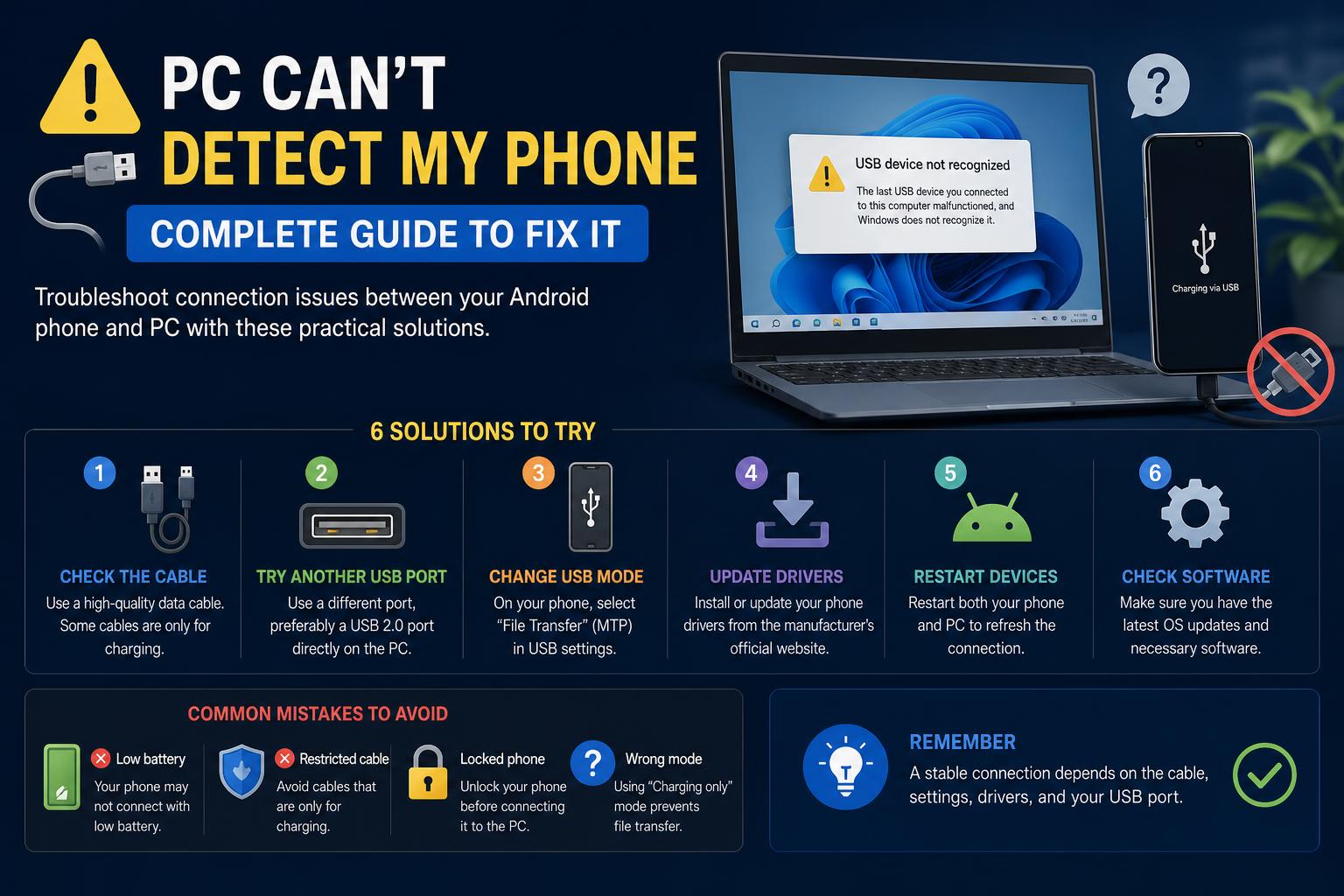
- Understanding the most common reasons for your computer’s inability to recognize your phone is key to effective troubleshooting.
- Proper cable selection, clean USB ports, and correct phone connection modes significantly impact detection success.
- Keeping device drivers and operating systems up-to-date can prevent persistent connection problems.
If your computer won’t pick up your smartphone after plugging it in, you’re definitely not alone. It’s a headache that can interrupt file transfers, backups, or developing apps—whatever your reason for connecting, you expect your device to just appear instantly. Yet, sometimes your PC simply ignores your phone, leaving you wondering what’s gone awry.
This situation is surprisingly common and can affect both brand-new and older devices. Whether you’re seeing no response, intermittent connections, or strange errors, the cause may range from a simple hardware fault to a software glitch deep in Windows or your phone’s system. Here, we break down every possible cause and walk you through all the proven solutions to finally get your phone talking to your PC again.
Common Reasons Your PC Doesn’t Recognize Your Phone
There’s actually a surprisingly long list of things that can block your phone from showing up on your computer. Most are simple issues you can check yourself, while some might surprise you:
- Faulty or incompatible USB cables – Not all cables are created equal. Some only charge and don’t support data. Damage or wear can also break the data connection.
- Dirt or obstruction in the USB port – Both your computer and phone’s ports can gather dust, impacting contact quality.
- Wrong USB connection mode – Your phone has several connection options (e.g., charging only, file transfer, photo transfer). The wrong setting means your PC won’t see the storage.
- Outdated or corrupted drivers on your PC – Windows needs the right drivers to recognize devices. Missing, corrupt, or outdated drivers mean no device detected, even if you hear a ‘connected’ sound.
- Phone’s operating system or Windows out of date – System incompatibility can cause issues, especially after major updates.
- Interference from Android connectivity tools – Pre-installed programs from certain phone brands can fight with standard Windows connections.
Step-by-Step Fixes: Get Your Phone Showing Up on Your PC
If you’re not sure where the problem lies, don’t worry. It’s best to run through these steps one at a time. For most people, at least one of these suggestions will solve the issue!
1. Swap the USB Cable
The number one fix is always to try a different cable, preferably one that you know works for data transfer. Some USB cables that come with cheap devices or are meant for charging only don’t transmit data. Besides, cables quickly become faulty after being bent or trapped under furniture. Test with a high-quality, preferably original, cable you know can handle both charging and data. If your phone connects with the new cable, your problem was simply a bad or charge-only cable.
2. Check All USB Ports & Clean Them
Dust can sneak into USB ports and interfere with a good connection. So can debris, food crumbs, or corrosion if your computer has been exposed to moisture. Try plugging your phone into different USB ports on your computer—especially if yours has both front and rear ports. Examine each port; blow out dust gently or use a clean toothpick to remove debris (while the PC is off). Do the same for the port on your phone.
3. Enable USB Debugging
For deeper connections (especially if you want to transfer more than just photos), enabling USB debugging on your phone can help. This is particularly important for certain development tasks or when file transfer isn’t working with the standard mode. Here’s how:
- Open the Settings app on your phone.
- Go to About Phone (this may be hidden under System or Software Information).
- Tap Build Number seven times. You’ll see a message confirming that “Developer mode has been enabled.”
- Return to Settings. Look for Developer Options. If you don’t see it, check under System or Additional Settings.
- Locate and enable USB Debugging.
USB debugging gives more control over how your phone communicates with your PC. For countless users who couldn’t get a connection otherwise, this step alone fixed the issue!
4. Verify Your Phone’s Connection Mode
Just plugging your phone in isn’t enough—you need to set the right mode. When you connect via USB, most phones prompt you to select a connection type. This screen can sometimes be easy to miss. Look for notifications saying “Charging via USB”—tap that to select another function:
- File Transfer (MTP) – Allows general file movement between your PC and phone.
- Photo Transfer (PTP) – Restricts transfers to photos and videos only.
- Charge Only – No access to files.
Be sure your phone is set to either File Transfer or Photo Transfer for the best results. If you don’t see the option, disconnect and reconnect the phone, watching for the pop-up or try swiping down the notification panel immediately after connecting.
5. Update or Reinstall Your PC’s Device Drivers
Windows relies on up-to-date device drivers to recognize new hardware—phones included. When these are missing or outdated, your PC may ignore even a perfectly functioning phone. To update or reinstall:
- Connect your phone via USB.
- On Windows, press Win + X and select Device Manager.
- Look under Portable Devices, “Other Devices,” or “Universal Serial Bus Controllers” for your phone.
- Right-click your device and pick Update driver. Then opt for automatic search for updates.
- If updating fails, right-click the device and choose Uninstall device. After uninstalling, unplug your device, restart your PC, and then reconnect your phone. Windows should reinstall the drivers automatically.
Sometimes, visiting your phone manufacturer’s website for the latest drivers gives the best results. Samsung, for example, offers their official USB drivers for easy manual installation.
6. Disable or Remove Manufacturer-Specific Connectivity Software
Many Android brands bundle their own PC-connection tools (like Samsung SideSync, HiSuite for Huawei, etc.), but sometimes these interfere with standard Windows communication. Try completely uninstalling any of these programs, restarting both your computer and phone, and then retry the connection using only the default Windows functionalities.
7. Make Sure Your Phone and PC’s OS Are Both Up to Date
An out-of-date operating system can create compatibility headaches. Updates for Android phones and Windows PCs often iron out bugs, including those related to device detection. Check for system updates on both:
- On your phone: Go to Settings > System > System Update (path might change by brand).
- On Windows: Settings > Update & Security > Check for Updates.
Apply all updates, restart both devices, and try again.
8. Restart Both Your Phone and Computer
A quick reboot can solve temporary software glitches that block a connection. Long-press your phone’s power button and select Restart. On your PC, open the Start menu and restart from there. After both devices have rebooted, reconnect your phone and see if it appears in File Explorer.
Testing for Deeper Problems: Is It Your Phone or Your PC?
If you’re still stuck after all that, it’s time to isolate the problem. Try connecting your phone to a different computer using the same cable, and try another phone with your current computer too:
- If your phone works on another PC, your first computer might have hardware or OS issues.
- If another phone fails on your PC as well, suspect your computer—maybe a hardware port or deeper Windows corruption.
This step helps narrow down where you should focus your repairs or seek expert help.
PC Recognizes Phone in Linux but Not in Windows?
Some users report their Android device working perfectly on Linux (like Ubuntu) but not on Windows—often after a fresh restart or driver adjustment. If this happens, it’s a solid hint that the issue isn’t your cable, port, or phone, but something driver or OS-related in Windows.
Booting into Linux from a live USB stick and checking connectivity can be a powerful test. If Linux recognizes your device instantly, make sure Windows drivers are fresh, and try leaving your phone connected during the boot process into Windows to ‘wake it up.’
What If Nothing Works? Try Wireless Tools
If cables and ports just won’t cooperate, modern technology gives you a backup: wireless connection. AirDroid is a popular solution for Android users seeking cable-free file transfer and more. With AirDroid, you can:
- Transfer files between your PC and phone over Wi-Fi.
- Mirror your Android screen to your computer.
- Manage photos, SMS, and even WhatsApp from your desktop.
- Remotely support another Android device.
Wireless tools bypass any USB issues but require both devices on the same network. This is hugely convenient when urgent transfers must go ahead regardless of cable drama.
Check for Advanced Solutions: Odin, ADB, and Enterprise Tools
For the technically adventurous or those wanting to develop apps (and those stuck with stubborn devices), there are professional-level solutions:
- Odin Mode (Samsung) – Sometimes invoked to flash firmware but don’t enter unless you know what you’re doing; leaving this midway can be risky.
- ADB (Android Debug Bridge) – From Android Studio, restarting the ADB server can occasionally force a stuck connection to reset.
- Reinstall Media Feature Pack – On some Windows N editions, you might be missing media components crucial for file transfer. If Windows says ‘update not applicable,’ double-check your OS version.
These tools are for experienced users only and come with risks. Always research before using.
When to Seek Professional Help or Try a New Computer
If you’ve exhausted all these options and your phone still won’t show up on your main computer, connecting it to a different PC can save hours. If it works on another system, the issue is with your computer, and seeking help from a technician may be necessary. Sometimes, underlying hardware faults (damaged motherboard USB controllers, for example) require physical repairs.
If your phone fails everywhere, it could be a deep firmware problem or hardware failure in the phone itself. In that case, a reputable mobile repair center can diagnose USB port issues and flash or repair the system as needed.
Troubleshooting your phone’s connection to your PC can range from a fast cable swap to an afternoon of driver wrangling or system updates, but in most scenarios, one of the steps above delivers a solution. The key is to progress step-by-step, isolating problems and confirming results after every change. When all else fails, leveraging wireless apps like AirDroid or seeking professional help ensures you’re never fully blocked. Keeping both your phone and your computer up-to-date and using quality hardware will help prevent future headaches and keep your workflow or backup routine running smoothly every time you connect your devices.