
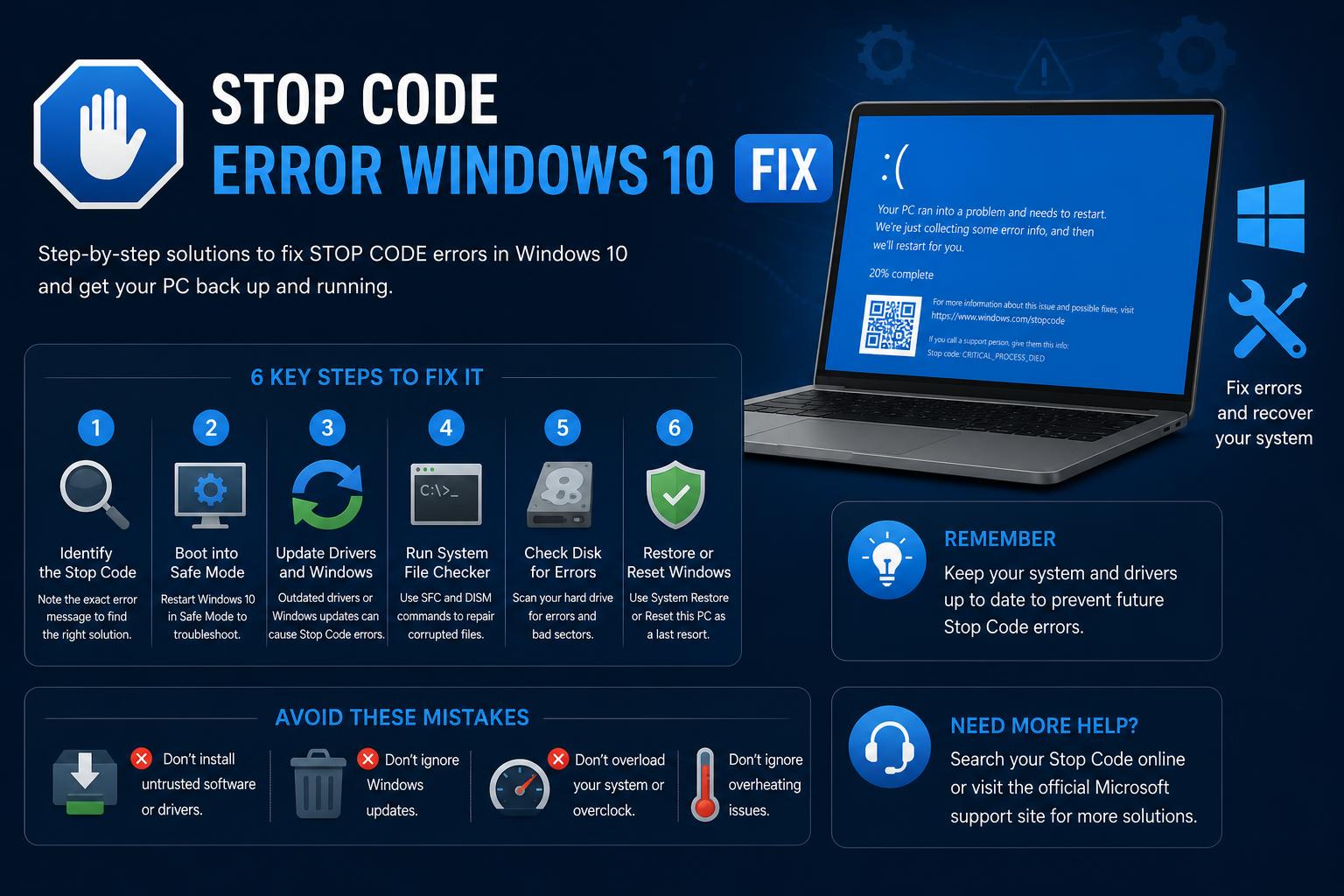
- Stop code errors in Windows 10 often reveal specific problems with hardware, drivers, or system files.
- Thorough troubleshooting—including safe mode, device checks, and Windows recovery tools—is essential for resolving recurring blue screen issues.
- Updating drivers, running diagnostic utilities, and using advanced repair tools help prevent future BSOD events.
Anyone who has spent time with a Windows computer has likely encountered the dreaded blue screen—a sudden crash accompanied by mysterious stop codes and an automatic system reboot. It’s a jarring experience, especially if you were in the middle of something important, and the ‘Your device ran into a problem and needs to restart’ message doesn’t do much to ease your panic>.
If you’ve landed here because your Windows 10 machine keeps displaying a stop code error, you’re not alone. There’s no need to feel lost in technical jargon or go on a wild goose chase through repair forums. In this all-in-one guide, you’ll find everything you need to understand, troubleshoot, and fix blue screen errors (BSOD) in Windows 10, plus learn how to reduce the odds of seeing one again. From basic to advanced solutions, we’ve got your back.
Understanding Stop Code Errors and BSOD in Windows 10
Blue Screen of Death (BSOD) or stop code errors in Windows 10 signal that your system has encountered a critical problem it couldn’t recover from, resulting in an abrupt restart to prevent damage. Instead of simply freezing or crashing an individual app, Windows stops everything, often leaving you staring at a blue screen with a cryptic code like MEMORY_MANAGEMENT or INACCESSIBLE_BOOT_DEVICE.
Stop codes are hexadecimal values (like 0x00000050) and correspond to specific issues found during the system crash. Identifying these can provide invaluable clues about what’s really causing your problems—be it hardware, drivers, or even the latest Windows update.
What are the main culprits behind BSODs and stop code errors? The causes can range from failed RAM, faulty drivers, outdated firmware, conflicting software, corrupted system files or overheating components, to issues such as recent updates or malware infections. Sometimes, the problem can be as simple as insufficient disk space or a Windows update that did not install correctly.
Common Blue Screen and Stop Codes in Windows 10
Let’s demystify some common stop codes you may see alongside the infamous blue screen:
- PAGE_FAULT_IN_NONPAGED_AREA (0x00000050) – Usually a sign of faulty RAM, NTFS corruption, or problematic drivers.
- IRQL_NOT_LESS_OR_EQUAL (0x0000000A) – Usually caused by a kernel-level driver accessing forbidden memory.
- SYSTEM_SERVICE_EXCEPTION (0x0000003B) – Indicates problematic drivers or software that do not interact properly with Windows.
- KMODE_EXCEPTION_NOT_HANDLED (0x0000001E) – Commonly caused by faulty drivers or misbehaving software.
- CRITICAL_PROCESS_DIED (0x000000EF) – Essential Windows processes have failed, often indicating critical file or memory corruption.
- DRIVER_IRQL_NOT_LESS_OR_EQUAL (0x000000D1) – A driver accessed invalid memory, frequently after hardware changes or failed updates.
- INACCESSIBLE_BOOT_DEVICE (0x0000007B) – Windows cannot access the disk; this may be caused by faulty drives, BIOS issues, or corrupted boot files.
- MEMORY_MANAGEMENT (0x0000001A) – Usually indicates problems with RAM or the paging file.
- VIDEO_TDR_FAILURE (0x00000116) – Points to problems with the graphics card or video drivers.
- WHEA_UNCORRECTABLE_ERROR (0x00000124) – Indicates a hardware malfunction—often overheating or faults in the CPU, RAM, or motherboard.
- BAD_POOL_HEADER (0x00000019) – Corrupted memory pools, usually caused by driver or hardware problems.
- SYSTEM_THREAD_EXCEPTION_NOT_HANDLED (0x0000007E) – Means Windows cannot properly process a hardware or software component.
- BAD_SYSTEM_CONFIG_INFO (0x00000074) – Corrupted Registry or boot configuration data.
- UNMOUNTABLE_BOOT_VOLUME (0x000000ED) – The boot drive cannot be loaded; possible disk or file system corruption.
- MACHINE_CHECK_EXCEPTION (0x0000009C) – Low-level hardware errors.
- DPC_WATCHDOG_VIOLATION (0x00000133) – Drivers or firmware have silently hung, causing major processing delays.
Immediate Steps When You Encounter a Blue Screen
If your PC restarts by itself after a crash, don’t panic—sometimes a single unexpected error is resolved by the restart. However, recurring stop codes need more attention. Here is a quick plan:
- Pay attention to the stop code: Write down the code or take a photo of the blue screen. This information is key to troubleshooting the problem.
- Remove newly added hardware: If you added RAM, graphics cards, external storage, or even a USB device, disconnect it. Restart and check whether the problem disappears.
- Boot into Safe Mode: Safe Mode loads Windows using only the basic components. If you can access it, this usually helps rule out major hardware failures.
- Check Device Manager: From the Start menu, search for and open Device Manager. Update, disable, or uninstall problematic drivers.
- Update Windows: Go to Start > Settings > Update & Security > Windows Update and install all available updates.
- Check disk space: Windows and important applications need free space. Keep at least 10–15% of your disk unused for better stability.
- Use System Restore or recovery options: If nothing works, restore your computer to a previous state or try other options under Settings > Recovery.
How to Repair Windows 11 Using Command Prompt: Advanced Techniques & Best Practices
Detailed Step-by-Step Troubleshooting for Persistent Stop Code Errors
If your computer keeps showing blue screens or cannot even load the desktop, it is time to take more specific steps. Below, we review a series of advanced actions backed by recommendations from Microsoft, manufacturers, and specialized forums.
1. Disconnect All External Devices
Peripherals such as USB devices, printers or webcams can cause BSODs if they are faulty or have incompatible drivers. Disconnect everything except the keyboard and mouse. Shut down completely, turn the PC back on, and check whether the problem continues. Reconnect the devices one at a time to identify the culprit.
2. Perform a Hard Reset
A simple but effective trick for some startup problems is a hard reset. Shut down the computer, unplug it from the power source, and if possible, remove the battery on laptops. Hold the power button for 15–20 seconds to discharge residual power. Reconnect everything and try turning it on.
3. Reset BIOS/UEFI Settings to Default
BIOS or UEFI settings affect how the hardware and Windows interact. Incorrect settings can cause blue screens. Enter the BIOS by repeatedly pressing the appropriate key (usually F2), and look for the ‘Load defaults’ option or similar. Save, exit, and restart.
4. Run System and Hardware Diagnostics
Utilities such as Dell SupportAssist or HP diagnostics can detect hardware problems that cause BSODs. Access them from the Start menu or in recovery mode. Write down any errors or codes for further investigation.
5. Use Automatic Repair and Startup Fixes
When startup fails, built-in automatic repair tools can fix damaged files and problems in the boot process.
- Force the computer to shut down by holding the power button for 10 seconds.
- Turn it on, and when you see the Windows logo, turn it off again. Repeat this process three times. Windows should automatically detect the need for repair on the fourth attempt.
- On the recovery screen, select Advanced options, then Startup Repair, and follow the instructions.
6. Boot Into Safe Mode and Perform Repairs
Safe Mode loads only the necessary drivers, making it ideal for isolating software or hardware conflicts. To enter:
- From the error screen, select Advanced options. Then choose Troubleshoot > Startup Settings, and then Restart.
- After restarting, choose Safe Mode (usually by pressing 4).
- In Safe Mode, update or remove recent drivers, scan for malware, and back up your important files.
7. Restore Your System
If the problem started after a change, such as a Windows update or driver installation, restoring the system to an earlier point may fix it.
- In the recovery options, select System Restore and choose an earlier restore point (if system protection is enabled).
- If there are no recent restore points, consider rolling back to a previous version of Windows or performing a recovery that preserves your files.
Advanced and Specific Fixes for Particular Stop Codes
Memory and Disk Errors
If you suspect damaged RAM or bad sectors on the disk, use built-in diagnostics such as Windows Memory Diagnostic or run a chkdsk scan from the command line. Replace or reseat the affected modules. For persistent errors such as INACCESSIBLE_BOOT_DEVICE, enter the BIOS and try switching between AHCI and RAID in the SATA configuration.
Repairing Corrupted System Files
Files damaged by power outages, malware or problematic updates can cause blue screens. From Command Prompt in Safe Mode or recovery, run:
- DISM /Online /Cleanup-Image /RestoreHealth (repairs the Windows image)
- sfc /scannow (checks and repairs system files)
It is important to have a stable internet connection so DISM can download replacement files from Microsoft’s official servers.
Drivers and Firmware
Outdated or incompatible drivers, especially for graphics, network adapters or the motherboard, are common causes of recurring BSODs. From Safe Mode, open Device Manager. Update, reinstall, or uninstall problematic drivers. Also check for BIOS or firmware updates on the manufacturer’s website before applying them.
Malware and Software Conflicts
Unwanted programs and viruses can destabilize your operating system. From Safe Mode, run a full antivirus scan. Also review recently installed programs and uninstall those you do not need. To detect background conflicts, perform a ‘clean boot’ by changing the system configuration with msconfig and disabling non-Microsoft services.
Maintenance and Best Practices to Prevent Future BSODs
Although not every crash can be prevented, following these recommendations will help reduce the frequency of blue screens:
- Keep Windows and drivers up to date: Regularly check Windows Update and manufacturer websites for the latest drivers and updates.
- Monitor system health: Check Event Viewer for important errors or warnings (type ‘Event Viewer’ in search).
- Free up disk space: Make sure the main partition has at least 15% free space so the operating system can run efficiently.
- Proper cooling: Excessive temperatures damage components. Clean out dust and use the computer in well-ventilated environments.
- Regular backups: Use tools such as File History or third-party backup solutions to protect your data.
Frequently Asked Questions (FAQs) About Stop Code Errors and BSODs
How Can I Find Out What Caused a BSOD in Windows 10?
Event Viewer is key. Type ‘Event Viewer’, open it, and navigate to Windows Logs > System. Look for errors around the time of the crash. For driver or kernel-level problems, analyze the minidump files with tools such as WinDbg.
What Are Minidump Files?
Every time a BSOD occurs, Windows creates a small file containing crucial information about the crash. You can find these files in the Windows\Minidump folder and open them with debugging tools to identify problematic drivers or hardware.
How Can I Prevent My PC from Restarting Automatically After a BSOD?
- Open Control Panel > System and Security > System.
- Click Advanced system settings.
- On the ‘Startup and Recovery’ tab, click Settings and uncheck Automatically restart.
- Click OK to apply the changes.