
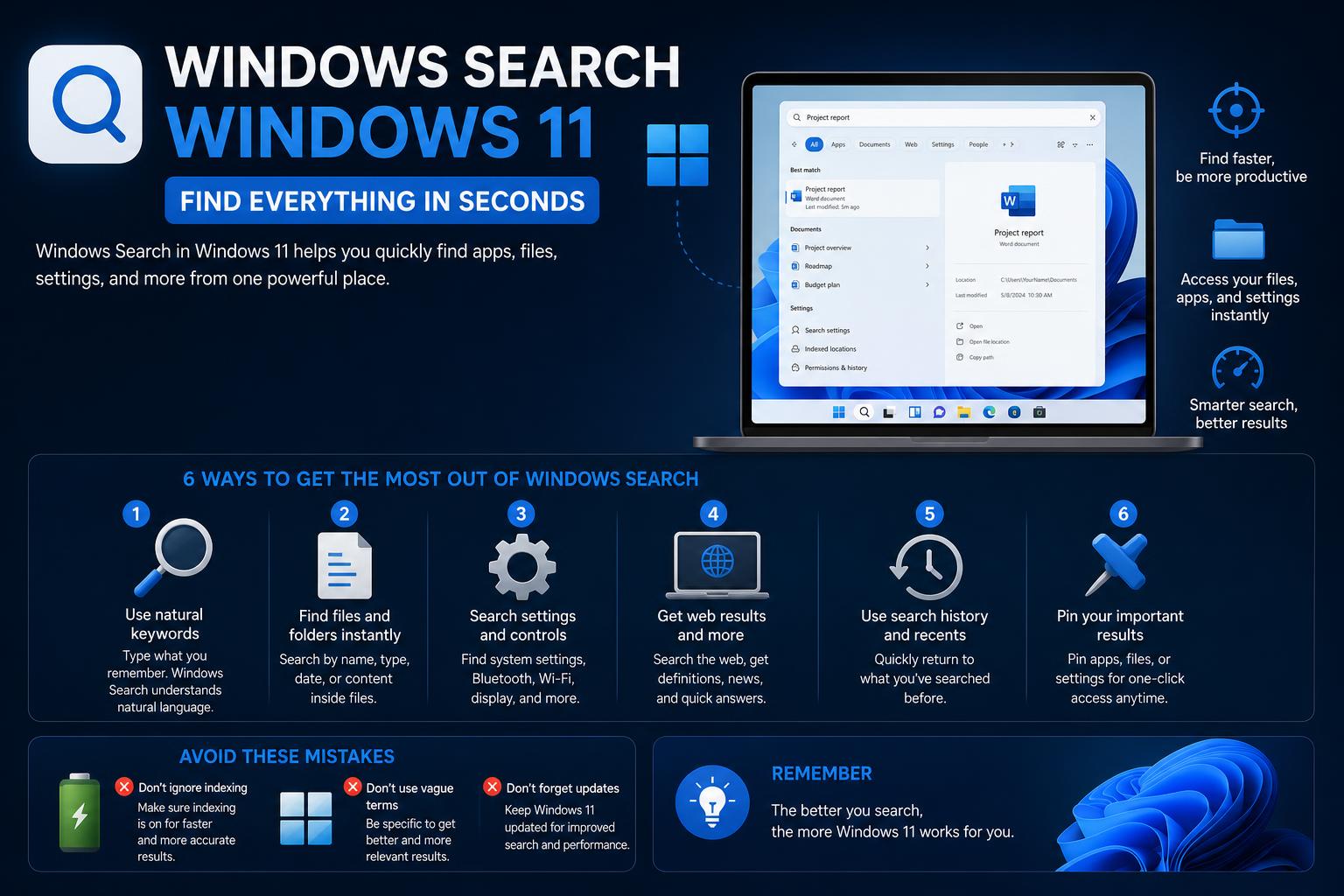
- Windows 11 Search integrates local and web results with new performance features.
- Powerful troubleshooting fixes address blank, unresponsive, or crashing search bars.
- A major update brings quick actions, customizable web results, and Copilot integration.
Dealing with Windows Search problems or simply trying to get the most out of Windows 11’s search bar? If the built-in search suddenly stops working, displays endless spinners, or just doesn’t find what you’re looking for, you’re not alone. Countless users have reported issues or confusion around the Windows Search experience, especially as new features are added and familiar ones change. Fortunately, there’s a lot you can do to troubleshoot, optimize, or simply better understand this vital part of Windows 11.
This extensive guide will walk you through practical fixes, system tricks, and highlight what’s new and changing in Windows Search. If you’re dealing with annoying bugs, crave a cleaner search experience, or are curious about recent improvements to Microsoft’s search technology, this article will lay it all out with step-by-step solutions and useful tips.
Why Windows Search Can Be Tricky in Windows 11
Windows Search is no longer just a tool to find your files—it’s now central to how you operate your PC. With integration into the Start Menu, Cortana, and even Copilot AI, it’s a hub for apps, settings, actions, and online information. Yet, all these added features can sometimes work against stability and speed. Common complaints include:
- Search bar becomes unresponsive, showing only a blank or spinning box;
- Results not appearing or showing outdated/incomplete items;
- SearchHost.exe or SearchUI.exe processes crashing;
- Conflicts after Windows updates or feature rollouts;
- Bing web results crowding out local content.
Quick Checklist Before Advanced Troubleshooting
Before diving into more complex fixes, try these basic checks:
- Ensure your system is up to date: Go to Start > Settings > Update & Security > Windows Update, then click Check for updates. Restart if updates are installed.
- Restart your PC: Minor glitches often resolve after a reboot.
- Confirm “Windows Search” is running: Use services.msc to open Services. Make sure Windows Search is set to Automatic and running.
- Test with a new Windows user account: Sometimes profile corruption is the culprit.
[relacionado url=”https://www.ikkaro.net/how-to-safely-disable-unnecessary-windows-11-services/”]
The Most Effective Fixes for Windows Search Issues
If none of the basics above worked, dive into these more detailed troubleshooting steps sourced from Microsoft support, forums, and power users:
Restart Core Windows Search Processes
In Windows 11, the SearchHost.exe process powers the search bar. If it’s frozen, ending this task forces Windows Search to reload.
- Press Ctrl+Alt+Delete and open Task Manager.
- Go to the Details tab.
- Right-click SearchHost.exe (SearchUI.exe for Windows 10), then select End task.
- Confirm and let Windows automatically restart the process when you next use the search bar.
If this doesn’t help, especially if the task immediately relaunches with issues, proceed to deeper steps below.
Rebuild or Reset the Search Index
The Windows Search index powers fast results by pre-scanning your files and locations. If it’s damaged or out-of-date, results can disappear or search may hang.
- Go to Settings > Search > Searching Windows on Windows 11.
- Scroll down and click Advanced Search Indexer Settings.
- In the pop-up window, select Advanced.
- Click Rebuild under the Troubleshooting section.
This process may take time, but it often resolves “no results” problems.
Run the Built-in Search and Indexing Troubleshooter
Microsoft includes a search troubleshooter for automated diagnostics. It can identify and reset search when obvious issues are found.
- Open Settings > Update & Security > Troubleshoot > Additional troubleshooters (may be labeled differently depending on build).
- Select Search and Indexing and follow instructions.
If you want to trigger it via command line, open Command Prompt and type:
msdt.exe -ep WindowsHelp id SearchDiagnostic
Restart the Windows Font Cache Service
Though it may sound unrelated, the font cache is essential to the Windows Shell and can sometimes tangle with Search rendering.
- Press Windows key + R, type services.msc, and hit Enter.
- Locate Windows Font Cache Service in the list.
- Right-click and select Stop, then right-click again and choose Start.
- Try using the search bar again.
Reset Windows Search – For Recent Builds
Microsoft provides a special PowerShell script to reset Search in Windows 11 and 10 (from version 1903 onward):
- Open PowerShell as Administrator.
- Check script permissions by running
Get-ExecutionPolicy. If it does not return Unrestricted, set it with:Set-ExecutionPolicy -Scope CurrentUser -ExecutionPolicy Unrestricted - Download the script from official Microsoft documentation, specifically ResetWindowsSearchBox.ps1.
- Right-click the script and choose Run with PowerShell. Confirm any security prompts.
- If you changed execution policy, restore it after running the script: Run
Set-ExecutionPolicy -Scope CurrentUser -ExecutionPolicy <PreviousValue>
This resets the Windows Search feature and often solves even stubborn issues.
Force “Local-Only” Search for a Faster, Cleaner Bar
With Windows 11 updates, the search bar now pulls web results and “Search Highlights” imagery—sometimes at the expense of speed, stability, and privacy. On certain builds, especially recent Insider versions (25H2 and similar), these features can cause the search bar to display only an empty or blank window due to issues between the shell and Edge WebView2 (the rendering engine Microsoft uses).
To force search to only show local items (files, apps, settings) without fetching from Bing or web content:
- Open Command Prompt as Administrator.
- Run:
reg add "HKLM\SOFTWARE\Policies\Microsoft\Windows\Windows Search" /v DisableSearchBoxSuggestions /t REG_DWORD /d 1 /f - Add stricter offline mode with:
reg add "HKLM\SOFTWARE\Policies\Microsoft\Windows\Windows Search" /v ConnectedSearchUseWeb /t REG_DWORD /d 0 /f - Restart your computer.
This disables “Search Highlights” and Bing integration, making search faster and more focused.
Repair the Edge WebView2 Runtime
Many Search issues stem from a broken or missing “Microsoft Edge WebView2 Runtime”. This is used to render the new Search UI and its web features. If it’s malfunctioning, you’ll often see a transparent, blank, or unresponsive search bar.
- Go to Settings > Apps > Installed apps
- Search for Microsoft Edge WebView2 Runtime
- Click the three dots next to it and select Modify
- Hit Repair and let Windows reinstall the runtime
Check if Search displays content after this step.
If All Else Fails: In-Place Upgrade
If even after system tweaks Search won’t function, a deeper repair is needed:
- Download the latest official Windows 11 ISO matching your system/version from Microsoft’s site.
- Double-click the ISO to mount it as a virtual drive.
- Run setup.exe and proceed with the install wizard.
- Choose Keep personal files and apps to avoid data loss.
- Complete the installation. This will replace the C:\Windows directory with fresh files, fixing even severe corruption.
New Features: The Redesigned Windows Search Experience
Beyond technical fixes, Microsoft is rolling out a completely new Search platform for Windows 11—currently in testing with Insiders and scheduled for wide release soon. Here’s what you need to know about these upcoming changes:
- Windows Search is becoming much more than a finder for files—it’s a “system composer” able to perform quick actions and control system settings right from the search box.
- Actions you can perform from the search bar now include toggling dark mode, Do Not Disturb, Bluetooth, adjusting the microphone, minimizing windows, and arrangement functions. Type “switch to dark mode” or “minimize all my windows” and it happens automatically.
- The UI is rebuilt on WinUI 3, bringing smoother animations, improved performance, and a modern feel. Even with these changes, memory usage has gone down rather than up.
- Copilot AI is now integrated directly into Windows Search: You can get quick answers, summaries, or switch to the full Copilot app from inside the search interface.
- Better tolerance for typos and more intuitive matching: Even if you mistype, Windows does a better job of guessing what you mean based on context and synonyms.
- Web results can now be turned off: If you’ve ever wanted a search bar that shows only your own files and apps—without Bing results—it’s coming soon.
- Quick previews are smarter: You can now see live previews of PowerPoint, photos, documents, and more.
- The system is highly customizable and adapts to taskbar position and layout: Upcoming releases will make search consistent across different Windows configurations.
Coming Soon: Insider Build Features to Watch For
Microsoft has begun rolling out these features experimentally to Insider users. If you’re signed up to the Insider Program, you may already have early access via the Experimental Channel. For everyday users, expect these changes to hit in the next major Windows 11 update cycle. Meanwhile, you can preview functionality, provide feedback, and see live demonstrations from recent events.
Users who experience persistent issues are encouraged to use the Windows Feedback Hub app. When you report a problem, include screenshots and a precise description, and file it under Desktop Environment > Search to help Microsoft prioritize fixes.
When the Search Bar Still Won’t Work
Several users have reported unique issues, such as the search bar becoming blank, the interface freezing, or registry alterations failing to fix a persistent problem. In some cases, even after exhaustive steps (restarting services, ending processes, rebuilding the index, and resetting settings), issues can persist—sometimes tied to hardware profiles or after large update jumps.
One advanced fix is to delete the Search package AppData and registry entries (advanced users only):
- For Windows 11: Remove the %USERPROFILE%\AppData\Local\Packages\MicrosoftWindows.Client.CBS_cw5n1h2txyewy folder
- For Windows 10: Remove the analogous %USERPROFILE%\AppData\Local\Packages\Microsoft.Windows.Search_cw5n1h2txyewy folder
- Delete the HKEY_CURRENT_USER\SOFTWARE\Microsoft\Windows\CurrentVersion\Search registry key
- Re-register the search app with PowerShell using:
Add-AppxPackage -Path "C:\Windows\SystemApps\MicrosoftWindows.Client.CBS_cw5n1h2txyewy\Appxmanifest.xml" -DisableDevelopmentMode -Register
After a reboot, Windows will regenerate the necessary Search registry keys and data folders.
What About Search Bar Upgrades and Web Results Filter?
A highly requested feature—the ability to disable unwanted web results in Search—is finally on the way after repeated user demand. Soon, you’ll be able to set your search bar to only display local content (files, apps, and settings), avoiding the distractions and slowdowns of online clutter. This is a major quality-of-life improvement for professionals and privacy-focused users alike.
Looking Forward: How Search in Windows Is Evolving
Microsoft’s approach is to modernize Windows Search while making it faster, smarter, and more customizable. As Copilot and AI integrations become more prevalent, Windows Search will remain at the heart of system navigation and productivity. UI improvements, performance boosts, richer previews, and new ways to interact are all in active development, often first appearing in Insider builds before public rollout. For the latest and most official updates, always refer to Microsoft’s official Windows Search documentation and news from Windows Central or The Verge.
Troubleshooting Windows Search in Windows 11 involves a blend of classic windows know-how and awareness of new, evolving features. From registry tweaks to leveraging brand-new search actions and UI, there’s a fix or productivity boost for every user—even if you’ve struggled with “endless searching” or blank windows. With Microsoft actively rolling out new features and finally letting users control web results, the search experience is set to become faster, more reliable, and more helpful than ever—especially if you take advantage of the fixes and capabilities detailed here.