
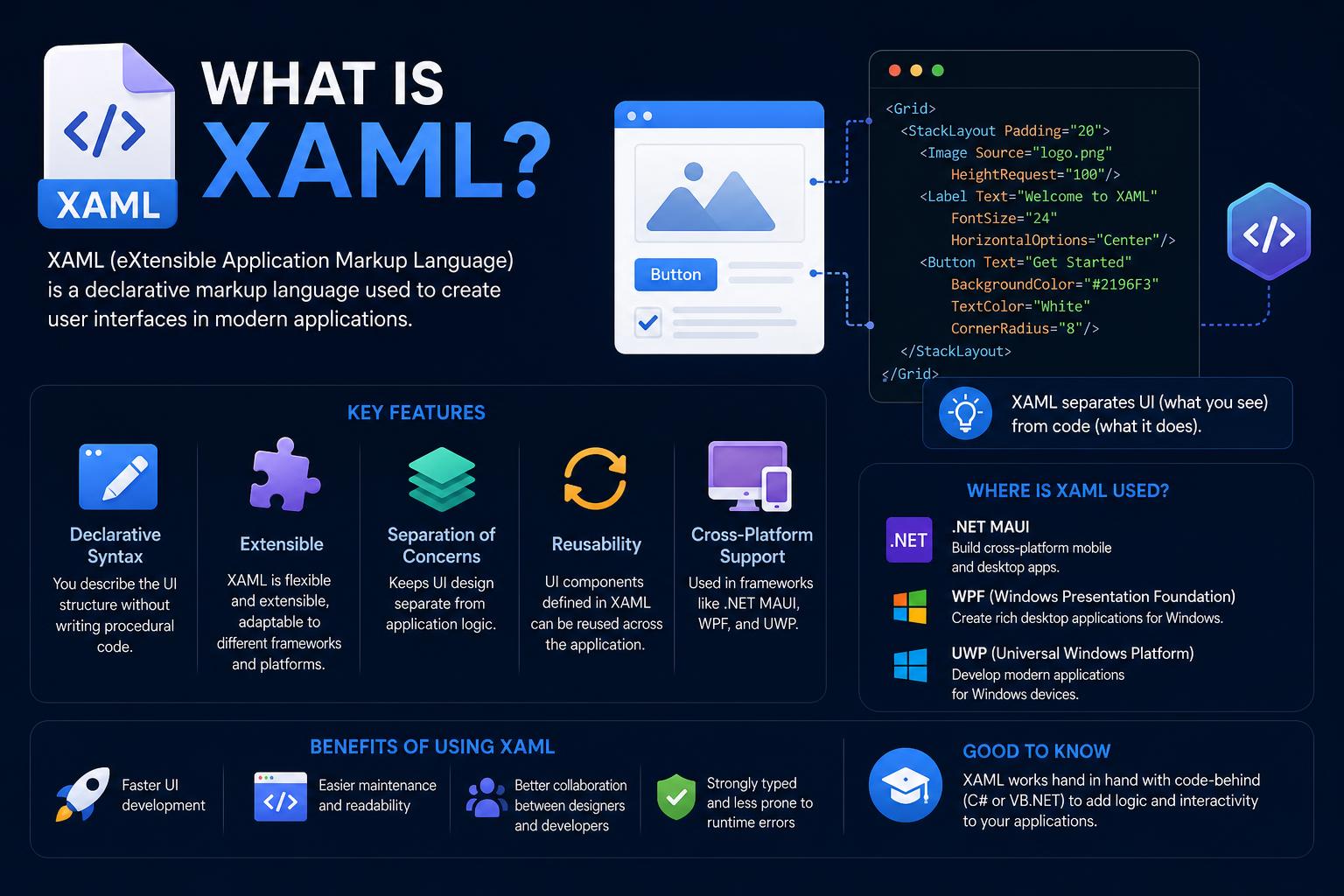
- XAML is a declarative, XML-based markup language for designing modern UIs in .NET environments.
- XAML separates the UI structure from application logic, making collaboration between designers and developers easier.
- It powers popular UI frameworks, including WPF, UWP, WinUI, Xamarin.Forms, Avalonia, and more, with each platform customizing XAML’s capabilities to suit their needs.
- Understanding XAML’s syntax, namespaces, markup extensions, and event handling is key for creating interactive, maintainable desktop and cross-platform applications.
If you’ve ever tried building sleek user interfaces for desktop or cross-platform .NET apps, chances are you’ve bumped into XAML at some point. Whether you’re just getting started with Windows app development, or you’re a seasoned pro looking to expand your toolkit, understanding what XAML is—and especially how it compares to other markup languages like HTML—can save you a ton of headaches and open the door to powerful possibilities.
But XAML is packed with details and quirks, and while the docs explain a lot, there’s a ton more to know—especially as XAML keeps popping up in new frameworks like Avalonia or .NET MAUI. This is your no-nonsense, soup-to-nuts guide to XAML: what it is, why it exists, where you’ll meet it in the wild, and all those nitty-gritty syntax rules that trip people up. We’ll also get real about its strengths, limitations, and what cross-platform UIs look like now that Avalonia and other frameworks let you write once and run everywhere.
What is XAML? The Roots of a Markup Language
XAML, or Extensible Application Markup Language, is an XML-based declarative language developed by Microsoft to initialize objects, primarily user interfaces, in .NET environments. It lets you describe a UI (or more generally, an object graph) in plain text using familiar XML syntax. A XAML processor reads the markup and constructs the corresponding objects at runtime or compile time, depending on the platform.
Originally, XAML was introduced with Windows Presentation Foundation (WPF) as part of .NET Framework 3.0, and its influence has since spread across:
- WPF (Windows Presentation Foundation)
- UWP (Universal Windows Platform)—now superseded by WinUI
- WinUI (Windows UI Library)
- Silverlight (now deprecated)
- Windows Workflow Foundation (WF)
- Xamarin.Forms and .NET MAUI (for mobile and cross-platform apps)
- Third-party frameworks such as Avalonia and noesisGUI
XAML’s core idea is separating what the UI looks like (markup) from how it behaves (code). Designers and developers can work independently—designers handle the visuals in .xaml files, developers write the logic in C#, VB.NET, or C++ code-behind files.
Declarative, Not Procedural: How XAML Differs from Code
If you’re coming from the world of HTML, XAML will feel familiar, but there are key differences. XAML’s markup syntax is inspired by XML, and each element typically translates to a class instance in the underlying .NET libraries. Attributes map to properties or events. Unlike many other markup languages, there is a strong, direct relationship between markup and the object system underneath—which makes things like data binding, event wiring, and resource referencing incredibly powerful.
Everything in XAML happens declaratively: instead of calling constructors and setting properties in code, you define an object tree with opening/closing tags. The XAML processor then instantiates objects, sets their properties, creates hierarchies, and wires up events using this markup alone.
XAML’s Syntax and Structure: The Essentials
All valid XAML must also be valid XML: every element is either self-closed or has a start and end tag, attributes are quoted, and there is one root element per file. XAML’s extra rules and extensions build on top of standard XML:
- Object element syntax:
- Declares an instance of a class:
<Button />or<Button></Button>
- Declares an instance of a class:
- Attribute syntax:
- Sets properties or events via attributes:
<Button Background="Blue" Click="Button_Click"/>
- Sets properties or events via attributes:
- Property element syntax:
- Used when attribute syntax isn’t enough (e.g., setting a property to an entire object):
<Button>
  <Button.Content>
    <StackPanel>...</StackPanel>
  </Button.Content>
</Button>
- Used when attribute syntax isn’t enough (e.g., setting a property to an entire object):
- Collection syntax:
- Collection-type properties allow nested child elements to be added automatically to the collection, often omitting the collection property container in XAML:
- Content properties:
- If a class designates a property as its content property (via attributes/metadata), child elements placed inside an object element automatically set that property, making XAML more succinct.
- Markup extensions:
- Special syntax in curly braces, like
{Binding ...},{StaticResource ...}, or{DynamicResource ...}, to instruct the processor to do something beyond a simple string conversion.
- Special syntax in curly braces, like
Example of a simple XAML UI:
<Window x:Class="MyApp.MainWindow"
        xmlns="http://schemas.microsoft.com/winfx/2006/xaml/presentation"
        xmlns:x="http://schemas.microsoft.com/winfx/2006/xaml"
        Title="Sample" Height="400" Width="800">
  <StackPanel>
    <TextBlock Text="Welcome to XAML!" FontSize="20" Margin="10" />
    <Button Content="Click me!" Click="Button_Click" />
  </StackPanel>
</Window>
This markup creates a UI window with a text label and a clickable button.
Namespaces in XAML: Why All Those xmlns Declarations?
XAML files always begin with a root element that defines one or more XML namespaces (the xmlns attributes).
The default namespace (xmlns=): Determines the set of types you can use without prefix—typically controls, panels, and core UI primitives. For WPF and UWP, this is usually “http://schemas.microsoft.com/winfx/2006/xaml/presentation”. For Avalonia, it’s “https://github.com/avaloniaui”.
XAML-language namespace (xmlns:x=): Defines the x: prefix, which covers core XAML features such as x:Class (code-behind class), x:Name (runtime identifier), x:Key (for resources), x:Type (type references), x:Static (static member references), and intrinsic types such as x:Boolean and x:String.
Custom namespaces: If you want to use custom controls or third-party library classes, you must add a namespace declaration with a prefix (e.g., xmlns:custom="clr-namespace:MyControls;assembly=MyLibrary" for WPF, xmlns:myTypes="using:MyApp.Controls" for UWP/WinUI).
Designer/tool namespaces: You may see d: (design-time) or mc: (markup compatibility) prefixes. These are used for tooling (like Visual Studio or Blend) and do not affect runtime behavior.
Properties, Events, and Content: How XAML Maps to Code
XAML bridges markup and the .NET object model through object elements (types) and attributes (properties and events).
- Attributes set public properties or events of .NET types. For properties, the attribute value is either a string that the framework will convert, or a markup extension.
- For events, the value specifies the name of the event handler in your code-behind class.
- Content properties are handled specially: for controls like
<Button>or<Border>(which each declare a single “content” property), inner text or child elements are used to initialize that property.
Example: assigning a click event handler in XAML and handling it in code-behind:
<Button Content="Click" Click="OnButtonClicked" />private void OnButtonClicked(object sender, RoutedEventArgs e)
{
// Handler logic here
}Likewise, attributes can be used to set styling, resources, bindings, and much more.
Exploring Key XAML Syntax Patterns with Examples
Object Element Syntax
This is your bread-and-butter XAML: declare a type, optionally give it children or attributes.
<Button Content="Save" />
<StackPanel>
  <Button Content="Delete" />
  <Button Content="Edit" />
</StackPanel>
Attribute Syntax
Attributes are used for the most common and straightforward property assignments:
<TextBlock Text="Status" FontSize="16"/ >Property Element Syntax
Use this when you need to assign an object graph to a property—not just a string or value.
<Button>
  <Button.Background>
    <LinearGradientBrush>
      <GradientStop Color="Blue" Offset="0" />
      <GradientStop Color="LightBlue" Offset="1" />
    </LinearGradientBrush>
  </Button.Background>
</Button>
Collection and Content Syntax
Some properties represent collections—the syntax within XAML can be very concise:
<StackPanel>
  <Button Content="One" />
  <Button Content="Two" />
</StackPanel>
This implicitly populates the StackPanel’s Children collection. You don’t need to include a <StackPanel.Children> element—XAML figures it out for you.
XAML Events
Events are handled by specifying the event name as an attribute value. A matching handler method must exist in your code-behind.
<Button Content="Submit" Click="SubmitButton_Click" />And the handler method in your code-behind (C# or VB.NET):
private void SubmitButton_Click(object sender, RoutedEventArgs e)
{
  // Do something when button is clicked
}
XAML Markup Extensions: Unlocking Power with Curly Brace Syntax
One of XAML’s most powerful features is its markup extensions—special syntax inside curly braces that enables dynamic property values, resource lookups, and data binding.
- {Binding …}: Used for advanced data binding scenarios
- {StaticResource …}: Reference a resource defined elsewhere (by key) at compile time
- {DynamicResource …} (in WPF): Reference a resource whose value may change at runtime
- {TemplateBinding …}: Used in control templates
- {x:Type …}, {x:Static …}: Advanced referencing features
Example: Using resources in XAML
<Window.Resources>
  <SolidColorBrush x:Key="AccentColor" Color="Gold" />
</Window.Resources>
<Button Background="{StaticResource AccentColor}" Content="Accent Button" />
Type Converters: Simplifying Property Values
Many XAML properties accept simple strings, but under the hood, these are converted into complex objects using type converters. For instance, a Thickness structure can be set as ‘10,20,10,30’, and is automatically parsed into an object with four properties.
Example:
<Button Margin="10,20,10,30" Content="Sample" /><Button>
<Button.Margin>
<Thickness Left="10" Top="20" Right="10" Bottom="30" />
</Button.Margin>
</Button>Both accomplish the same thing—the first is just more concise.
Root Elements: Windows, Pages, UserControls, and More
Every XAML file needs a single root element. In WPF, this is often <Window>, <Page>, or <UserControl>; for resource files it’s <ResourceDictionary>; for applications, it’s <Application>.
- Window: The main top-level container for desktop apps
- Page: Used for navigation scenarios (e.g., in frame-based navigation within an app)
- UserControl: Encapsulates reusable chunks of UI
- ResourceDictionary: Defines brush, style, template, and other resource objects
The root element defines the XAML and x: namespaces, and links to its code-behind class via x:Class.
Deep Dive: The x: Prefix and XAML Core Features
The x: prefix is your key to language-level XAML tricks. Some super important uses:
- x:Class: Associates the XAML markup with its code-behind class
- x:Key: Assigns a unique key for storing/retrieving resources (brushes, styles, templates)
- x:Name: Assigns an object name so you can programmatically access the element in code-behind
- x:Static: Gets a static value/property from code (WPF only)
- x:Type: Gets a type reference object
- x:Uid: Used for localization resource substitution in UWP/WinUI
Intrinsics: The x: namespace includes built-in classes for simple types, e.g. x:Boolean or x:String if you need to force something to be an object rather than a literal value.
Custom Controls and Namespaces: Extending XAML
Want to reference your own custom controls? Add a new xmlns mapping at the root:
<Window xmlns:custom="clr-namespace:MyApp.Controls;assembly=MyLibrary" ... >
  <custom:SuperButton Content="Fancy!" />
</Window>
UWP/WinUI uses ‘using:’ syntax:
xmlns:myTypes="using:MyApp.Controls"This tells the XAML parser where to locate your code-defined types.
Resource Dictionaries and Styling in XAML
Resource dictionaries are at the heart of XAML UI consistency: they let you define colors, brushes, styles, templates, or control resources in one place and reuse them throughout your app.
Scoped hierarchy: You can store resources locally (within a control or page), globally (Application.Resources), or in separate .xaml files to be merged in.
<Application.Resources>
  <ResourceDictionary>
    <Style x:Key="LargeButton" TargetType="Button">
      <Setter Property="FontSize" Value="24" />
      <Setter Property="Padding" Value="16,8" />
    </Style>
  </ResourceDictionary>
</Application.Resources>
Applying a style:
<Button Content="Big!" Style="{StaticResource LargeButton}" />Data Binding: Dynamic UIs with Live Data
One of the biggest advantages of XAML is its data binding engine. Using the {Binding ...} markup extension, you can link UI element properties to properties on data objects—keeping your interface in sync with your data models automatically.
<TextBox Text="{Binding Name}" />
<TextBlock Text="{Binding Greeting}" />
Bindings update automatically when the source changes (two-way or one-way), reducing the amount of glue code you write.
Events and Code-Behind: Making Things Happen
Apart from declarative structure, every XAML-powered UI needs logic, which lives in the code-behind file (C#, VB.NET, or C++). Event handlers referenced in XAML are methods defined in this code-behind partial class. For WPF, it’s typically MainWindow.xaml.cs; for UWP, often MainPage.xaml.cs. Visual Studio stitches these partial classes together, so the markup and code are tightly linked.
// In MainWindow.xaml.cs:
private void GreetButton_Click(object sender, RoutedEventArgs e)
{
  GreetingText.Text = $"Hello, {NameInput.Text}!";
}
Case Sensitivity and White Space Handling in XAML
XAML is case-sensitive, just like XML and .NET types. All element and attribute names must match the .NET class/member names exactly. Some value parsing (e.g., for Booleans) is more forgiving, but stick with the correct casing for peace of mind.
White space is mostly ignored unless you’re specifying text content in a property or element; in that case, XAML consolidates it to single spaces (except when marked as significant via specific APIs or XML attributes).
Security Considerations
Since XAML defines how your application instantiates objects, it can potentially access any resource that your app’s process can, just like code. If you load XAML dynamically (via XamlReader), treat it as you would code execution—don’t load untrusted markup.
Notably, newer .NET versions and WPF for .NET Core no longer implement Code Access Security (CAS), so don’t rely on XAML-based restrictions to sandbox loaded markup.
Advanced Topics: Attached Properties and Events
Some magic in XAML comes from “attached properties”—properties set on child elements that are actually defined by the parent or another class (like DockPanel.Dock).
<DockPanel>
  <Button DockPanel.Dock="Left" Content="Left" />
  <Button DockPanel.Dock="Right" Content="Right" />
</DockPanel>
This flexible system is used in layouts, animations, and more. Attached events work similarly, letting parent or sibling controls handle events from children (routed events).
Debugging and Editing XAML: Modern Tooling
Visual Studio’s XAML editor is loaded with IntelliSense, code navigation, inline error squiggles, and a design surface for live previews. It makes writing, debugging, and refactoring XAML much faster and less error-prone.
For runtime errors (such as XAML parsing exceptions), you’ll typically see precise line numbers in the exception messages, making it much easier to diagnose broken markup.
Performance Best Practices in XAML
Writing efficient XAML UIs is as much about resource management and layout patterns as about the code itself:
- Store commonly used resources (brushes, styles) in shared dictionaries to avoid recreating objects
- Keep global resources in
Application.Resourcesand local ones in page/control resources - Clean unused resources before shipping
- Leverage container controls (like
GridandStackPanel) for layout rather than absolute positioning - Avoid custom control templates unless necessary; default styles are often optimized for performance
- Use virtualization and presenters for large item collections (
ListView,GridView)
XAML in Cross-Platform Frameworks: Avalonia, Xamarin.Forms, and MAUI
Originally, XAML was deeply tied to Windows, but with Avalonia, Xamarin.Forms, and .NET MAUI, much of its power is now cross-platform.
Avalonia brings XAML-based UI development to Windows, Linux, and macOS with near parity to WPF in syntax and architecture. There are some differences (notably in namespaces, available controls, and a more CSS-like styling system), but migrating between the two is usually straightforward. Avalonia also lets you define UIs either in XAML or completely in C# code, giving extra flexibility.
Xamarin.Forms and its successor .NET MAUI extend XAML-based UIs to iOS and Android, in addition to desktop environments. They both use their own set of UI primitives (Button, StackLayout, Page, etc.), and XAML is the primary way to describe visual trees.
Key differences you’ll find in cross-platform XAML:
- Different root namespaces (Avalonia:
https://github.com/avaloniaui) - Custom controls and layout containers designed for their target platforms
- Styling with CSS-like syntax (Avalonia), as opposed to WPF’s resource-based system
- Support for dynamic theming and runtime resource changes
Regardless of the target framework, most of the XAML concepts carry over: markup for structure, code-behind for logic, bindings for live data, and resources for reusable styles.
XAML vs. HTML and Web UIs: Developer Perspectives
Some developers, especially those coming from web backgrounds, find XAML’s verbosity and strictness frustrating compared to HTML/CSS. While XAML supports advanced features like runtime object instantiation, direct type mapping, and data binding out of the box, its syntax can feel heavyweight, especially for simple UIs or importing SVG graphics (unlike the easy SVG support in browsers).
XAML’s strengths are its tight integration with .NET, strong typing, and powerful UI logic binding mechanisms. But it does have a learning curve, and certain tasks (like responsiveness and layout) can feel more complex compared to flexbox or grid in CSS. However, the separation of markup and code does make large applications easier to maintain in the long run.
Modern Usage: When and Why Use XAML?
If you’re building anything on the Microsoft stack where a rich client UI is needed—from desktop apps with WPF, UWP, or WinUI to cross-platform apps with Avalonia or .NET MAUI—XAML is the de facto standard for defining the UI layer.
XAML is also a big deal when working in teams: Designers can use designer tools to build XAML without touching code, while developers focus on behavior and logic. Visual Studio, Blend, and third-party tools like XAMLPad and Figma plugins make working with XAML visual and interactive rather than “just text editing.”
Limitations and Real-World Challenges
Despite its advantages, XAML isn’t perfect:
- Steep learning curve for new developers, partly due to its strictness and verbosity
- Limited mobile/modern device UI controls out of the box (solved by MAUI, Avalonia, and community projects)
- Interoperability is sometimes painful (for example, importing nested SVGs or using custom vector graphics in WPF)
- Performance issues can arise if not used carefully, especially with deeply nested trees
- Responsiveness requires manual work—unlike the web, where CSS handles fluid layouts more naturally
However, active community development (especially from the Avalonia and Microsoft teams) means these gaps are closing fast.
Practical Example: Migrating from WPF to Avalonia
If you’re looking for cross-platform development, Avalonia is the modern way to take your XAML skills to Windows, Linux, and macOS (and even the web, with experimental projects).
Key migration tips:
- Replace all Microsoft-style namespaces with Avalonia’s (
xmlns="https://github.com/avaloniaui") - Check your control equivalencies—most WPF controls exist, but sometimes with slight differences
- Get used to CSS-like styling for themes
- Leverage Avalonia’s documentation and community forums
You’ll find your XAML muscle memory carries over—data binding, templates, resources, and events all work almost identically.
Resources and Further Reading
- Microsoft XAML Language Overview (WPF)
- Microsoft XAML Overview (WinUI)
- Wikipedia: Extensible Application Markup Language
- Introduction to XAML: A Beginner’s Guide (Avalonia)
- XAML for Game UIs (noesisGUI Docs)
- C# Corner: What is XAML?
XAML is more than just a markup language—it’s a bridge between design and development, powering some of the most sophisticated and attractive desktop and cross-platform applications today. Once you master its concepts and syntax—namespaces, elements, bindings, events, dictionaries, and markup extensions—you’ll be equipped to build robust, maintainable, and stunning user interfaces that stand the test of time, regardless of the technology flavor you choose.