
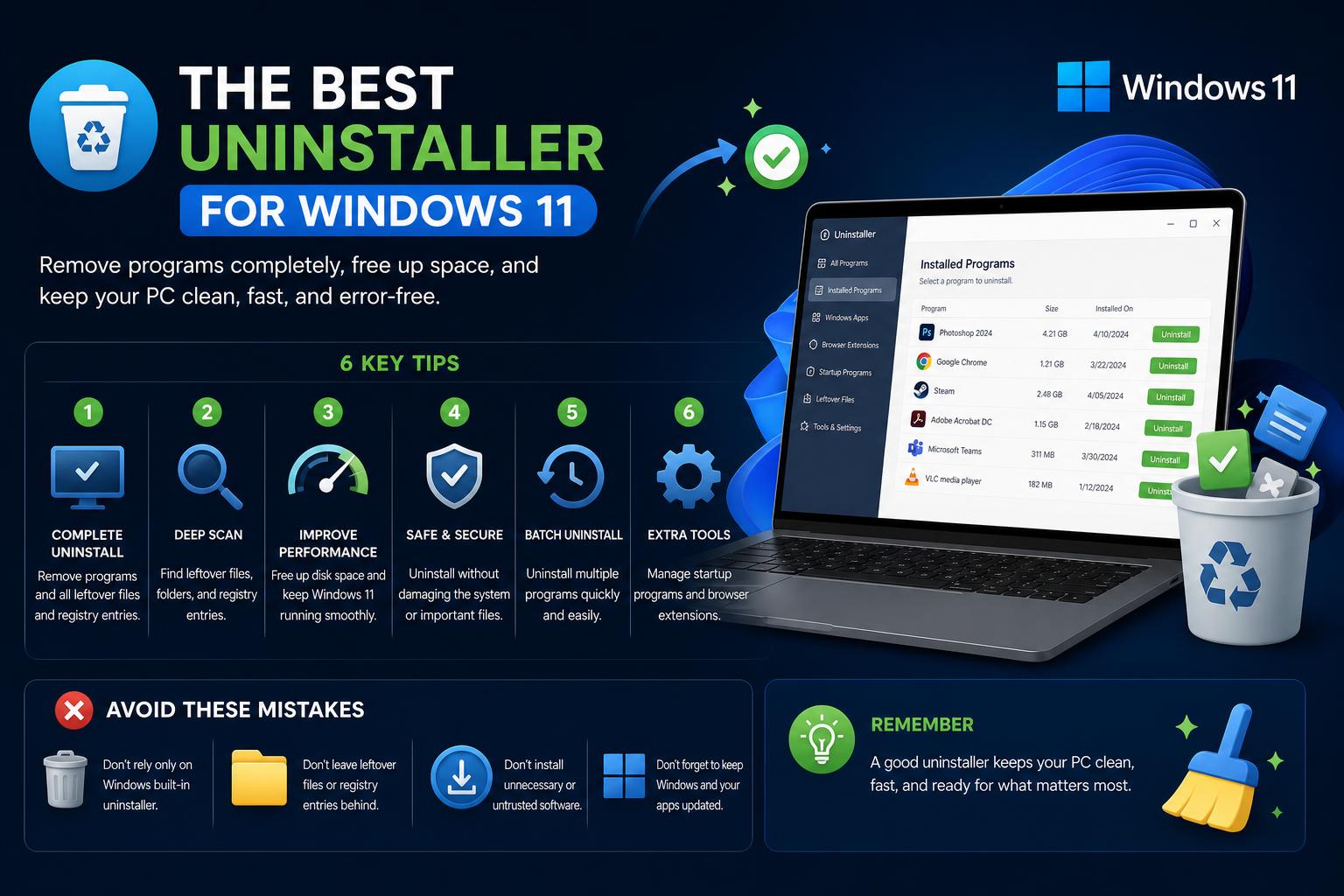
- Most third-party uninstallers do not significantly outperform Windows' built-in method.
- Uninstalr and Total Uninstall are among the few tools that show measurable cleanup benefits.
- Popular choices like Geek Uninstaller and Revo Uninstaller remain favorites for their ease of use and extra features.
Looking for the best uninstaller for Windows 11 can be surprisingly challenging, especially given the abundance of opinions, software marketing claims, and user experiences spread across forums and tech communities. If you’re tired of leftover files cluttering your system, uncertain whether to trust Windows’ own removal tools, or just want to make sense of the chaotic landscape of uninstaller software, you’re in the right place.
This guide pulls together insights from direct benchmarks, real user discussions, and hands-on reviews from trusted sources. Whether you’re a tech enthusiast, an everyday user, or a cautious power user concerned about accidentally breaking your system, you’ll get a full picture of the uninstaller ecosystem for Windows 11 — from built-in tools to the most popular third-party options, the differences in approach, and the traps to avoid.
Why Uninstallers Matter on Windows 11
The default uninstallation method in Windows 11 via Settings > Apps > Installed Apps often leaves behind residue like folders, files, and registry entries. That’s why many users look for more thorough solutions. However, not every uninstaller is created equal, and some methods can be surprisingly risky or ineffective.
Exploring the Main Approaches to Uninstalling Programs
- Default Windows Tools: Quick and straightforward, but often incomplete.
- Manual Cleanup: Searching and removing remaining files and registry keys by hand — time-consuming and error-prone.
- Third-Party Uninstallers: Promise deeper cleaning, but vary drastically in efficiency, safety, and transparency.
What Users Are Talking About: Forums and Real-World Experience
Reddit features active discussions on this topic. Many users request uninstallers that are both non-destructive and portable, such as Geek Uninstaller, Revo Uninstaller, IObit Uninstaller, and Bulk Crap Uninstaller (BCU). The consensus is a desire for tools that effectively remove mandatory gaming launchers and other stubborn applications without risking important system files — and ideally, programs that don’t require installation themselves.
One concern frequently echoed is the paradox of needing an uninstaller for the uninstaller itself. While tools like Uninstalr are occasionally suggested, reports of system instability and boot issues make some users wary. Community sentiment leans toward minimalist, reliable, and non-invasive tools.
Other forums, like Level1Techs, mirror these concerns, with some users questioning whether third-party uninstallers are worth the trouble at all. They argue that combining manual search with the default uninstaller might be safer, especially for those worried about introducing new software just to remove old ones. Some power users advocate sandboxing new software before installation and creating system restore points as a precaution.
Benchmarks and Objective Testing: The Uninstalr Comparison
If you value evidence and real data over marketing headlines, a noteworthy benchmark has been published by the developer of Uninstalr. Despite the developer’s declared bias, the methodology is transparent and repeatable. The test involved two of the most troublesome Windows apps for uninstallation — Adobe Creative Cloud and CCleaner — under Windows 11 Pro in a clean virtualized setup.
All uninstallers in the test had to remove not just the application, but also related files, folders, and registry entries. The baseline was set by observing that the two apps combined created 281 artifacts (files, folders, registry entries/keys) on installation. Using standard Windows removal left behind 118 of these.
Here’s how the main third-party uninstallers performed in terms of leftover debris:
- Bulk Crap Uninstaller (BCU): Using both Quiet Uninstall and normal Uninstall methods, left behind 111 and 112 leftover items, only slightly improving on Windows itself.
- Revo Uninstaller (Free & Pro): With “advanced” leftover scanning, also failed to substantially outperform the default Windows method.
- Uninstalr and Total Uninstall: The only two tools demonstrating a clear advantage, removing more leftover items than their competitors.
- UniGetUI: Technically a package manager, performed uninstallations but did not surpass Windows’ built-in method.
Importantly, the benchmark highlights that the marketing claims of most uninstallers are not matched by significant improvements over what Windows already provides. The only measurable gains came from the above two specialized tools. The developer even encourages users to replicate the tests themselves for transparency.
The Classic Options: Geek Uninstaller, Revo Uninstaller, IObit Uninstaller, and More
Let’s look at the uninstallers most often suggested across online communities:
Geek Uninstaller
Praised for being lightweight, portable, and quick, Geek Uninstaller is frequently mentioned as a top free solution. Reviews tout its ability to detect and remove leftover files that might otherwise go unnoticed. Its portable nature (no need to install) is particularly appealing to users cautious about system cleanliness.
Revo Uninstaller
Revo Uninstaller is another popular choice, thanks to features like Hunter Mode — an interface that lets you “target” programs you want to eliminate or manage at startup. Hunter Mode helps remove hard-to-delete programs in Windows and manage system icons and startup items.
IObit Uninstaller
IObit Uninstaller receives positive feedback for its user-friendly interface and focus on purging leftovers that tend to hide in stubborn programs or ad-supported software. Many users highlight its overall cleaning effectiveness and residual file removal.
Bulk Crap Uninstaller (BCU)
BCU is widely used for its ability to uninstall multiple applications simultaneously, offering options like Quiet Uninstall. This flexibility is convenient for users looking to perform batch uninstallations quickly. However, as benchmark tests show, its advantage over standard Windows removal is minimal unless you need to uninstall dozens of apps at once.
Methods: How Do These Tools Actually Uninstall?
- Pre-Installation Monitors: Require installation prior to software setup to track changes. While theoretically providing greater accuracy, they are rarely used by everyday users due to the ongoing effort required.
- Database-Driven: Rely on prior knowledge of common installers to detect and eliminate typical files and registry keys.
- Brute Force Cleaners: Erase anything associated with the application name, running the risk of deleting shared system files or useful data.
No method is perfect, and using overly aggressive tools can sometimes do more harm than good.
Best Practices According to the Community
- Use the application’s built-in uninstaller first.
- Follow up with standard Windows removal tools.
- If leftover files remain, consider a trusted third-party tool, making sure to create a system restore point or backup first.
- Test unfamiliar software in isolated environments, such as a sandbox or virtual machine, to avoid clutter in the first place.
Hidden Risks: Don’t Trust Every Tool
To conclude, while the benefits of third-party uninstallers are often modest, they can make a difference in specific situations — particularly when removing stubborn applications or complex leftover files. Most tools offer minimal improvements over standard Windows removal, but the most effective benchmark results come from Uninstalr and Total Uninstall. For average users, trusted options like Geek Uninstaller, Revo Uninstaller, and IObit Uninstaller strike a reasonable balance between convenience and safety. It is advisable to avoid controversial tools or those with a history of system stability issues, and to always follow best practices such as creating a system restore point beforehand. Ultimately, a conservative approach combining Windows’ built-in options with selective manual checks can keep your system clean without unnecessary risks, tailored to your personal comfort level with system management.
Complete Windows 11 Printer Setup Guide: Installation, Drivers and Troubleshooting