
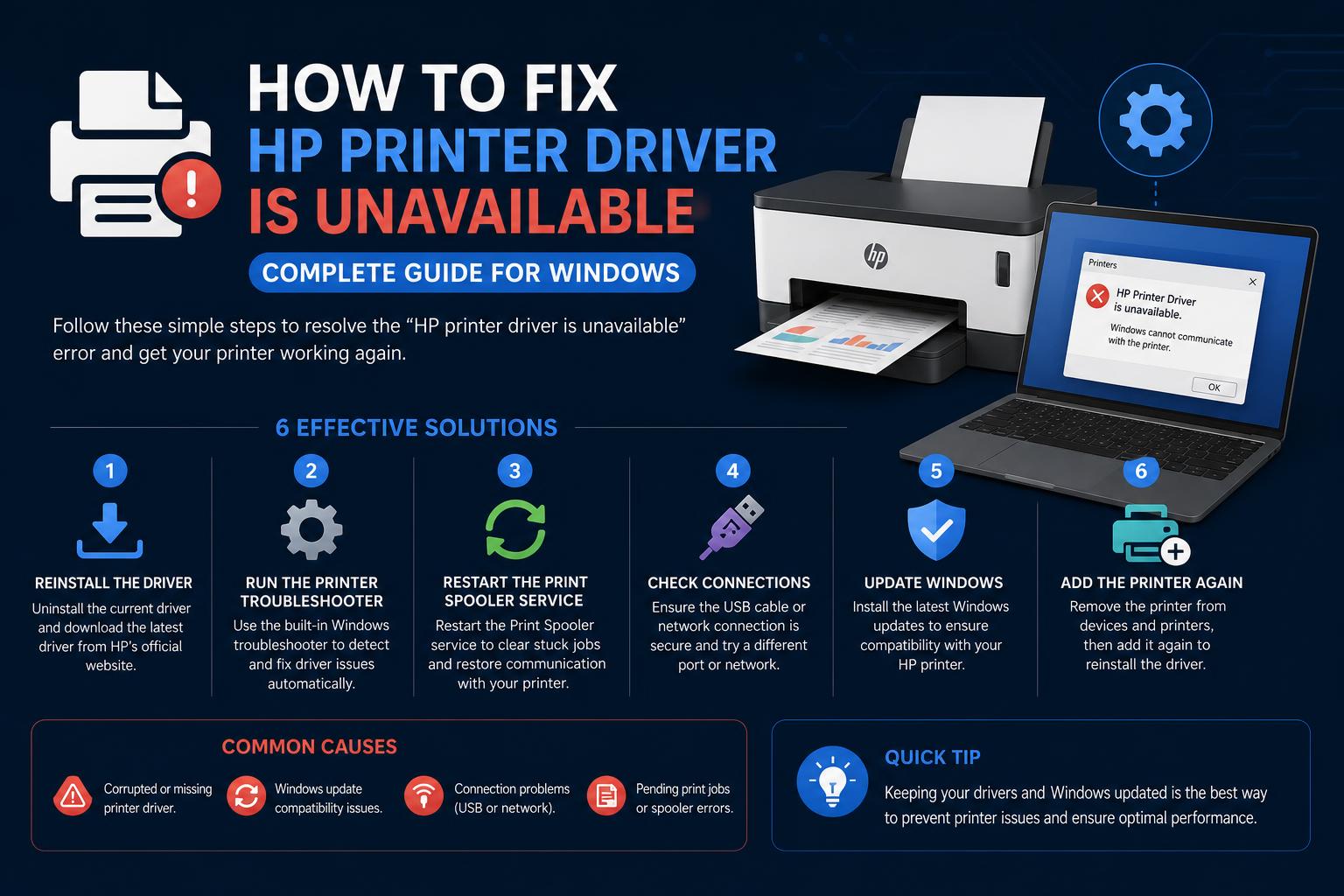
- Understanding what causes the “Driver is unavailable” error is key to prevention and troubleshooting.
- Manual and automated solutions exist for updating, reinstalling, or rolling back HP printer drivers.
- Special scenarios like the “Null Print” driver require unique steps, especially for certain HP models.
Trying to print that important document, only to see your HP printer hit you with the dreaded “Driver is unavailable” error? You’re definitely not alone—it’s a problem that frustrates thousands of users. When your reliable device suddenly refuses to cooperate, understanding how to solve it (and why it’s happening) can save you both time and stress. Let’s demystify this error, dig into why it happens, and, most importantly, how to make your printer work again.
While this error feels like it strikes out of nowhere, there’s actually a technical story behind it. The good news? With the right steps—whether you’re tech-savvy or just want the printer to go back to working—it’s absolutely fixable. We’ll break down what causes “HP printer driver is unavailable”, walk you through all the solutions that actually work, and even tackle those weird edge cases that trip up a lot of folks. Time to get printing!
In simple terms, Windows cannot find, talk to, or properly use the specific software (driver) that makes your HP printer function. This error commonly appears when:
- The driver is outdated, corrupted, missing, or not matching your printer model.
- Windows fails to recognize your device after an update or hardware change.
- Something odd happened during a previous install or uninstall cycle (think unfinished setups, forced shutdowns, or botched updates).
- There’s a compatibility hiccup between the printer driver and your Windows version (especially after big Windows updates or patches).
Ultimately, the driver is a bit like a translator between Windows and your printer. Without the right translation, the two simply can’t communicate—and that’s how “Driver is unavailable” happens.
Which HP Printers and Windows Versions Are Affected?
This issue isn’t just for one model or a specific version of Windows. Reports show the problem can happen with:
- Most HP models, including DeskJet, ENVY, OfficeJet, and LaserJet series
- Windows 10 and Windows 11 (with some cases also cropping up in Windows 8.1 and 7)
Notably, Microsoft specifically lists models like HP DeskJet 4670, ENVY 5000, ENVY 5660, ENVY PHOTO 7800, OfficeJet 3830, 5740, PRO 8600, and 8730 as being particularly prone after uninstall/reinstall situations. But any model can be affected after Windows updates, sudden shutdowns, or failed installations.
Common Symptoms and Scenarios
- The printer shows as “Driver is unavailable” in Windows settings or Devices and Printers.
- Printing suddenly fails after a Windows update or after changing the network/printer connection.
- Attempts to update, install, or reinstall the driver either fail or do not remove the error.
- Sometimes, a “Null Print” driver becomes stuck, particularly with HP devices, blocking correct reinstallation (see below for details).
It usually doesn’t matter if you’re connecting via USB, Wi-Fi, or Ethernet—the error can show up in all scenarios. Even if you’ve printed successfully on the same setup for years, things can change overnight due to software updates.
Let’s unpack the technical causes so you know what you’re up against:
- Driver Corruption: Like any file, drivers can get corrupted by a hard shutdown, interrupted update, or even malware. A corrupted driver can’t do its job—hence the error.
- Outdated, Missing, or Incorrect Drivers: If the installed driver no longer matches your printer model or the latest Windows update, or if it’s just vanished, you’ll see this error.
- Improper Updates (Windows or HP): Sometimes, manufacturer or Windows updates actually introduce a bug or incompatibility, breaking what previously worked.
- Leftover “Null Print” Drivers: HP, in particular, may leave behind a dummy “Null Print” driver after uninstalling the printer. When you add your printer again, Windows thinks the dummy file is the actual driver—but it’s not, leading to the persistent error.
- Print Spooler or Admin Permission Issues: When Windows’ print spooler service or access permissions are out of whack, the driver may not register properly.
1. Try the Obvious: Restart Everything
Before you dive into the advanced fixes, start with the basics. Restart your printer and your computer. You’d be surprised how often this alone resolves temporary communication or software clashes.
2. Run Windows Troubleshooter
Windows comes with a targeted printer troubleshooter that can spot and sometimes fix driver errors. Here’s how:
- Open Settings → System → Troubleshoot → Other troubleshooters.
- Scroll to Printer and hit Run.
The troubleshooter will search for common problems and suggest next steps. If the error persists, continue with the more advanced solutions below.
[relacionado url=”https://www.ikkaro.net/how-to-repair-windows-11-using-command-prompt/”]
3. Update Your HP Printer Driver Automatically
The fastest way to clear most driver errors? Let a tool handle it. You can use the free HP Support Assistant or universal driver update tools like AVG Driver Updater which scan your system, spot missing or outdated drivers, and install the right versions. Here’s a quick overview:
- Download and launch your tool of choice (e.g., HP Support Assistant, AVG Driver Updater).
- Scan your system for outdated or missing drivers.
- Update all flagged drivers (or just your HP printer, if you prefer).
This method is usually very effective when the error is related to versions or compatibility.
4. Update or Reinstall Your HP Printer Driver Manually
If you prefer more control or don’t trust third-party programs, you can update or reinstall your driver directly from Windows:
- Open Device Manager from the Start search box.
- Expand the Printers section, right-click on your HP and select Update driver.
- Choose Search automatically for drivers, and follow the instructions.
If Windows doesn’t find an update or you prefer to install from HP:
- Visit the official HP downloads page.
- Enter your printer model and download the latest driver compatible with your Windows version.
- Run the installation and follow the on-screen instructions.
It is important to get drivers only from the official HP website to avoid malware or incorrect versions.
5. Use the HP Universal Print Driver and Diagnostic Tools
HP offers Universal Print Drivers that work with many models, in addition to its Print and Scan Doctor utility to automatically troubleshoot and repair.
If your model is very old or less common, try the universal driver first.
6. Roll Back a Driver Update That Broke Your Printing
If your printer was working fine before a recent update, the new driver may be the cause. Windows allows you to roll back to previous driver versions:
- Open Device Manager.
- Right-click on your HP under Printers and select Properties.
- Go to the Driver tab and select Roll Back Driver.
- If it’s available, confirm and you’re set.
In some cases, the option may be grayed out if there are no previous versions. If so, move on to uninstalling and reinstalling the driver manually.
7. COMPLETELY Uninstall and Reinstall Your HP Driver
A total cleanup can solve even the most stubborn errors. Here is how to do it:
- Open Device Manager.
- Find your HP, right-click and select Uninstall device.
- Follow the prompts to remove the driver software.
- Disconnect (unplug or turn off) the printer from your PC.
- Restart your computer.
- Reconnect and turn on the printer—Windows will attempt to automatically install the correct driver. If it fails to do so, use the official HP download link mentioned above.
This method usually solves problems caused by old or corrupted drivers.
8. Fix the “Null Print” Driver Issue (Special Case for Some HP Models)
This case requires a bit more attention, but it can be the key for affected models such as HP DeskJet 4670, ENVY 5000, OfficeJet 3830, among others.
Uninstalling can leave a file called ‘Null Print’ (nullprint.inf) on your system. When you reinstall, Windows prioritizes this fake file instead of the real driver, causing the error to persist.
Follow this official Microsoft procedure:
- Type cmd in the Windows search bar.
- Right-click on Command Prompt and select Run as administrator.
- Enter pnputil /enum-drivers and confirm. Look in the list for entries with ‘Original Name’ as nullprint.inf.
- Note down the Published Name.
- Type pnputil /delete-driver <published name> (replace with the name you noted down) and press Enter.
- Remove and re-add your printer in Devices and Printers or in Settings.
By deleting the fake driver, Windows will automatically search for the correct one and you’ll be able to print again without issues. For more official information, check the official Microsoft documentation.
9. Update Your Windows Operating System
An outdated version of Windows can prevent compatibility with recent drivers. Keep your system updated:
- Open Settings (Windows + I).
- Go to Windows Update or Update & Security.
- Click on Check for updates and apply any available ones.
This action also fixes vulnerabilities and prevents future driver issues.
10. Restart the Print Spooler Service and Verify Administrative Permissions
A problem with the print spooler service or limited permissions can block driver installations. Try this:
- Press Win + R, type services.msc and press Enter.
- Find Print Spooler, right-click and select Restart.
- Make sure to perform these operations using an account with administrator permissions.
11. General Tips and Extra Checks
- Disconnect and reconnect: Turn off the printer, unplug it, wait a minute and plug it back in, then restart your PC.
- Check your network connection: If you use Wi-Fi, ensure you have a good connection—HP’s cloud features sometimes require it.
- Try another USB port or cable: A faulty cable can be the cause.
- Optimize your computer: Oftentimes, junk files block installations. Running a disk cleanup helps prevent this.
- Contact HP Support: If nothing works, consult official HP support. They can offer specific solutions for your hardware.
- Keep Windows and HP drivers updated—automatic tools check both.
- Completely uninstall printers before reinstalling them, including manually deleting ‘Null Print’ entries if they appear.
- Perform installations with administrator accounts to ensure a successful process.
- Restart the print spooler service when changing drivers or after related software crashes.
This process may seem complex, but most issues with the “driver is unavailable” error on HP can be resolved with patience and by following these steps. From checking basic connections to specific Microsoft commands, restoring your printer is not as difficult as it seems. Stay updated, use the official tools, and in no time you will be printing smoothly again, even if Windows tries to complicate things with updates or glitches.