
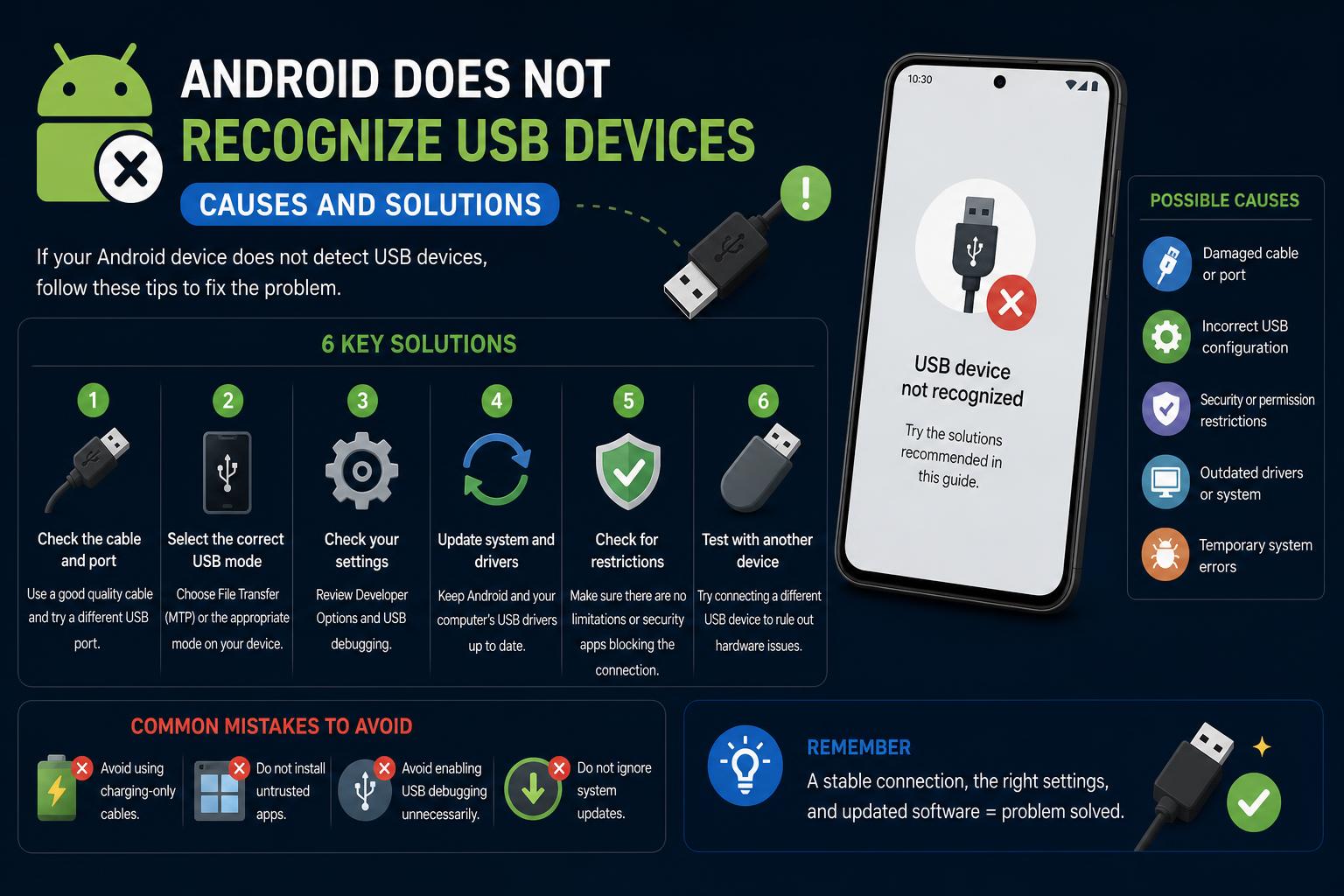
- Identifying core reasons Android fails to recognize USB devices
- Essential troubleshooting steps, from settings to cables
- Differences in device behaviors and deeper underlying issues
It’s a common frustration: you connect your Android device to your computer or try to plug in a USB accessory, expecting quick file transfer or instant charging, yet nothing happens. Either your phone just charges, Windows shows a ‘USB device not recognized’ error, or worse, nothing appears at all. If you’ve found yourself stuck while hunting for a solution, you’re far from alone.
Owners of various Android devices—from OnePlus to Samsung to generic models—routinely encounter USB connectivity headaches for reasons ranging from simple misconfigurations to unexpected software quirks. This comprehensive article dives deep into the reasons your phone or tablet may not be recognizing USB devices, offers real-world troubleshooting steps (including insights from real user experiences in prominent forums), and helps you diagnose and fix the issue using tools available to any user. Let’s make sure your tech gets back to working correctly.
Understanding the Problem: Why Doesn’t Android Recognize USB Devices?
When you connect your Android device to a computer or plug in a USB accessory, several things must go right for the connection to be recognized properly. The process involves hardware (the USB cable and ports), system-level drivers, and configurable software options on both your Android and your PC. If any link in this digital chain fails, the connection may not register, or may fail to work as intended (such as only charging, and not transferring files).
Investigating support threads and tech forums reveals that, often, neither users nor support staff can pinpoint a single root cause. Issues may appear suddenly and seemingly at random, even when setup and hardware haven’t changed from one day to the next. Here are some typical scenarios reported:
- Sudden onset: A device that previously connected perfectly may stop being recognized overnight, even with no changes to cables, computers, or configurations.
- No notification: Connecting the device produces no response from either device, or Windows plays an alert sound but does not open the file explorer or display the phone as a device.
- Only charging, not file access: The phone charges normally but doesn’t prompt for file transfer or show up as device storage.
- Other devices work fine: When swapping in other phones or tablets, everything functions as expected, suggesting the problem is isolated to one Android device.
Common Causes: Hardware and Software Factors
Based on support discussions, most USB recognition issues stem from these core factors:
- Incorrect USB connection mode: Modern Android devices support several connection protocols when attached to a computer via USB—most notably, ‘Charging only’, ‘File transfer’ (MTP), or ‘Photo transfer’ (PTP). If ‘Charging only’ is set, the device won’t show up on your PC.
- Faulty cables or ports: Even cables that seem to charge your phone may not support data transfer, or a damaged cable/port may cause sporadic or failed connections.
- Outdated or missing USB drivers: Your PC (especially Windows PCs) must have the correct drivers for Android connections. Update driver software if issues arise, especially after OS updates. Learning about ADB and Fastboot can be helpful to diagnose these issues commonly. You can also check what Android Debug Bridge (ADB) is and how to use it to verify the connection.
- System and software updates (or bugs): Occasionally, system updates or app installations can alter connectivity. It’s recommended to check for the latest updates and, if necessary, reinstall drivers or perform configuration resets.
- Device-specific quirks or OS customizations: Devices with custom ROMs like GrapheneOS may experience unique issues. It’s important to know the particularities of your firmware.
Step-by-Step Troubleshooting Guide
Let’s break down solutions based on real-world advice and common technical best practices. Each step is important, as sometimes the least expected factor can be the cause:
1. Confirm the USB Connection Mode on Your Phone
By default, many Android phones set USB connections to ‘Charging only’ for security. To check or change this:
- Connect your device to your computer via USB.
- On your phone, swipe down from the top to show notifications.
- Look for a notification from the Android system about USB options.
- Select ‘File Transfer’ (sometimes called ‘MTP’). On some devices, you may see ‘Photo Transfer (PTP)’ or other options. You can also check setting up and personalizing your new Android phone to verify these options.
If you don’t see a notification at all, something else may be wrong—move ahead to the next steps.
2. Try Multiple Cables and USB ports
If your device only charges—or gives no response at all—test with the original USB cable that came with your phone, and try alternate cables if you have them. Not all cables support data transfer, even if they charge. Next, connect to different USB ports on your computer. Some USB ports, especially those on the front or on an external hub, can be unreliable for transferring data.
3. Restart Both Devices
Rebooting both the phone and the computer resolves many temporary driver or connection conflicts. Unexplained glitches—like a device suddenly not appearing when it worked hours before—can be fixed by restarting each device.
4. Update or Reinstall USB Drivers on Your Computer
Connect your phone and check Device Manager (on Windows):
- Right-click on ‘Start’ and choose ‘Device Manager’.
- Look for your Android device under ‘Portable Devices’ or ‘Other devices’.
- If you see a yellow warning icon, right-click and select ‘Update driver’.
- You can also visit your computer or motherboard manufacturer’s site (like ) for specific USB driver downloads.
Outdated or corrupted drivers are a major cause of recognition issues.
5. Inspect for Damage: USB Ports, cables, and device
Carefully examine your USB cable and the port on both the phone and computer for lint, debris, or bent pins. Tiny obstructions in ports can cause connection faults. Try gently cleaning them with a soft brush or compressed air, and change cables if you suspect any failure.
6. Rule Out Airplane Mode or Interferences
On some devices, turning on airplane mode can restrict connectivity or affect how USB devices interact with the network. Make sure it is disabled and that you aren’t using security apps or hardware managers that might block the connection.
7. Test on Another Computer
If you have the possibility, check if your Android device is recognized on another computer. If yes, the problem might reside in the drivers or configuration of the original computer. If not, the probable cause is in the phone or the cable.
When None of the Basics Work: Digging Deeper
Some cases defy all the usual remedies. A Reddit user documented an issue where a OnePlus 6 suddenly stopped being recognized, after working perfectly the day before, with no significant hardware or software changes.
Despite all attempts—changing cables, ports, updating OS, restarting, and even connecting to other computers—the phone remained invisible. File transfer was not enabled, and developer options resolved nothing. Interestingly, other devices worked normally, which isolated the problem to the specific phone.
These cases are rare, but not impossible. Potential causes that go beyond conventional troubleshooting include:
- Software corruption on the phone, especially after updates or custom ROMs
- Background applications interfering with USB access (e.g., power management or security apps)
- Bugs in system builds (a risk with custom ROMs or beta updates)
- Physical failure in the device’s USB port
When to consider a factory reset (and precautions first!)
If you have exhausted all options and your Android device still refuses to be recognized, many experts suggest a factory reset as a last resort. However, it is crucial to back up your data beforehand, as this process will erase all data, apps, and files from the phone. Learning about rooting your Android can facilitate data recovery in critical cases.
Important notes:
- If you cannot transfer files via USB, consider using the cloud or Wi-Fi transfer apps.
- Use services like Google Drive, Dropbox, or manufacturer solutions (like Samsung Smart Switch) to back up data remotely.
- If the phone cannot mount as storage and Wi-Fi options don’t work, professional repair may be necessary to recover your files before doing a reset.
Special Considerations for Samsung and Other OEM Devices
Some manufacturers offer specific instructions. For example, Samsung support indicates that USB and tethering issues are sometimes related to broader device or network issues. Recommending to restart, keep firmware updated, or use their PC applications to identify potential software faults.
Expert Tips and Community Lore
Long threads in forums like Microsoft and Reddit contain a wealth of knowledge acquired by experienced users. Some key takeaways are:
- Always start with the simplest solutions—don’t ignore the basics.
- If one particular device always fails but others work, it may be a specific firmware or hardware issue.
- Custom ROMs and developer settings sometimes interfere with standard USB options. Check your ROM’s documentation.
- Sounds or notifications with no actual content indicate that the device is trying to negotiate the connection but fails to complete the handshake, making driver and cable quality essential.
Frequently Asked Questions
Why is only my particular phone not recognized, while others are?
If the other devices work fine, the fault is likely with your phone. Internal issues, OS corruption, or less commonly, malware or recent interferences can be causes. If after restarting the problem persists, repair might be necessary.
Can viruses or malware affect these connections?
Though rare, security apps or malware could block or disrupt USB connections. Run scans with reliable programs on both devices if you suspect an infection, although generally the problems are driver or hardware related.
My phone connects but doesn’t enable file transfer—what do I do?
Make sure developer options aren’t restricting phone debugging or USB permissions and that ‘File transfer’ is selected on every connection. Some devices require manually selecting this option on each connection, as it may default to ‘Charging’ mode.
With precision in the steps, attention to detail, and a methodical review of cables, ports, drivers, and settings, you can resolve almost any Android USB connection issue. If difficulties persist, contacting manufacturer technical support or professional repair may be the best option if physical damage is suspected. Patience and a systematic method are often the key to solving even the most complex cases.
The complete guide to ADB and Fastboot: Unleash Android’s Full Power