
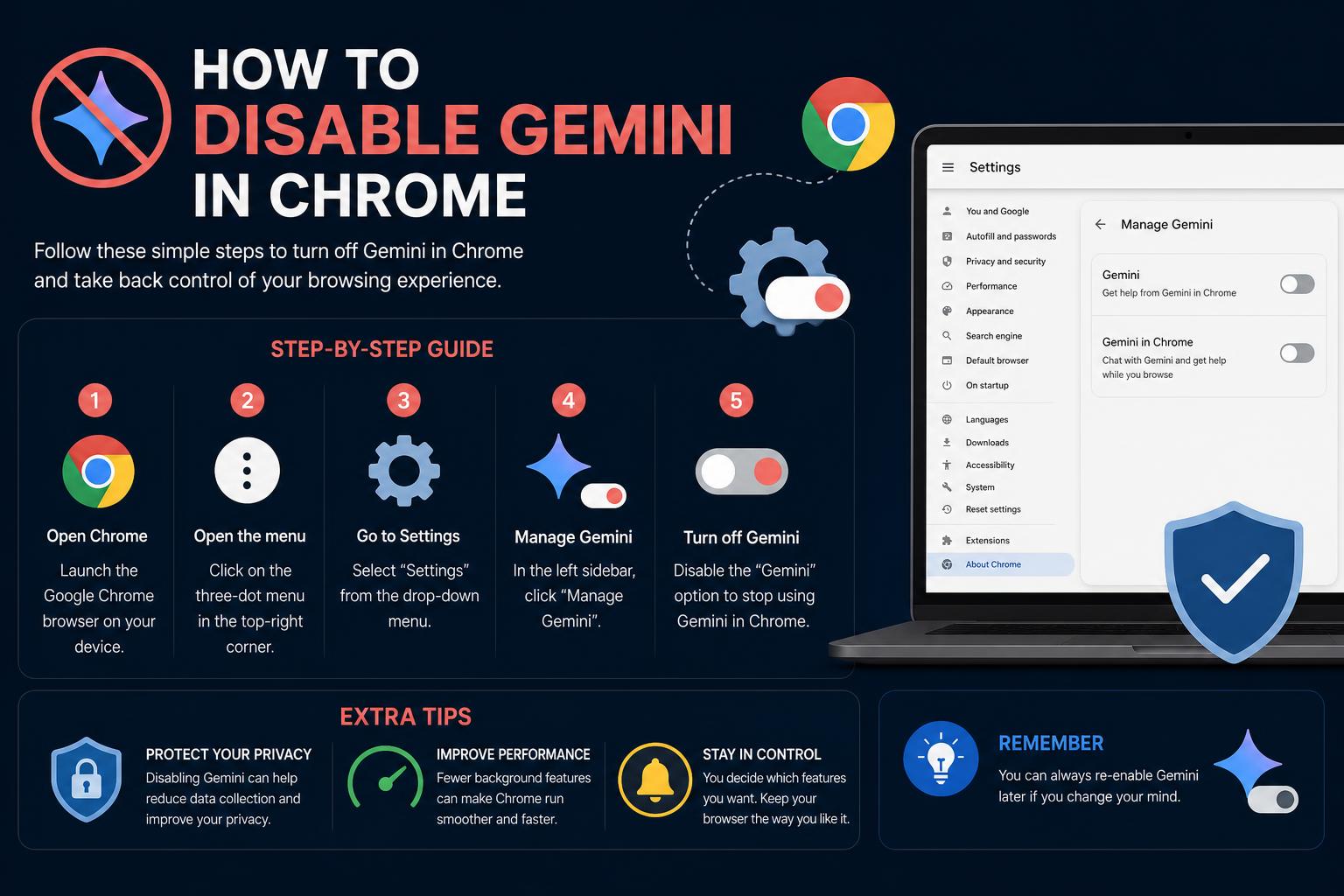
- Gemini Nano AI can auto-install in Chrome without user consent, taking up significant disk space.
- Disabling Gemini in Chrome requires toggling specific settings—not just deleting files.
- Gemini features affect not only Chrome but also Gmail, Drive, Docs, Photos, and Android.
Feeling uneasy about AI features silently running in your Chrome browser? You’re not alone. As Google continues to roll out Gemini Nano and other AI integrations, users worldwide are waking up to the realization that gigabytes of AI models can sit quietly on their computers—often without their explicit knowledge or consent.
Maybe you’ve noticed new AI features in your browser, seen mentions of Gemini in your settings, or simply want more control over what’s running in the background. This guide goes well beyond the basics you’ll see elsewhere. Here, you’ll get a deep dive into how Google Gemini and its associated services work inside Chrome, what happens when you try to switch it off, and—crucially—detailed steps to fully disable, limit, or remove Gemini from Chrome, Windows, and Android environments. We’ll also address the privacy debates sparked by these changes, and offer additional tips drawn from official sources, tech reports, and power-user advice.
What is Gemini Nano and Why is it in Chrome?
Gemini Nano is Google’s on-device AI model—essentially a large AI file, often occupying about 4 GB of disk space, which supports features like scam detection and developer APIs in Chrome. Since early 2024, Google has been quietly rolling out Gemini Nano as part of the Chrome desktop browser updates. The purpose of this integration is twofold: to unlock new local AI-powered features and to keep processing on-device for privacy-sensitive tasks, rather than pushing all data to Google’s cloud.
A Google spokesperson explained to WIRED that the model supports on-device scam detection as well as developer access to AI APIs. While this might sound helpful, the reality is that for many users, Gemini Nano showed up without sufficient notice, and unsolicited background activity has rightfully raised both storage and privacy concerns.
How Did Gemini Nano Get Installed on My Chrome?
When Google rolled out Gemini Nano, it did so rather silently: for the majority of Chrome desktop users, this ~4GB AI model file was downloaded without a clear prompt, often after an update. Regular users who don’t watch Chrome’s technical updates closely were unlikely to realize that a powerful AI system had just become part of their browser’s environment.
- According to multiple reports (including coverage from that privacy-focused blog That Privacy Guy), simply deleting the model file is futile—Chrome will redownload it the next time you launch the browser unless you correctly disable the AI features through settings.
- Google began rolling out an ‘On-device AI’ switch in Chrome’s system settings in early 2024, finally providing a user-facing option to prevent Gemini Nano from auto-installing and updating in the future.
- Gemini Nano’s integration is not part of Chrome’s regular “AI Mode” but operates behind the scenes for specific local processing tasks.
Why Does Google Integrate Gemini Nano? Is This Good for Privacy?
Google’s rationale for integrating Gemini Nano is to enhance features like scam detection and to provide a local AI processing environment for developers. According to Chrome’s team, this keeps some sensitive tasks on your device rather than sending them to the cloud. In theory, this is a privacy-improving move, since local processing limits the data sent to Google servers.
However, the controversy stems from a lack of transparency and user awareness, as well as concerns that even with local processing, large AI models present new attack surfaces and unknowns. Deciding whether to keep or remove Gemini Nano often comes down to your specific privacy priorities and your trust in Google’s implementation.
Official Methods to Disable Gemini in Chrome (Desktop)
There’s more than one way to limit Gemini integration in Chrome, but most methods do not remove all AI features—just the Gemini Nano model or certain AI-powered tools.
1. Turning Off On-device AI in Chrome
- Open Chrome on your computer.
- Click the three vertical dots (the “More” menu) in the upper-right corner.
- Go to Settings.
- Navigate to System.
- Find the switch labeled “On-device AI” and toggle it off.
Once this option is turned off, Chrome will no longer download Gemini Nano or update it in the background. Over time, the AI model should uninstall automatically if not used, or free up resources if your device is low on storage or memory.
2. AI Innovations Option (If Available)
On some systems and especially in the US with the most recent Chrome versions for Mac and Windows, you may see a separate section labeled “AI Innovations.” Here’s how to use it:
- Open Chrome, and select the three-dot menu again.
- Go to Settings.
- Choose “AI innovations” in the menu.
- Locate “Gemini in Chrome” and toggle it off.
Additional AI features, like “History search, powered by AI” and “Help me write,” may also be individually switched off from this panel. Power users recommend toggling off every available setting here for maximum privacy.
Why Simply Deleting the File Doesn’t Work
If you attempt to manually delete Gemini Nano’s core file from Chrome’s data directory, Chrome will just quietly reinstall it the next time it updates or restarts. The official toggle described above is the only way to reliably prevent it from coming back on a typical desktop setup.
The Workspace and Enterprise Perspective: Admin-Level Controls
If you’re part of a larger organization—especially one using Google Workspace—Gemini in Chrome is enabled or restricted at the admin level. Admins control Gemini availability via the Google Admin console in the “Generative AI > Gemini app” section. There they can:
- Allow access for all users (regardless of Workspace license)
- Limit access by organizational unit or group
- Turn Gemini “on for everyone” or “off for everyone”
- Control retention of Gemini conversation history and related privacy/data handling settings
Changes made by admins usually take effect within 24-72 hours. End users typically cannot override enterprise Gemini settings themselves.
How ChatGPT Works: An In-Depth Guide to Features, Uses, and Real-World Applications
Gemini’s AI Features Throughout Google’s Ecosystem
Gemini isn’t just about Chrome. Google’s AI integrations span Gmail, Drive, Docs, Photos, and Android phones. Here’s how those connections look and what you can do to disable or minimize AI’s reach elsewhere:
Gmail, Drive, and Docs
- Open Gmail.
- Click the settings (gear) icon and select “See all settings”.
- Scroll down to “Smart Features” and uncheck to turn off smart features in Gmail, Chat, and Meet.
- Click on “Manage Workspace smart feature settings” underneath.
- Toggle off both “Smart features in Google Workspace” and “Smart features in other Google products” and hit save.
This ensures that Gemini can’t access or use your emails, document drafts, or summary tools as part of its learning or automations.
Remember: Smart Features must be disabled in both of these locations to actually cut off AI-powered functionality!
Google Photos
- Open Google Photos on your phone.
- Tap your profile icon and go to “Google Photo settings.”
- Open “Preferences,” then “Gemini features.”
- Turn off “Use Gemini in Photos.”
This disables Gemini-powered features inside the Photos app, which could otherwise analyze and summarize photo content.
Disabling Gemini AI in Chrome on Android
Android users face a somewhat different situation. While Gemini AI is not always automatically installed (especially after July 2025 if you haven’t previously enabled it), some phones get system updates that replace Google Assistant with Gemini by default. Here are your options:
Disabling or Uninstalling the Gemini App on Android
- Open the Gemini app on your Android device.
- Tap your profile in the top right.
- Go to Apps, and toggle off Gemini access for Google Workspace and all listed apps—Messages, Phone, WhatsApp, etc.
This essentially blocks Gemini AI from running or accessing any apps on your phone.
Alternatively, advanced users can attempt a full uninstall using ADB or dev tools by targeting the package com.google.android.apps.bard. Detailed uninstall instructions can be found in developer forums or Android’s developer documentation. Be aware: this is advanced and may have unintended side effects—most users should stick to disabling via the app interface.
Limiting Gemini App Activity
- From the Gemini app, go to “Gemini Apps Activity” in your profile.
- Tap “Turn off.” Then select “Delete” > “All time” to erase historical data.
Even after disabling activity tracking, Google may temporarily store your Gemini data (up to 72 hours) for stability and security purposes.
Note for Custom ROM Users and Alternatives
If you use privacy-focused Android ROMs like GrapheneOS, LineageOS, or /e/OS, Gemini integration is limited or nonexistent. Switching to these alternative operating systems almost always eliminates silent installs or background AI functionality.
Gemini, Privacy, and Auto Opt-in Debates
Google’s approach to rolling out Gemini AI features has led to widespread user confusion. Many users—especially in the European Economic Area, Japan, Switzerland, and the UK—are protected by privacy regulations that default smart AI features to “off”. In other regions, Gemini and Workspace smart features are active by default, requiring manual opt-out to regain privacy control.
The controversy is compounded by email notifications and settings wording: Google’s communication often lacks specifics about exactly how to turn Gemini off, making it hard for less technical users to keep pace with rapid AI feature rollouts. Activists call this “privacy washing”—where opt-in is performed without genuine transparency or explicit consent.
Some power users and privacy advocates also warn that despite switching off activity or smart features, Gemini may retain certain minimal access or store activity for up to 72 hours by design. This is usually for system stability, security, or user support, according to Google’s own documentation.
Gemini in Google Workspace and Enterprise: Administrative Controls
Workspace admins have a central portal (the Google Admin console) to control Gemini AI services at scale:
- Navigate to “Generative AI > Gemini app” within the Admin console.
- Adjust settings to allow or restrict access by organization or group.
- Control whether Gemini conversation history is saved and for how long (default: 18 months; options: 3, 18, or 36 months).
- Turn on or off Gemini for all users, or selectively by department or group.
These settings can take up to 24 to 72 hours to propagate. Non-admin users cannot override these controls, so if you’re part of a managed organization, contact your IT admin for support in disabling Gemini where needed.
FAQs and Troubleshooting: Common Issues Disabling Gemini in Chrome
- Q: Why doesn’t my toggle appear in Chrome Settings?
A: The On-device AI option is being rolled out in phases. Make sure your Chrome is updated to the latest version. If the option still isn’t there, you may be in a region where rollout isn’t finished, or your device/platform isn’t currently supported. - Q: Will deleting the Gemini Nano file free up disk space?
A: Not permanently—unless you disable the On-device AI feature in settings, Chrome will simply re-download the model at the next opportunity. - Q: Is Gemini the same as Google’s AI Mode?
A: No. Chrome’s AI Mode is a separate feature that does not use Gemini Nano for on-device processing. - Q: What about Chrome on iOS?
A: Currently, Gemini Nano integration is focused on Windows, Mac, and Chromebook Plus devices—iOS is unaffected for now, though future integrations may arrive.
Gemini, Compliance, and Data Handling: What Happens to Your Info?
For business and educational accounts, Google provides different terms for Gemini depending on the type of license held (see the official documentation). For example, users under enterprise agreements have stricter data protections: their content is not human-reviewed or used to train external AI models. Meanwhile, individuals without such agreements may have their interactions reviewed by Google employees and used for product improvement, unless specific privacy settings are engaged.
Data retention for Gemini conversations varies: by default, it’s 18 months (for enterprise), but can be administratively shortened to 3 months or extended to 36 months. Smart features, file integrations, and image/audio processing may have separate retention or privacy implications based on regional law and account type.
Note that certain compliance regimes (HIPAA, ISO, FedRAMP, etc.) are not fully supported for Gemini in Chrome. If your organization requires strict compliance, Gemini may be auto-blocked or must be disabled at the admin level.
Alternatives for Private Browsing Without Gemini
If you feel uncomfortable with any of Google’s AI integrations, consider using an alternative browser (such as Mozilla Firefox, Brave, or Vivaldi) that does not bundle large on-device AI models. While switching browsers is a nuclear option, it’s the most complete guarantee if you’re seeking maximal privacy and want a Gemini-free experience.
Transparency, Consent, and The Larger Privacy Picture
The rollout of Gemini and similar AI technologies spotlights the ongoing tension between the drive for new features and user control. Several privacy-focused blogs have called out the lack of transparency; even though Google has begun offering more user-facing toggles, auto-opt-in behavior and unclear alerts are major weaknesses in the user experience.
Global regulations (like those in the EU) increasingly require explicit user consent for new data uses, so it’s likely more visible controls and better notification systems will become standard. However, for now, it remains the user’s responsibility to proactively investigate and turn off Gemini where desired.
Understanding how these tools operate, where to find their controls, and how to fully opt out is essential for maintaining your privacy and browser autonomy in the evolving AI landscape.