
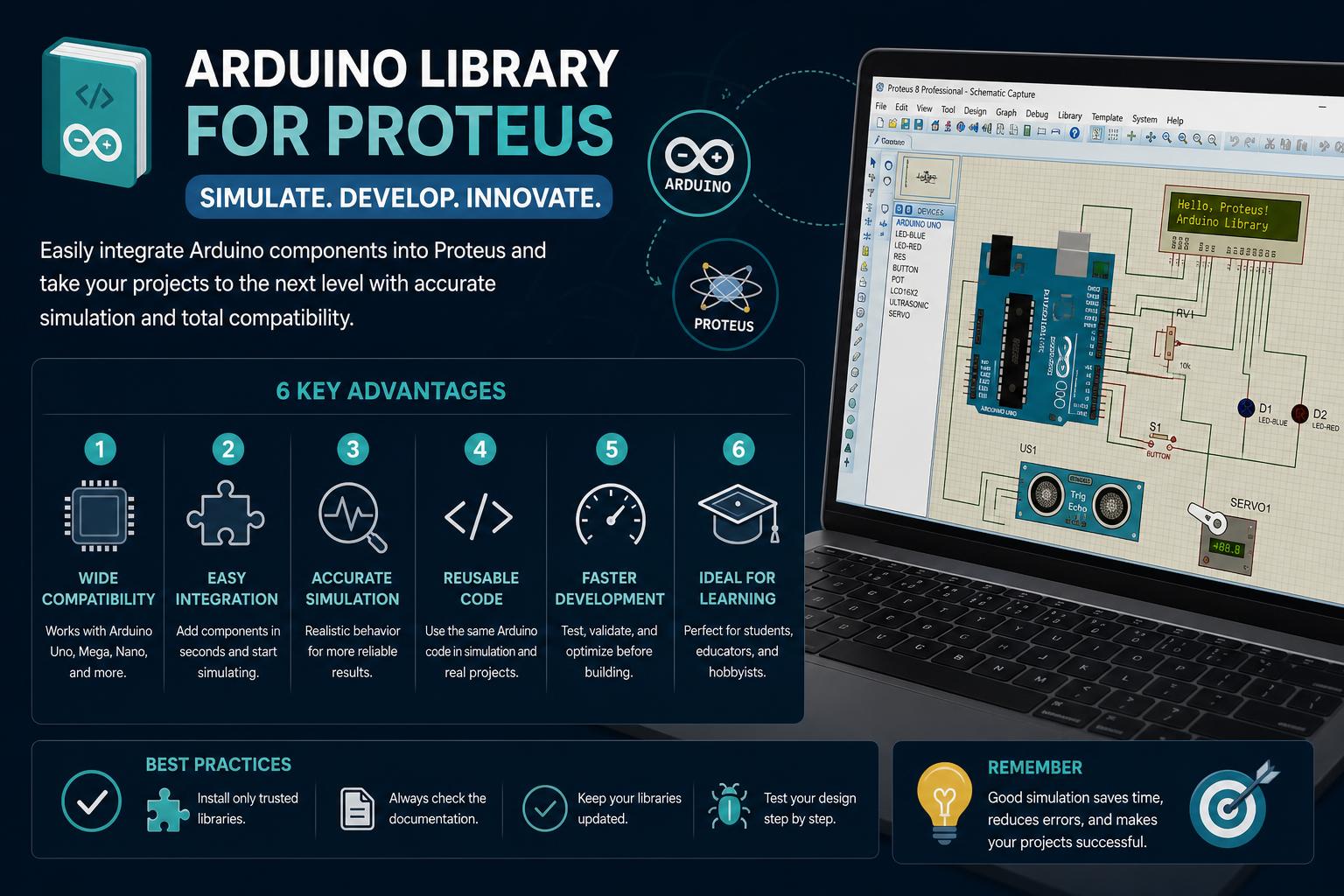
- Community-made Arduino board and sensor libraries empower Proteus simulation of real-world Arduino projects.
- Installation is straightforward—drop .LIB and .IDX files in the Proteus library folder, restart, and enjoy instant board/component access in ISIS.
- Proteus simulates .hex code output, not Arduino C++ libraries directly; success relies on compatibility between the Proteus model and your code.
- Top resources include The Engineering Projects and MwarandusLab’s GitHub, offering comprehensive, free Arduino simulation models for all skill levels.
Are you trying to simulate Arduino projects in Proteus and want to know how to add or use Arduino libraries with realistic results? You’re not alone. Many engineers, students, and hobbyists want the power of Arduino simulation within Proteus, but the knowledge is scattered, outdated, or unnecessarily complex. This guide brings together everything you need about the ‘Arduino library for Proteus,’ based on detailed analysis of the top-ranking web articles, GitHub repositories, and community discussions.
This article doesn’t just tell you where to find an Arduino library for Proteus. You’ll get a deep dive into what’s available, how it works, what to expect (and not to expect), and practical workflow tips. Whether you’re a beginner looking to run your first LED blink in simulation or an advanced user curious about support for more complex boards or third-party libraries, keep reading for the ultimate deep dive.
Understanding Proteus and Its Support for Arduino Libraries
Proteus Design Suite is a popular tool for embedded electronics simulation and PCB design. One of its standout features is the ability to simulate microcontroller-based projects with a wide range of component libraries, including custom ones. But there’s a catch when it comes to Arduino support: Proteus doesn’t officially ship with native support for Arduino boards or the huge library ecosystem you find in Arduino IDE.
This is where community-contributed libraries step in. Several groups and individuals, notably The Engineering Projects and a number of GitHub repositories, have patched this gap by creating custom component models for popular Arduino boards (like UNO, MEGA, Nano, and others) and some sensor/modules support.
What Exactly Is an “Arduino Library for Proteus”?
When users talk about an ‘Arduino library for Proteus,’ they’re usually referring to model libraries that add Arduino boards as components in the Proteus ISIS schematic environment. These models allow you to drag, drop, and simulate Arduino boards, upload your code (compiled as a .hex file), and interact with virtual circuits using the same code you’d deploy to real hardware.
It’s important to note the distinction between a “Proteus library” and the standard Arduino software libraries (like DHT, LiquidCrystal, etc.): The Proteus library makes Arduino boards available for circuit simulation but does not natively add support for Arduino’s software library ecosystem within the Proteus IDE. More on this in the troubleshooting and caveats sections!
Where Do You Get Arduino Libraries for Proteus?
Several sources provide downloadable Arduino board libraries for Proteus. The most prominent are:
- The Engineering Projects: One of the longest-standing sources, with a comprehensive library covering most essential Arduino boards. The library is regularly referenced by engineering blogs and forums for Arduino simulation in Proteus.
- MwarandusLab GitHub Repository: Provides a thorough collection not only for Arduino boards (UNO, Nano, Mini, Mega, etc.) but also for dozens of common sensors and modules (flame, gas, PIR, ultrasonic, Bluetooth HC-05, LCD displays, GSM, etc.). The project is useful for those who want component-level simulation and includes both .LIB and .IDX files.
What Boards and Sensors are Supported?
Most notable Arduino boards included in these libraries:
- Arduino UNO (the community’s gold standard)
- Arduino Nano
- Arduino Mini
- Arduino Mega 2560 and 1280 (the latter often included but not always documented separately)
- Arduino Leonardo, Pro Mini, Due, and YUN (availability varies, focus usually on the basics)
- Genuino boards (community-maintained variants)
Sensor and Module support includes:
- Common input/output devices: LCDs (16×2, etc.), keypads, etc.
- Traditional sensors: Flame sensor, flex sensor, gas sensor (MQ series), PIR motion sensor, soil moisture sensor, IR proximity and infrared sensors, rainfall sensors, vibration sensor, magnetic reed switches
- Interfaces and modules: Bluetooth (HC-05/06), GSM modules (SIM800/SIM900), GPS (basic modules), XBee, and ultrasonic distance sensors (HC-SR04)
- Miscellaneous: Real-Time Clock (DS1307/DS3231), solar panel models, LCD displays
How Do You Install an Arduino Library in Proteus?
The process is generally consistent across most of these community libraries:
- Download the ZIP file of the corresponding library for Proteus (from The Engineering Projects, GitHub, or another trusted source).
- Unzip the file to reveal one or more pairs of .LIB and .IDX files (for example, ArduinoTEP.LIB, ArduinoTEP.IDX, or ARDUINO.LIB, ARDUINO2.LIB).
- Copy these files into Proteus’s library folder. For default installations, this is usually located at C:/Program Files (x86)/Labcenter Electronics/Proteus 8 Professional/LIBRARY/ (or wherever you installed Proteus).
- Restart Proteus so it reloads its library list. Then, in the schematic editor (ISIS), use the “Pick Devices” window (shortcut: P), search for your desired Arduino board (e.g., ArduinoTEP, Arduino UNO), and place it in your schematic.
- For sensors and modules, repeat the search by their names (e.g., PIR Sensor, HC-SR04, LCD, etc.).
- Load your compiled .hex file into the virtual Arduino component by editing its properties.
It’s almost plug and play. For complete sets—including additional sensors and modules—make sure to pair the .LIB and .IDX files listed in the repositories’ READMEs or the provider’s documentation.
Troubleshooting: Including Arduino IDE Libraries (DHT, LCD), and Common Pitfalls
A common question is whether standard Arduino IDE libraries like DHT11, LiquidCrystal, or others can be used in Proteus.
The short answer: While you can use basic software libraries (already compiled into your code in the .hex file), Proteus does NOT directly understand or simulate the C++ libraries from the Arduino IDE within its schematic environment. For example, if you write code using the DHT or LiquidCrystal library and upload the .hex to an Arduino model in Proteus, then connect virtual sensors or displays, the basic logic (digital levels, connectivity) can be simulated, but not the complex behavior of those libraries—especially if the Proteus model doesn’t support the corresponding sensor or display.
In other words: Simulation accuracy will be limited by the hardware model available in Proteus and by how your virtual circuit is set up.
The more comprehensive libraries (like those from MwarandusLab or The Engineering Projects) include basic sensor and output models, so your code can interact with these virtual models. However, this isn’t guaranteed for every library you might use in the IDE, especially proprietary ones, timing-sensitive ones, or third-party ones.
What Is the Workflow for Simulating Arduino Projects in Proteus?
This is a typical workflow followed by experienced users:
- Write and test your Arduino code in the Arduino IDE, making sure to select the correct board.
- Compile and locate the generated .hex file (check the IDE’s detailed output or the build folder).
- Open Proteus. Search for and place your Arduino board, connect the components according to your schematic, including supported sensors and actuators.
- Edit the Arduino’s “Program File” property and point it to your compiled .hex file.
- Check the connections, making sure the pins match between code and schematic.
- Run the simulation. Observe digital and analog outputs, check sensor readings if they’re also simulated, and interact accordingly.
This workflow mirrors real-hardware development, making Proteus a useful tool for debugging, educational demos, or rapid prototyping before physical implementation.
Compatibility and Version Notes
Supported Proteus versions:
- Most libraries work with Proteus 7.x and 8.x (ISIS & ARES).
- Compatible operating systems: Windows XP, 7, 8, 10, 11.
- Library files are usually compatible across versions, but it’s always a good idea to use the most recent versions and keep things updated.
Known issues:
- If a component doesn’t show up in your list, check that you’ve correctly copied the .LIB/.IDX files.
- .hex file builds can vary across different Arduino IDE versions; if simulation errors occur, try an earlier IDE version or check library support against your Proteus version.
- Advanced boards (like DUE or YUN) may have limited support or still be in development, depending on the provider.
Available Features and Limitations
The upside: You can now simulate complete Arduino projects, test with different sensors and devices, and debug before building physically.
The limitations: Not all boards or sensors are supported. Complex IDE libraries (especially those heavily dependent on hardware) may not work fully in simulation.
To go further, advanced users can create their own Proteus models, but this requires additional knowledge and goes beyond the scope of community libraries.
What About Third-Party Feedback, Forums, and Community Resources?
Discussion threads on platforms like Reddit frequently ask about using Proteus for Arduino development, especially regarding libraries like DHT or LCD. These discussions highlight a key limitation: Proteus can’t import Arduino software libraries as native components into its schematic. Instead, simulation is handled through .hex files and available models. Fully integrating the Arduino IDE’s C++ libraries into Proteus without a corresponding hardware model currently isn’t possible (and this is a common mistake among beginners).
Forums like the official Arduino forum discuss advanced workarounds, but the consensus is that hardware library support happens through the .hex code and Proteus models, not through directly importing IDE libraries.
Example: Installing and Simulating Arduino UNO with an LED Blink Circuit
Let’s look at a practical example:
- Download the ARDUINO.LIB/.IDX files (for example, from The Engineering Projects).
- Copy them into your Proteus library folder and restart the program.
- Create a new project, search for “ArduinoUNO” in the “Pick Devices” dialog, and add it to the schematic.
- Connect an LED to a digital pin (for example, pin 13) through a resistor.
- Open the Arduino IDE, select UNO, and load the LED blink example. Compile and locate the generated .hex file.
- In Proteus, assign that .hex file to the Arduino component by editing the Program File property.
- Run the simulation and watch the virtual LED blink. For more complex projects, add sensors or components supported by your libraries.
By following these steps, you can build and test more advanced circuits, always relying on the available simulation models as a stand-in for your hardware.
Comprehensive List of Sensors, Modules, and Libraries Available in GitHub Repos
For easy reference, here’s an overview (based on the MwarandusLab GitHub repository) of the available library files and support:
- Arduino Boards: ARDUINO.LIB, ARDUINO2.LIB, ArduinoUnoTEP.LIB/.IDX, ArduinoNanoTEP.LIB/.IDX, ArduinoMiniTEP.LIB/.IDX, ArduinoTEP.LIB/.IDX, GenuinoTEP.LIB/.IDX
- Sensors: FlameSensorTEP.LIB/.IDX, FlexSensorTEP.LIB/.IDX, GasSensorsTEP.LIB/.IDX, IRProximitySensorTEP.LIB/.IDX, InfraredSensorsTEP.LIB/.IDX, PIRSensorTEP.LIB/.IDX, RainSensorsTEP.LIB/.IDX, SoilMoistureSensor2TEP.LIB/.IDX, UltrasonicTEP.LIB/.IDX, VibrationSensorTEP.LIB/.IDX, MagneticReedSwitchesLibraryTEP.LIB/.IDX
- Communication modules: BluetoothTEP.LIB/.IDX, GSMLibraryTEP.LIB/.IDX, GpsTEP.LIB/.IDX, XBeeTEP.LIB/.IDX
- Display/time modules: LCDLibraryTEP.LIB/.IDX, RTCModuleTEP.LIB/.IDX
- Other models: SolarPanel2TEP.LIB/.IDX
By copying these files into Proteus’s library folder and restarting, you’ll have access to these devices to use in schematics and simulations within Proteus ISIS.
Is There an “Official” Arduino Library for Proteus?
There is no “official” Arduino library for Proteus. They are all community-maintained, open, or shared by educators and maker groups. This brings both advantages and drawbacks: support for many boards and sensors, but also variability in quality, updates, and support.
Extra Tips for Success
- If something doesn’t work (for example, a sensor value isn’t being read correctly), check the connections and make sure you’re using a library supported by Proteus.
- Check the README files or video tutorials provided by the library authors to deepen your understanding.
- Get involved in the community: report bugs or contribute improvements to public GitHub repositories.
- For advanced users, learning how to create your own models in Proteus can further expand your options.
The ability to integrate Arduino into Proteus, with support for both real and virtual circuits, now offers an accessible and powerful option for prototyping, debugging, and learning, although there are still limitations in support for libraries and very complex hardware.