
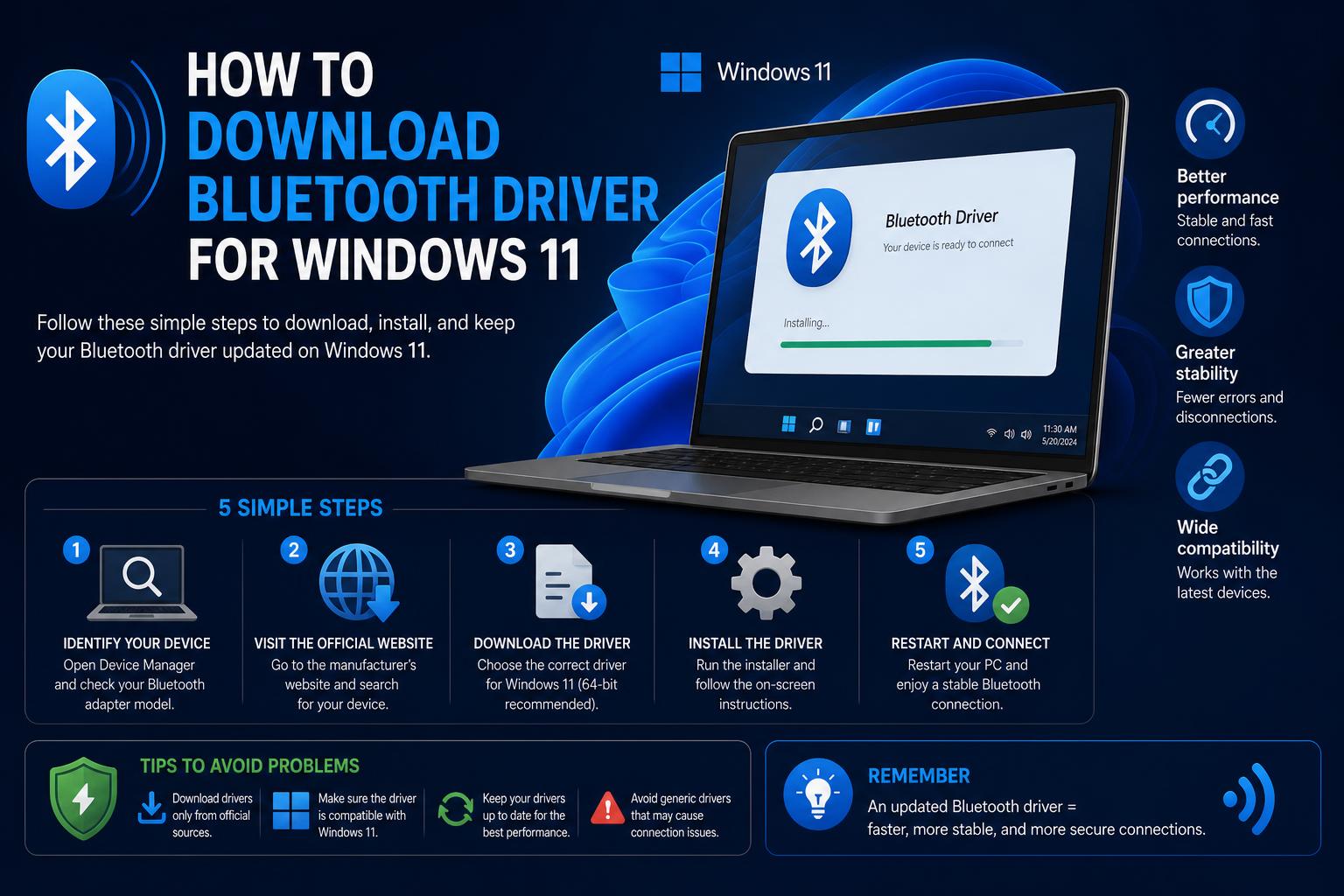
- The most reliable sources for Bluetooth drivers are device manufacturers and Windows Update.
- Updating drivers can solve connectivity and detection problems on Windows 11 devices.
- Troubleshooting steps often involve Device Manager and reverting driver changes.
Bluetooth connectivity has become essential in today’s computing environment, whether it’s for wireless headphones, mice, keyboards, or even transferring files between devices. Windows 11 brings a fresh experience, but with its advanced features come a fair share of compatibility questions—particularly when it comes to Bluetooth drivers. If you’re struggling to find where to download Bluetooth drivers, how to install them, or to troubleshoot issues like missing drivers or connectivity failures, you’re in the right place.
This guide will walk you through every crucial aspect of Bluetooth drivers on Windows 11, from sourcing the correct drivers to the fine points of ensuring stable connections. We’ll cover official sources, third-party platforms, all-in-one manufacturer support, and a step-by-step exploration of updating, installing, or rolling back Bluetooth drivers. Even if you’ve tried generic fixes or have hit a brick wall with driver issues, these insights can help restore and optimize your Bluetooth experience.
Understanding Bluetooth Drivers on Windows 11
Bluetooth drivers are software components that enable Windows 11 to communicate with Bluetooth hardware. They bridge your operating system with both internal and external Bluetooth adapters.
When these drivers are missing, outdated, corrupt, or incompatible, you may experience problems such as devices not pairing, connections dropping, or Bluetooth disappearing from your settings. Knowing where and how to acquire or update these drivers is the foundation for a seamless wireless experience.
Sources for Downloading Bluetooth Drivers
The safest and most dependable way to get Bluetooth drivers for Windows 11 is through the official channels—namely Windows Update, PC and device manufacturers, and in some cases, chipset vendors like Intel. Here are your main options:
- Windows Update: Microsoft integrates many device drivers directly into the Windows Update system. This is the quickest way to get certified and compatible drivers. Simply click Start, go to Settings, find Windows Update, and check for updates. Any available Bluetooth drivers should appear for supported devices.
- Device Manufacturer’s Support Website: If Windows Update does not supply a driver, or you require the latest or custom drivers, visit your PC or motherboard manufacturer’s portal (such as Dell, HP, Lenovo, ASUS, Acer). Search using your device’s model number to locate the exact Bluetooth drivers packaged for your hardware.
- Chipset Manufacturer’s Driver Pages: For laptops and motherboards using Intel Bluetooth chipsets, you can download the latest drivers directly from Intel’s support site: Intel Wireless Bluetooth Drivers for Windows 11.
- Third-party Software Repositories: While sites like Softonic (Softonic) offer Bluetooth driver downloads, use caution as these may not always be the most updated or safe option. Stick to official sources whenever possible.
Avoid downloading drivers from forums or unofficial links except as a last resort. Unverified packages may be outdated, incompatible, or even contain malware.
How to Check and Update Bluetooth Drivers via Device Manager
Device Manager is the built-in management hub for your system hardware drivers. If your Bluetooth is misbehaving, chances are you’ll find the root cause—and solution—here.
- Press the Start button and search for ‘Device Manager’, then click the result to open the tool.
- Look for the ‘Bluetooth’ section. Expand it to display all Bluetooth adapters and devices connected to your system.
- Right-click your Bluetooth adapter (e.g., ‘Intel Wireless Bluetooth’).
- Select ‘Update driver’.
- Choose ‘Search automatically for drivers’. Windows will attempt to find and install the newest, compatible driver.
- Follow any additional on-screen instructions, then restart your PC when prompted.
This process is often the simplest fix for basic Bluetooth issues, such as connectivity hiccups, pairing errors, or missing entries in your device list.
Installing Bluetooth Drivers with Windows Update
If the Device Manager approach doesn’t yield results, the next best route is through Windows Update.
- Open Windows Settings (click Start > Settings).
- Navigate to the ‘Windows Update’ section.
- Click ‘Check for updates’.
- If a Bluetooth driver update is available, allow Windows to install it.
- Restart your PC after installation to complete the driver setup.
Note: Sometimes, the latest or most compatible Bluetooth drivers are only accessible through a manufacturer’s update utility or direct downloads from their site. Always cross-check for specific updates, particularly if your device is from Dell, HP, Lenovo, or uses Intel wireless hardware.
How to Reinstall Bluetooth Drivers
If your Bluetooth adapter has stopped working or has disappeared from Device Manager, reinstalling the driver can often fix the issue. Here’s how:
- Open Device Manager and expand ‘Bluetooth’.
- Right-click on your Bluetooth adapter and select ‘Uninstall device’.
- Confirm any prompts to proceed with uninstallation.
- Restart your PC. Upon reboot, Windows will attempt to detect the hardware and automatically install a generic or previously available driver.
Still having issues? Return to Device Manager, right-click your PC’s name at the top, and select ‘Scan for hardware changes’ to prompt a fresh hardware sweep.
Rolling Back to a Previous Bluetooth Driver
Avoid potential stability problems by rolling back to a previous driver version if recent updates cause issues.
- Go to Device Manager and open the Bluetooth section.
- Right-click your Bluetooth adapter and select ‘Properties’.
- Open the ‘Driver’ tab.
- If available, click ‘Roll Back Driver’ and follow the instructions.
- Restart your computer to apply the change.
This option will only be active if a previous version of the driver still exists on your system.
Getting Drivers from Official PC and Chipset Manufacturers
If Windows fails to provide a working driver, your next stop should be your hardware manufacturer’s support portal.
- For Dell products: Visit the Dell Bluetooth Driver Download Page. Enter the model details for your laptop, desktop, or all-in-one and locate the latest supported drivers.
- For Intel-equipped devices: Download directly from the Intel Wireless Bluetooth Windows 11 Driver Page. Always download the package that matches your Windows version.
- For other manufacturers: HP, Lenovo, Asus, Acer, and others all maintain support sites. Search for your product model, and filter under ‘Bluetooth’ or ‘Wireless Drivers’ to ensure compatibility with Windows 11.
Tips for installation:
- Close running applications and temporarily disable antivirus before installation, to avoid conflicts.
- Check for any model-specific instructions or required firmware updates.
- Always restart your computer after a new driver has been installed.
Troubleshooting Common Bluetooth Issues
If Bluetooth disappeared from your device, won’t turn on, or devices won’t pair, it could be a driver or hardware issue. Explore the following checklist for quick fixes:
- Check the physical Bluetooth switch (if your laptop has one) and make sure it’s enabled.
- Ensure your computer’s Airplane Mode is turned off.
- Go through Settings > Devices > Bluetooth & other devices to confirm Bluetooth is switched on.
- Remove and re-add problematic Bluetooth devices, as sometimes pairing can get corrupted.
- Run the built-in Windows Troubleshooter found under Settings > Update & Security > Troubleshoot > Additional troubleshooters > Bluetooth.
- If the Device Manager lists a ‘Bluetooth USB Module’ with a yellow icon or missing drivers, repeat the uninstall/reinstall steps above or try updating automatically.
- Visit your manufacturer’s Community or Support Forums if standard steps don’t resolve the issue. Reddit, for instance, is full of users reporting sudden loss of Bluetooth following system updates or hardware changes.
Bluetooth Drivers for Dell and Other Major Brands
The official Dell Bluetooth driver guide offers model-specific advice for laptops, desktops, and tablets. Dell users should search the service tag or model number to get tailored driver downloads and troubleshooting.
Dell’s comprehensive support covers Alienware, XPS, Inspiron, Vostro, and several peripherals. Ensure you select a Windows 11 compatible package for your device. Other brands often follow similar steps, with their unique support software or download portals.
Using Windows Catalog and Alternative Directories
For obscure or enterprise device drivers, sometimes the Microsoft Update Catalog offers downloadable Bluetooth drivers as standalone installer files (CAB, INF). Be sure you know your hardware’s vendor and device ID for best results.
Always avoid downloading unknown executables from random Internet forums or aggregator sites. Stick with vendor-linked pages, Microsoft’s own update catalog, or chipset producer sites for security and reliability.
Advanced Bluetooth Troubleshooting and Recovery
If your Bluetooth is still missing after everything, consider these advanced recovery options:
- BIOS/UEFI Check: Enter your PC’s BIOS/UEFI settings (usually by pressing F2, Del, or Esc at boot). Ensure Bluetooth is not disabled at the hardware level.
- Manual Driver Install: Download the correct driver from the official site. Extract the files, open Device Manager, right-click the Bluetooth device, and use ‘Update driver’ > ‘Browse my computer for drivers’.
- Restore Point/System Restore: Use Windows Restore Point to revert the system back to a time when Bluetooth was working properly. This can help if issues began following an update or software installation.
- Clean Windows Installation: As a last resort, a fresh install of Windows 11 can resolve deeply rooted driver conflicts.
Extra Tips for Smooth Bluetooth Operation
- Periodically restart your PC, as update installations and hardware refreshes sometimes require a reboot to take effect.
- Keep Windows and all hardware drivers updated. Out-of-date audio or network drivers can indirectly affect Bluetooth performance.
- Remove old or unused paired devices to keep the Bluetooth environment clean and avoid interference.
- Check for firmware updates for your Bluetooth adapter at your manufacturer’s website, especially if you’re using cutting-edge accessories or peripherals.
Whether you’re setting up a new Windows 11 device, troubleshooting connection errors, or just making sure your Bluetooth environment is as up-to-date and secure as possible, following these detailed, manufacturer-backed steps will ensure optimal performance. Remember to trust official driver sources for both safety and compatibility, and leverage the suite of tools built into Windows 11 for easy management of all your Bluetooth needs. Armed with this knowledge, you should enjoy the full power and convenience of wireless connections in no time.