
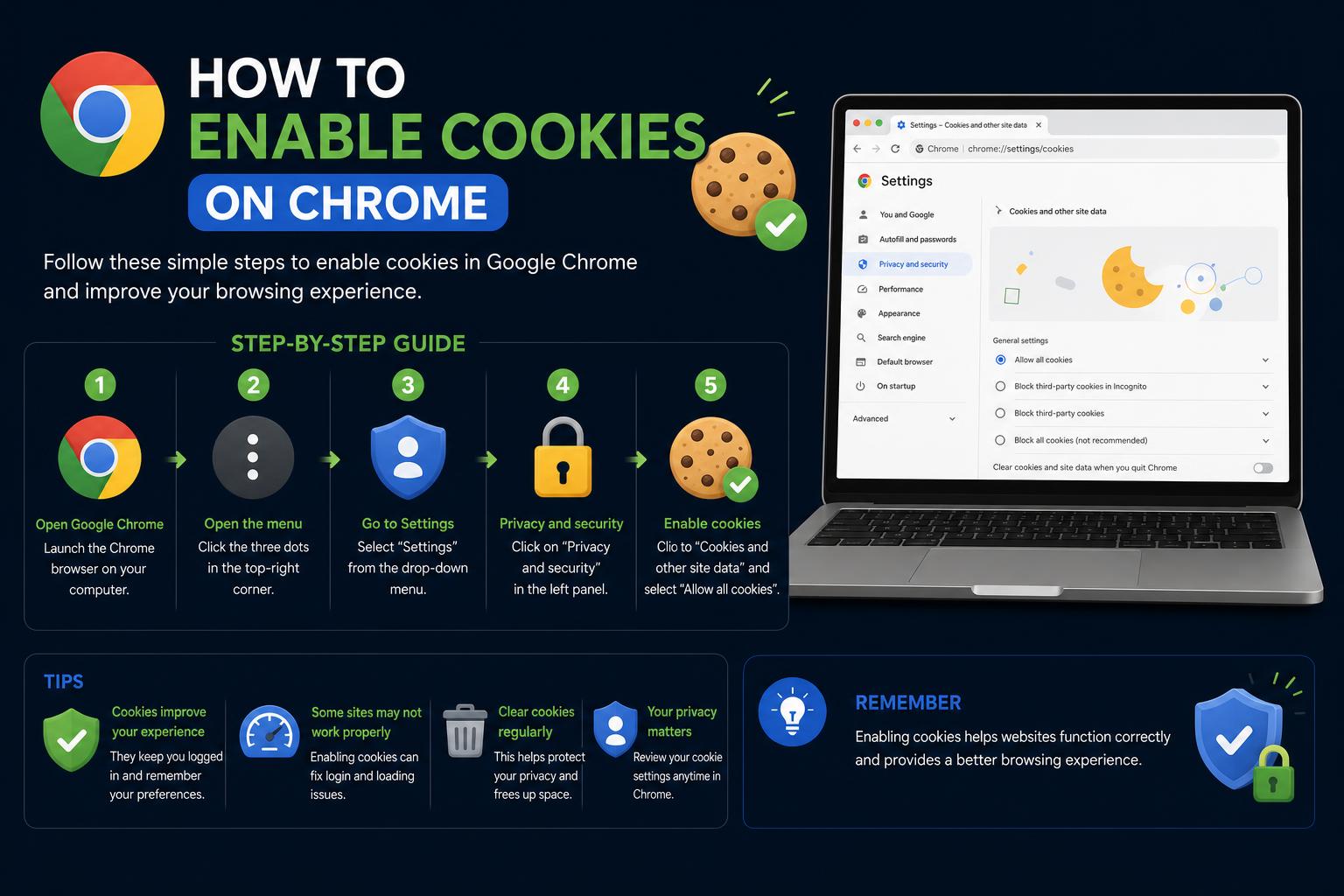
- Cookies enhance site functionality by saving preferences and login info
- Chrome allows detailed control over first- and third-party cookies
- Cookie settings vary across devices but can be tailored for privacy and usability
Many websites rely on small pieces of data called cookies to make your browsing smoother, tailor your experience, and remember important preferences. If cookies are disabled in your Google Chrome browser, you may notice websites not working quite right—maybe you can’t stay logged in, your shopping cart disappears, or you see the same pop-up repeatedly. Understanding how to enable cookies in Chrome across all your devices can make online life much easier.
Dealing with cookies isn’t just for tech experts—it’s something any everyday user may need to do, whether you’re troubleshooting login issues or maximizing privacy and security. We’ll break down what cookies are, why you might want them enabled, and exactly how to turn them on in Google Chrome—whether you use Windows, Mac, Android, or even iOS. With the right cookie settings, your favorite sites will work perfectly, and you’ll be browsing efficiently in no time.
Understanding Cookies: What Are They and Why They Matter?
Cookies are small files that websites save on your computer or mobile device through your browser. Each time you visit a site, it can store or read data in these cookies to give you a customized experience. These files can save your login status, remember your language choices, store your shopping cart contents, and much more.
There are two major types of cookies in the browsing world:
- First-party cookies: These are created by the site you’re directly visiting. They’re often essential for remembering your login info or site preferences.
- Third-party cookies: These come from other sites whose content (like images, ads, or widgets) is embedded on the page you’re viewing. Many advertisers and analytics services use third-party cookies to track activity across multiple sites.
Depending on your needs, you can choose to allow all cookies, just first-party cookies, or block third-party cookies entirely. Some advanced Chrome features, such as ad personalization and remembering sessions across related sites, also use cookies in various ways.
Why Enable Cookies in Chrome?
Turning on cookies is often essential for a smooth, frustration-free browsing experience. Here are a few common reasons you might need to enable them:
- Stay signed in across sessions. If cookies are off, Chrome logs you out each time you close a tab or browser.
- Save preferences on your favorite websites. Sites can remember your theme, font size, language—whatever you set as a preference—only if cookies are enabled.
- Access personalized content. News sites, shopping platforms, and streaming services use cookies to show you relevant stories, deals, or recommendations.
- Fix issues with website features. If a site gives an error about cookies being disabled or certain buttons/features don’t work as expected, enabling cookies often solves the problem.
On the privacy side, Chrome lets you decide how much to restrict cookies or block those from third parties, giving you control over your data while keeping basic functionality intact.
How to Enable Cookies in Google Chrome on Windows
- Launch Google Chrome on your Windows computer.
- At the top right, click the three dots (More) to open the menu, then select Settings.
- Scroll down and find the Privacy and security section.
- Click on Cookies and other site data. This opens up all Chrome’s cookie options.
- Select Allow all cookies to turn cookies on for all websites. You can also choose Block third-party cookies in Incognito if you want more privacy when browsing privately (Incognito mode).
Note: Enabling cookies ensures sites remember you and saves your settings. You can always come back to this section to change or fine-tune your cookie preferences.
Enabling Third-Party Cookies in Chrome (Windows)
Sometimes, certain features or sign-in services depend on third-party cookies. Here’s how to enable them:
- In the same Cookies and other site data menu, select Allow third-party cookies.
This will allow content and functionality from external sites embedded in your current page—helpful for collaborating on work or accessing third-party services directly from other websites.
How to Enable Cookies in Chrome on Mac
- Open Chrome on your Mac computer.
- Click the three dots (More) at the top-right, then choose Settings.
- Scroll down to Privacy and security and select Cookies and other site data.
- Choose Allow all cookies for a full browsing experience, or fine-tune further as needed. If your focus is on allowing all third-party cookies, select the relevant option here.
Remember: The default setting on Chrome for Mac is typically to allow all cookies, but if you’ve adjusted your settings in the past or use strict privacy tools, you may need to double-check.
How to Enable Cookies on Chrome for Android
- Launch the Chrome app on your Android device.
- Tap the three-dot menu in the top-right and select Settings.
- Scroll down and tap Site settings.
- Select Cookies or Third-party cookies depending on your version.
- Tap to choose Allow all cookies, or to allow just third-party cookies if needed for specific sites.
Once enabled, Chrome will remember your choices and preferences across websites.
Can I Enable Cookies in Chrome on iPhone or iPad?
On iOS (iPhones and iPads), Chrome keeps things simple. Cookies are always enabled by default and cannot be turned off. Unlike on desktop and Android, there’s no manual control—Chrome for iOS is designed this way for ease of use and consistent experience. If you experience cookie issues in Chrome on iOS, try updating the app or clearing cached data, but know that cookies are always ‘on’ under the hood.
Advanced Cookie Settings in Chrome
Google Chrome gives you deeper control over how cookies work. For those who want to customize their privacy or troubleshoot specific issues, here are some advanced options:
- Block third-party cookies by default. Go to Privacy and security > Cookies and other site data and select Block third-party cookies. This setting stops external trackers while keeping basic site functionality intact.
- Create cookie exceptions for certain sites. Useful if you want to allow cookies only on trusted domains. In the same section, look for Sites that can always use cookies and add specific sites. For wide exceptions, enter
[*.]domain.comto cover all subdomains. - Allow third-party cookies for a specific session. When a site isn’t working as expected, you can temporarily enable third-party cookies via the address bar (if Chrome prompts you with cookie-related errors).
- Control related site activities. Some companies have multiple websites within related groups. You can allow a group of sites to access shared cookie data to smooth workflow—especially useful across Google apps or enterprise suites.
Tip: In Incognito mode, Chrome blocks third-party cookies by default for privacy, but you can enable them (temporarily) when needed for a particular session.
Troubleshooting Common Cookie Issues in Chrome
If you receive errors like ‘Cookies are disabled,’ or have trouble signing into certain accounts, try these steps:
- Make sure you’ve followed the instructions above to enable cookies in your Chrome browser.
- Refresh or reload the site and attempt to sign in again.
- If the problem persists, consider clearing your cookies and site data (note: this will log you out of most sites and reset preferences). To do this, go to Settings > Privacy and security > Clear browsing data, select Cookies and other site data, and confirm.
- For enterprise or school-managed Chromebooks, note that some cookie settings may be set by your administrator and aren’t changeable.
How to Delete Cookies in Google Chrome
If you want a fresh start or are troubleshooting glitches, deleting cookies is straightforward:
- Open Chrome Settings on your device.
- Go to Privacy and security > Clear browsing data.
- Select Cookies and other site data. Choose whether to delete cookies from the last hour, 24 hours, 7 days, 4 weeks, or All time.
- Click Delete data. This action will sign you out of most sites and reset saved preferences.
If you only want to delete cookies from a specific site, use the Site settings section to search for and remove individual site data.
Cookie Prompts, Embedded Content, and Other Privacy Features
Modern websites may prompt you to accept or reject cookies, especially to comply with privacy regulations. Chrome also includes features like ad topics and site-suggested ads that use cookies in new, privacy-conscious ways. Embedded content (for example, Google Docs inside a school portal site) may request permission to access cookie data to allow seamless integration. You’ll be prompted to Allow or Don’t allow when this occurs. Grant access only on sites you trust.
You can always reconsider permissions in Chrome’s settings, where you’ll also have the option to break connections between related or embedded sites.
Privacy Tips for Chrome Cookie Management
- Use Incognito mode if you want to browse without saving cookies after you close your session. Remember, Incognito blocks third-party cookies by default, but regular cookies may still be stored during your session.
- Customize cookie rules. You can allow all cookies, block all cookies, or fine-tune by allowing only some sites while blocking others. This setup helps you stay logged in on trusted sites while reducing tracking.
- Check Chrome’s privacy controls regularly. As Chrome continues evolving, new privacy features and ways to manage cookies are frequently added. Visit Chrome’s official support page to stay up-to-date.
Managing cookies doesn’t have to be a chore. With the right setup, you’ll enjoy smooth browsing, fewer headaches, and the knowledge that you’re in control of your own data. Enabling cookies in Chrome improves your browsing experience, making it faster and more personalized.