
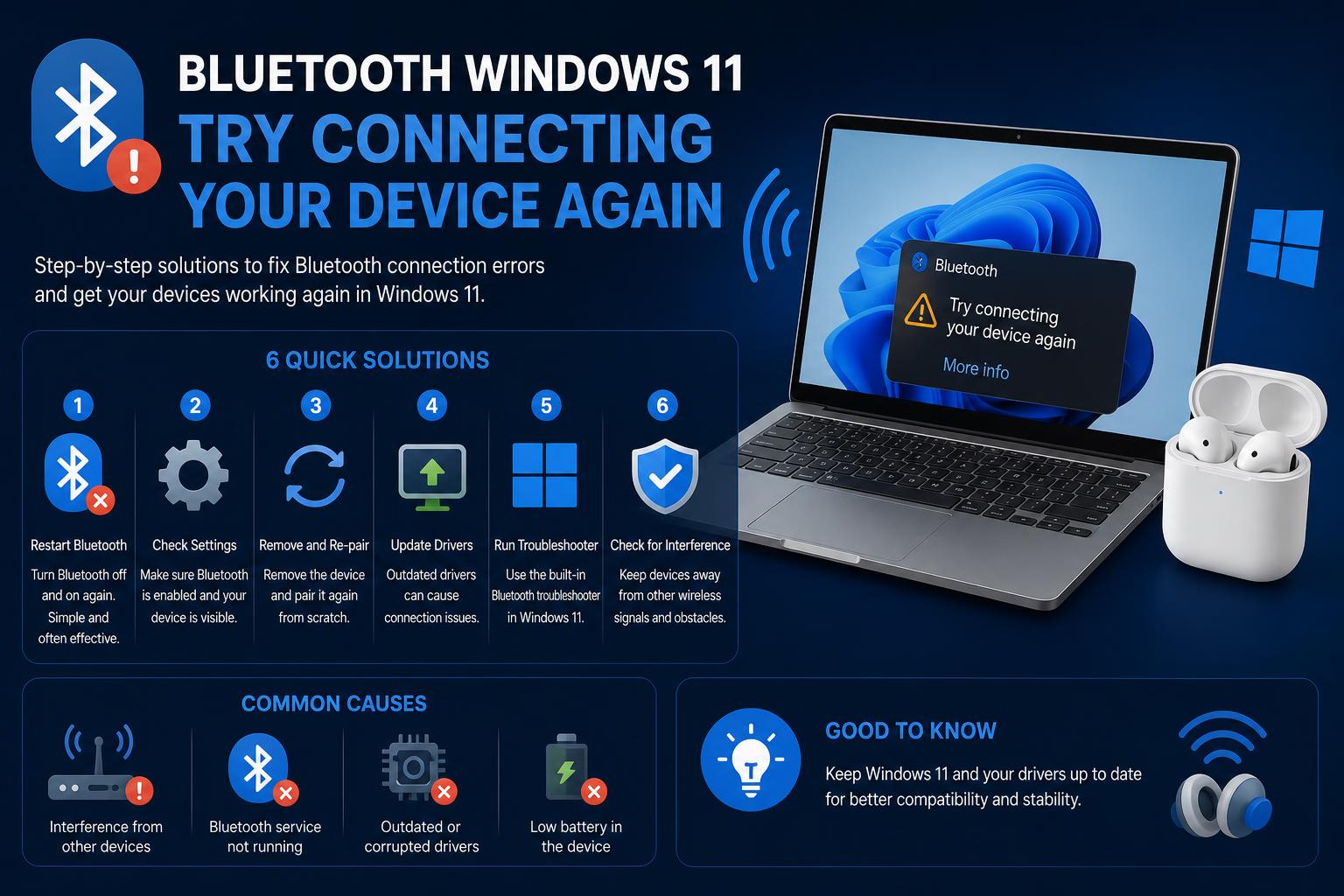
- Bluetooth pairing issues on Windows 11 often stem from outdated drivers, missing hardware components, or device firmware bugs.
- Multiple troubleshooting methods, from running Windows troubleshooters to manual driver updates, can resolve the persistent "Try connecting your device again" error.
- Special considerations, such as updating Xbox controller firmware and attaching required antennas, are frequently overlooked but crucial for success.
Struggling to connect your Bluetooth device on Windows 11 can be extremely frustrating, especially when every attempt ends with the infamous “Try connecting your device again” message. This challenge is particularly common after a fresh Windows installation or system update, and many users end up going down a rabbit hole of incomplete solutions and outdated advice. But don’t worry—if you’ve found yourself stuck, you’re certainly not the only one. There are effective steps and troubleshooting methods you can follow to *finally* get your Bluetooth devices connected and working—and we’ve pulled together every useful detail to guide you through.
Let’s break down the entire process, using real-world experiences and official recommendations, so you get all the facts and all possible fixes. Whether your Bluetooth device fails to pair entirely, shows up but won’t connect, or mysteriously disappears from your list of options, this article covers everything you need. We’ll cover issues with Xbox controllers, mice, headsets and more, and include tips you probably won’t find in most quick-fix guides.
Understanding the Bluetooth Pairing Problem on Windows 11
The most typical complaint from Windows 11 users is seeing their device in the pairing list, but after a short attempt to connect, Windows throws back a message: “Try connecting your device again.” If you try again, you just get the same error—annoying, right? This happens across all sorts of devices, including Xbox controllers, wireless headphones, and mice.
Common symptoms include:
- You see the device in Windows’ Bluetooth settings, but it fails to connect.
- Windows insists on retrying, but the outcome never changes.
- The device works fine via USB but refuses to connect wirelessly.
- Running troubleshooters seems promising but doesn’t get the job done.
- Even replacing or updating your Bluetooth adapter sometimes doesn’t help.
This issue can stem from multiple causes: faulty drivers, missing system updates, interference, improper device setup, firmware mismatches, or even trivial things like missing antennas or batteries. Let’s unravel each of these.
Step-by-Step Troubleshooting Guide
With reports from everyday users and Microsoft’s own official troubleshooting steps as our base, here are the most comprehensive troubleshooting actions you can take. Each step targets a specific area where things commonly go wrong—follow through, and we’ll help you nail down the exact source of trouble.
1. Verify That Your Device Actually Has Bluetooth
Before diving deeper, make sure your PC or laptop really supports Bluetooth. Check the technical specifications from your device’s manufacturer or look for Bluetooth listed in your system settings or Device Manager. It sounds basic, but some desktop computers don’t have Bluetooth built in; they require an external dongle or antenna.
If you’re missing Bluetooth settings, that’s a red flag—confirm hardware support before going any further.
2. Confirm That Bluetooth Is Enabled
Sometimes, Bluetooth can be turned off in settings or switched off with a physical toggle on your device. In laptops, check around the body for a specific Bluetooth button or slider and switch it on. To confirm in Windows 11:
- Open the Settings app (Windows key + I).
- Select Bluetooth & devices.
- Make sure Bluetooth is toggled to “On.”
Even if you see Bluetooth settings, the device itself can be disabled—so physically check your hardware for a switch, especially on older models or business laptops.
3. Assess Your Bluetooth Device’s Status
Your device (mouse, controller, headset, etc.) should be on, fully charged, and within a reasonable connection range. Here’s a checklist:
- Turn off the device fully, then turn it back on after a few seconds.
- Check the battery level and replace or recharge if necessary.
- Keep the device within a couple of meters of your Windows computer.
- Ensure your device is actually in pairing mode (many devices require holding a specific button to become discoverable).
Pro tip: If your device operates close to USB 3.0 ports, temporarily move it farther away from high-speed USB peripherals or unplug other connected USB gadgets. Unshielded USB connections can cause unexpected Bluetooth interference, making connections unreliable or sluggish.
4. Set Device Discovery to Advanced Mode
By default, Windows 11 sometimes hides less common Bluetooth device types from its pairing lists. If your device isn’t appearing, try altering the device discovery mode to display all available devices:
- Open Settings > Bluetooth & devices > Devices.
- Look for Bluetooth devices discovery under Device settings. Choose “Advanced” in the dropdown menu.
This action tells Windows to be less picky and list all available Bluetooth devices nearby.
5. Run the Bluetooth Troubleshooter—But Don’t Rely Exclusively On It
Windows 11 offers a built-in troubleshooter that runs diagnostics and tries to fix the most common Bluetooth hiccups. While sometimes it can fix small issues, real-world reports show it may declare issues “fixed” without actually resolving anything. Here’s how to give it a try:
- Go to Settings > System > Troubleshoot > Other troubleshooters.
- Find Bluetooth on the list, click Run, and follow the on-screen guidance.
If the troubleshooter proclaims success yet your device still refuses to connect, don’t be discouraged—it’s pretty common. Move on to additional steps below.
6. Update All Bluetooth Drivers
This is where many users hit an unexpected wall. Outdated, incorrect, or incompatible Bluetooth drivers are one of the biggest culprits behind persistent pairing issues in Windows 11. New Windows versions may install generic drivers that don’t mesh well with your hardware or miss critical updates post-installation.
To update drivers automatically:
- Right-click the Start menu and select Device Manager.
- Expand the Bluetooth category, then right-click on your Bluetooth adapter and select Update driver.
- Choose Search automatically for drivers and follow any prompts.
If Windows tells you you’re up to date but your issue persists, go to your PC manufacturer’s official website and download the latest Bluetooth driver package manually. For non-branded adapters, check the chip manufacturer’s site for dedicated drivers.
If you received a .exe driver file, simply double-click and follow the installer. For manual file installations:
- Open Device Manager.
- Find your Bluetooth device, right-click, and select Update driver.
- Select Browse my computer for drivers and point to the extracted driver folder.
- Click through to finish installation, then reboot your computer to apply changes.
Note: It’s especially important to install drivers compatible with Windows 11 rather than versions intended for Windows 10 or older Windows releases.
7. Uninstall and Reinstall the Bluetooth Adapter
Sometimes a stubborn Bluetooth adapter needs a fresh start. Uninstalling forces Windows to reinstall and reinitialize the adapter, reloading its drivers cleanly:
- Open Device Manager.
- Expand Bluetooth and right-click the adapter (which could include words like “radio”).
- Click Uninstall device and confirm.
- After the uninstall, restart your computer.
- On boot, Windows should automatically detect and reinstall the Bluetooth hardware. Check if the icon and functions return to normal.
- If reinstall does not happen automatically, in Device Manager, click the Action menu > Scan for hardware changes.
8. Address Hidden Hardware Problems—Don’t Skip the Antenna!
This one’s easy to overlook. Some desktop and even some high-end laptop motherboards require you to physically connect an external antenna for proper Bluetooth (and WiFi) signal. Without it, you may still see the device and drivers present, but experience constant connection failures.
If your motherboard or PC came with an external antenna, attach it to the back panel. Several users found that simply doing this resolved chronic pairing failures with no other steps needed.
9. Special Case: Fixing Xbox One Controller Pairing on Windows 11
Xbox controllers tend to present a unique version of this problem. Even though Windows 11 detects them, attempts to pair consistently prompt the error message. Here’s a user-driven fix that has proven effective:
- Download the Xbox Accessories app from the Microsoft Store and install it.
- Connect your controller to your PC with a USB cable.
- If an “Update Required” button appears for your controller in the app, click it and let the firmware update run to completion. Don’t unplug or jostle the controller during this step.
- Once the update finishes, unplug the controller and try pairing via Bluetooth again. Many users report immediate success after updating their controller’s firmware this way.
Important: Failing to update the controller firmware can leave you stuck in the “try again” loop indefinitely, so always make sure your gamepad is up to date before blaming your PC.
10. Use the Right Pairing Mode and Reset Procedures for Your Device
Each device brand has its quirks—some need a specific button combination to become discoverable, others require a full reset before pairing. If nothing else works, try the following for your specific device:
- Consult the manufacturer’s website or manual for instructions on entering pairing mode.
- On headsets or controllers, perform a factory reset before attempting to pair to a new computer.
- Fully remove the device from Bluetooth & devices in Windows, restart your PC, then attempt to pair again.
Double-check: sometimes devices remember previous pairings and refuse to add new ones until reset.
Common Bluetooth Issues Specific to Windows 11
Users report several specific complications unique to Windows 11:
- Devices that worked flawlessly on Windows 10 stop pairing after an upgrade.
- Bluetooth component shows a yellow exclamation point or “Code 31” error in Device Manager.
- The Bluetooth troubleshooter claims to fix things but results don’t change.
- Some devices only work via USB and not wirelessly, despite functional drivers.
Most common root causes identified include:
- Improper driver migration from Windows 10 to Windows 11.
- Missing or incomplete Bluetooth stack installation post-update.
- Firmware bugs in peripherals, especially game controllers, requiring manual device updates (not just software).
- Hardware missing physical antennas or required connectivity parts.
If you encounter a Code 31 error (“This device is not working properly because Windows cannot load the drivers required for this device”), it typically signals a major driver conflict or missing chipset support. Resolve it by manually reinstalling the correct drivers from your hardware manufacturer.
What If Your Bluetooth Device Still Won’t Connect?
If you’ve tried all the above and still can’t connect your device, here are a few last-resort steps before assuming permanent hardware failure:
- Try the device with another Windows 11 PC (or even a Windows 10 machine) to isolate whether it’s a hardware or software issue. Learn how to connect your printer wirelessly in a stable setup.
- Use your device via USB if possible for now and contact the manufacturer’s support for firmware or compatibility updates.
- Consider trying a different Bluetooth dongle or add-on adapter to rule out faulty built-in chips.
If you’re feeling at the end of your rope, remember that Bluetooth troubles can sometimes be triggered by the smallest details—persist, try combinations of the above steps, and success is usually just around the corner.
[relacionado url=”https://www.ikkaro.net/how-to-fix-bluetooth-not-working-in-windows-11/”]
Key Tips to Remember
- Double-check hardware involvement: External antennas and the right pairing buttons make more difference than you’d expect.
- Keep all firmware up to date: This includes both your PC’s Bluetooth drivers and device firmware, especially for controllers.
- Don’t be afraid to uninstall and reinstall drivers—sometimes a clean slate is the only way to fix weird issues.
- Try discovery mode settings and overcome Bluetooth interference by distancing other USB 3.0 devices.
Connecting Bluetooth devices on Windows 11 can require some troubleshooting, but with these steps, you’ll have addressed most common issues, from official Microsoft fixes to practical community solutions. Through persistence and careful checks—like firmware updates or ensuring proper antenna connections—you’ll greatly increase your chances of establishing a reliable wireless connection. If all else fails after this thorough process, contacting the device manufacturer or trying a different Bluetooth adapter often provides the final resolution to enjoy a seamless wireless experience.
The ultimate guide to fixing the Mobile Network Not Available Error