
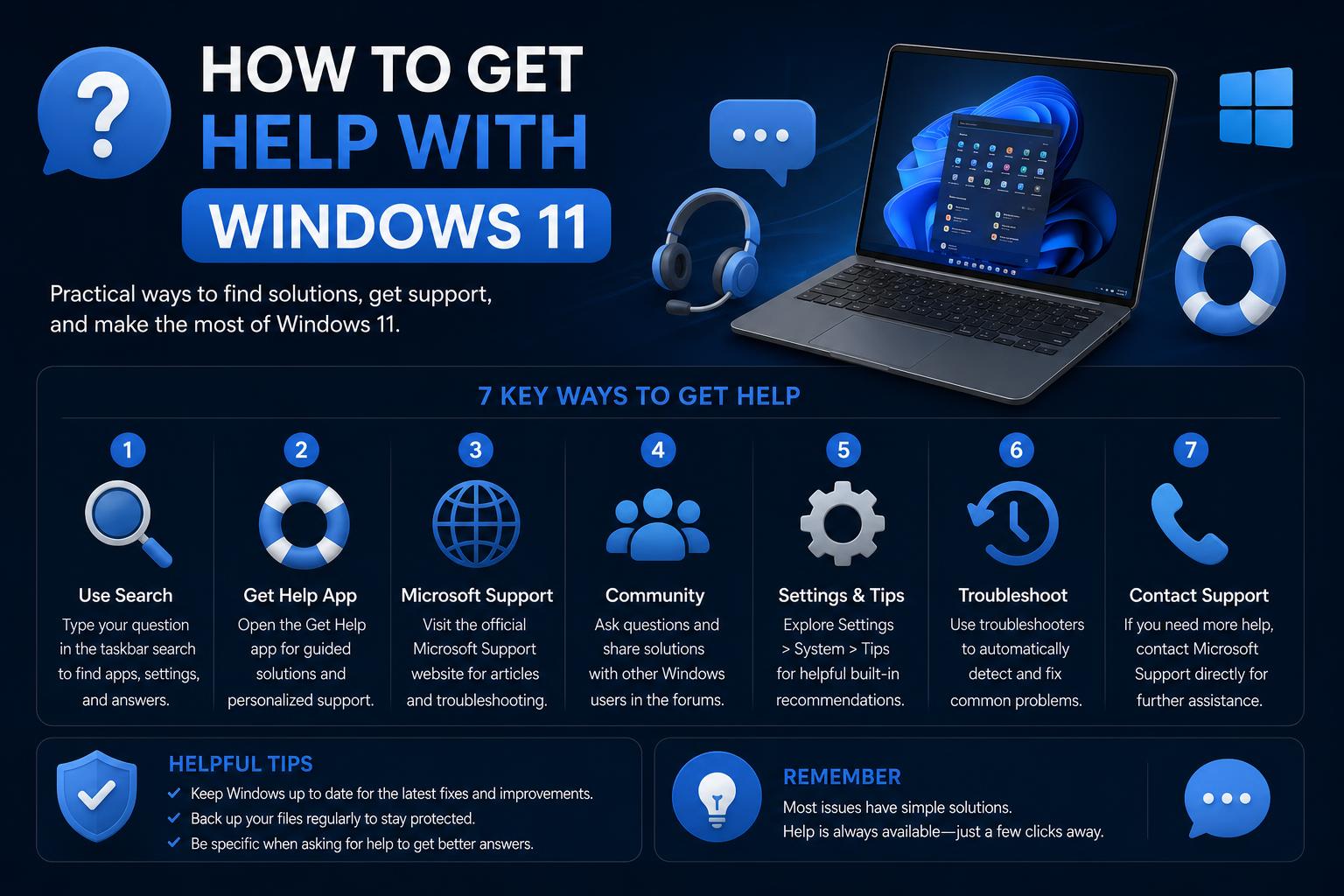
- Understand all official Windows 11 help resources and when to use each one
- Discover how to effectively use the Get Help app, troubleshooters, and online support
- Find out the quickest solutions for common Windows 11 problems and where to get direct support
Struggling with glitches, setup challenges, or just curious about getting the most from Windows 11? You’re definitely not alone. Microsoft’s latest operating system arrives packed with new features and settings, but knowing where to turn for help isn’t always clear—especially when something doesn’t work as expected. That’s where knowing the array of built-in support options, online resources, and troubleshooting tools pays off.
This article is your one-stop shop for discovering the very best methods to get help with Windows 11—whether you’re dealing with technical issues, looking for feature explanations, or searching for expert guidance. We’ll guide you through official Microsoft tools, handy community resources, and practical step-by-step advice, so you’re equipped to troubleshoot, learn, and stay productive.
Official Windows 11 Help Resources and Where to Start
Microsoft has developed a set of official tools, apps, and resources aimed at supporting every Windows 11 user, regardless of experience level. Whether you’re a total newcomer or an experienced user, knowing how to leverage these resources can help you overcome nearly any problem. Here’s a comprehensive look at the best places to start:
The Get Help App: Your Support Hub
The Get Help app is one of the most significant advancements in recent Windows releases, designed to centralize support and troubleshooting. This app acts as your gateway to tutorials, FAQs, community forums, and direct contact with Microsoft support. It’s highly accessible—whether you’ve got a personal, work, or school Microsoft account, you’re just steps away from reliable assistance.
- To launch the Get Help app, press the Windows key, type “get help” in the search box, and select it from the results. Alternatively, it’s accessible via Settings > System > Troubleshoot > Other troubleshooters.
- Personal account users can request support directly, while those with work or school accounts access tailored assistance for their organization’s tools.
- This tool is ideal for resolving both general and specific issues, including technical glitches, feature clarifications, and step-by-step troubleshooting. If you’re stuck, this should often be your first stop.
Using Windows Search for Instant Answers
Often, the quickest help comes directly from your desktop. The search box on the Windows 11 taskbar is more powerful than it appears. Entering questions, error messages, or keywords helps you find relevant settings, files, and apps quickly. Windows Search also surfaces web results and support articles, often directing you to content from support.microsoft.com.
- Type queries like “fix Bluetooth in Windows 11” or “update drivers” to access guidance or troubleshooting steps.
- If you need to find a setting or app on your PC, the search covers installed apps and files, saving you time and frustration.
Exploring
The official support portal is one of the most detailed and authoritative sources of help. It’s organized into categories for common issues, guides, and features, so you can browse or search for your specific problem. Here, you’ll find:
- Guides on troubleshooting sound, WiFi, apps, and system errors
- Articles on backup, settings, and account management
- Links to official downloads, reinstallation instructions, and compatibility checks
- Options to contact Microsoft Support for advanced assistance or provide feedback
Windows 11 facilitates easy access to targeted help directly within the Settings app. When adjusting settings or features, look for prominent “Get help” links or buttons. These direct you to support articles or offer troubleshooting tips tailored to the specific option you’re viewing, speeding up your fix without leaving the interface.
Specialized Troubleshooting Tools and Windows Backup
When encountering more complex problems, Windows 11 provides built-in troubleshooting and backup features that can help identify and fix deeper issues.
Troubleshooters: Automated Problem Solvers
Within Settings under System > Troubleshoot > Other troubleshooters, you’ll find automated tools designed to fix common problems like internet issues, audio malfunctions, and hardware faults. These troubleshooters scan your system for typical errors and guide you through fixes—or apply them automatically when possible. They’re a valuable first step for stubborn problems with no clear cause.
- Click “Run” next to the relevant troubleshooter (e.g., Network Adapter, Audio, Windows Update).
- Follow the guided instructions and review any recommendations or changes implemented by the tool.
Backing Up Your Windows 11 System
Implementing a robust backup plan is crucial to prevent data loss and simplify system recovery. Windows 11 offers options to back up files, settings, and applications—especially useful when upgrading from Windows 10, setting up a new device, or preparing for major updates. Consider the following:
- Backing up requires a Microsoft account. For data over 5 GB, an active Microsoft subscription or trial is needed.
- Certain apps may require manual reinstallation, particularly those from outside the Microsoft Store. Check compatibility for ARM devices if applicable (WOA for Arm-compatible apps).
- Find detailed instructions on backup and restoration on the Windows Backup page.
How to Repair Windows 11 Using Command Prompt: Advanced Techniques & Best Practices
Other Ways to Get Support: Community, Video, and Manufacturer Help
If official support options don’t fully resolve your issues, community forums and other resources are valuable alternatives.
Microsoft Community Forums
Shared user experiences can be incredibly insightful. The Microsoft Answers and Tech Community forums allow you to search for solutions or post questions, gaining feedback from Microsoft staff, MVPs, and helpful community members. You might also find scripts, templates, or fixes shared by users that could work for your situation.
Instructional Videos and Social Media Guides
Platforms like YouTube and Facebook feature video tutorials on fixing specific Windows 11 issues—such as audio problems, WiFi connectivity, or application errors. For instance, the Crazy Tech Tricks Facebook video demonstrates troubleshooting steps using built-in support tools. These visual guides are especially helpful for beginners preferring to see solutions in action.
Reddit and User-Driven Forums
Reddit’s r/WindowsHelp and similar communities can provide quick advice from other users, but keep in mind they are unofficial channels. While you might discover workarounds or solutions for odd bugs, these aren’t always reliable or safe—use caution and prioritize official recommendations.
Manufacturer Support: HP, Dell, Lenovo, and More
If your device is from a major brand like HP, Dell, or Lenovo, your manufacturer likely offers specialized support for Windows 11, including drivers, compatibility info, and troubleshooting guides. For example, the HP Windows Support Center provides resources on testing with Windows updates and downloading official drivers.
Common Problems and Fast Solutions in Windows 11
Here are some of the most common issues faced by Windows 11 users, along with quick ways to troubleshoot using the support resources discussed above.
Fixing Sound and Audio Issues
If your device produces no sound or audio behaves abnormally, start with the built-in troubleshooter. Navigate to Settings > System > Troubleshoot > Other troubleshooters and run the “Playing Audio” tool. It will attempt to detect and resolve configuration errors or driver problems.
Restoring Lost WiFi and Network Connectivity
A disrupted WiFi connection can be disruptive to your workflow. Use the “Network Adapter” troubleshooter within the same settings section. If needed, utilize Windows Search for related queries or access the Get Help app for further guidance and official support links.
Dealing with Problems Installing or Running Apps
App installation failures or malfunctions are common frustrations. Check for updates via Microsoft Store first. If issues remain, search for your app on your PC or use the Get Help app to connect to support. Remember that some applications might require manual reinstallation, especially those from outside the Store, and verify compatibility on the .
What to Do When Settings or Keys Malfunction
Keyboard shortcut problems or key malfunctions can be caused by software conflicts or accessibility settings. Restart your device first. If issues persist, update your system, review accessibility options, or check for third-party utility interference. Searching community posts can also reveal emergent bugs and fixes, often involving system tweaks or registry edits—always follow official guidance.
Support During Upgrades, Installations, or Migrations
Planning to upgrade or migrate to Windows 11? Use the official Get Windows 11 support center for comprehensive guidance. These resources help you assess compatibility, transfer data and settings, and verify licensing to ensure a smooth upgrade process.
The Ultimate Guide: Taking Screenshots on Microsoft Surface Devices